Minecraft in VR is a magical experience that feels like you’re stepping inside your world. The sheer scale of your surroundings hits harder, sound cues suddenly do a lot of the heavy lifting, and controls can change drastically.
That is why your mod choices matter more in a headset. The right setup makes VR feel smooth and natural instead of fiddly and menu-heavy.
This list begins with Vivecraft since it provides the actual support for VR (via SteamLink, so it works with any headset that SteamLink supports). Next we start stacking on upgrades, beginning with more immersive interfaces and diving deeper into better spatial audio, massive view distances, and some popular mods that make VR gameplay just better overall. Let’s get started!
1. Vivecraft
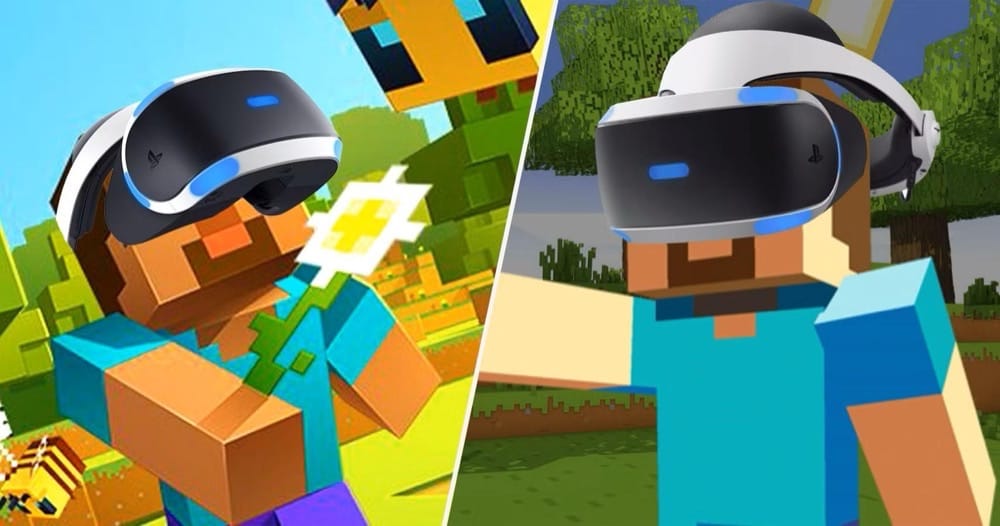
Vivecraft transforms Minecraft into a full VR experience for room-scale play or seated setups. You can tune it to whatever feels comfortable using your headset – from teleporting to changing room scale, height, linking your IRL jumps with in-game jumps, and so much more.
This mod is the one you install first, since everything else in this VR mod list serves to build on top of it. Just keep an open mind since not all mods may be fully compatible with ViveCraft, although it does aim to provide a seamless VR experience, including with mods like Sodium.
2. ImmersiveMC
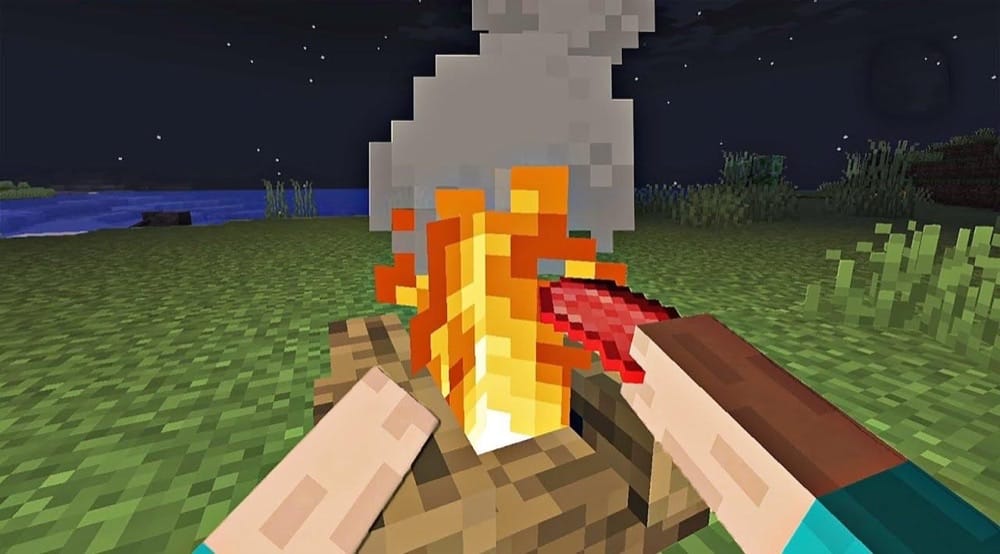
ImmersiveMC makes Minecraft more immersive by minimizing how often you have to deal with in-game GUIs. It lets you use things like crafting tables, furnaces, and brewing stands without opening the usual screens. Opening chests is done by moving your hands to the chest's lid and lifting it up, with similar systems being in place for barrels and other containers as well.
In VR, it is designed to push Vivecraft further with lots of VR-focused features so that interactions feel more natural.
3. Create
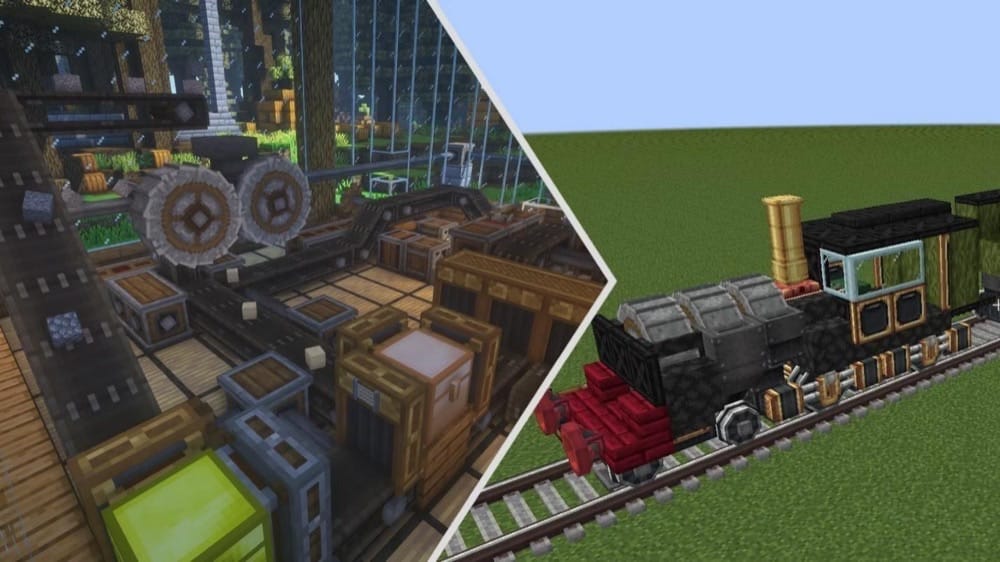
Create adds blocks and tools for building, decoration, and aesthetic automation, and it is built around physical contraptions instead of living inside a bunch of menus. In VR, it's way more satisfying to build things and admire your hard work because you can stand right next to (or on top of) your machines and see everything move and connect at real scale – just be careful if you tend to experience motion sickness!
For recipes, JEI is heavily recommended (which works well in VR, although "punch typing" takes some getting used to), since the vanilla recipe book is not as extensive. Note that some machine configurations and interactions in Create may not be possible from a room scale/stand up VR perspective due to how the hover menus work and some interactions requiring a scroll wheel, so you may be somewhat limited when designing larger contraptions entirely in VR.
4. Sound Physics Remastered
5. AmbientSounds 6
6. Iron’s Spells ‘n Spellbooks

Iron’s Spells ‘n Spellbooks brings classic RPG spellcasting to Minecraft with dangerous wizards, dungeons, structures to raid, and a big spell collection to build around. It also adds spellcasting bosses, wizard armor sets, and upgrade systems for weapons and armor.
In VR, the flashy spell effects and focus on timing are a most welcome sight after hours of just non-stop sword-swinging action.
7. Presence Footsteps
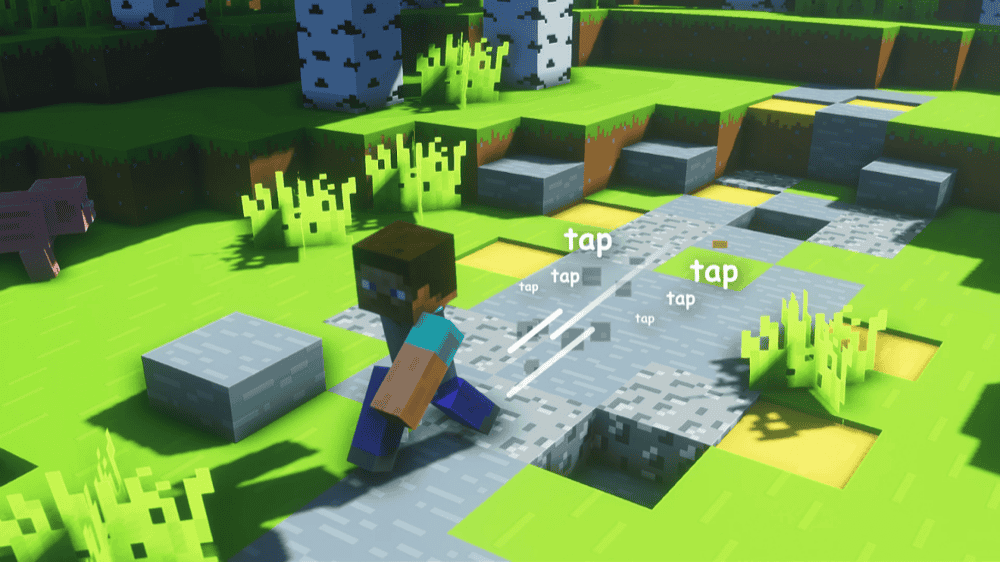
Presence Footsteps improves in-game footstep audio so walking across different blocks sounds more detailed and distinct. For instance, the mod accounts for both player feet when making footstep sounds. In VR, that extra surface feedback makes movement feel more grounded, especially while exploring caves, builds, and busy areas where sound cues matter a lot.
Note: walking around your room (rather than using the controllers to move) may not always properly trigger the sounds due to how ViveCraft handles movement.
8. Distant Horizons
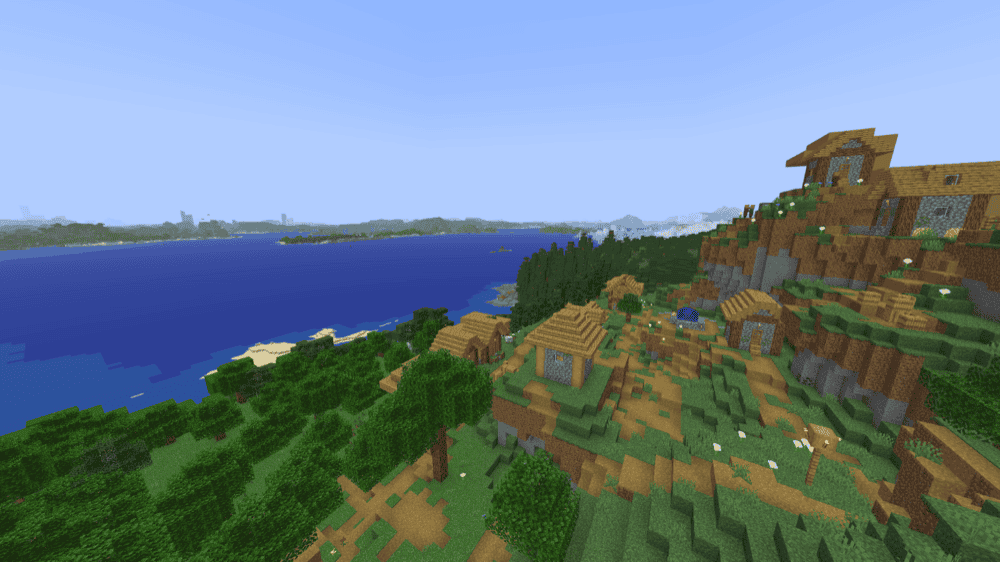
Distant Horizons adds simplified terrain past Minecraft's default view distance, so you can push much longer draw distances (up to hundreds of chunks) without the performance hit you would normally take by merely cranking vanilla Minecraft's render distance.
In VR, the mod makes big landscapes feel even more expansive and builds like lookout towers finally get the view they deserve. It especially helps if you are using an elytra in VR, as you can see exactly where you are going rather than simply flying through a blank void.
9. Physics Mod
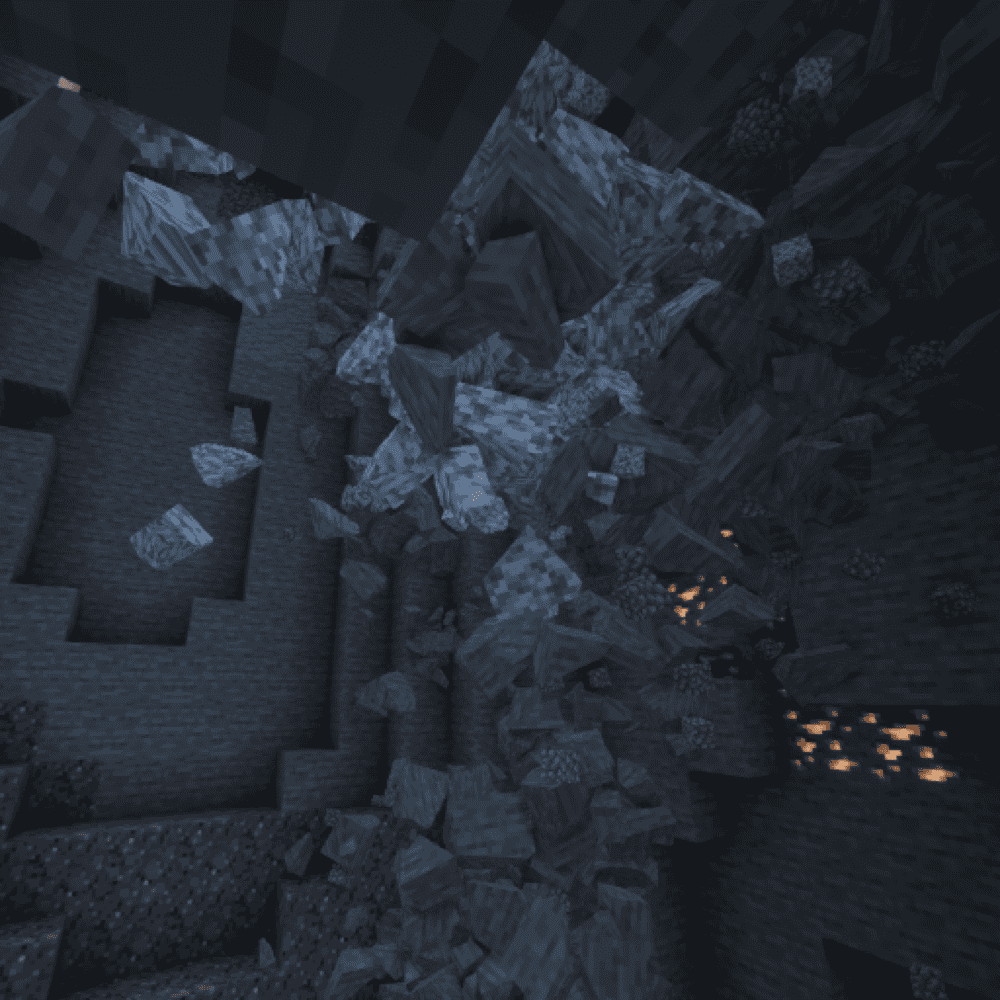
This mod adds physics to mobs and blocks, including ragdolls and block fractures, plus extras like item physics and customizable gravity. In VR, it can make combat and destruction feel way more intense because everything reacts more dynamically around you.
Some features can be heavy on performance, so it is worth testing it early in your VR setup and dialing settings back if you find that your framerate drops often.
How to Install Mods
How to Install with the CurseForge App
- Open CurseForge → Minecraft and create a profile with the mod loader and version you need (Fabric, Quilt, NeoForge, or Forge).
- In the profile screen, click "Add More Content" (or open the three dots menu next to "Play" and choose "Add More Content").
- Click on "Add More Content" from the available options.
- Search for the mod you need and click "Install".
- Play from the CurseForge app.
How to Install Mods Manually
- Install a mod loader that matches your Minecraft version (Fabric, Quilt, NeoForge, or Forge).
- Run the installer to add a new profile in the Minecraft Launcher.
- Download the mod’s .jar file from its project page. Make sure both the Minecraft version and loader version match.
- Drop the .jar into the mods folder inside your ".minecraft" directory (create the folder if it doesn’t exist).
- Launch Minecraft using the new loader profile.
Note: Make sure to check if the mod has been recognized by the game. On the title screen, click “Mods”. If the mod lists any required dependencies (like Fabric API), install those too. Please also note that if using Fabric, the "Mods" button will only appear if the "Mod Menu" mod is installed.
Common mods folder locations:
- Windows: %AppData%\.minecraft\mods
- macOS: ~/Library/Application Support/minecraft/mods
- Linux: /home/<your-username>/.minecraft/mods
Common Issues and Quick Fixes
Version, loader, and missing dependencies
If the game crashes on launch, check that every mod matches your exact Minecraft version, and that dependencies listed on mod pages are installed.
Issues with the Create mod
If recipes feel impossible to figure out, you may need to install JEI as unfortunately the vanilla recipe book will not guide you through everything. Some menus (such as the hover menus on blocks like tunnels) may not work very well with VR controllers.
If Create blocks appear fuzzy or only appear in one eye, you may need to also make some changes to Flywheel’s backend (the library used by Create to render everything). While you can enable the most compatible mode that uses vanilla’s rendering system with the "/flywheel backend off" console command, this could negatively impact performance when a lot of Create blocks are stacked in one place.
VR and multiplayer
If your friends cannot see your VR hands, then they need Vivecraft as well and so does the server. Alternatively, the Vivecraft Spigot Extension for Spigot or Paper servers also works.
- Vivecraft
Vivecraft has VR disabled by default. You can enable it from the main menu with the "VR: Off" button. For this to work, you need to make sure that SteamVR is already running and connected, as well as avoid launching any other programs within SteamVR.
- ImmersiveMC
If you are on a multiplayer server, ImmersiveMC must be installed on both the server and the client for it to work properly.
Audio, visuals, and performance
For Physics Mod, you may want to lower the mod’s settings if you notice a performance drop after installing it as it can be demanding, especially with heavier physics features enabled. You can find the setting within the "Options" menu accessible via the escape screen. Just beware that the configuration screen can be a bit nauseating in VR due to how the screen animations work.