Sometimes you don’t want a whole new tech tree or a 200-page quest book. You just want Minecraft to feel smoother, clearer tooltips, smarter inventories and better visuals.
These 15 mods rank among the most popular Utility & Quality of Life projects on CurseForge, and they’re all about cleaning up your UI, smoothing out rough edges, and making everyday survival feel a lot less grindy.
1. Mouse Tweaks
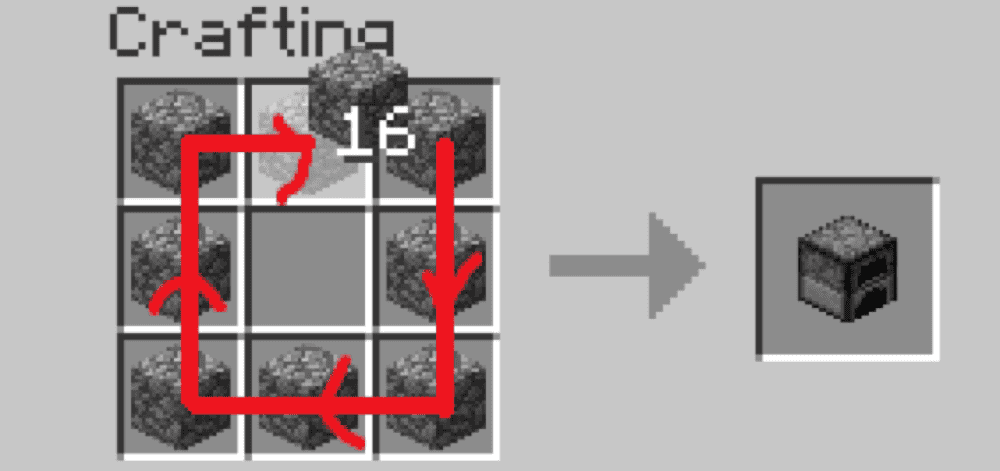
This mod improves inventory management by expanding what your mouse buttons can do. It replaces the standard right-click drag behavior, adds new left-click dragging actions, and lets you move items quickly using the scroll wheel, all without changing how inventories look. The result is faster crafting, cleaner inventory sorting, and less repetitive clicking. Mouse Tweaks is purely client-side, works across most container-based GUIs, and can be fine-tuned through a configuration file, or in-game through the Mod Menu if you want more control over how each tweak behaves.
2. Enchantment Descriptions
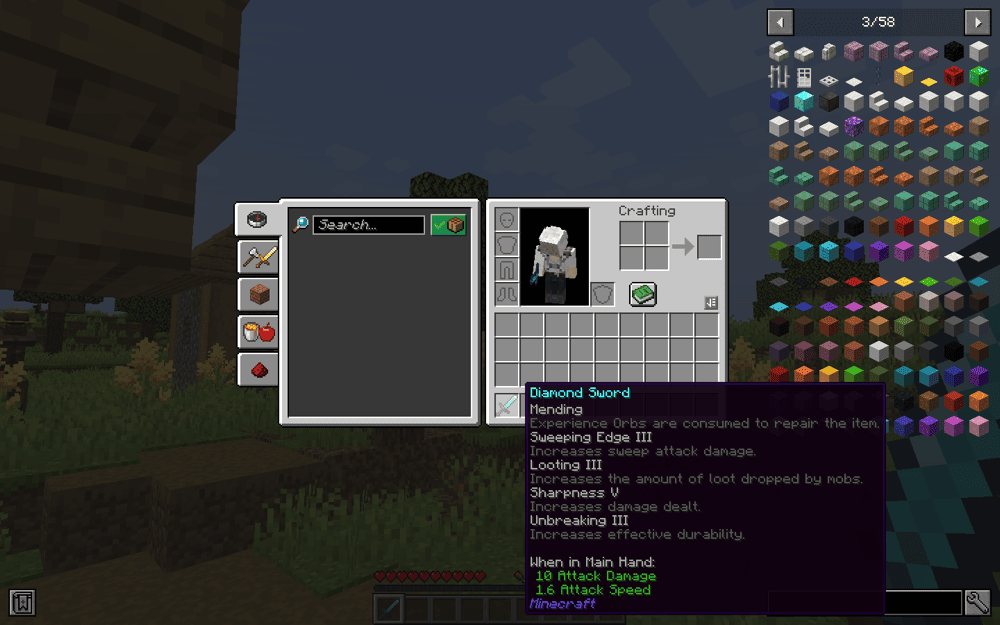
This mod adds plain-language descriptions to enchantment tooltips, covering all vanilla and almost every mod that adds enchantments so you don't have to guess what anything does. It supports over 15 languages and all major mod loaders, making it an easy drop-in for almost any pack. Descriptions and behavior are configurable, so you can tweak or add your own lines without touching code.
3. Jade
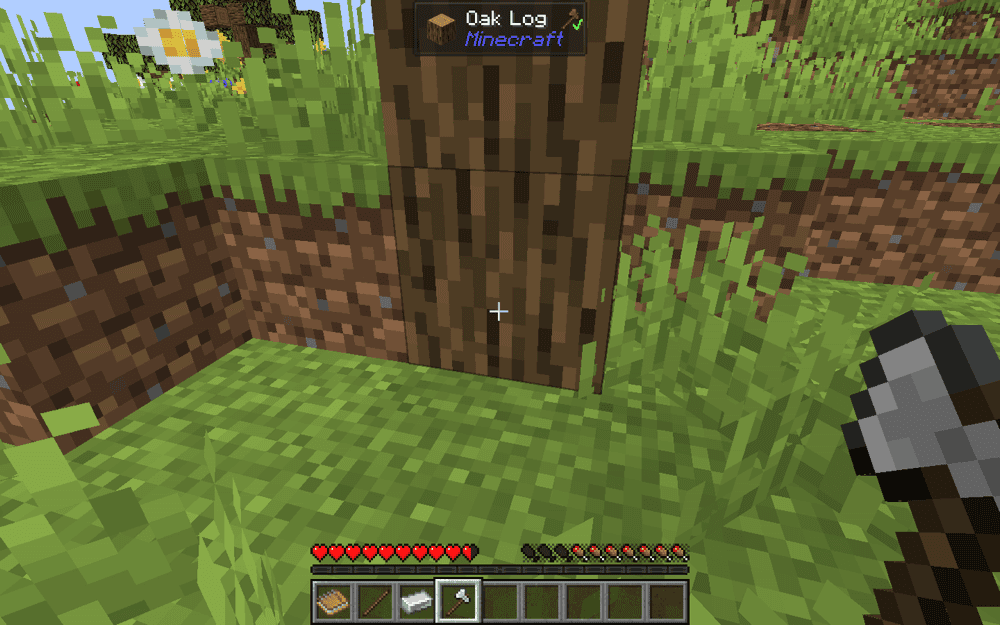
Jade is a modern "what am I looking at?" information HUD, showing block, entity, and storage details right on your screen instead of making you open menus. It can run as a client-only mod, but features like inventory contents, brewing fuel, and bees-in-hives work best when the server has it installed too. With a redesigned API, plenty of vanilla add-ons, and a full config menu (toggled with numpad hotkeys by default), it's a modern port of the classic WAILA/HWYLA-style overlay, keeping the same look and behavior while supporting newer Minecraft versions.
4. AttributeFix
This mod raises Minecraft's built-in limits on attributes like max health, movement speed, armor, and attack damage, so high-level gear and modded stats can scale properly. It doesn't change any mob or player stats by itself or rebalance combat – it only removes the arbitrary ceilings from the attribute system. Other mods, datapacks, or commands still handle what your attributes are; AttributeFix just makes sure the game can actually use those higher values.
5. [ETF] Entity Texture Features
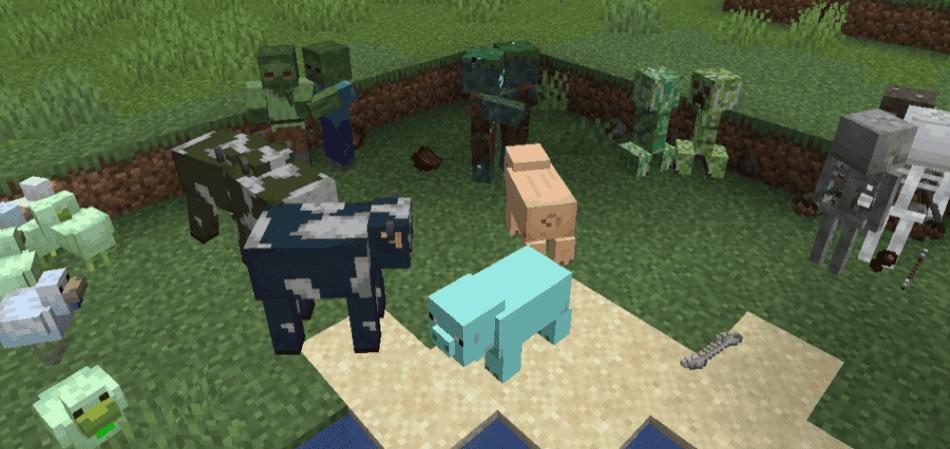
This mod brings OptiFine-style mob and player skin upgrades to modern loaders. It lets resource packs add random and custom mob textures, emissive (glowing) textures, and simple blinking animations, plus extras for player skins using the familiar OptiFine format. It is compatible with popular visual stacks like Sodium, Iris, and Entity Model Features, and it works with most modded mobs that use vanilla-style rendering. Settings live in an in-game config screen or a single JSON file, so you can quickly tune how flashy or subtle your mobs and skins should look.
6. No Chat Reports
This mod removes chat message signatures so, on compatible servers, messages can't be cleanly linked to your account and Mojang's chat reporting no longer functions as normal. You can run it on the client, the server, or both, with configs to control how strict it is, making it a go-to option for communities that prefer their own moderation setup.
7. [EMF] Entity Model Features
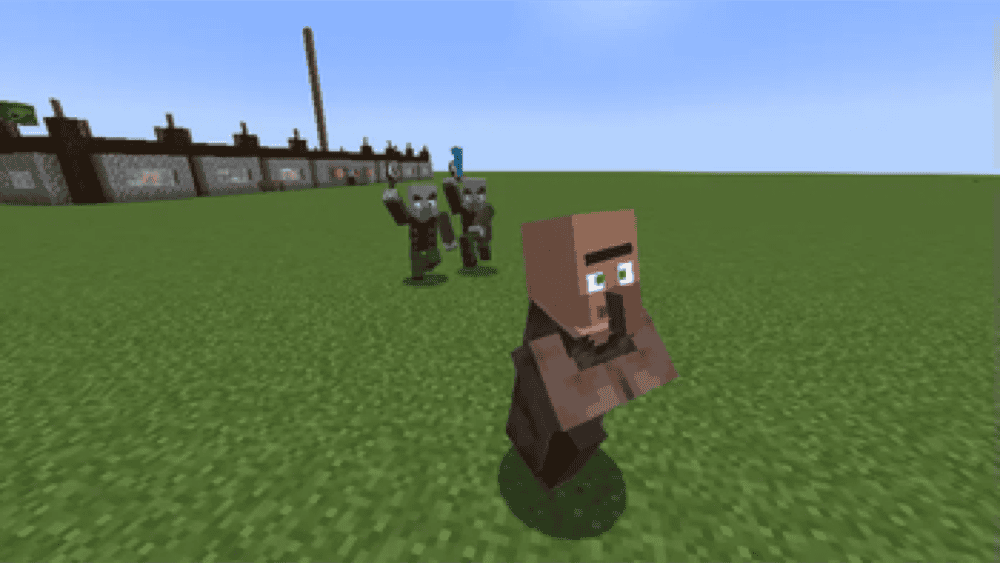
Entity Model Features adds support for OptiFine-style Custom Entity Models (CEM) on modern loaders, so CEM resource packs work alongside alternatives like Sodium, Continuity, and ETF instead of OptiFine itself. It uses ETF for things like random models and config screens, and is not compatible with OptiFine or older CEM mods. If you want fully custom mob and player models with the current performance stack, EMF is the mod that makes those model packs come alive.
8. Tips
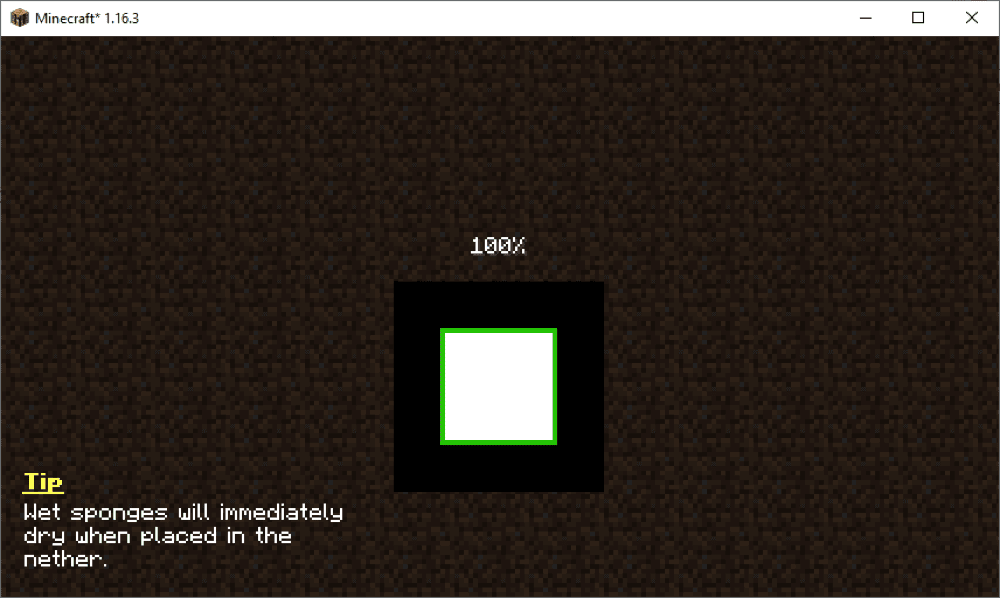
Tips adds a small tip box to various loading and pause screens, cycling helpful messages every few seconds while the game is busy. The tip list is fully customizable, so modpacks, other mods, and even resource packs can inject their own hints and guides for players.
9. Alternate Current

This mod replaces vanilla redstone dust with a more efficient, non-locational implementation. It recalculates power for the entire network first and then updates dust only once, which cuts redundant block and shape updates and makes large circuits far less laggy. As a side effect, redstone behaves in a clearer, more intuitive order instead of depending on weird chunk positions. It's a drop-in replacement that keeps close to vanilla behavior, so technical builds feel the same to use, just smoother and more reliable.
10. Euphoria Patches

Euphoria Patches is an add-on for Complementary Shaders that unlocks extra, handcrafted visual options and a deeper settings menu. All features are off by default, so you can selectively toggle things like enhanced lighting tweaks and effect variations through its own presets and "Popular Settings" tab.
11. Paintings ++

This mod lets you add and pick from huge custom painting sets using a dedicated selection GUI, so you can choose exactly which artwork goes on each wall instead of cycling randomly. Painting packs are handled as separate resource or data packs, and there's even a visual Painting Pack Maker to help you build your own collections, from simple decor sets to big themed galleries.
12. Not Enough Recipe Book (NERB)
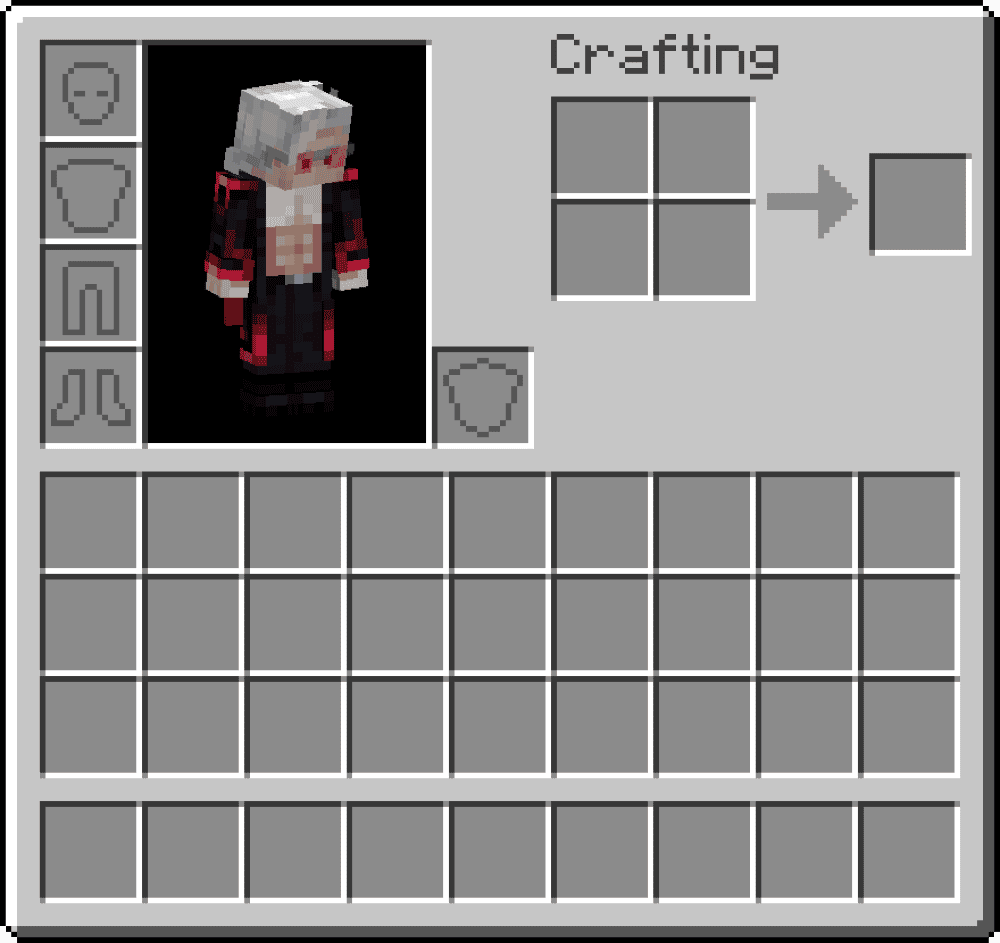
This mod completely removes Minecraft's built-in recipe book system instead of just hiding the button. That cuts a lot of recipe data from player NBT(Named Binary Tag), which helps big modpacks sync data faster and makes scripts that read player.data (like CraftTweaker or KubeJS events) less bloated. It includes several modes, from fully disabling the book to using the button as a toggle for JEI/REI/EMI instead, so you can keep your usual recipe viewer while stripping out the heavy vanilla system underneath.
13. Max Health Fix

This mod patches a long-standing bug where the "Max Health" attribute is ignored when you rejoin a world, getting you back to 20 HP even if gear or effects should push you higher. With this mod installed, extra hearts from items or custom attributes are restored correctly on login, both in singleplayer and on servers that have it enabled. It doesn't change balance or add new mechanics, it just makes sure your hard-earned health boosts actually stick.
14. Inventory Profiles Next
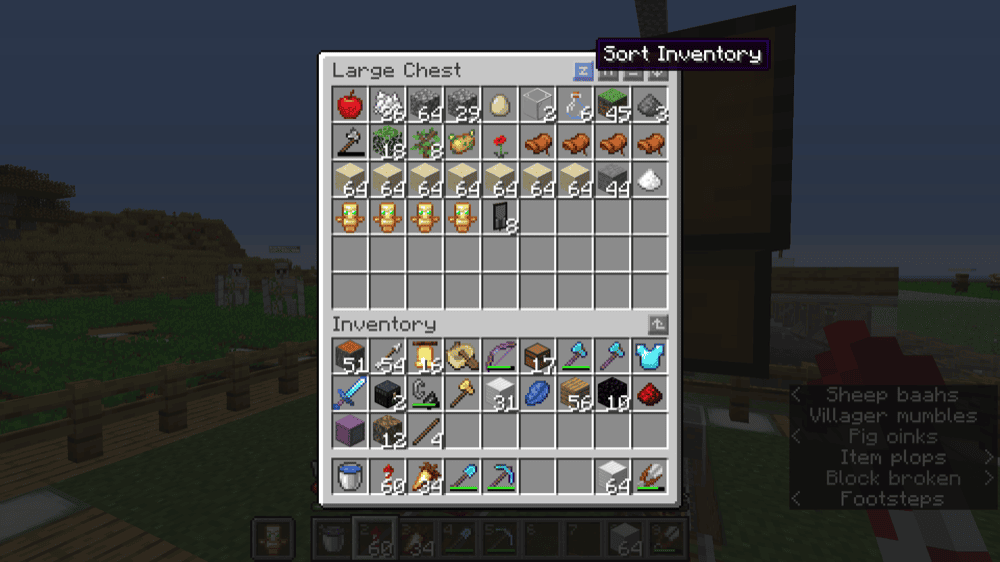
Inventory Profiles Next gives you fine-grained control over your inventory and chests: it can auto-sort, move all matching items into a container, dump everything with one click, and respect locked slots so key items stay put. You can also define custom keybinds, set up gear layouts, and keep certain slots empty, all on the client side so it works on most servers. It isn't a drop-in replacement for Inventory Tweaks, but it covers the same tidy my inventory use case with more modern, configurable tools.
15. Just Enough Breeding (JEBr)
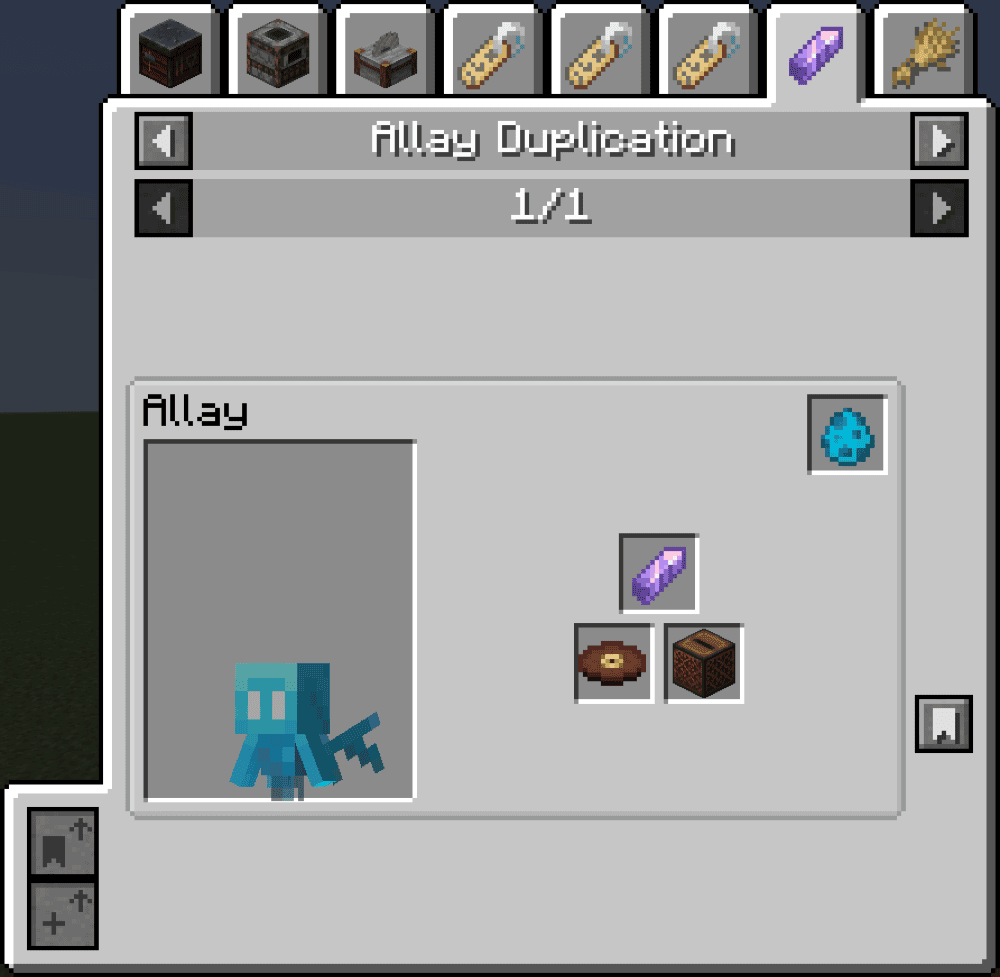
Just Enough Breeding is a JEI/REI/EMI plugin that adds breeding info tabs for mobs. In your recipe viewer, it shows which items a mob needs to breed, its spawn egg for quick lookup, how many eggs it produces (if any), and marks mobs that must be tamed with a "(tamed)" tag. It works with vanilla and many modded creatures, so instead of guessing or checking a wiki, you can open your recipe viewer and see all the breeding rules in one place.
How to Install Mods
How to Install with the CurseForge App
- Open CurseForge → Minecraft and create a profile with the modloader and version you need: Fabric, Quilt, NeoForge or Forge (depending on the gun mods you’d like to install).
- Open your profile and click the three dots next to "Play".
- Click on "Add More Content" from the available options.
- Search the mod you need and click "Install".
- Play from the CurseForge app.
How to Install Mods Manually
- Install a mod loader that matches your Minecraft version (Fabric, Quilt, NeoForge, or Forge).
- Run the installer to add a new profile in the Minecraft Launcher.
- Download the mod’s .jar file from its project page. Making sure both the Minecraft version and loader version match.
- Drop the .jar into the mods folder inside your .minecraft directory (create the folder if it doesn’t exist).
- Launch Minecraft using the new loader profile.
Note: Make sure to check if the mod has been recognized by the game. On the title screen, click “Mods” (or “Mod Menu” if you’re using Fabric). If the mod lists any required dependencies (like Fabric API), install those too.
Common mods folder locations:
Windows: %AppData%\.minecraft\mods,
macOS: ~/Library/Application Support/minecraft/mods
Common Issues & Quick Fixes
- Getting a Missing Dependency Error - Check the mod page for a “Requires” section and install the exact library versions it lists (for example, Bookshelf for Enchantment Descriptions, or Create for Steam ’n’ Rails).
- My Game Doesn’t Launch - Make sure you downloaded a file for the correct loader and version. A Forge 1.20.1 build will not run on Fabric 1.20.1 or on a different Minecraft version entirely. If in doubt, grab the latest stable file marked for your loader and game version.
- Experiencing Entity-Heavy Lag - Mods like ETF, EMF, and Paintings ++ can add a lot of visuals, and JEBr or rail add-ons can encourage big farms and networks. If things start to stutter:
- Lower spawn rates or visual options in the provided configuration files.
- Pair these QoL mods with a client-side performance pack that matches your loader.