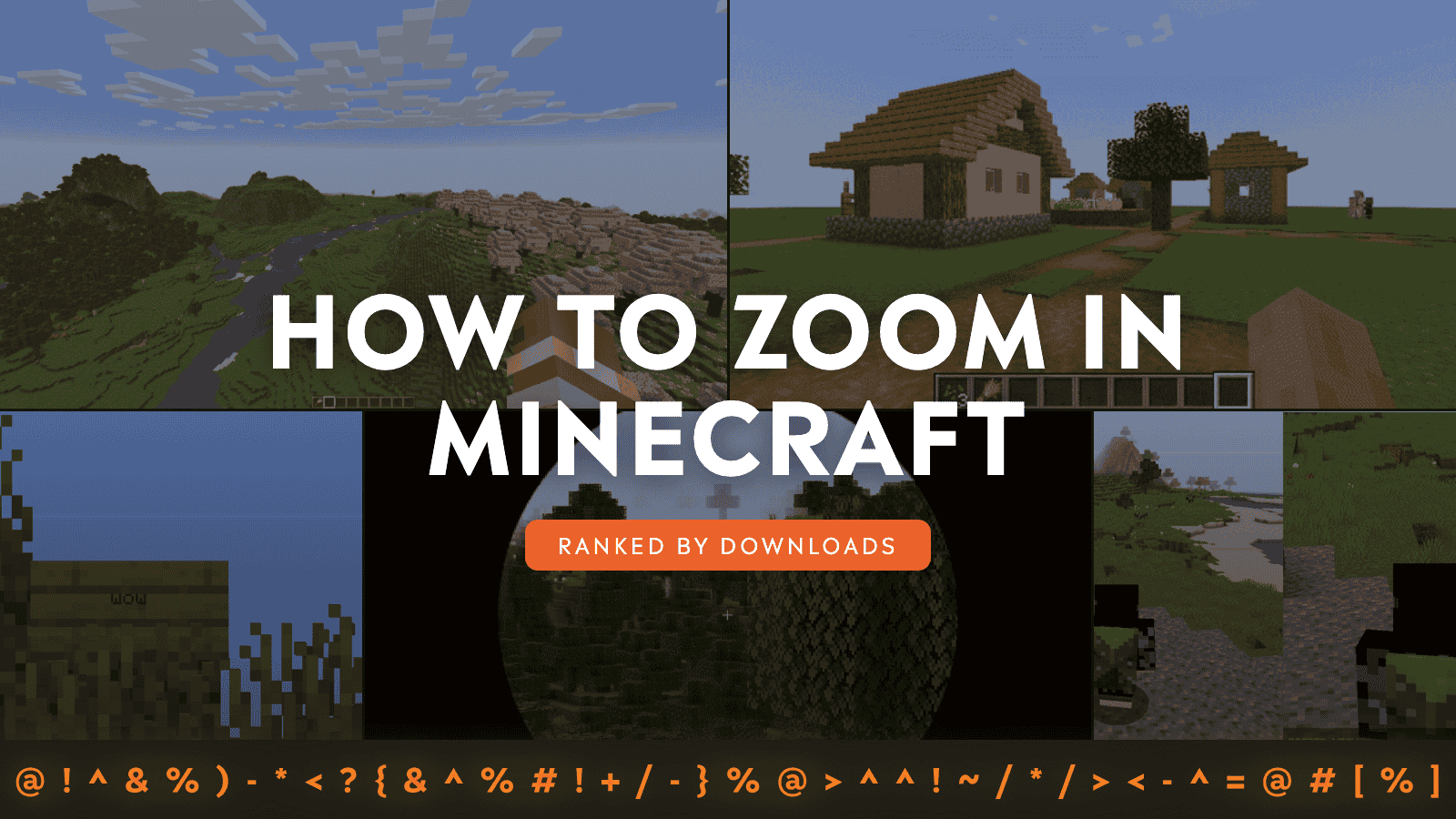
Sometimes you just want to scope out a village, line up a bow shot, or admire your build from a distance, without switching to a spyglass every five seconds.
Yes, vanilla Minecraft has the Spyglass, and it’s great for quick peeks. But if you want a hotkey zoom, smoother camera control, better overlays, or cinematic shots, these mods are your best bet.
1. Just Zoom
2. Zoomify
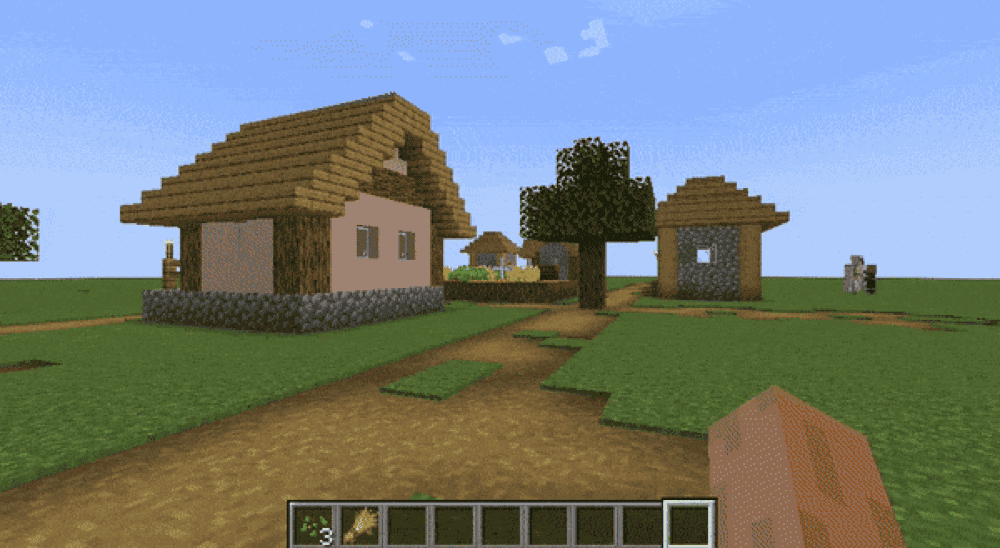
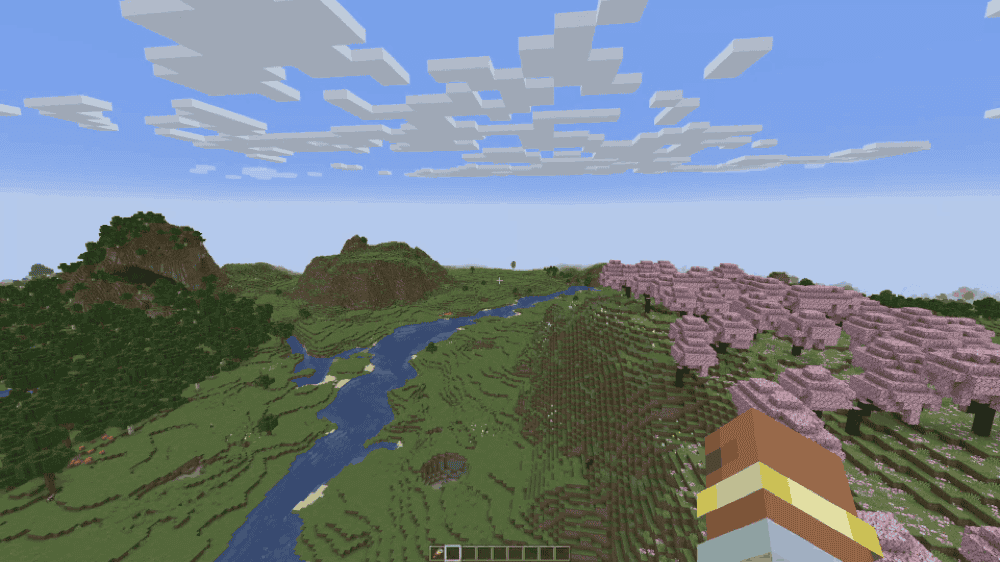
Zoomify gives you an insanely configurable zoom by pressing "C" plus a scroll wheel zoom, so you can dial in the exact feel you want. You can tweak everything with the /zoomify command or using the “Mod Menu” mod.
It also supports spyglass integration, provides a bunch of zoom transitions, and options like hiding the HUD, relative sensitivity, reduced view bobbing, and cinematic camera smoothing. It even includes a separate secondary zoom for content creators.
3. WI Zoom
4. Zume
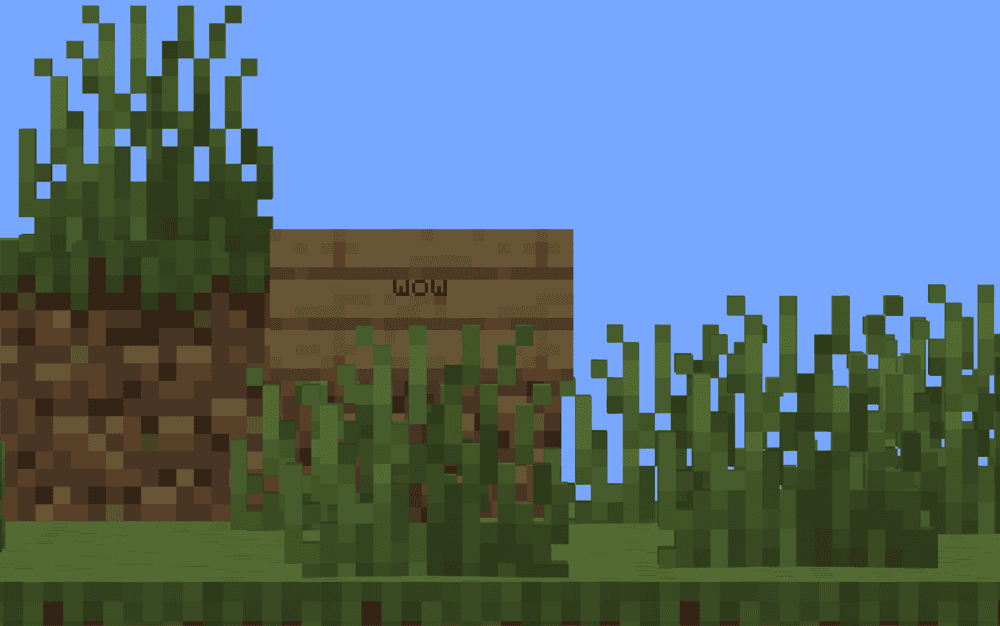
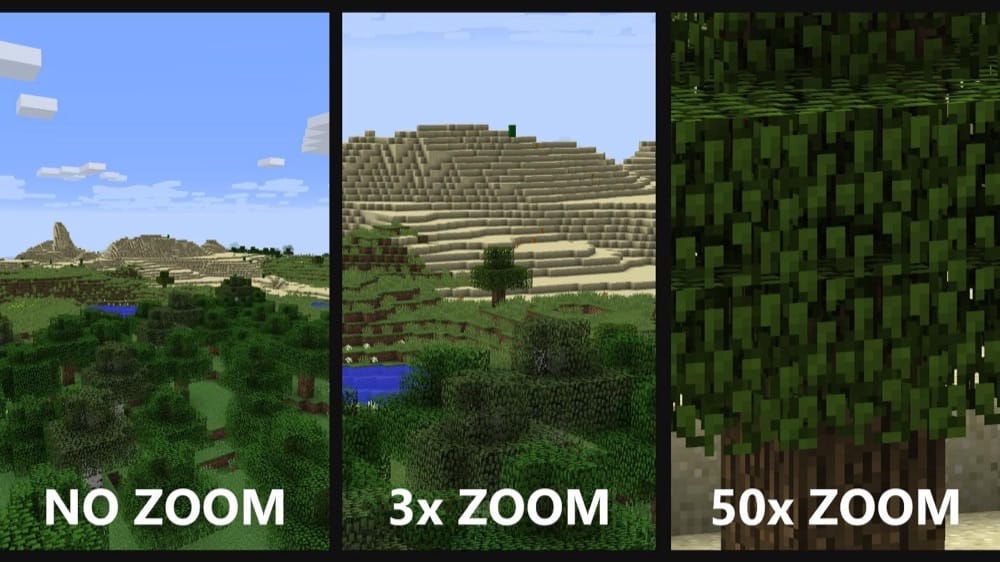
Zume adds a hold to your zoom keybind that narrows your FOV (Field of View), plus separate keybinds to increase and decrease your zoom level while you play.
You can tweak it through a simple configuration file at .minecraft/global/zume.json5, and changes can reload while the game is still running, which is great if you like tuning your settings without restarting.
5. Logical Zoom
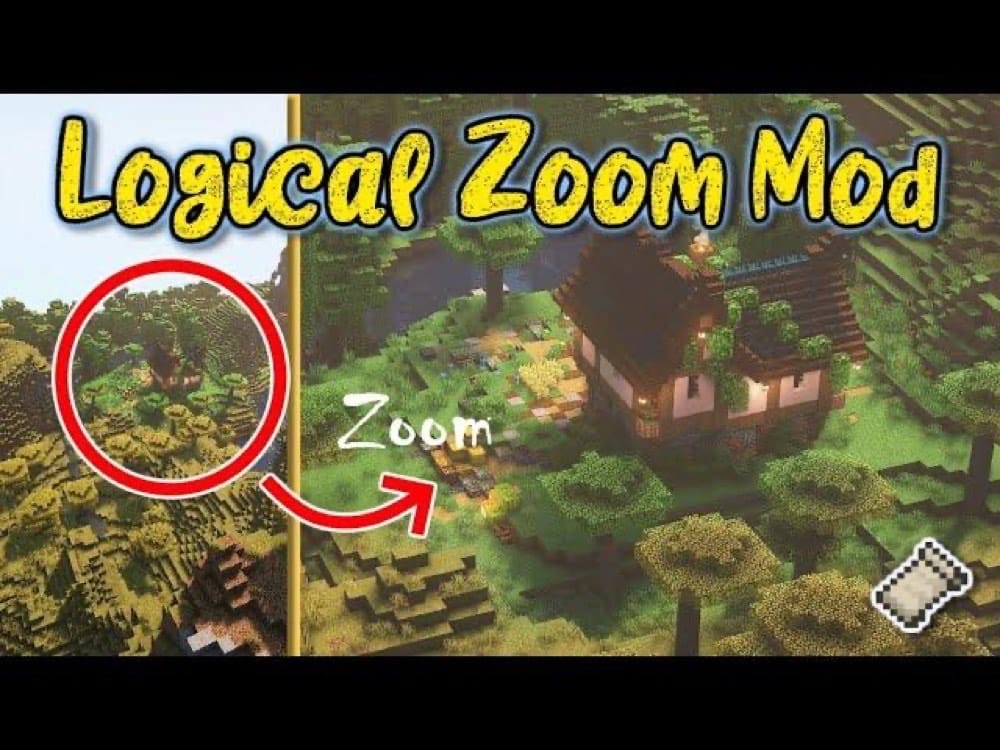
Logical Zoom adds a super simple, configurable zoom key ("C" by default) that feels like the classic OptiFine style zoom. It also stacks with the spyglass, so you can push the magnification even further when you really want to zoom in.
If you just want a lightweight zoom for modern Minecraft without a bunch of extra features, this one keeps it clean and easy.
6. ItemZoom
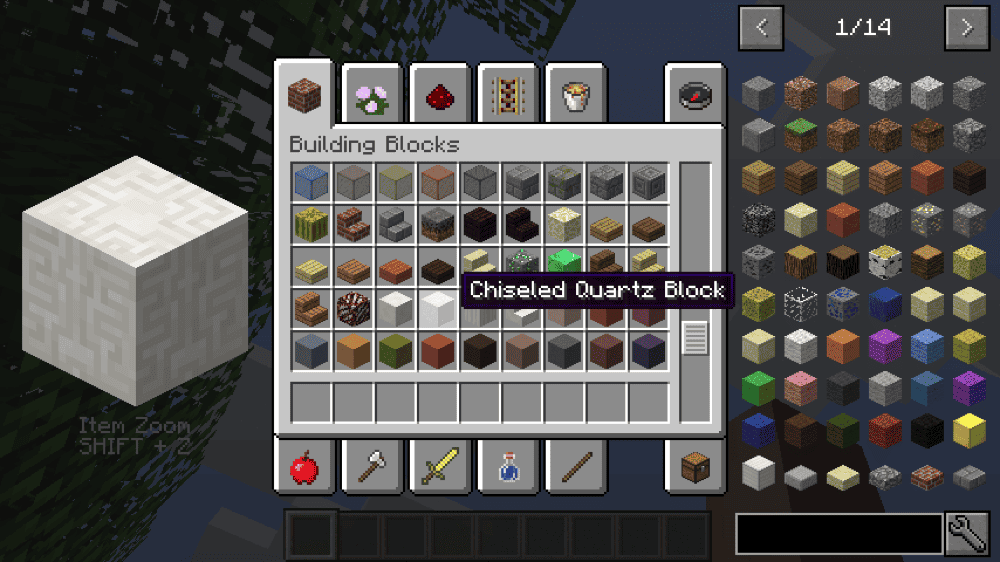
ItemZoom shows a big, zoomed-in preview of whatever item you’re hovering over, which is perfect when you’re sorting materials or comparing similar-looking blocks.
By default, you toggle it with "Shift + Z" (rebindable), and there’s also an optional hold-style keybind if you prefer that. You can adjust the zoom amount in the mod’s configuration, or use the "Zoom In" and "Zoom Out" hotkeys to change it in-game.
7. Cinematic Zoom
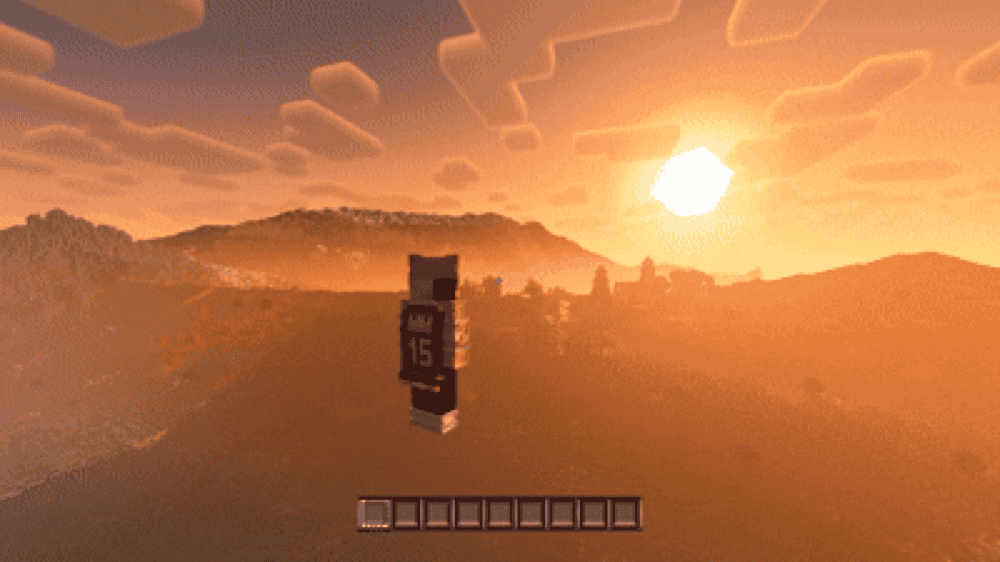
The mod Cinematic Zoom turns your zoom key into a mini camera mode that feels nice and better for content creation, with smooth zoom transitions, optional cinematic black bars, and automatic HUD hiding so your shots look clean and more cinematic than any other zoom mod.
It also lets you fine-tune your mouse wheel zoom, supports different default zoom behaviors for first-person and third-person perspectives, and includes a client-side configuration file so you can adjust things like animation timing, zoom limits, and scroll smoothness.
8. Better Zoom
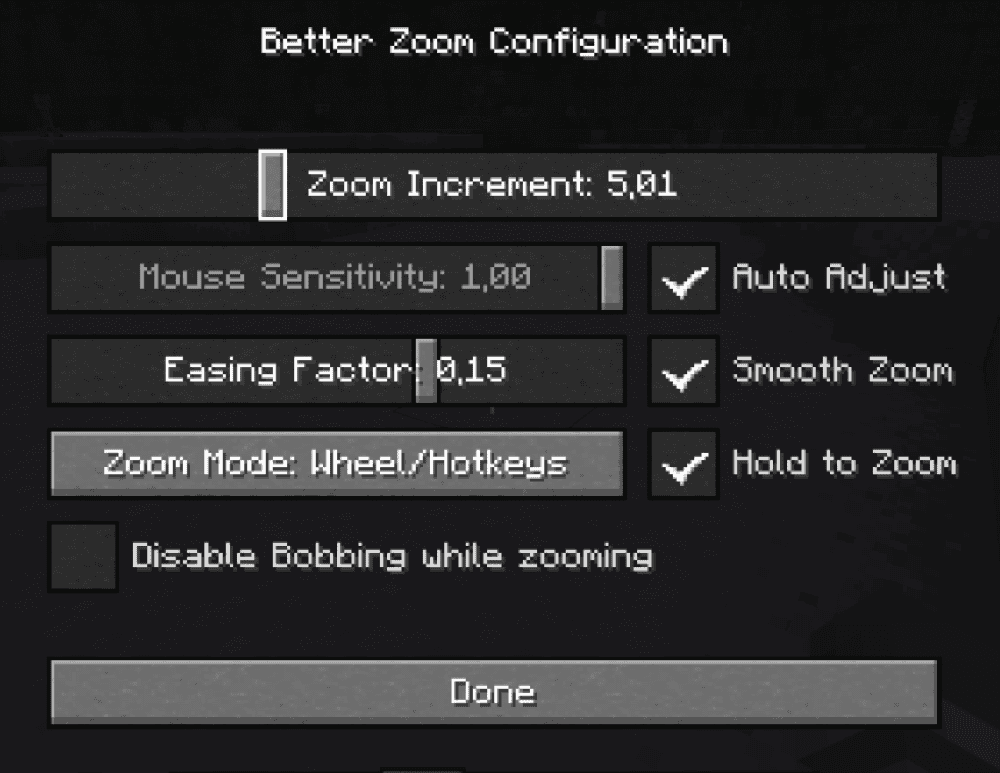
Better Zoom gives you a smooth zoom you can control with your mouse wheel and hotkeys, without overcomplicating things. By default, you press "C" to toggle zoom, then scroll or use the plus and minus keys to zoom in or out, and you can even hold those keys for continuous zooming.
It also comes with a clean in-game configuration screen ("V" by default) where you can tweak essentials like zoom step size, mouse sensitivity while zoomed, hold-to-zoom mode, smooth fade transitions, auto sensitivity scaling, zoom easing controls, and turning off view bobbing while zooming.
9. Spyglass Improvements
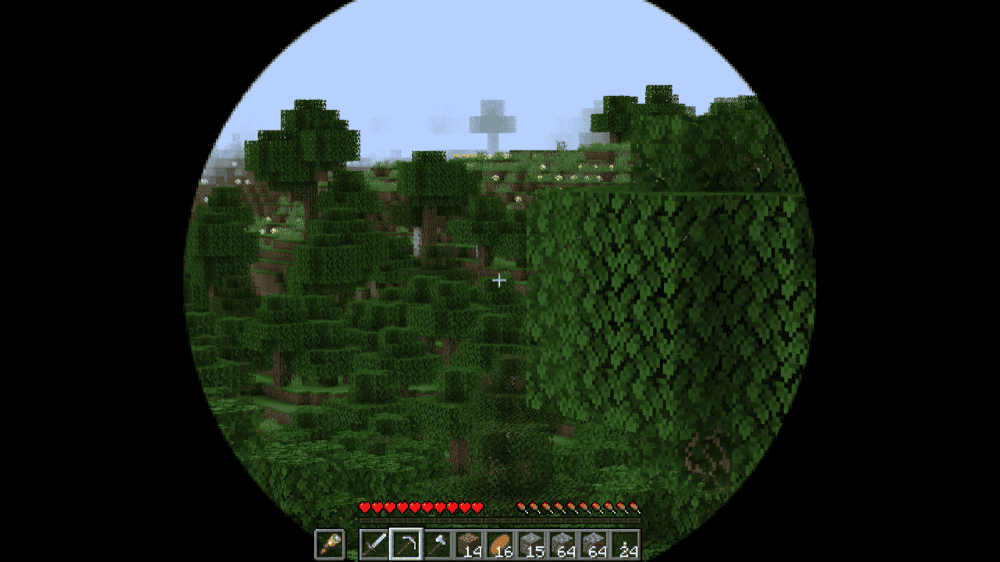
This mod upgrades the vanilla spyglass with an adjustable zoom you can control with the mouse wheel, plus quick access to the spyglass with a hotkey ("Z" by default). It also lets you pick different spyglass overlays so scoping feels more natural.
It can also hide the crosshair while scoping and enable a smoother camera for cleaner views, and it supports equipment slot setups if you use mods like Accessories, Trinkets, or Curios API.
10. DarkZoom - RPG Simplest Zoom
How to Install Mods
How to Install with the CurseForge App
- Open CurseForge → Minecraft and create a profile with the modloader and version you need (Fabric, Quilt, NeoForge, or Forge).
- In the profile screen, click "Add More Content" (or open the three dots menu next to "Play" and choose "Add More Content").
- Click on "Add More Content" from the available options.
- Search for the mod you need and click "Install".
- Play from the CurseForge app.
How to Install Mods Manually
- Install a mod loader that matches your Minecraft version (Fabric, Quilt, NeoForge, or Forge).
- Run the installer to add a new profile in the Minecraft Launcher.
- Download the mod’s .jar file from its project page. Make sure both the Minecraft version and loader version match.
- Drop the .jar into the mods folder inside your ".minecraft" directory (create the folder if it doesn’t exist).
- Launch Minecraft using the new loader profile.
Note: Make sure to check if the mod has been recognized by the game. On the title screen, click “Mods”. If the mod lists any required dependencies (like Fabric API), install those too. Please also note that if using Fabric, the "Mods" button will only appear if the "Mod Menu" mod is installed.
Common mods folder locations:
- Windows: %AppData%\.minecraft\mods
- macOS: ~/Library/Application Support/minecraft/mods
- Linux: /home/<your-username>/.minecraft/mods
Common Issues and Quick Fixes
How to change the Zoom key
Check "Options" → "Controls" and rebind the zoom key if it is conflicting with another action.
Missing dependency or wrong loader error
Install the required dependency (for example Fabric API on Fabric, Konkrete for Just Zoom). Make sure the mod file also matches your loader and Minecraft version.
Scroll wheel zoom is not working
Activate zoom first (hold or toggle, depending on the mod). You can also check controls for "Zoom In" and "Zoom Out" keybinds and rebind if needed.
WI Zoom crashes
Do not install WI Zoom alongside the Wurst Client as it is already included in Wurst.
DarkZoom looks wrong or barely zooms
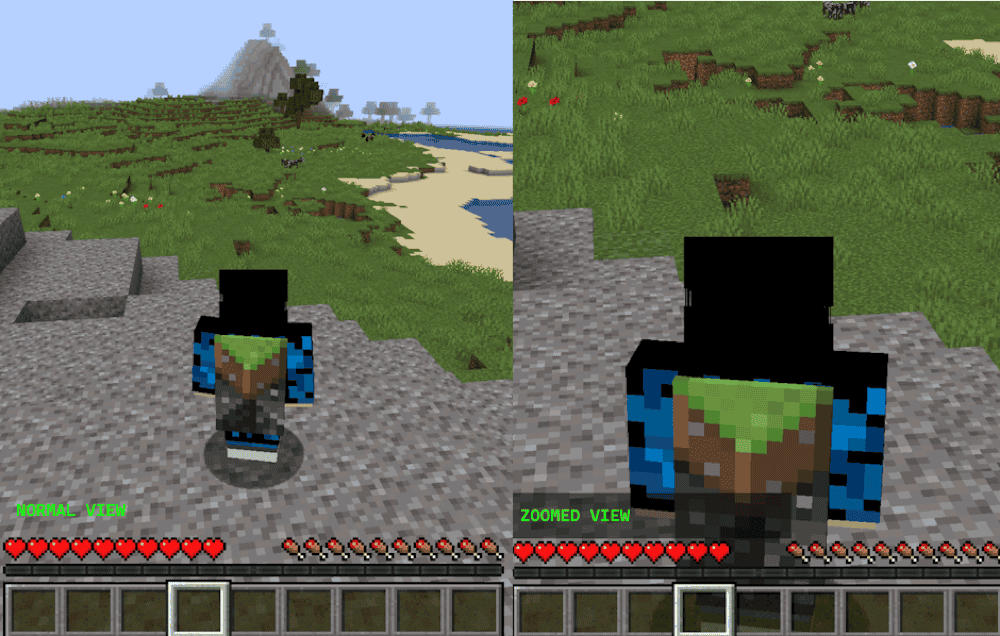
Set your FOV to 100 percent. For zooming, use the "/trigger darkzoom" command and remember it only lasts about 2 seconds.
Spyglass Improvements is not zooming like a hotkey mod
While the mod enhances the spyglass, you still need to use a spyglass to zoom in.
ItemZoom is not zooming the camera
ItemZoom only enlarges items you hover over in your inventory and UI, not your world view.