Minecraft looks great out of the box, but after a while it starts to feel the same. I like changing things up, and resource packs are the easiest way to do that. Sometimes it’s just small touches, mobs that blink or smoother textures that feel a little more natural. Other times I’ll drop in a full theme and suddenly the whole game has a new atmosphere.
I usually have a couple always-on-packs. Fresh Animations and Stay True are good examples, they don’t change gameplay at all, they just make the world feel alive and with more variation. And others depending on what I’m playing. A darker style for horror or zombie apocalypse survival world. Something softer when I just want to farm and relax. A gritty pack if I’m in the mood for survival that feels closer to real life. It sets the tone before I even place my first block.
What can you expect? Cleaner visuals, smoother animations, menus that are easier to deal with, and a game that matches your mood. Sometimes you even get a performance boost if a pack trims effects or lowers resolution. The community is always making new ones too, so there’s no shortage of styles to try.
1. Xray Ultimate
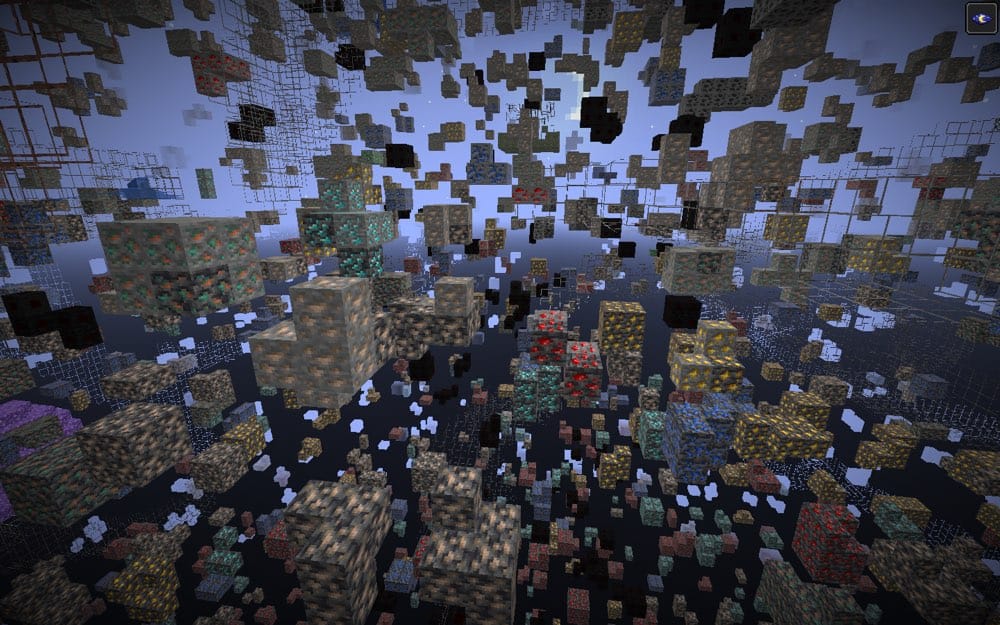
This pack does one thing, so simple yet so effective - it highlights ores, making mining far more efficient. It's been around for years and remains one of the most downloaded packs, because of its simplicity and reliability. Many players use it in single-player to save time, or on servers that permit it. I've used it during resource-heavy builds and it's amazing how much faster you can gather materials.
2. Fresh Animations
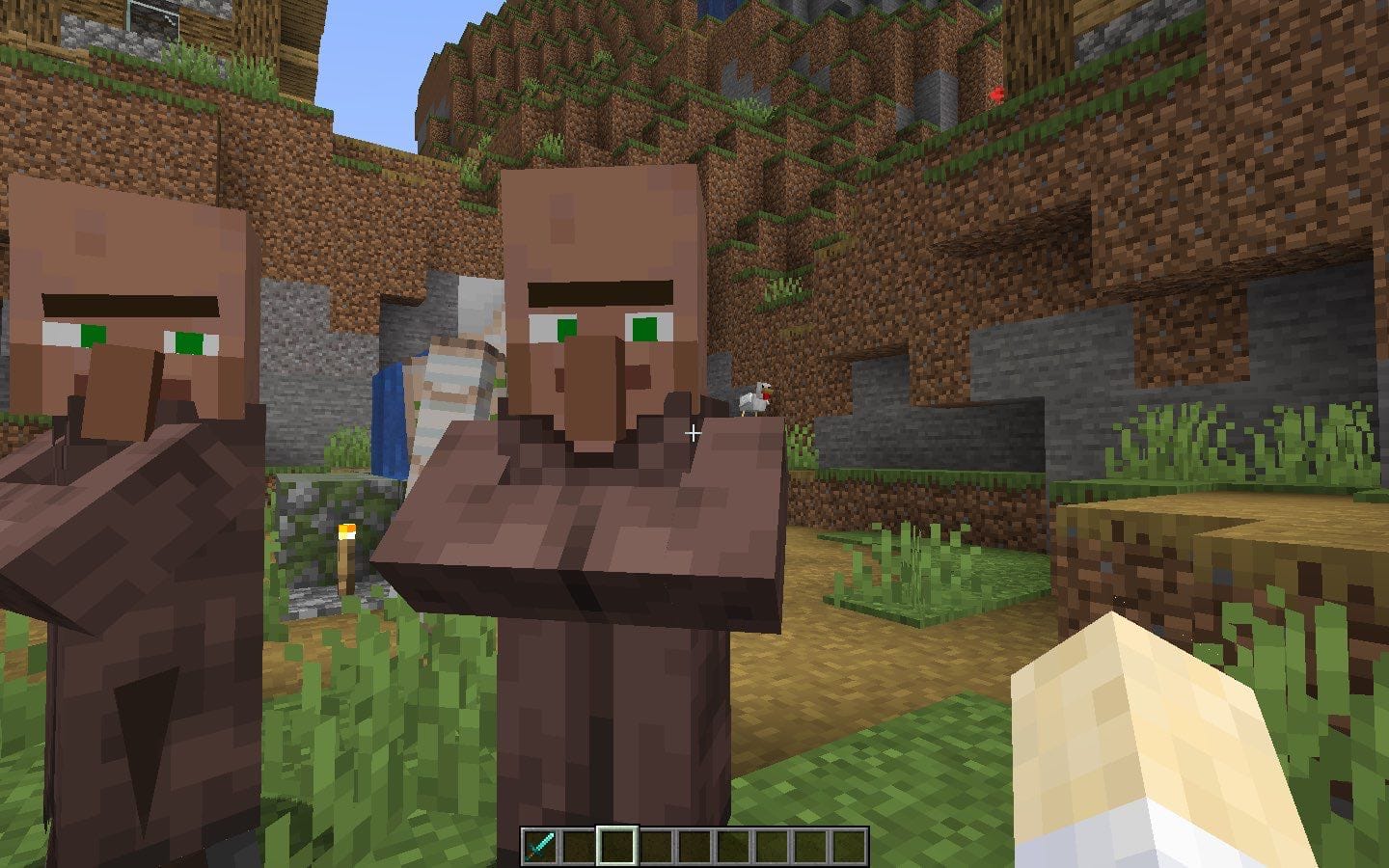
Fresh Animations makes Minecraft's mobs feel more alive. Villagers don't just shuffle around, they gesture. Zombies stumble instead of shuffling forward. Animals hop and bounce. The little details turn stiff walks into something that actually feels animated.
Ever since I tried it the first time, I haven't played without it. Even the mobs I'd seen a thousand times felt new again, and the game instantly had more character, more energy. It doesn't change gameplay, but it does change how the game feels. If you like immersion and want your world to have more life, this pack is for you.
3. Stay True
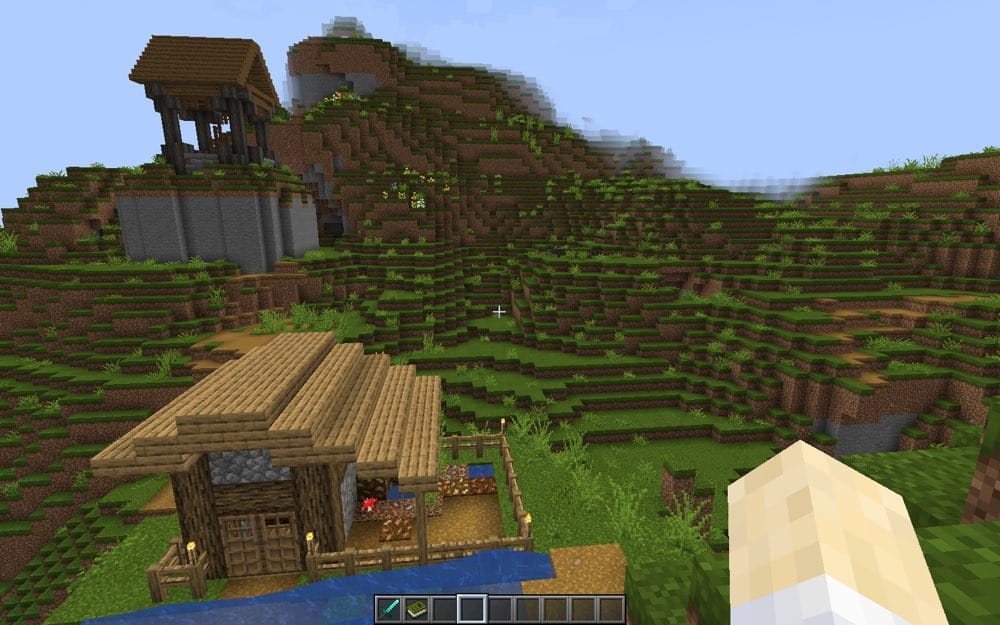
Stay True faithfully refreshes vanilla textures. It doesn't overhaul the game completely; instead, it adds variations and a bit more detail to things like grass, stone and leaves. Those little changes that stop landscapes and builds from looking copy-pasted.
What I like about this pack is that it keeps Minecraft's classic style intact. It looks familiar, just prettier and less repetitive, so it feels like the game you already know but with a bit of improvement. This is the ultimate pack for anyone who wants to stick close to the default look while making it nicer to play.
4. Mandala's GUI - Dark Mode
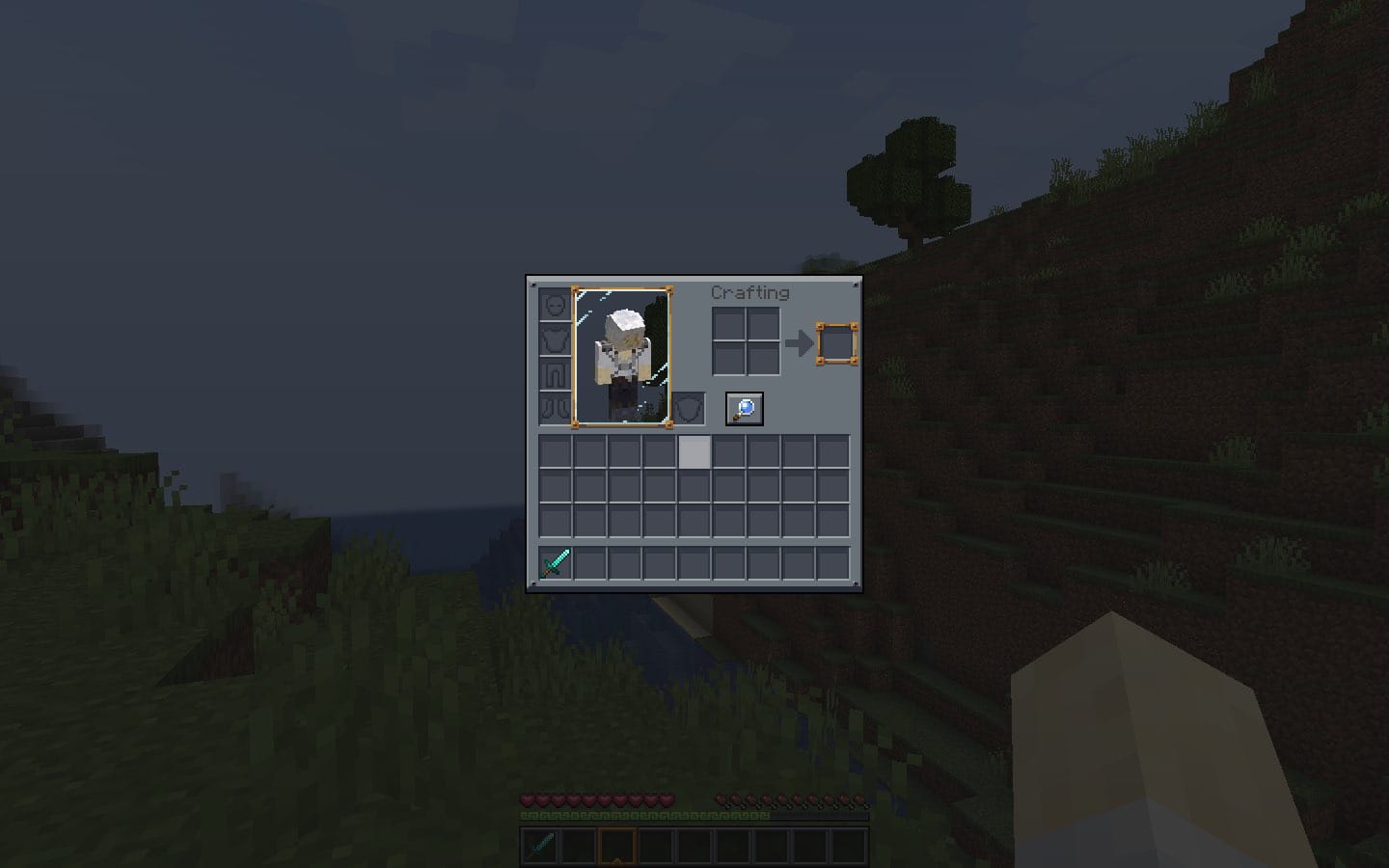
This pack focuses on one thing: cleaning up the interface. Instead of the bright vanilla menus, it offers a dark mode that's easier to look at, especially during long play sessions. The style feels modern but still blends naturally with Minecraft's overall look.
Since it only changes menus and inventory screens, it works well alongside any other resource packs you're running. I personally find it helpful, especially during late-night play; the darker UI makes the grinding easier on the eyes. And if you stream or share screenshots, it adds a better, more elegant touch to your setup.
5. Enhanced Boss Bars
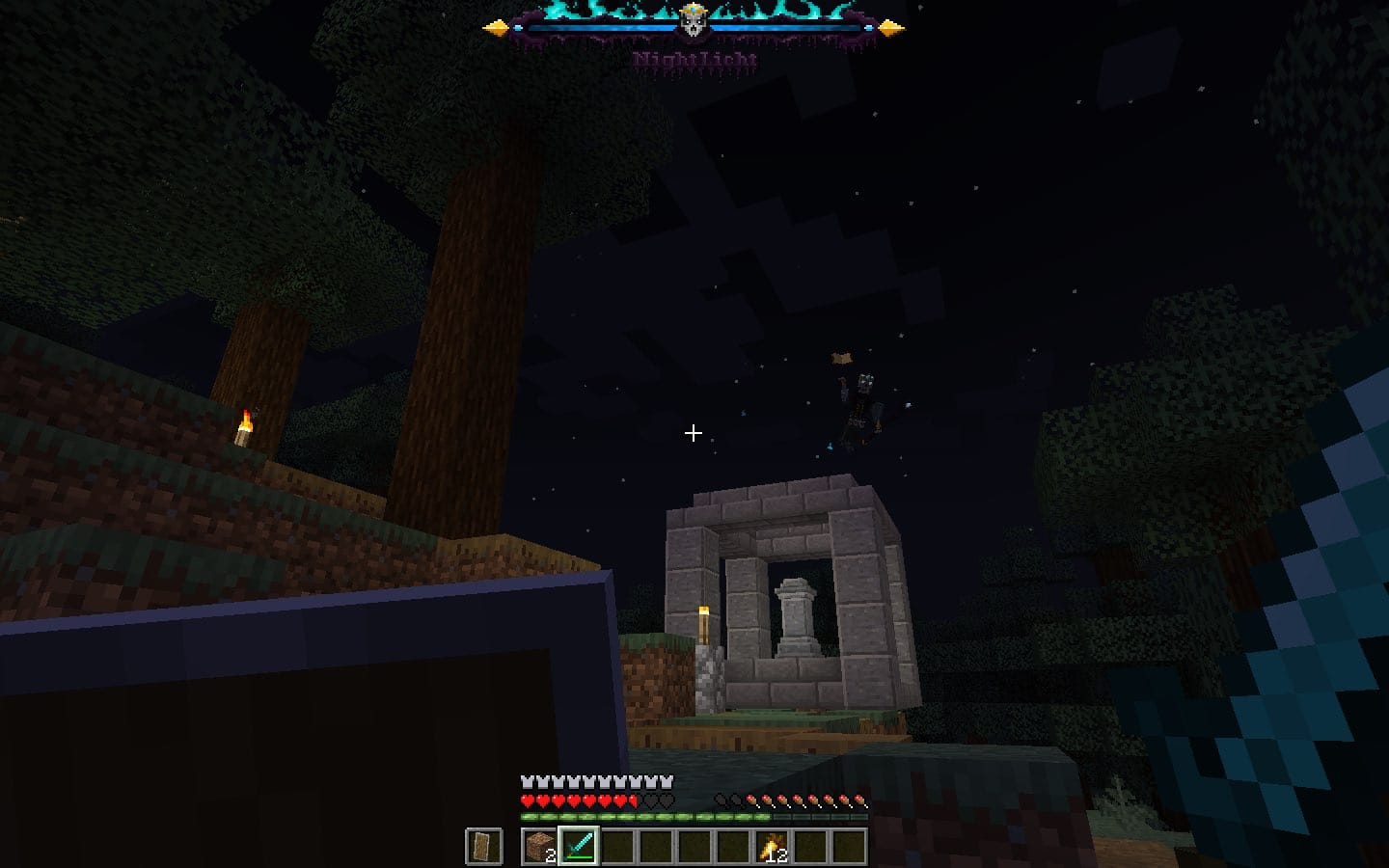
Enhanced Boss Bars does exactly what the name says - it changes the plain health bars into something that actually feels dramatic. Instead of the usual flat purple line, you get designs that match the style of each fight/boss, making it a lot easier to keep track of what's going on. This is especially useful in modded packs with lots of custom bosses such as Mowzie's Mobs, Bosses of Mass Destruction and several others.
6. Eclectic Trove (Legendary Tooltips)
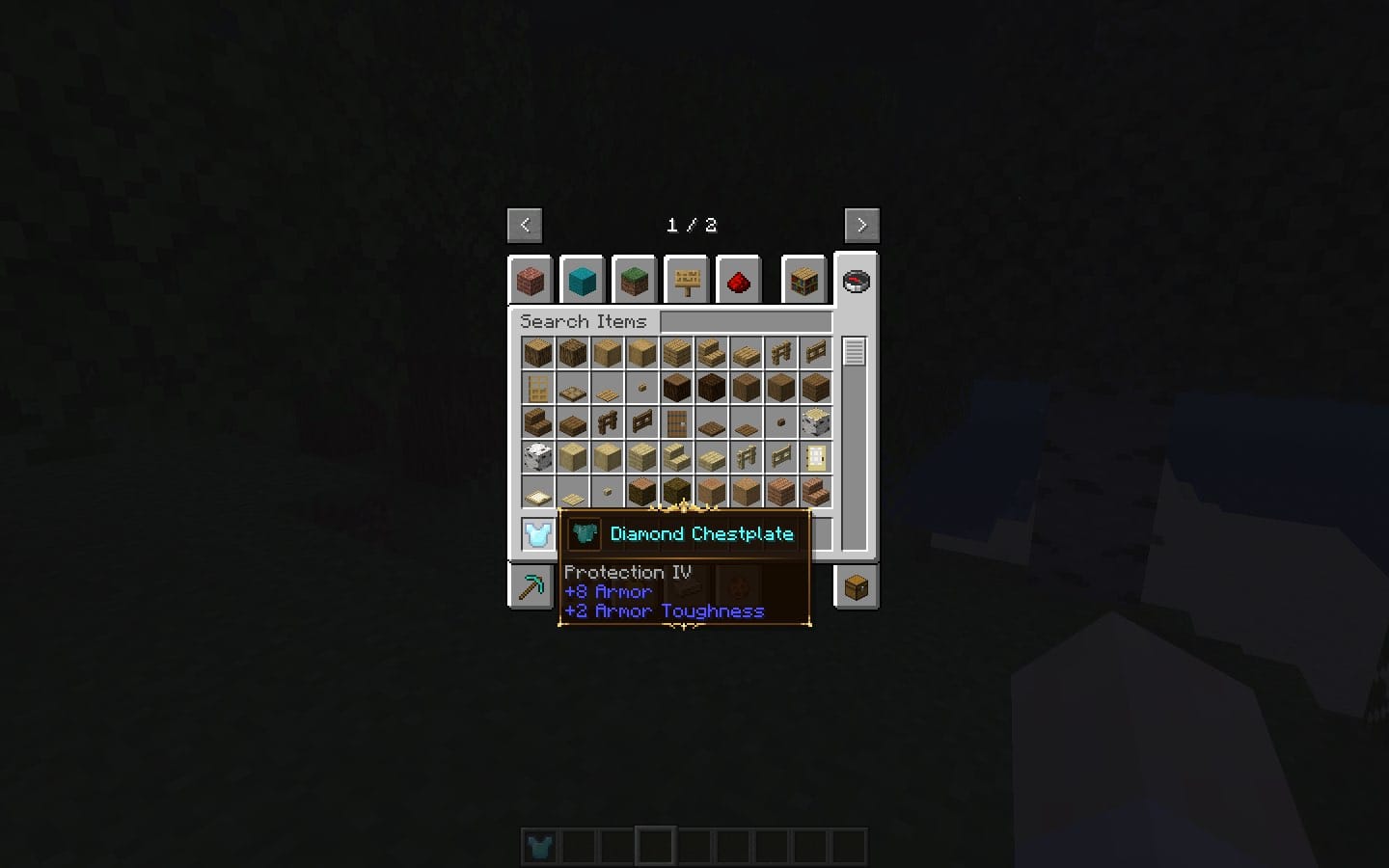
Eclectic Trove expands on Legendary Tooltips by replacing the plain default border and adding a full set of custom frames for your items. Instead of every tooltip looking the same, you can pick from a variety of styles: gold, silver, copper, bones, vines, fire, ice, machinery, and more. There's even a deep dark border for a moodier touch.
The pack has a "noconfig" version that comes with settings that work well in vanilla and most modded setups. For players who like to fine-tune, you can dig into the configuration and decide exactly which items get which borders.
7. Repurposed Structures - Farmer's Delight Compatibility
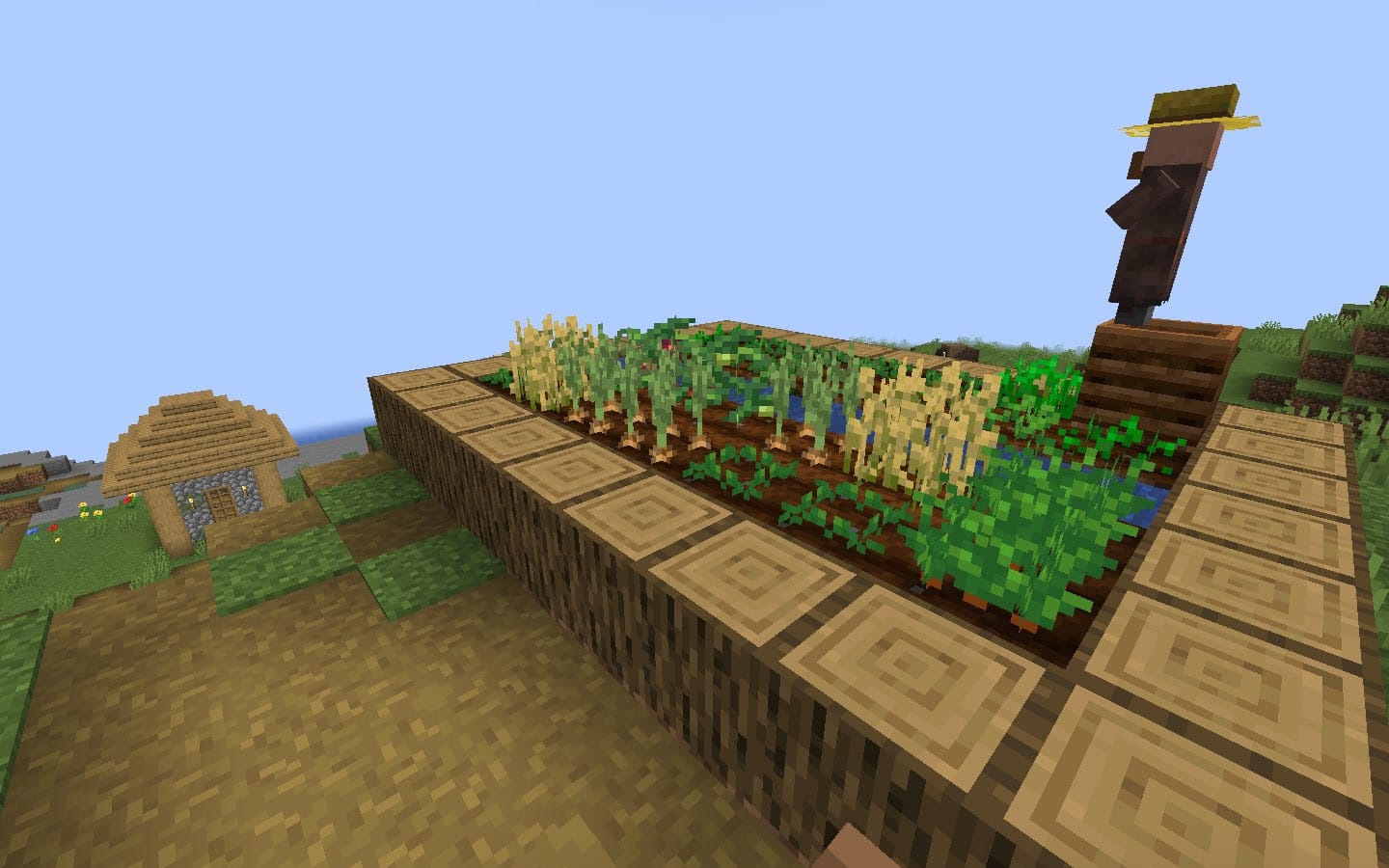
Add this data pack to bring Farmer's Delight content into Repurposed Structures villages. Compost buildings may appear in some Overworld villages, and farms may also use Farmer's Delight crops. It's a small but effective touch that ties farming gameplay more naturally into village life.
8. Tissou's Zombie Pack
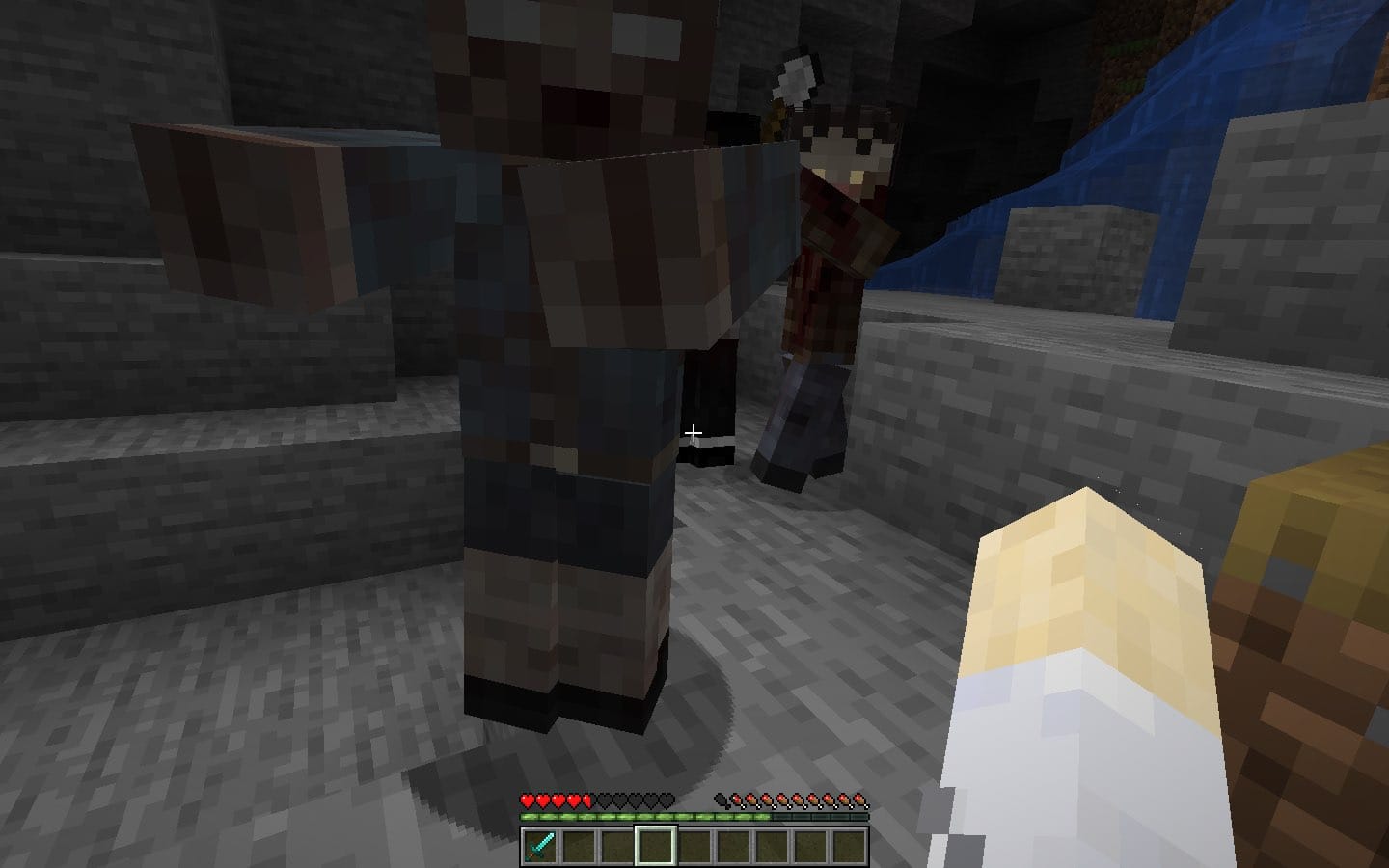
Tissou's Zombie Pack overhauls zombie textures with hundreds of creepy variants. No two hordes look the same, and the added detail gives nights a much darker, more survival-horror feel. I've used it while playing zombie apocalyptic modpacks, and the atmosphere it creates is unmatched, especially when combined with shaders such as Insanity Shaders. For players who want their worlds to feel scarier without mods, this is an easy way to inject a bit of tension into the game.
9. Motschen's Better Leaves
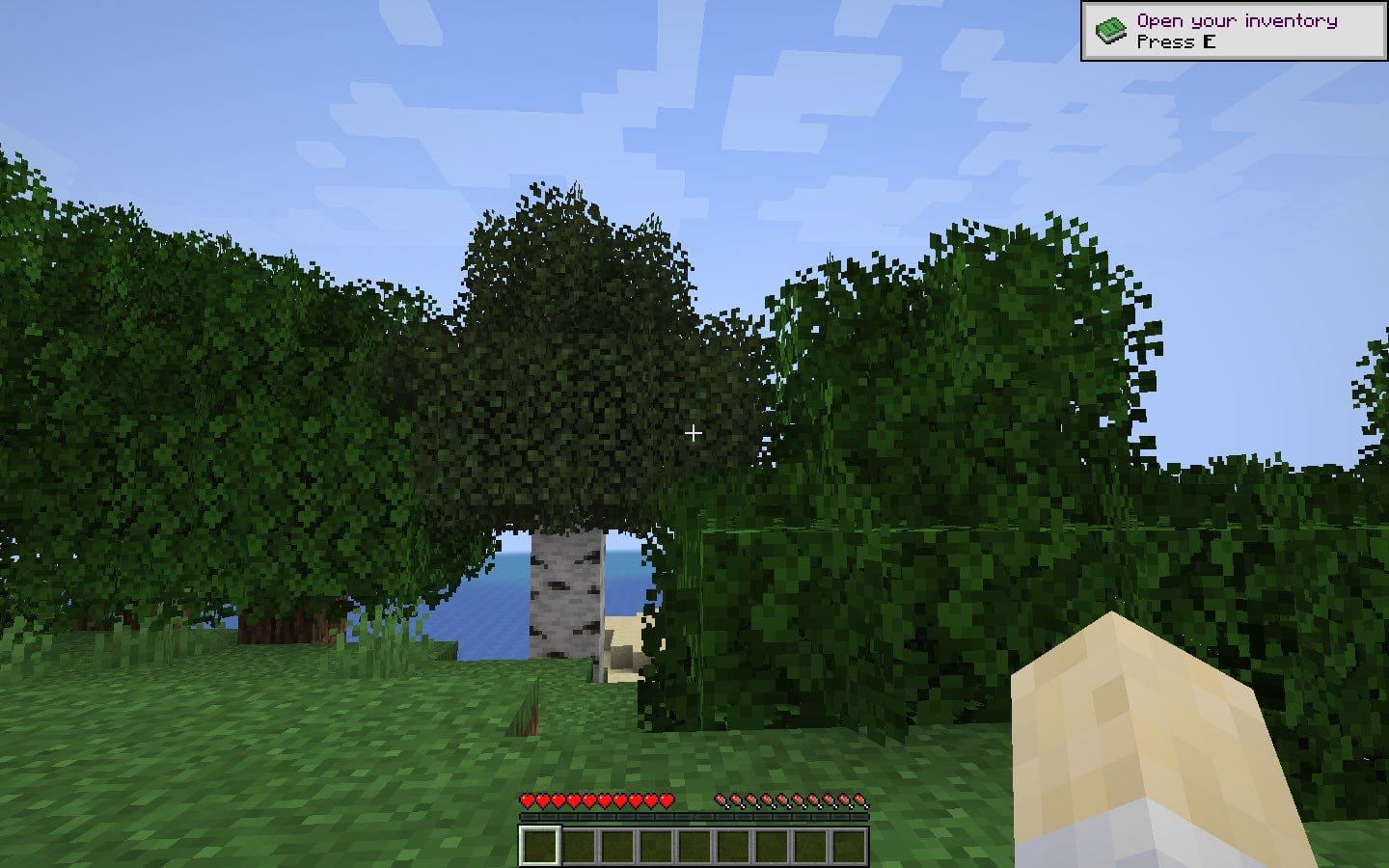
Better Leaves makes trees look fuller and more natural by adding bushier foliage. Forests feel less flat and a lot more alive. Despite the visual upgrade, the pack is lightweight and runs smoothly, even on modest PCs. Pairing it with Cull Leaves alongside Sodium/Embeddium helps it stay performance-friendly.
It's one of those small tweaks that changes the feel of the world far more than you'd expect.
10. When Dungeons Arise - No Flying Structures
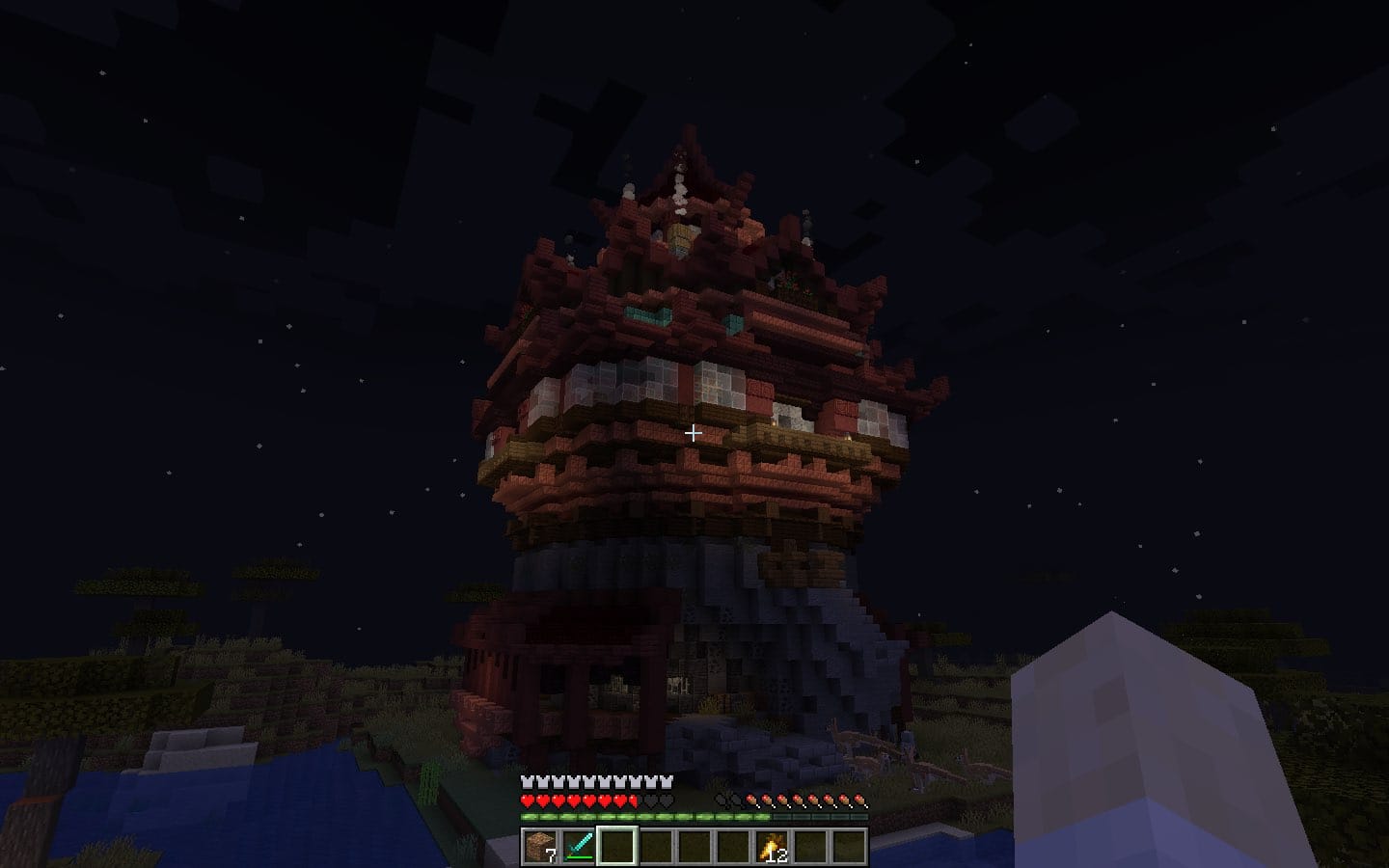
This data pack disables WDA flying structures like Small Blimps, Heavenly Challengers, Heavenly Riders, and Heavenly Conquerors from spawning in your world. Dungeons stay grounded where they make more sense - a simple fix that makes exploration more immersive.
11. Embellished Stone (Advancement Plaques)
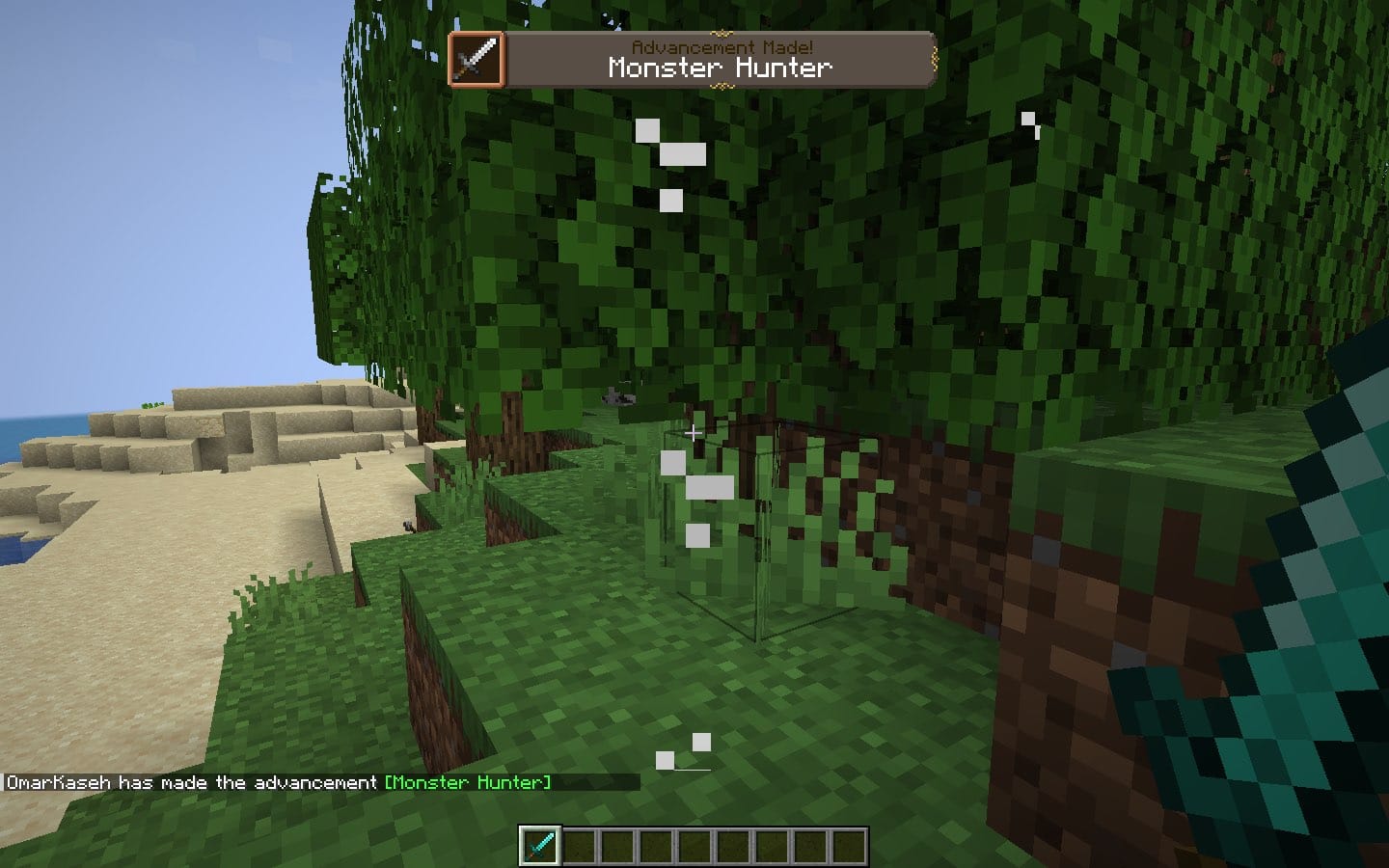
Embellished Stone enhances the plaques shown when you unlock advancements, giving them a more elegant, stone-carved look. It fits perfectly with medieval or fantasy-themed modpacks.
12. Repurposed Structures - Friends & Foes Compatibility
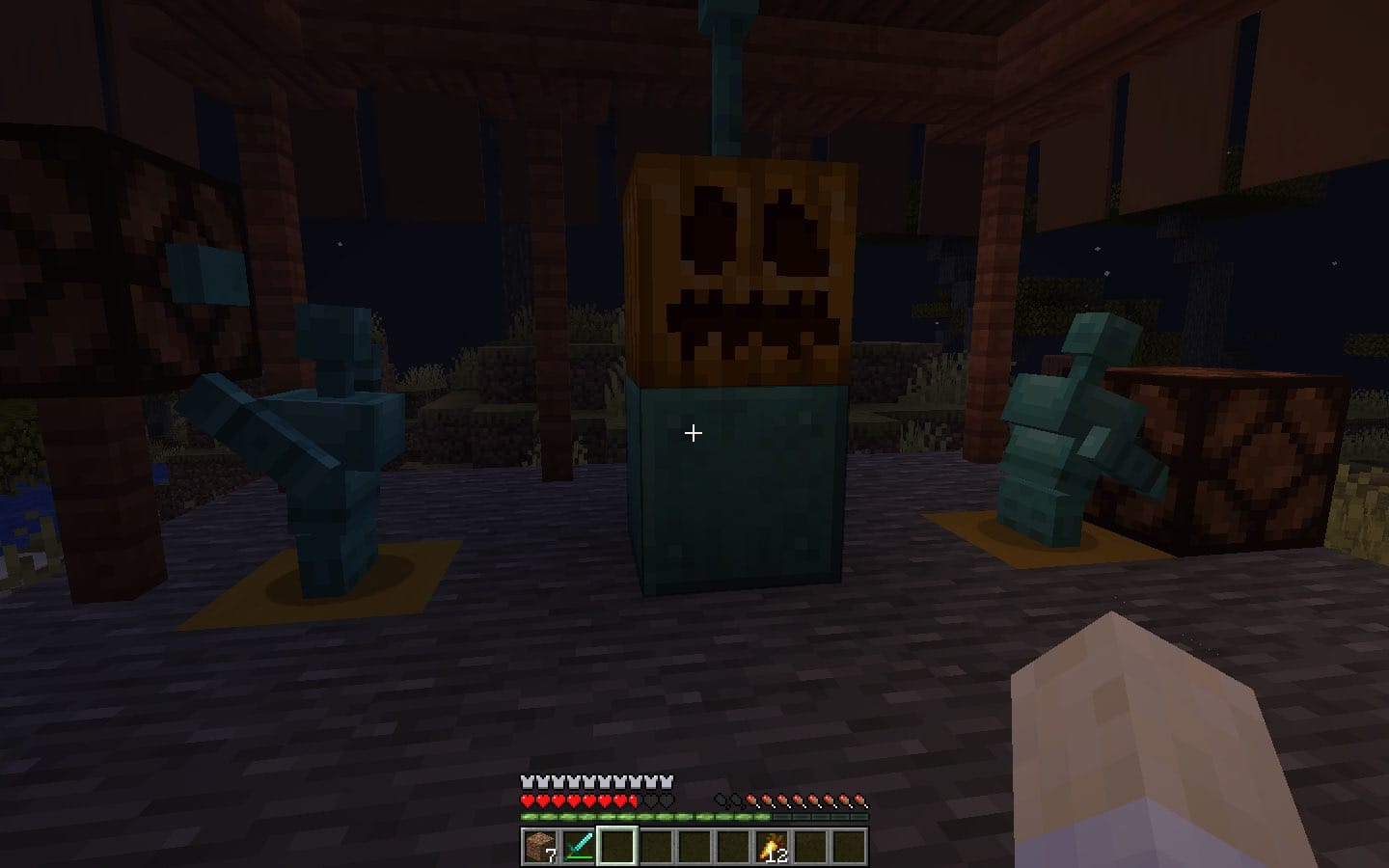
This data pack ensures Repurposed Structures integrates cleanly with the Friends & Foes mod. Villages and other structures naturally include new mobs and blocks, so the world feels consistent. It's the kind of detail that helps big modpacks feel smooth and believable.
13. When Dungeons Arise - Spacing Tweaks
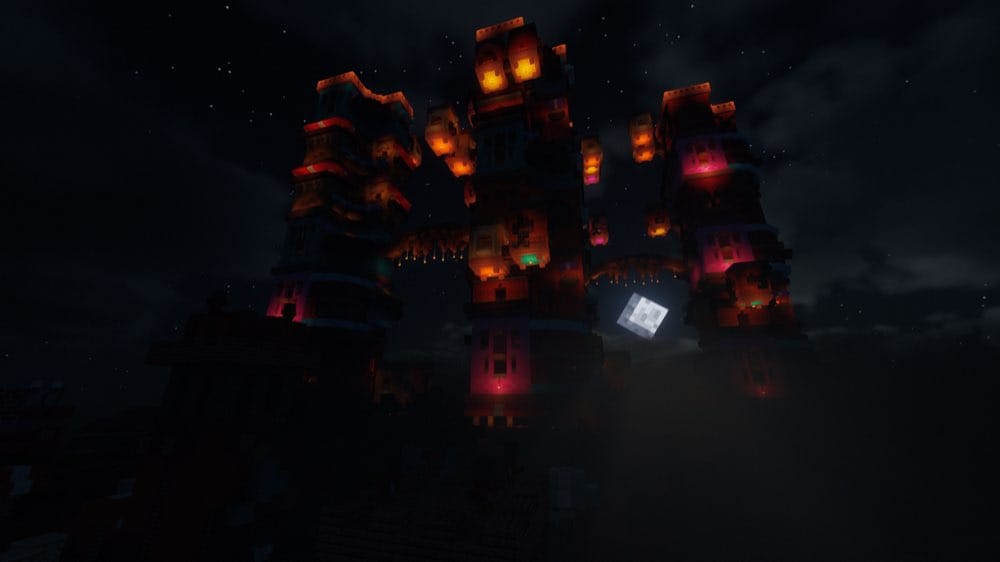
Spacing Tweaks adjusts the distance between WDA structures so they don't feel overcrowded. A simple change, but it makes exploration more natural and helps prevent terrain overlap issues.
14. Dramatic Skys
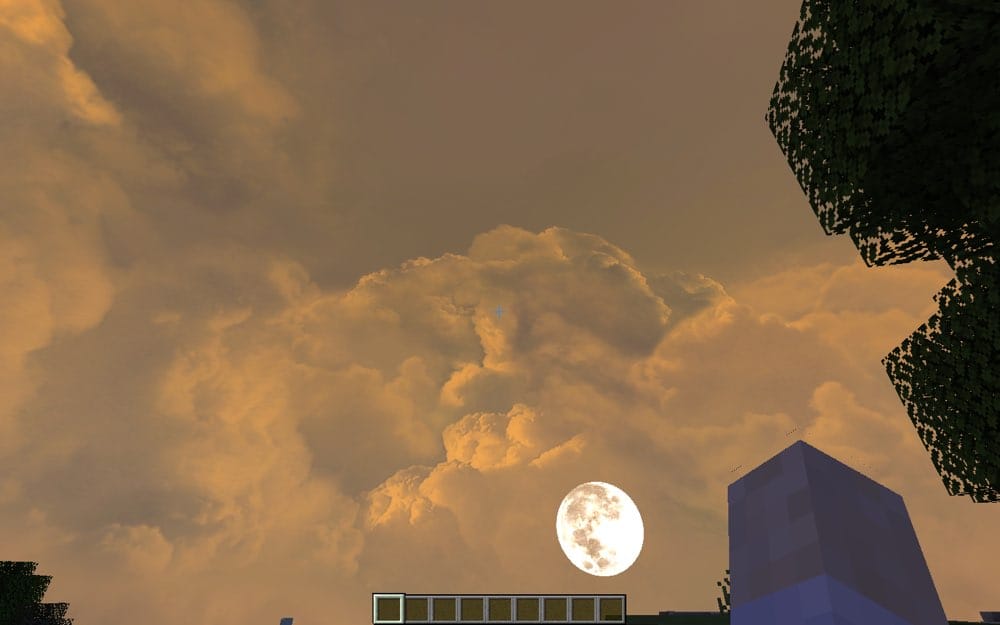
Dramatic Skys changes the entire mood of Minecraft by giving the game realistic clouds, lighting, and skies that shift depending on the biome. Deserts at night show the Milky Way stretching across the horizon, while mountains feel misty with clouds drifting past.
As long as the pack sits on top of any others in the selection screen, it should work no matter what textures you're using. It also runs smoothly without shaders, even on modest PCs, which is a big plus. The full version goes further - adding animated auroras, shooting stars, and dozens of unique skies.
It's a simple pack with a huge payoff; every biome feels like it has its own personality, and the world feels far more immersive.
15. Repurposed Structures - YUNG's Compat Add-ons
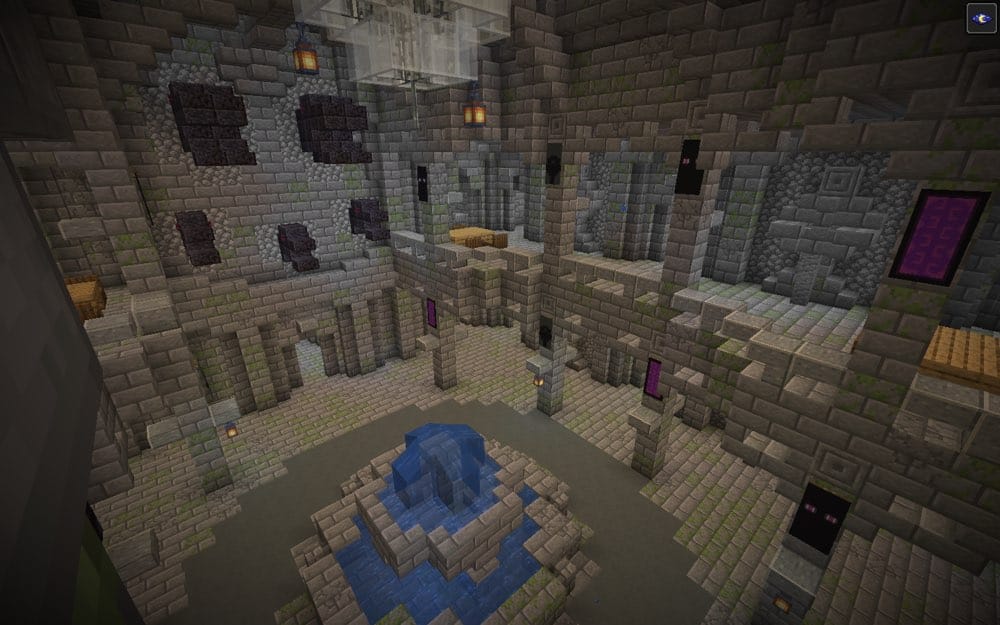
These data packs link Repurposed Structures with YUNG's popular structure overhaul mods so everything generates in a consistent style. Strongholds gain sprawling halls and hidden chambers, dungeons expand into richer underground challenges, and witch huts match YUNG's detailed designs. Add them to your world to make Repurposed Structures blend perfectly with YUNG's mods.
16. The Pixelmon Mod OST

This pack includes the full Pixelmon Mod original soundtrack so you can add the music into your world - no Pixelmon required, no texture changes, no gameplay tweaks.
The music leans upbeat and nostalgic. If you want a quick mood lift that doesn't touch visuals, this pack does exactly that.
17. Lycanites Mobs 32X
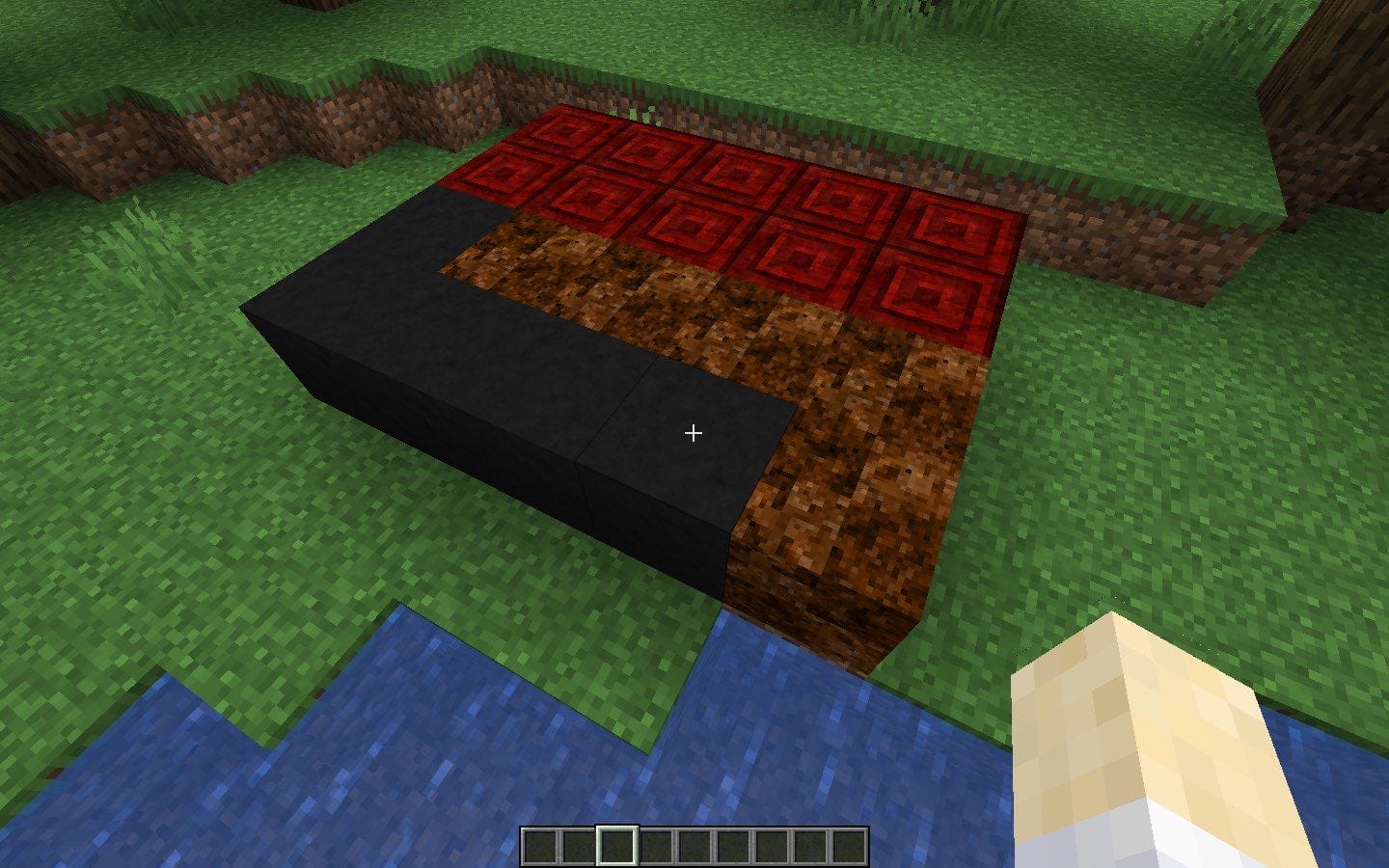
This pack sharpens the look of the mod by giving its blocks and items 32x textures. Everything from crafting components to dungeon blocks looks sharper and more detailed, fitting right in with 32x packs like Faithful 32x. It's available for Forge 1.16.5 and older, making it a great visual boost for players still enjoying those versions.
18. Leviosa

Leviosa is a lighthearted resource pack that swaps villager grunts for silly voice clips from the Oney cartoon "Wingardium Leviosa." Instead of the "Hrmm" and "Huh," villagers now shout lines like "Leviosaa!", and yeah - it turns every trade into a tiny joke!
19. Icon Xaero's
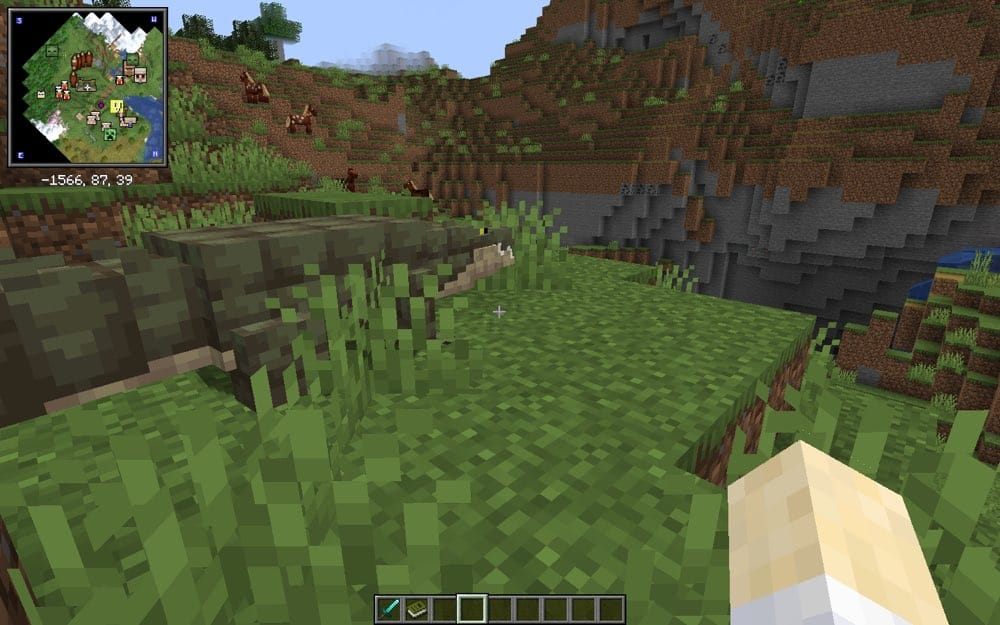
Icon Xaero's refreshes the modded mob icons used by Xaero's Minimap and World Map, making them cleaner, easier and faster to recognize. The updated visuals make navigation smoother and more enjoyable, especially in exploration-focused modpacks.
The pack supports all versions from 1.16.5 to 1.21.6, with two variations: one for 1.20 and above, and another for 1.19.4 and below. It also adds icon support for a wide range of popular mods, and the creator frequently updates it to keep up with community requests. I've used it in long modded playthroughs, and having distinct icons really improves the mapping experience.
20. Xali's Enchanted Books
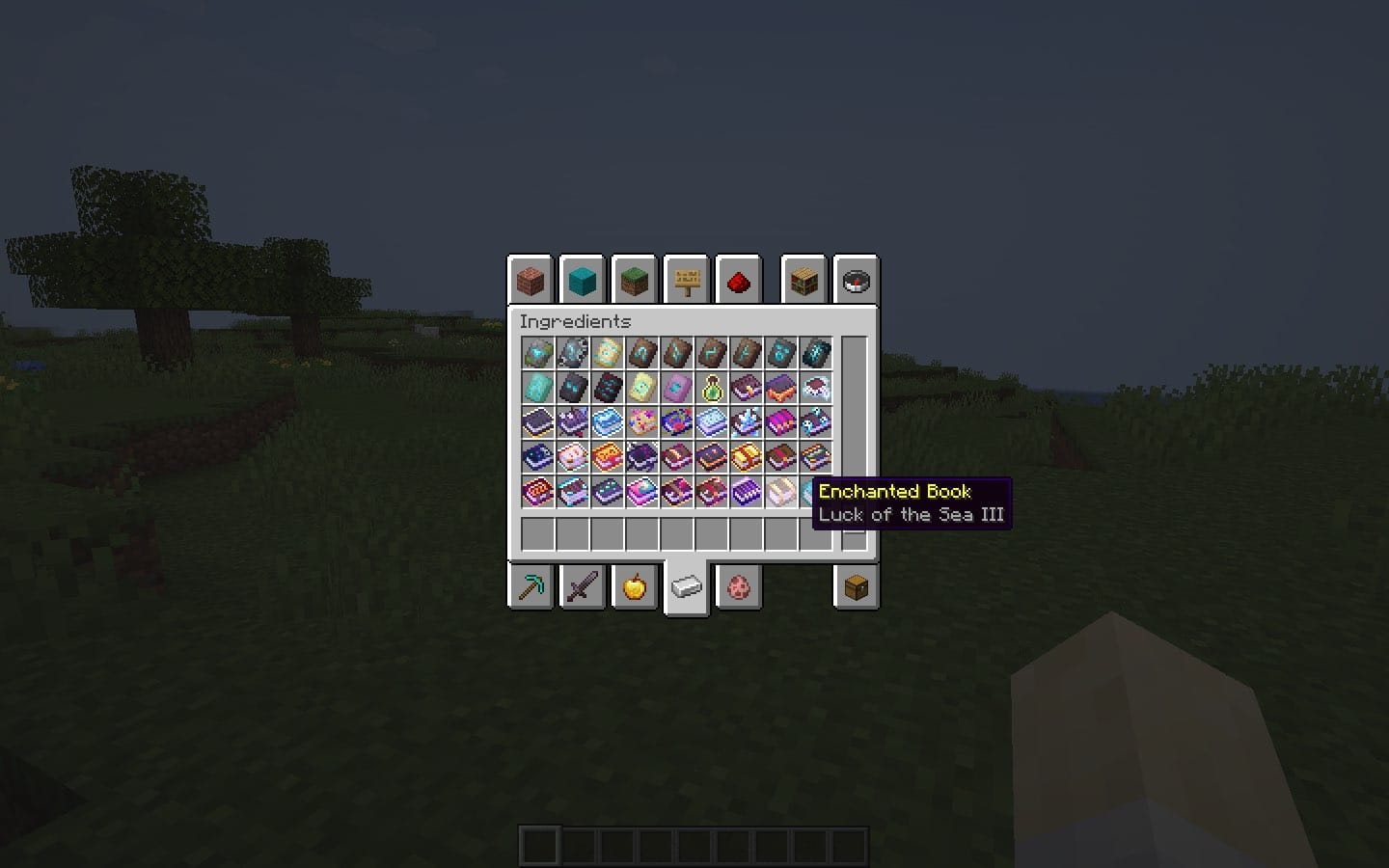
This pack makes each enchanted book visually unique, with distinct covers that match their enchantments. It's a huge quality-of-life improvement since you can tell books apart from how they look, even in a messy chest. I can't start a world without having it included! It saves so much time. Plus, it looks fantastic when displaying a library build.
21. Fresh Waystones Texture
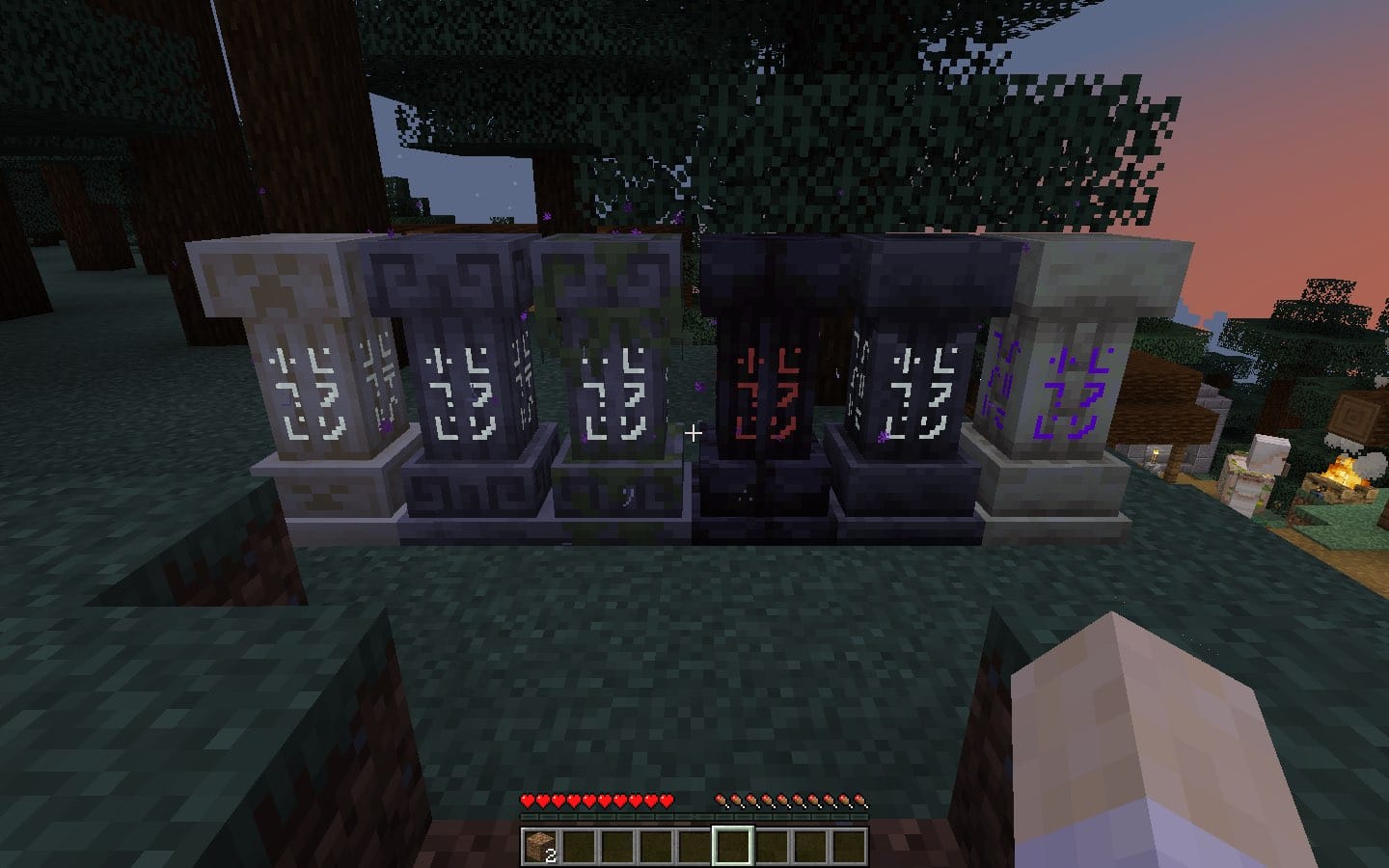
This pack overhauls the look of waystones, giving them more mystical textures that feel at home in both medieval builds and fantasy setups. The new look makes teleport hubs stand out without being distracting. Using it in multiplayer servers instantly makes the network of waystones look more refined and intentional.
22. Excalibur
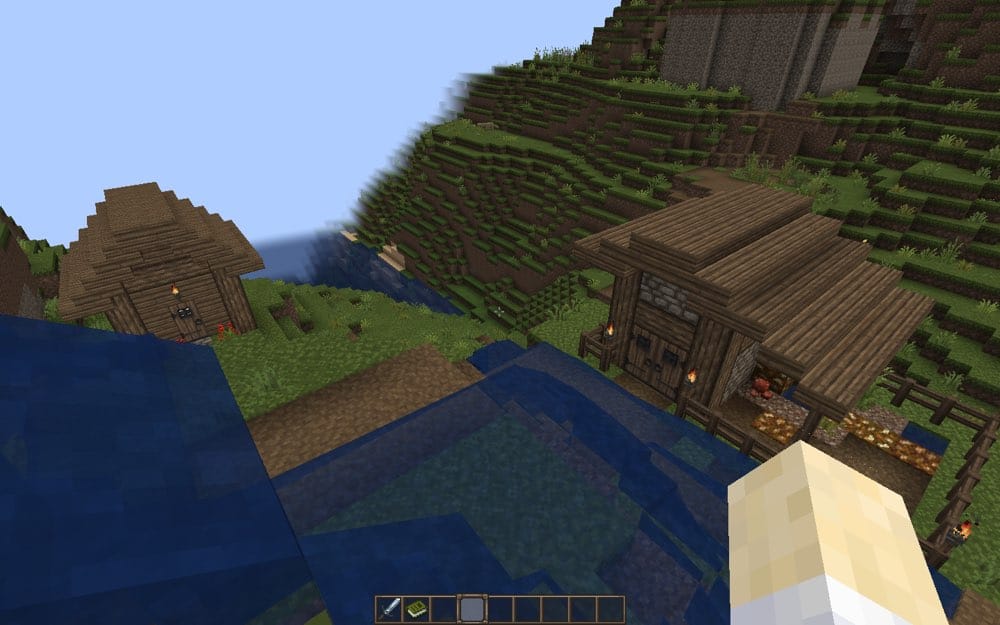
Excalibur offers a medieval-style change to Minecraft's visuals. Tools, weapons, and blocks all feel more rustic, which works amazingly if you're planning on having your own castle! Playing with the pack enabled, adds just enough flair to make every project feel unique.
23. Repurposed Structures - VillagerPlus Compatibility
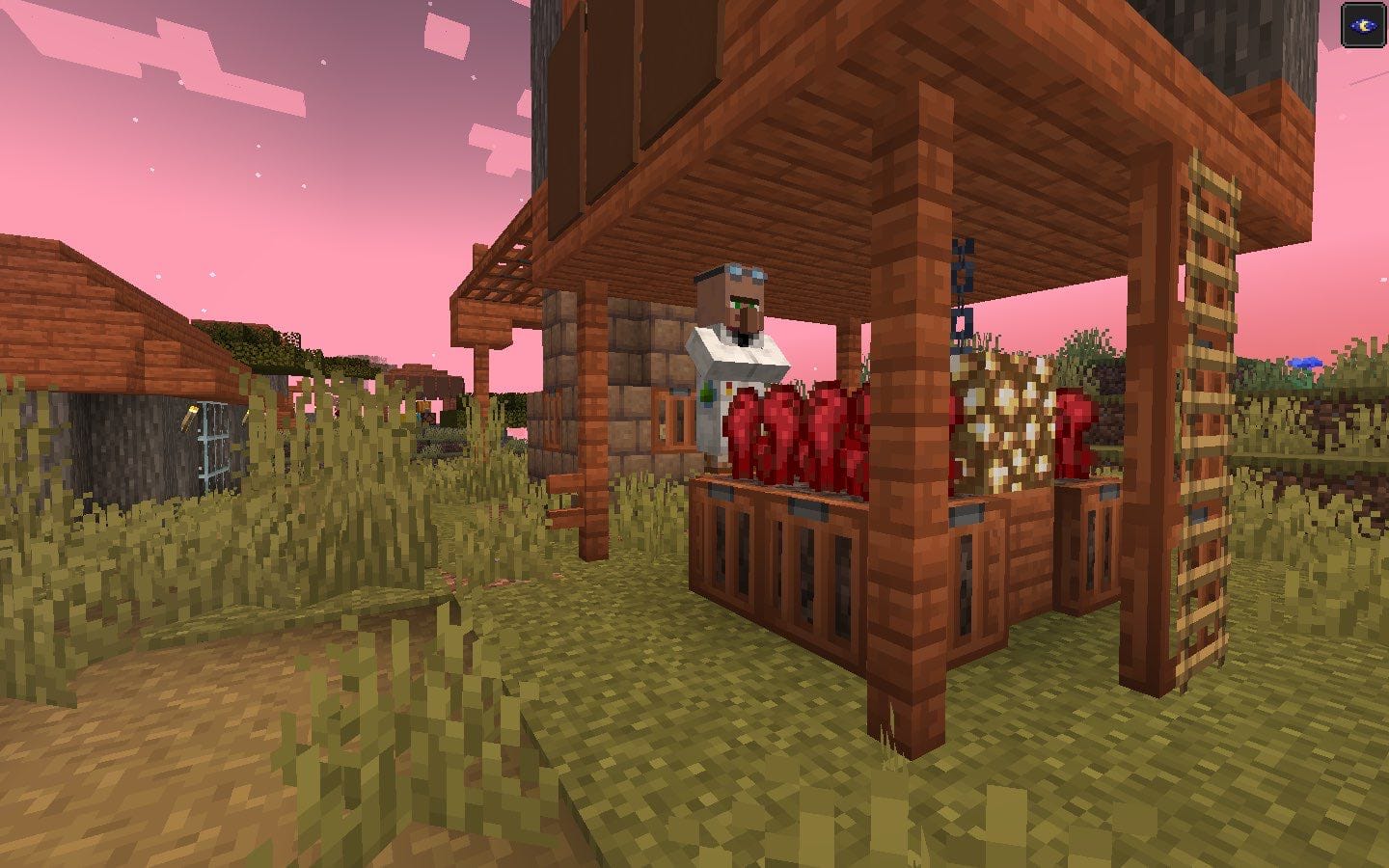
With this data pack, VillagersPlus houses and workstations appear in all Repurposed Structures Overworld villages except ocean villages. This brings new villager professions, adding variety and keeping settlements fresh for trading and exploration. It's a simple yet effective way to make villages feel more alive.
24. When Dungeons Arise - Loot Tweaks

Loot Tweaks adjusts the loot found in When Dungeons Arise structures, making them better suited for Vanilla+ style gameplay. Netherite no longer shows up in Overworld chests; diamonds are far rarer in minor dungeons, and resource stacks are reduced in favor of items like leather, slimeballs, and lapis. Enchanted gear is also harder to come by, pushing players to work for their equipment instead of looting it easily. For modpack makers and survival fans alike, this data pack makes dungeon crawling feel more balanced and rewarding.
25. Created Simple Storage Network
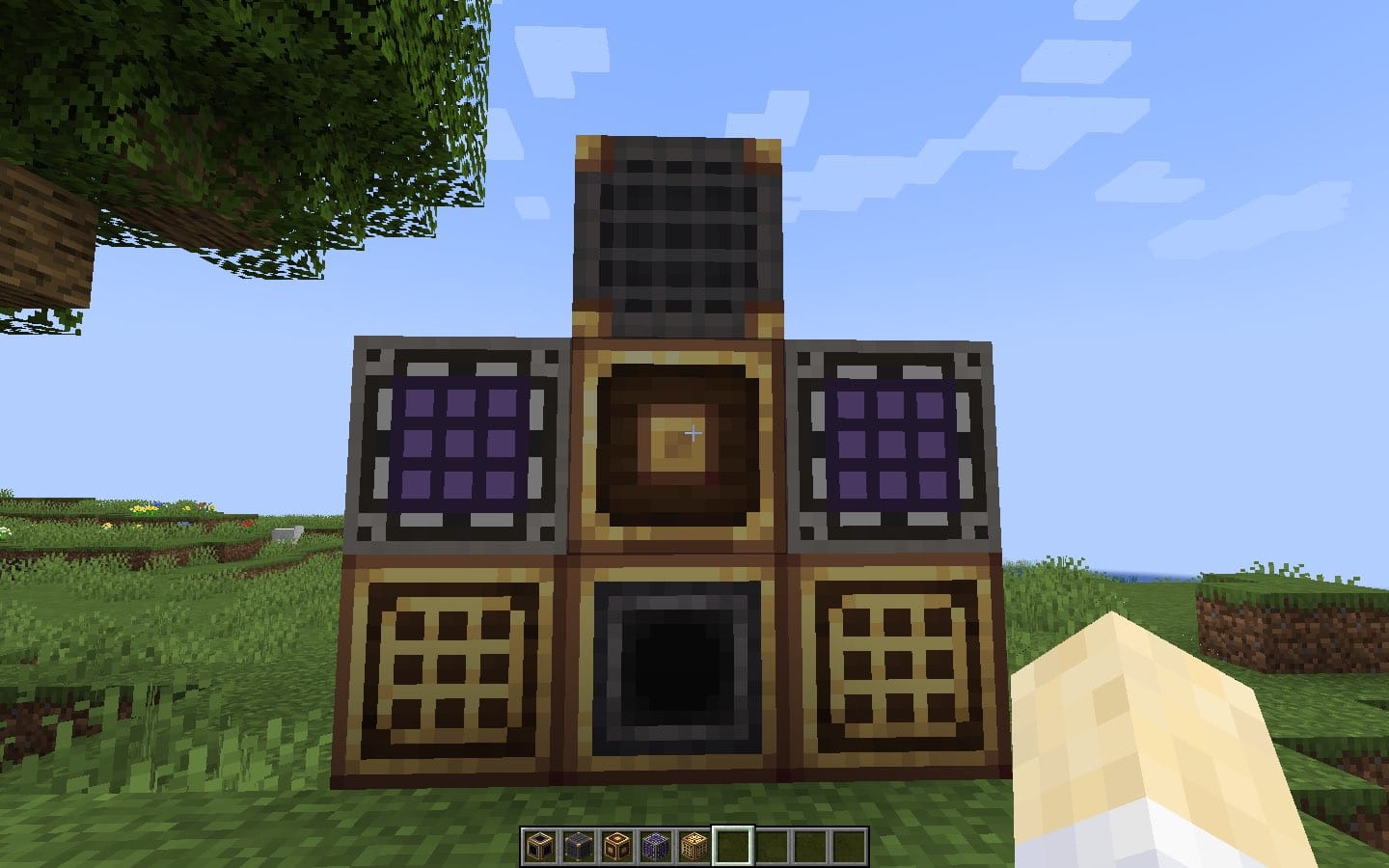
This pack changes the textures of Simple Storage Network, giving it a steampunk-style look that blends naturally with mods like Create and Immersive Engineering. Terminals, storage blocks, and cables all gain a mechanical style that makes them feel like part of a larger factory build. Perfect if you're running a tech or steampunk-themed modpack.
How to Install with the CurseForge Client
For Resource Packs
- Open the CurseForge app and select your Minecraft profile.
- Click the “Add Content” button and choose “Resource Packs” from the dropdown.
- Search for the pack you want and click Install.
- Launch the game, then enable the pack from the Resource Packs menu in Minecraft.
For Data Packs
- Open the CurseForge app and select your Minecraft profile.
- Click the “Add Content” button and choose “Data Packs” from the drop down.
- Find the data pack you want and click Install.
- You will either be prompted to choose a data pack loader (versions 1.21.1 only) or asked to follow this guide to install one manually.
- Start Minecraft, open your world, and the data pack will already be active.
How to Manually Install Resource Packs
- Download the resource pack .zip file from its CurseForge page.
- Open Minecraft and go to Options → Resource Packs.
- Click “Open Pack Folder” to open the resource packs directory.
- Move the downloaded .zip file into the folder.
- Back in-game, select the pack from the list and click “Done.”
How to Manually Install Data Packs
- Download the data pack .zip file from its CurseForge page.
- Open your Minecraft world save folder (Minecraft/saves/your world name)
- Inside, find and open the data packs folder.
- Place the downloaded data pack .zip file inside (again, don’t unzip).
- Launch the world, and the data pack will load automatically.
Some worldgen data packs and data pack the enable experimental feature flags require you to do it from in-game menus, follow these steps to do so:
- Start Minecraft and click the “Single player” button.
- Click the “Create New World” button
- Click the “More” tab at the top.
- Click the “Data Packs” button.
- Drag and drop the data pack .zip file onto the Minecraft game window.
- Click “Yes” when asked “Do you want to add the following packs to Minecraft?”
- The pack will appear in the list to the left, select the pack you added and click the arrow icon to move it to the selected list.
- Click “Done” and create your new world.
Common Issues & Fixes
- Textures not loading correctly: Make sure the pack version matches your Minecraft version. Some require OptiFine, Sodium or other mods for full effects.
- Lag or FPS drops: High-resolution packs can be demanding. Lowering render distance or using OptiFine, Sodium or other performance mods can help.
- Conflicts with other packs: Order matters. Move your preferred pack to the top of the list. Some resource packs rely on each other so you need to have them in the correct order per the author instructions.
Suggestions
- Combine thoughtfully: Use small, targeted packs (e.g., UI overhaul + leaves + an animated mob pack) rather than huge all-in ones to avoid conflicts and keep performance good.
- Use EMF or ETF when recommended: It unlocks features many modern packs rely on, but always follow pack author instructions.
- Keep backups: When testing many packs, keep a clean backup of your resource folder and world (especially when using data packs).
- Keep versions in sync: Always match your resource pack version to your Minecraft version.