CurseForge Blog

Top 20 Minecraft Visual Enhancement Mods by Community Downloads

Experience the best visual Minecraft mods that make movement smoother, environments richer, and the world feel alive.

Top 20 Minecraft Visual Enhancement Mods by Community Downloads

Visual mods are the easiest way to make the little details of Minecraft feel even more alive than ever before. This goes from adding particles to new animations that make everything look just oh so smoother. Here are standout visual mods you can mix and match, whether you’re playing vanilla-style survival or building a cinematic modpack.

1. Not Enough Animations
Not Enough Animations Mod

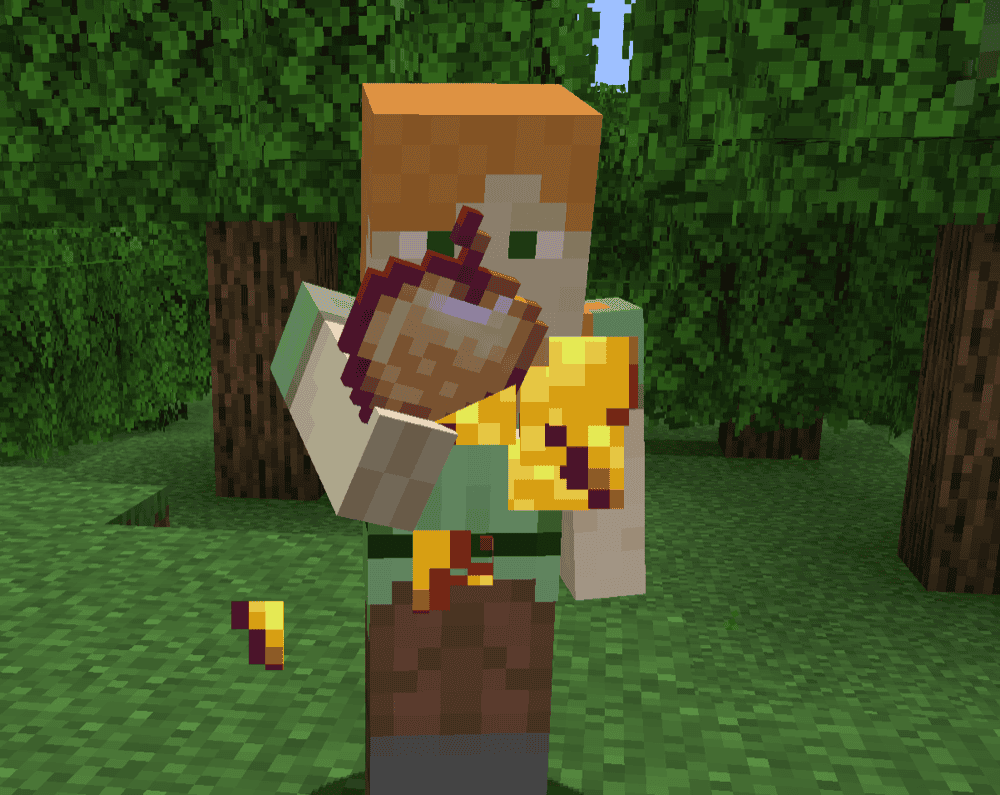
Not Enough Animations adds new animations and introduces third-person animations that were previously only visible in first-person. This means that anything from eating particles to the item you are currently holding (like the map or the spyglass) is finally visible in third-person just how you would see it "the normal way."

Overall, the mod is adding a ton of small yet essential details, making it one of the most popular choices around. Everything is visual-only and can be toggled individually in the in-game config menu, so you can keep the features you like and disable anything that feels extra.

2. Visuality
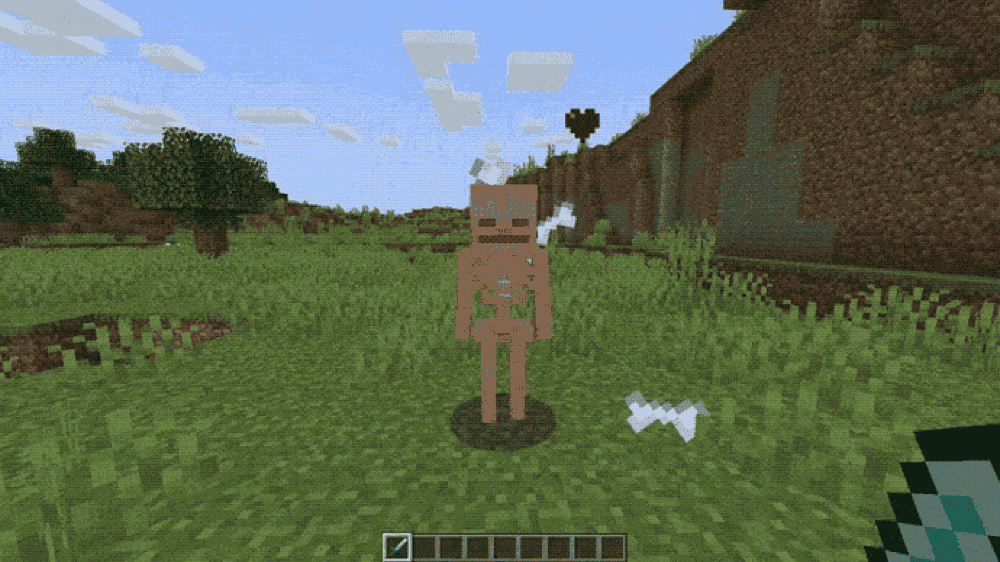
Visuality Mod
Visuality adds a wide mix of new particles – things like crystal sparkles, extra hit particles, improved slime effects, and subtle environmental visuals that make the world feel less static. You can tweak everything through a simple configuration file, and if you use Mod Menu (available in Fabric), you can handle most settings in-game.

3. Falling Leaves

Falling Leaves Mod
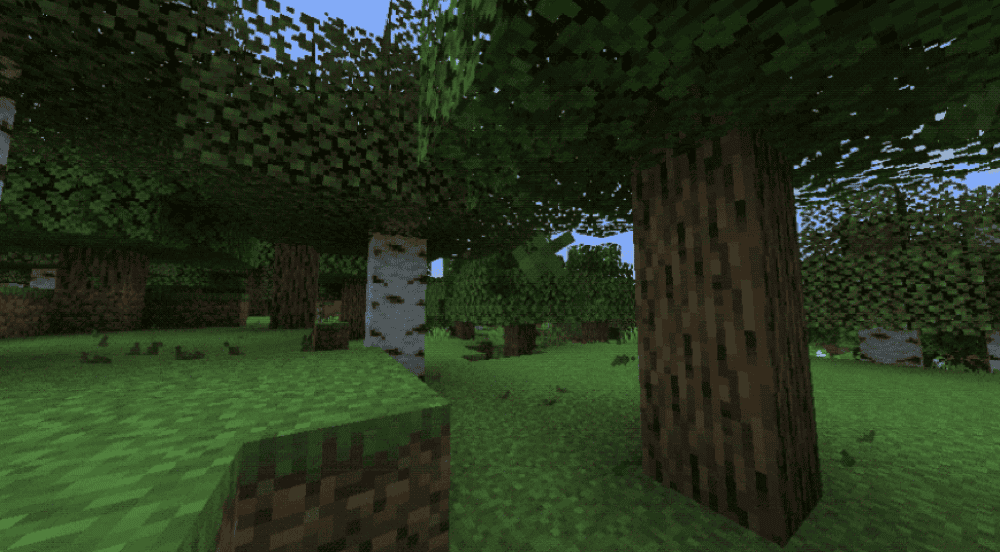
Falling Leaves adds a simple but super effective touch, leaf blocks occasionally shed falling leaf particles, making forests feel calmer and more alive. The mod is client-side only, and it's highly configurable, you can tune things like leaf size, how long particles last, spawn rate (including conifer-specific rates), whether player-placed leaves should drop particles, and even disable wind or limit wind effects to certain dimensions.

4. Wavey Capes

Wavey Capes Mod

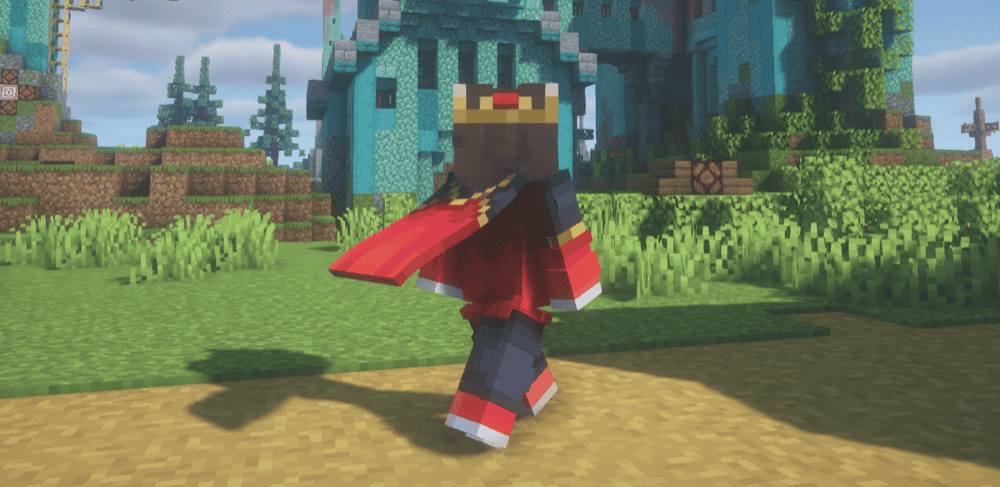
Wavey Capes fixes the static slab cape problem by making your cape move like actual fabric. It renders as a flexible piece with smooth physics, wind sway, and better bending so it looks natural while running, swimming, or turning.

You can tweak everything in an in-game config screen and even switch between different styles, from fully simulated movement to simpler classic bends, while staying fully client-side, so it works on servers without needing anything installed server-side.

5. Blur+
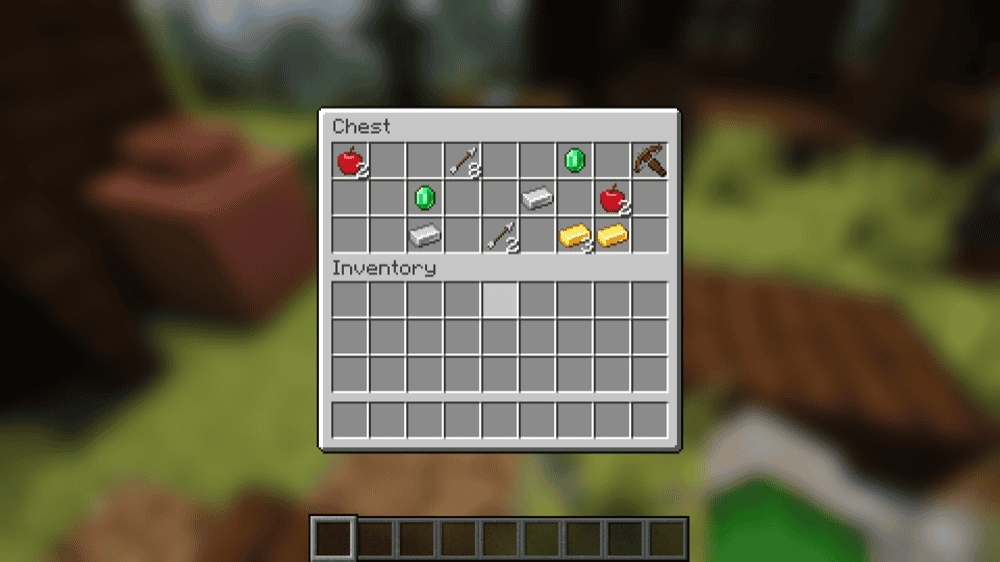
Blur+ Mod

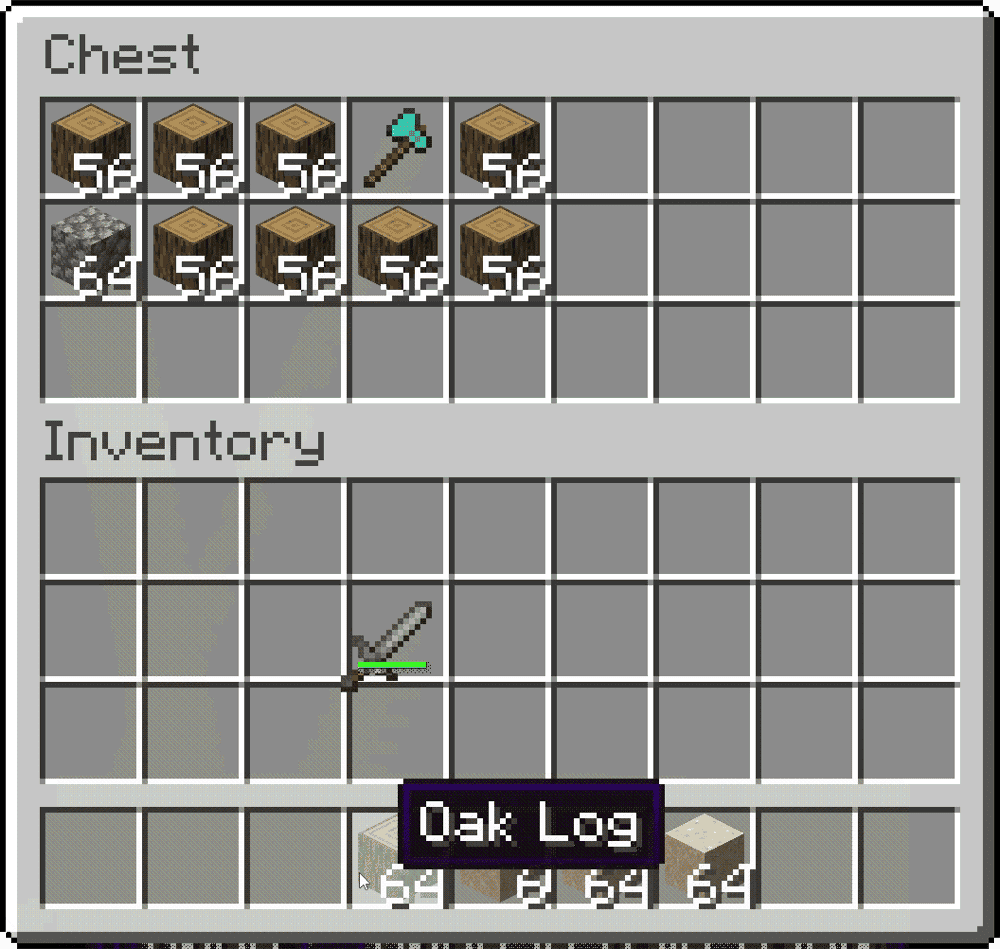
Blur+ upgrades the vanilla background blur into something that looks good. It adds a smooth Gaussian blur behind menus and inventories, with extra polish like fade animations, adjustable blur strength, and optional color/gradient overlays so your GUIs feel cleaner and less distracting.

The configuration is flexible too, so if you want a subtle soft focus look or a heavy cinematic blur, you can tweak it in without much effort.

6. Cave Dust
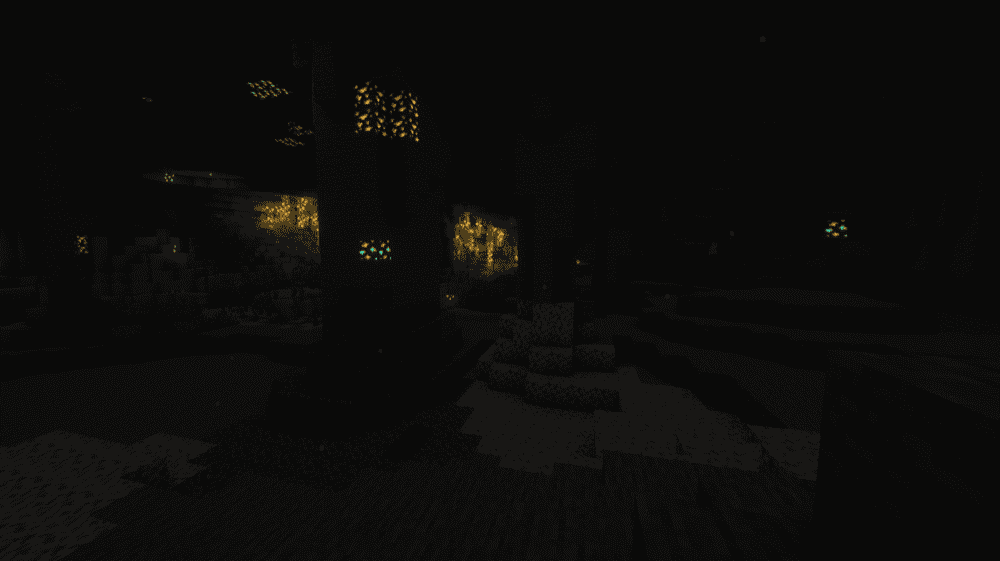
Cave Dust Mod
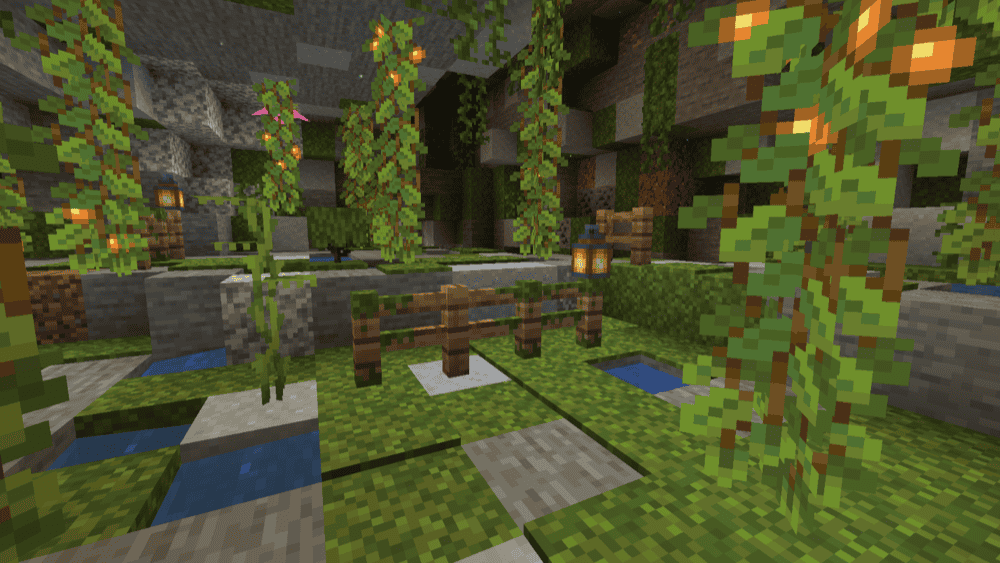
Cave Dust adds a simple but convincing effect – it reuses the white ash particle and spawns it underground to simulate dust in the air. The deeper you go, the more noticeable it becomes, which makes caves and mineshafts feel less sterile without turning everything into fog.

7. Item Borders

Item Borders Mod
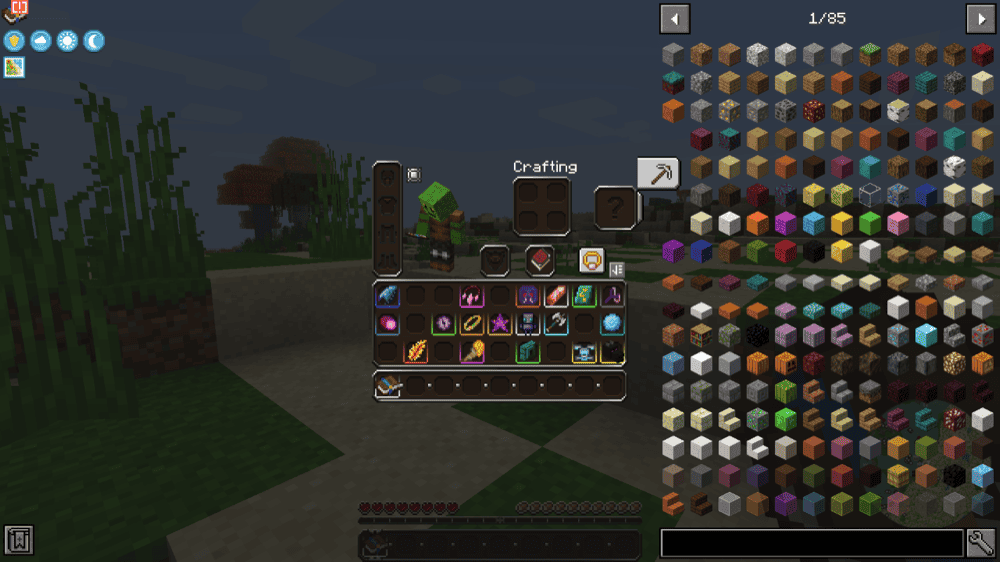
Item Borders adds colored outlines to inventory slots so rare items pop instantly instead of getting lost in the clutter. It's fully client-side and works nicely with modded items and rarities. By default, the mod keeps things clean by not highlighting common items, but you can change that, disable borders on the hotbar, sync colors from certain loot-style mods, or define your own custom colors for specific items and tags.

8. Wakes

Wakes Mod
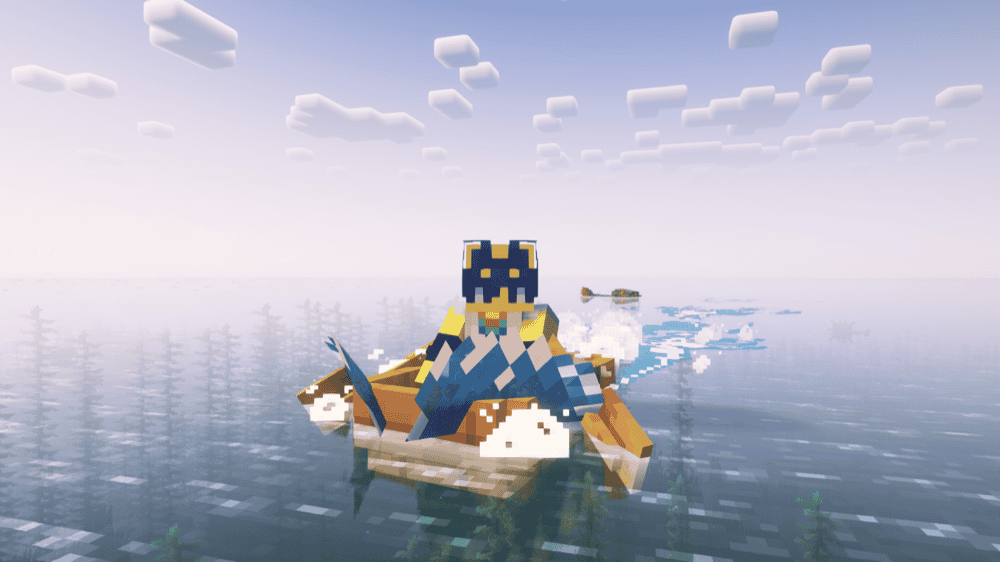
Wakes adds great-looking water effects like ripples and wake trails behind moving entities like boats, as well as splashes when something hits the water. You will immediately notice that the mod makes water feel more responsive and realistic, ruining vanilla water effects for you forever.

9. Explosive Enhancement: Reforged

Explosive Enhancement: Reforged Mod
Explosive Enhancement: Reforged upgrades explosions with a bunch of extra particles you can toggle individually, so TNT and creepers feel way more dramatic without changing gameplay. It also includes a satisfying underwater explosion effect with bubble-heavy visuals.

10. Smooth Swapping

Smooth Swapping Mod
Smooth Swapping is a client-side polish mod that adds smooth item movement animations inside inventories, so dragging, moving, and swapping items feels less snappy and more modern. It includes a simple settings menu where you can toggle the mod, adjust animation speed, and even fine-tune the animation curve if you want the movement to feel faster, softer, or snappier without going full instant.

11. Detail Armor Bar

Detail Armor Bar Mod
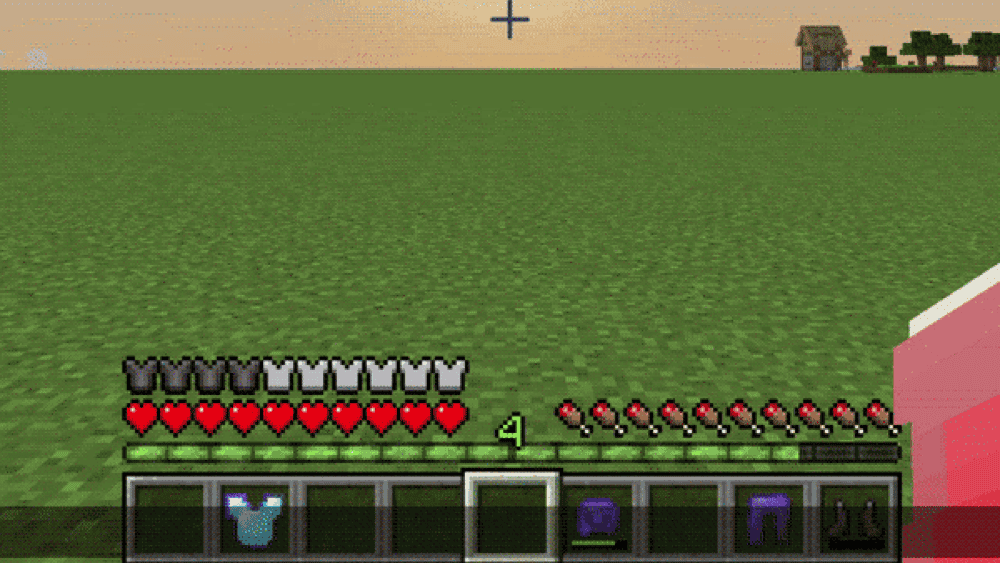
Detail Armor Bar upgrades the armor HUD so it shows more than a few icons. The mod can display higher armor values (20+), adds extra visual cues for things like protection enchant types, mending, thorns, and low durability warnings, and generally makes it easier to read your real survivability at a glance, especially in modpacks with stacked armor stats.

12. EnhancedVisuals

EnhancedVisuals Mod
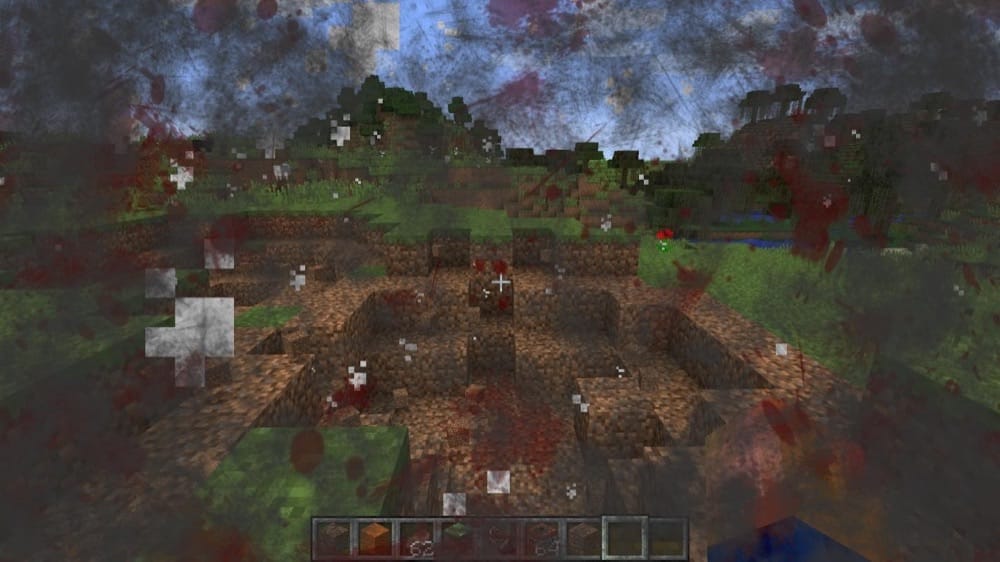
EnhancedVisuals makes damage and status effects feel more real by adding immersive overlays and feedback directly into your in-game view. The screen reacts to what happens instead of everything staying bland, so fights and risky moments feel more intense without changing the core gameplay mechanics.

13. Physics Mod

Physics Mod
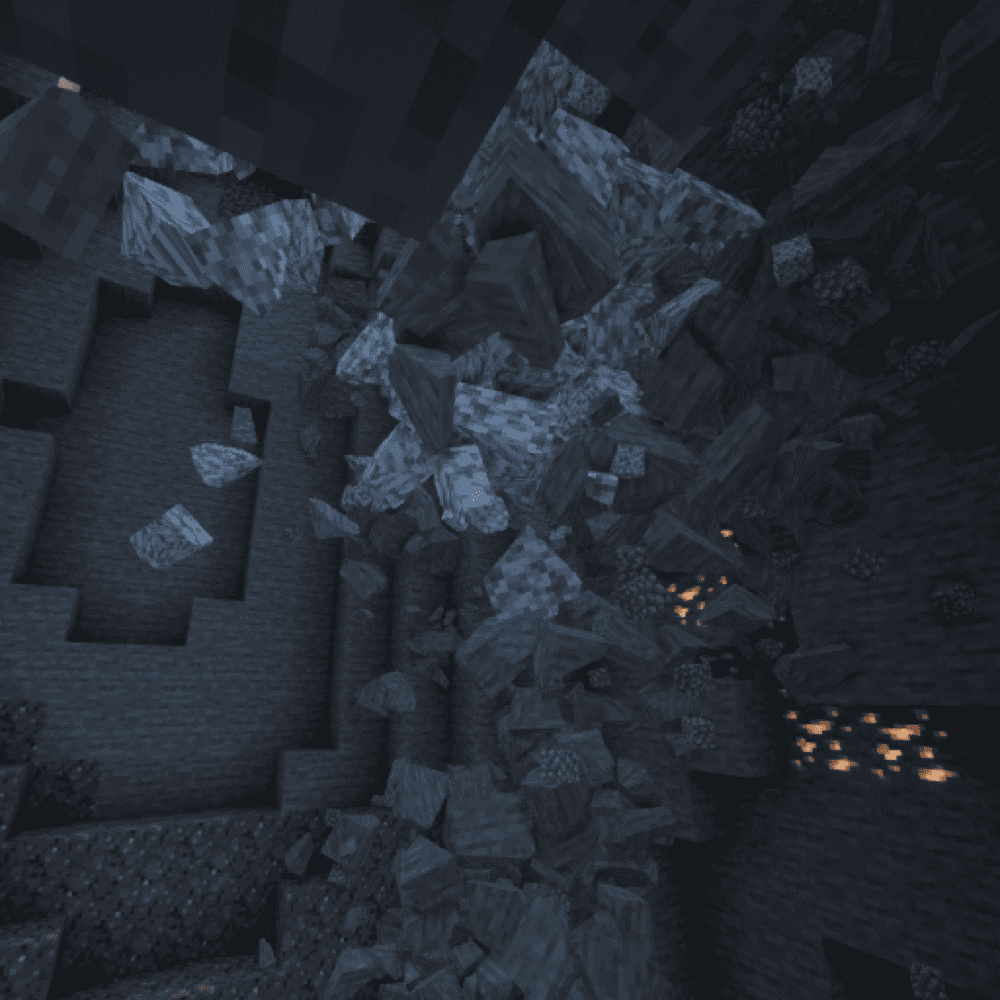
Physics Mod turns Minecraft into a much more physical world by adding things like mob ragdolls, block fracturing/crumbling, and item physics (no more floating drops). You can also play with gravity settings for different vibes, and there are extra features in the Pro versions like ocean, smoke, snow, cloth, vines, and liquid simulations. Just keep in mind the visuals can be spectacular at the expense of a performance drop if you set the settings too high.

14. LambdaBetterGrass

LambdaBetterGrass Mod
LambdaBetterGrass upgrades terrain visuals by making blocks like grass, mycelium, podzol, paths, and nylium blend and connect more smoothly, so landscapes look less tiled. The mod also includes a Better Snow option that adds snow layers to more block shapes and even supports snowy fences through an optional built-in resource pack. If you want that better grass/better snow look without relying on OptiFine-style rendering, this is one of the cleanest options on Fabric.

15. Visual Overhaul

Visual Overhaul Mod
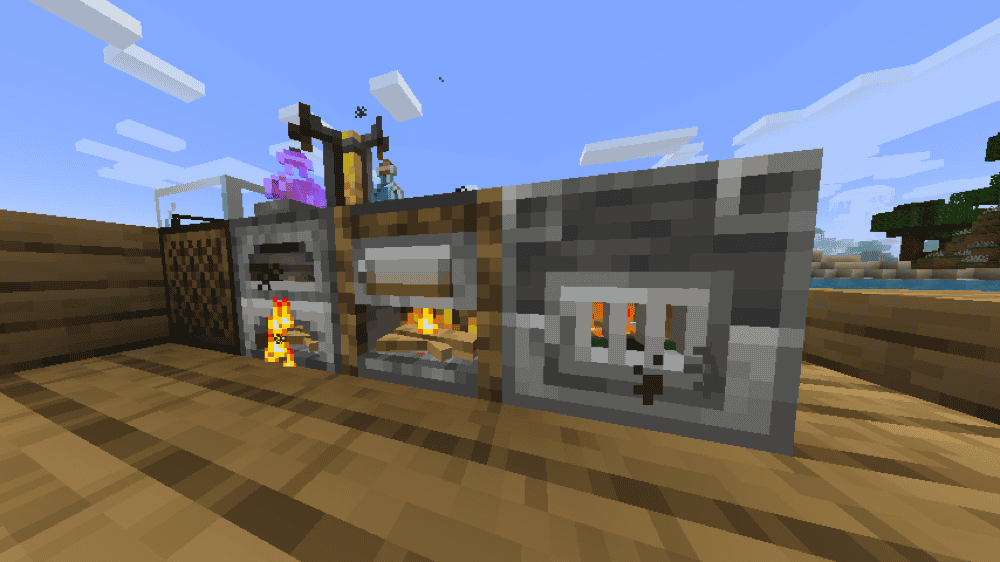
Visual Overhaul refreshes how certain vanilla interactable blocks look and feel by enhancing them even further. The mod currently overhauls blocks like the jukebox, brewing stand, furnace, smoker, and blast furnace, and it can also add extra polish like biome-tinted item visuals and cleaner menu button icons. Just make sure to enable the included resource packs in your resource pack menu so the changes show up.

16. FootprintParticle

FootprintParticle Mod
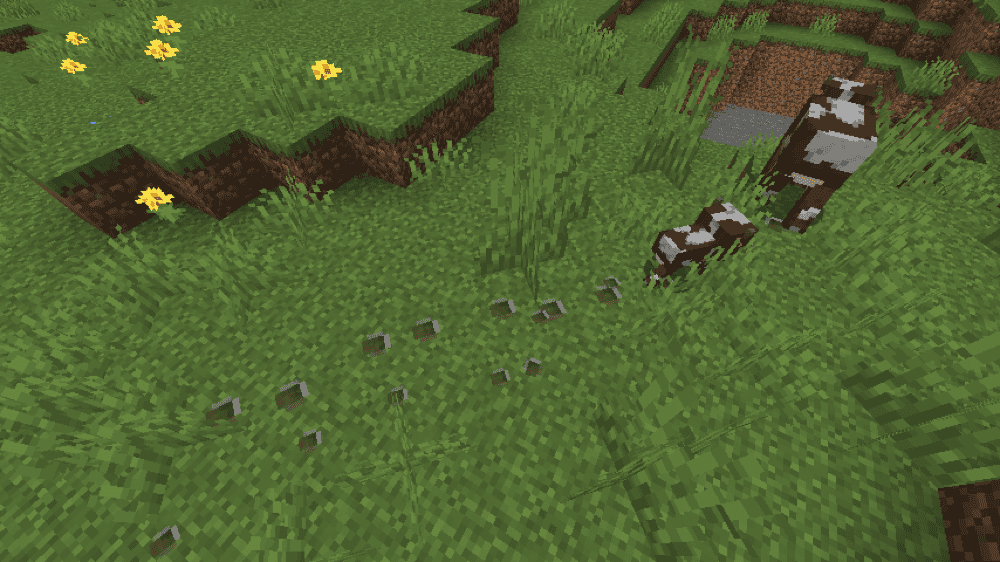
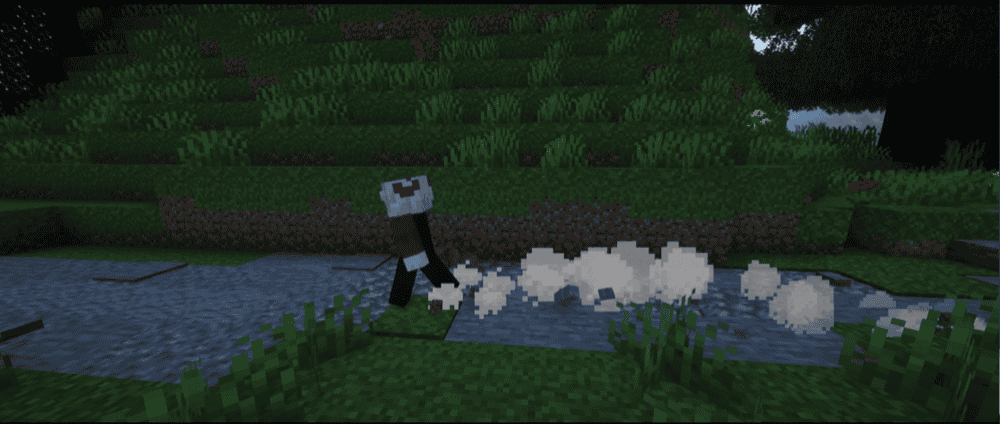
FootprintParticle adds footprint-style particles for mobs and players, with lots of small touches that make it feel surprisingly complete. Prints change with mob size (including babies), certain mobs like spiders and horses get special placement logic, and it can also add extras like water prints, boat trails, swimming pops, minecart sparks, and dust effects on snow.

17. Particle Interactions

Particle Interactions Mod
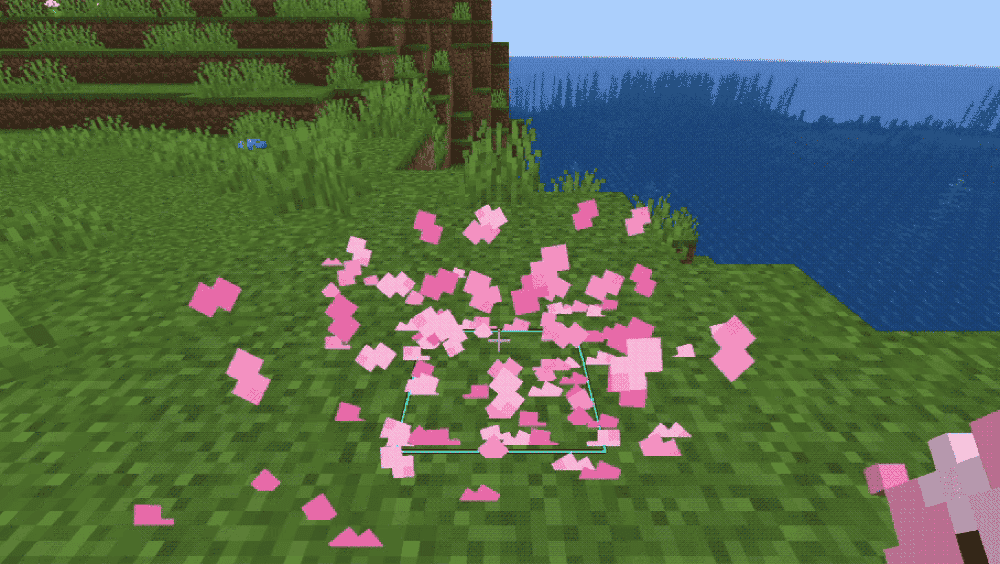
Particle Interactions makes everyday actions feel more tactile by adding particles to tons of interactions, placing and breaking blocks, stripping logs, tilling dirt, using flint and steel, moving through foliage, underwater building, minecarts, furnaces, and more. The mod is fully client-side and heavily configurable, so you can tone it down, tweak it, or disable specific effects until it fits your world's vibe.

18. Perception

Perception Mod
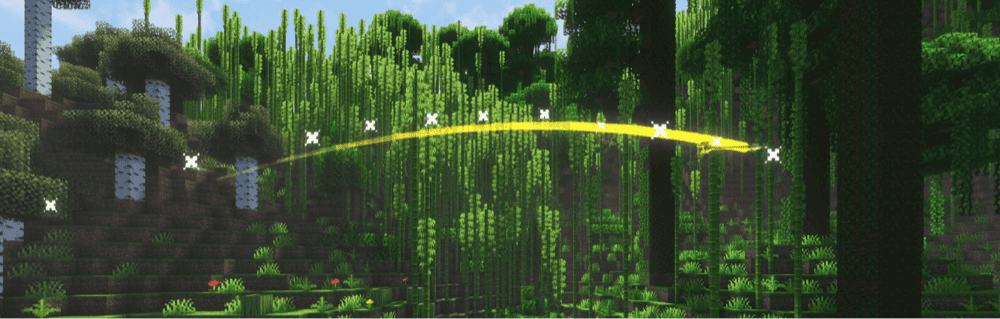
Perception focuses on feel more than flashy spectacle, adding immersive effects that make the world read better in motion. It currently includes trails for projectiles and entities, which adds a subtle sense of speed and direction, plus directional screen shake triggered by loud events like explosions or fast movement that can actually help you sense where danger is coming from, especially when you're not looking directly at it.

19. Particle Rain

Particle Rain Mod
Particle Rain replaces vanilla weather with higher-quality particle effects that make storms feel more natural. Rain falls at an angle like it's being pushed by wind, snowflakes drift and rotate as they fall, and deserts can get sandstorm-style effects. The mod also adds extra touches like biome-tinted rain/water particles, ripples when rain hits water, streaks on walls, and optional ground fog in humid biomes, all toggleable so you can keep what you like and disable what you don't.

20. Fancy VFX

Fancy VFX Mod
Fancy VFX is more of a juicy visual mod that adds a bunch of flashy but fun effects without changing gameplay. It upgrades things like explosions and lightning, adds trails for XP orbs and arrows, creates projectile landing effects, and layers in extra polish like shooting VFX, light aura, damage effects, sprint smoke, and visuals for applied status effects. It's perfect if you want Minecraft to feel more energetic on-screen than usual.

How to Install Mods 

How to Install with the CurseForge App

  1. Open CurseForge → Minecraft and create a profile with the modloader and version you need, Fabric, Quilt, NeoForge or Forge (depending on which mods you are looking to install). 
  2. Open your profile and click the three dots next to "Play".
  3. Click on "Add More Content" from the available options.
  4. Search the mod you need and click "Install".
  5. Play from the CurseForge app.

How to Install Mods Manually

  1. Install a mod loader that matches your Minecraft version (Fabric, Quilt, NeoForge, or Forge).
  2. Run the installer to add a new profile in the Minecraft Launcher.
  3. Download the mod’s .jar file from its project page. Making sure both the Minecraft version and loader version match.
  4. Drop the .jar into the mods folder inside your .minecraft directory (create the folder if it doesn’t exist).
  5. Launch Minecraft using the new loader profile.

Note: Make sure to check if the mod has been recognized by the game. On the title screen, click “Mods”. If the mod lists any required dependencies (like Fabric API), install those too. Please also note that if using Fabric, the "Mods" button will only appear if the "Mod Menu" mod is installed. 

Common mods folder locations: 

  • Windows: %AppData%\.minecraft\mods, 
  • macOS: ~/Library/Application Support/minecraft/mods
  • Linux: /home/<your-username>/.minecraft/mods

Common Issues and Quick Fixes

Nothing changes after installing a mod

Make sure you’re launching the right modded profile (Fabric/Forge/NeoForge/Quilt). A lot of these changes are subtle, so test something obvious, for instance:

  • Water: Wakes
  • Caves: Cave Dust
  • Forests: Falling Leaves
  • Third-person: Not Enough Animations
  • Weather: Particle Rain/Pretty Rain

“Missing dependency” / crash on startup

Double-check the required libraries for each mod and also turn off OptiFine as this mod is incompatible with a lot of visual mods. Use both Embeddium and Oculus instead.

Mod works in singleplayer, but not on servers

Most of these mods are client-side, so they’ll work fine – even if they are not deployed on the server. 

Note: on Minecraft 1.20.1 and earlier, Particle Rain/Pretty Rain may need to be installed server-side too depending on the build.

FPS drops after adding several visual mods

  1. Start by reducing particle-heavy effects first:
  • Particle Rain or Pretty Rain: density/radius/max particles settings
  • Particle Interactions: “override” particles + underwater effects
  • FootprintParticle: frequency/lifetime
  • Fancy VFX: explosion/shooting/damage effects
  1. Make sure the game is using the right graphic card from the "F3" menu.
  2. Try adding performance mods like Embeddium (Forge) or Sodium (Fabric).
  3. Physics-style mods are the biggest performance wildcard. If you’re using Physics Mod, Perception, or Wakes, expect bigger visuals at the expense of a performance drop when settings are set to high.

Shaders / OptiFine problems

  • EnhancedVisuals + OptiFine

Turn off Fast Render, Anisotropic Filtering, and Antialiasing or you can get a black screen.

  • Blur+ 

Blur+ and some shader pipelines don’t play nicely with OptiFine shaders. If Blur+ breaks, test without OptiFine first.

Falling Leaves looks “too windy” or too intense

Lower the spawn rate, reduce lifespan, or disable wind in the config file. You can also set windless dimensions if you only want calm particles in certain worlds.

WaveyCapes looks odd in certain situations

Simulation V2 can fold weirdly during swimming/crawling. Curios/custom equipment slots and chestplate-hiding mods may also not affect cape offset correctly.

Particle Interactions doesn’t show effects from other players

The mod is client-side, so some effects won’t appear for other players’ actions yet. Better multiplayer support is planned which may require a server install later on.