Getting lost in Hytale happens. A lot. The vanilla map works fine for quick checks, but once you start building across multiple biomes or coordinating with friends on a server, you need better tools. Things like persistent exploration tracking, waypoints that stay put, minimaps that don't clutter your screen, or web maps you can pull up on a second monitor.
This list covers the 10 most-downloaded map mods on CurseForge. Each one solves a different navigation problem, from persistent world maps and lightweight minimap HUDs to browser-based maps with live player tracking.
Important: This article was originally published in April 2026.
Please be aware that the mods listed below were popular at the time of writing, but may have since become outdated or incompatible due to subsequent game updates. While we include them here as noteworthy examples of the modding community's work, we cannot guarantee their complete functionality.
For a list of the most recent and fully playable Hytale mods, please visit the official Hytale mods page.
Let’s get started!
1. BetterMap
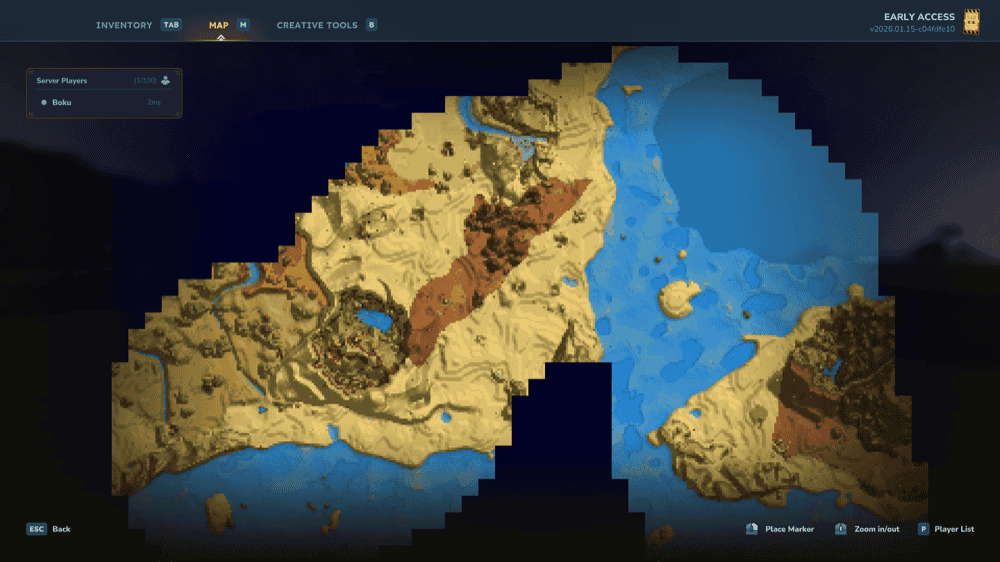
BetterMap gives you a persistent exploration map that remembers where you’ve been. Instead of the vanilla map’s small circular view resetting as you move, BetterMap saves explored areas across sessions, so your map keeps growing as you travel and makes it much easier to retrace your steps later.
The mod also includes Cave Mode for underground navigation, an enhanced waypoint system, optional shared exploration, player-radar tools, a configurable "/bm" menu, a Position HUD compatible with MultipleHUD, world-border visualization, and quality settings that help balance detail against performance.
2. Wayfinder [Minimap]
![Wayfinder [Minimap] Mod](https://storage.ghost.io/c/9f/8d/9f8d5b30-70cc-4195-b81c-9da992a9b9dc/content/images/2026/04/wayfinder-1.png)
Wayfinder gives you a real-time minimap in the corner of your screen showing a 40×40 grid from actual world map data. You get compass direction with degree heading, live coordinates, and an in-game clock with sun and moon indicators. The minimap shows hostile mob blips and other players as colored dots (both customizable and toggleable), so you can spot threats and friends at a glance.
The mod includes multiple zoom presets (Close, Medium, Far), adjustable update frequency (Very Fast, Fast, Normal, Slow), shape selection (square or circle), and corner positioning. You can even choose between north-up orientation or rotate-with-player mode, and all your settings persist across sessions. Finally, with Performance Mode enabled, you can also split map updates across multiple frames to reduce client stuttering if needed.
3. Explorers Map
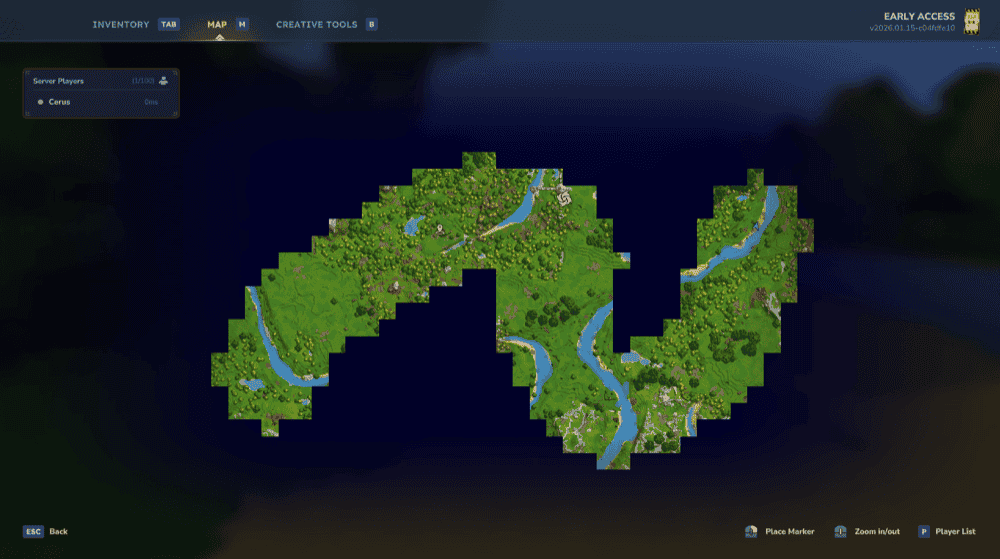
Explorers Map changes the vanilla map to only show places you've visited, making navigation feel earned. You can configure it for per-player exploration (everyone sees their own discoveries) or shared map mode where all players contribute to one collective view with live updates. The exploration radius is adjustable, though setting it higher than 10 could cause significant lag.
The mod includes configurable zoom-out limits, five tile resolution options ranging from BEST (96×96, most detailed but crashes on well-explored maps) to FASTEST (4×4, minimal detail but less demanding). Note that the mod overwrites vanilla map rendering, which could cause incompatibilities with other mods doing the same thing.
4. HyMarkers
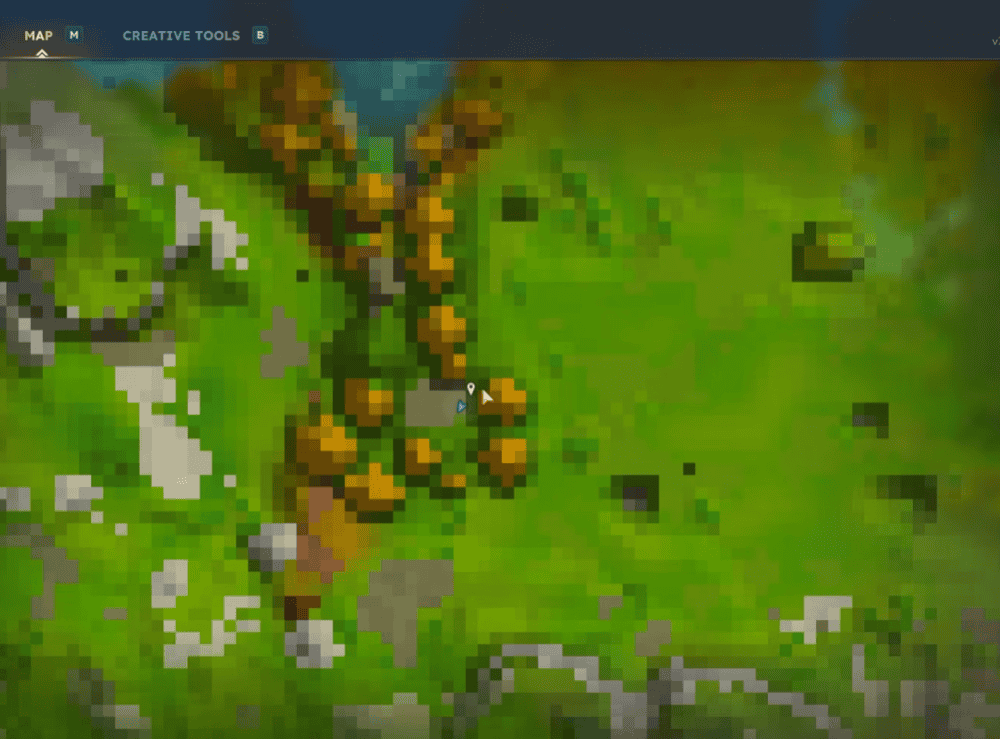
HyMarkers lets you drop markers on the map that stay there and show up on both the world map and your compass. It works in both single-player and multiplayer, but the mod is especially useful on servers because it helps groups share locations without spamming chat with coordinates. You can pick between different icons (Pin, Home, Spawn, Campfire, Portal, Temple, Death, Warp) either when creating the marker with "/marker add name --icon=Home" or by right-clicking the marker on the map afterward.
Markers also get saved to disk and can therefore survive restarts. Players can delete their own markers, while server operators can delete any marker and get a teleport option when right-clicking one. The mod saves marker data to "mods/markers/" as JSON files and does not need extra configuration. Commands include "/marker add", "/marker remove", and "/marker list", with "/m" and "/wp" available as shortcuts.
5. Landmark
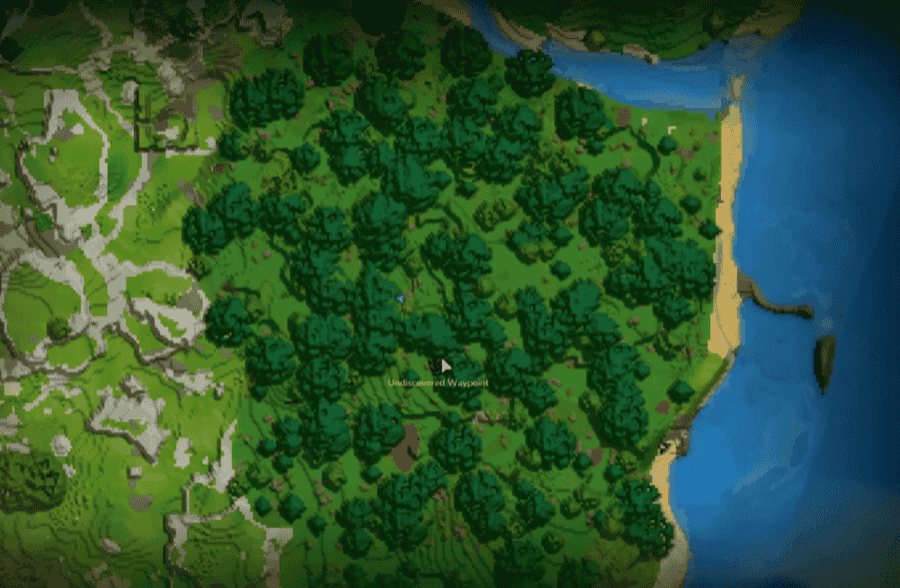
Landmark adds unlockable waypoints that players discover in the world and use for quick-travel later. Simply place a waypoint marker item where you want players to find it, and once they get close enough, they unlock that location for travel from the world map. This makes Landmark a strong fit for adventure-focused multiplayer worlds, hubs, and servers that want exploration to feel more structured.
The mod is built around shared travel and server-side control rather than a simple personal waypoint system – and it shows. For instance ,it includes permissions for using landmarks, teleporting, listing unlocked waypoints, clearing progress, and managing landmark names. Players can also use "/landmark list" to teleport when they are too far away or in a different dimension.
6. Quick Waypoints
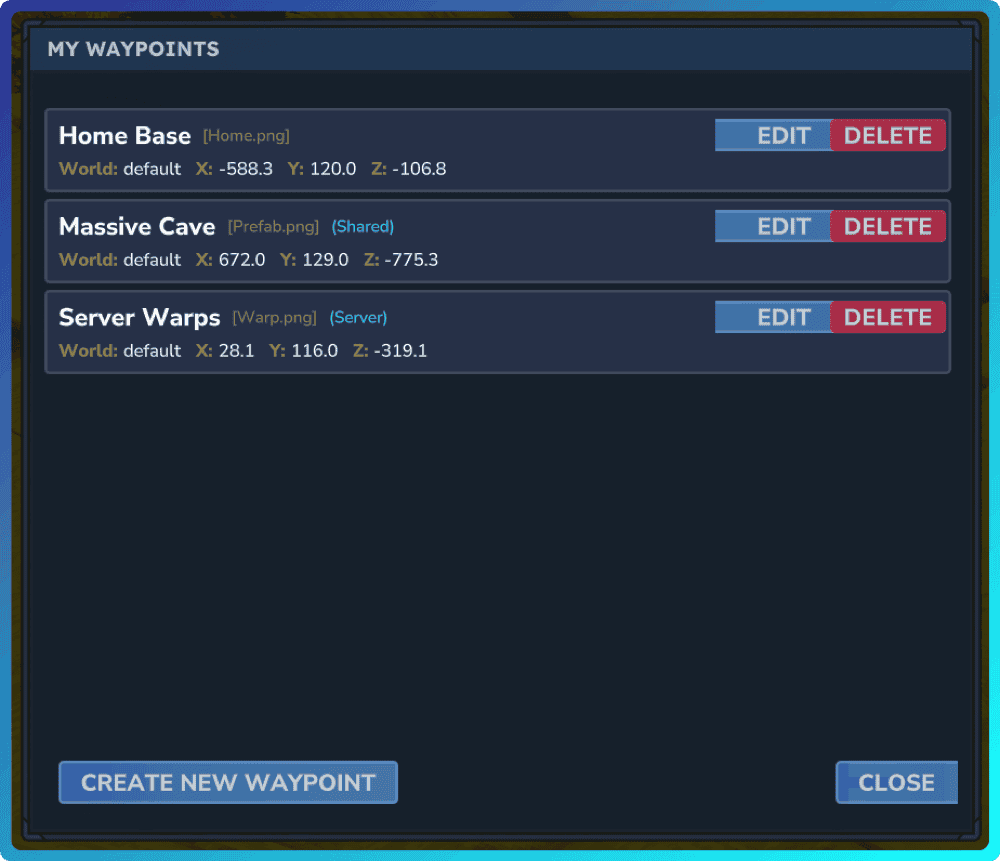
Quick Waypoints gives players a clean UI for creating and managing waypoints without relying only on commands. You can open it with "/waypoints" or "/wp", create personal waypoints at your location or specific coordinates, and choose whether to keep them private or share them with other players. Quick Waypoints also supports server-wide waypoints, which makes it useful for multiplayer worlds that need clear markers for bases, portals, or towns.
In addition, the mod can play along with built-in marker styles, persistent storage across restarts, custom icons, and detailed permissions for creating, sharing, teleporting, and managing waypoints. All in all, this makes it a strong pick for players who want a simple waypoint system and for servers that need more control.
7. Adoa's Minimap
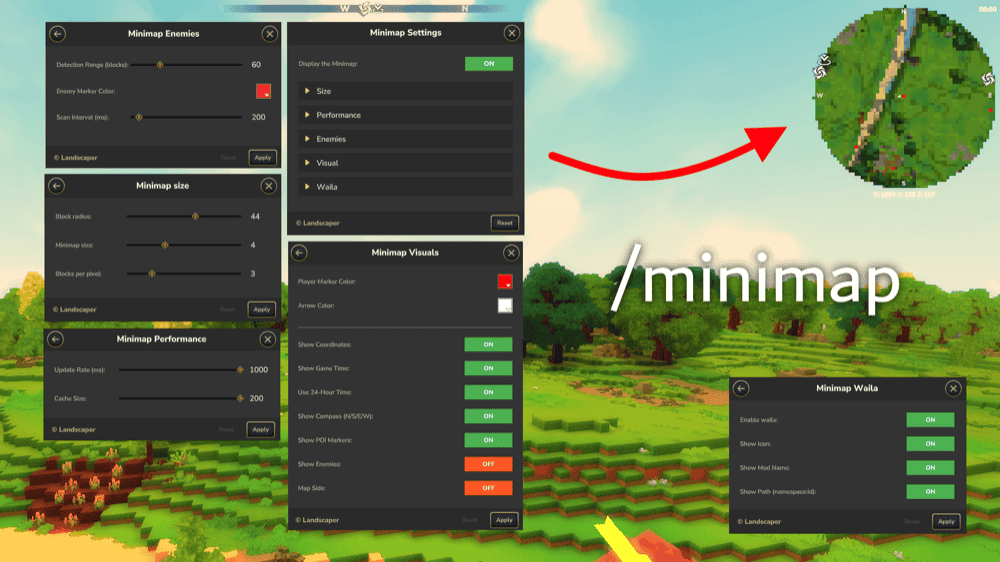
Adoa’s Minimap adds a close-range minimap to the top-right corner of your screen, making it easier to track nearby enemies and stay oriented while exploring. It is built to stay lightweight and readable, with cardinal directions, player and enemy tracking, and a clean HUD-first design that avoids too much visual clutter.
The mod also gives you room to customize the display. You can adjust map size and scale, change colors, and toggle different UI elements on or off to match your setup. Best of all, Adoa’s Minimap works in both single-player and multiplayer.
8. EasyWebMap
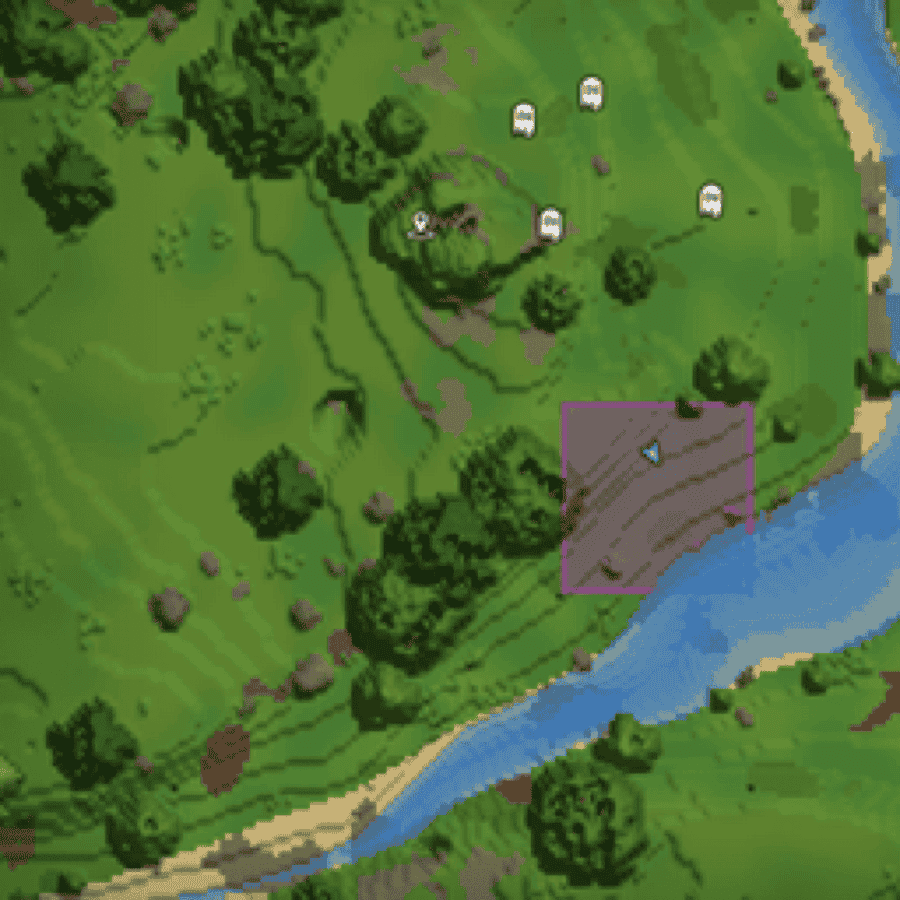
EasyWebMap creates a live web map for Hytale servers that players can open in a browser. It uses Hytale’s native map rendering, supports zooming and panning, and updates terrain as the world changes, so it feels like a natural extension of the in-game map rather than a separate tool.
The mod also supports real-time player tracking, direction arrows, click-to-locate tools, multi-world support, website embedding, and a built-in API for custom tools. All of this makes EasyWebMap especially useful for server communities that want live activity tracking and coordination outside the game world.
9. Simple Waypoints
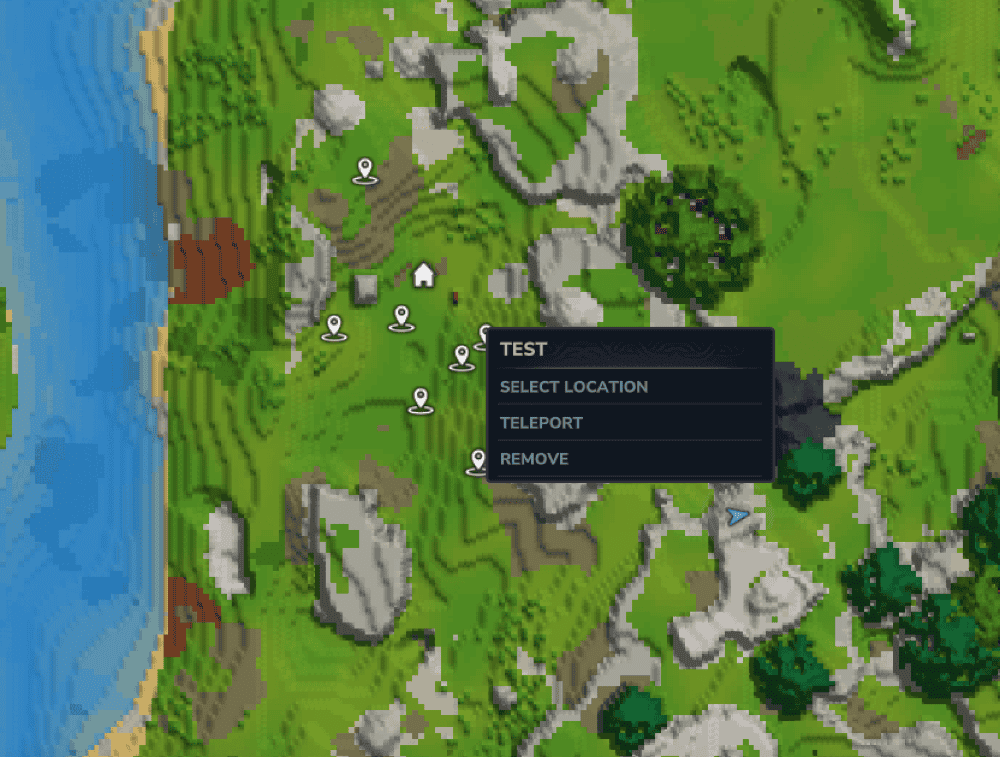
Simple Waypoints gives players an easy way to create, manage, and teleport to personal or global waypoints. Markers appear on both the compass and the world map, and you can right-click them for quick teleporting or removal, which makes the whole system feel simple and fast to use.
The mod keeps things lightweight while still giving servers useful control. Personal and global waypoints both persist across restarts, and the mod includes permission-based access for creating, listing, removing, and teleporting to waypoints. That makes it a strong pick for players who want straightforward waypoint tools and for multiplayer worlds that need shared markers without a bigger map overhaul.
10. MapTrail
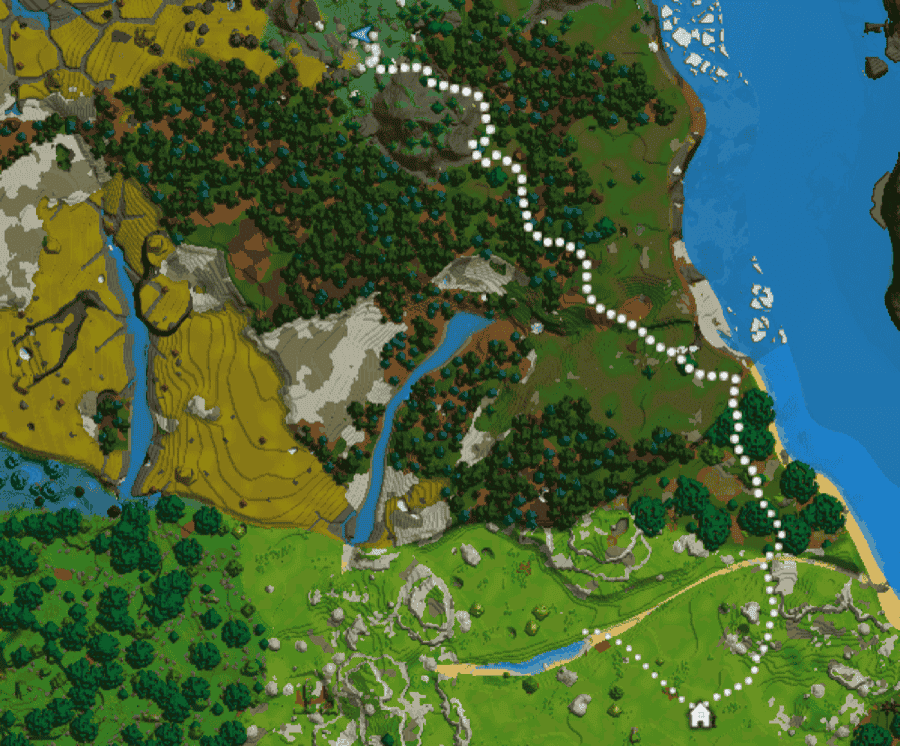
MapTrail adds a trail of markers to the map that shows the path you have taken through the world. Instead of setting named waypoints or managing a full map system, it gives you a simple breadcrumb-style trail that makes it easier to retrace your steps while exploring, gathering resources, or heading back to base. Each player only sees their own trail, so it stays personal and uncluttered.
The mod keeps things lightweight and focused. It removes a player’s markers when they disconnect, and lets you adjust the trail through commands for marker count, spacing, and size thresholds. That makes it a good pick for players who want a low-noise navigation helper without committing to a full waypoint or minimap mod.
How to install Hytale mods
How to install with the CurseForge app:
- Open the CurseForge app and select Hytale.
- Go to "Discover" or "Browse". In "Browse", you can filter by Mod type and Game version.
- Find the mod you want and click "Install". If the mod is not supported directly in the app, CurseForge may show “Download” instead.
- Launch Hytale from CurseForge or from the official launcher.
- Enable the mod for the world where you want to use it. For a new world, go to "Create World" → settings cog → select mods → "Apply Settings" → "Create World". For an existing world, right-click the world → select mods → "Save world settings".
How to install mods manually:
- Download the mod file from its CurseForge project page.
- Open the Hytale tab in the CurseForge app and use the menu there to open the Hytale mod folder on your computer. If you prefer, you can also open that folder manually using the common locations listed below.
- Drop the downloaded mod file into the "Mods" folder.
- Launch Hytale and enable the mod for the world where you want to use it. For an existing world, right-click the world → select mods → "Save world settings".
Common mods folder locations
- Windows: %AppData%/Hytale/UserData/Mods
- macOS: ~/Application Support/Hytale/UserData/Mods
- Linux: $XDG_DATA_HOME/Hytale/UserData/Mods
Common Issues and Quick Fixes
The mod is installed, but nothing shows up in-game
In many cases, this comes down to world activation rather than installation. In Hytale, a mod can be installed correctly and still remain inactive until it is enabled for the specific world where you want to use it. That makes world settings one of the first places worth checking when a map mod seems missing in-game.
The mod page shows "Download" instead of "Install"
When a mod shows "Download" instead of "Install", it usually means the project is not supported for direct in-app installation. In that situation, the mod file needs to be placed manually in the Hytale mod folder, then enabled for the world as usual.
The minimap appears blank or does not render properly
This tends to happen most often with HUD-based minimap mods rather than waypoint-only tools. Conflicts with other HUD mods, missing compatibility layers, or missing dependencies can all cause display problems.
This is especially relevant for Adoa’s Minimap. Wayfinder says MultipleHUD is optional but useful for compatibility with other HUD plugins, and it specifically lists EyeSpy as a known incompatibility that can make the minimap render blank. Adoa’s Minimap has stricter requirements as it needs MultipleHUD to work properly.
Players cannot create waypoints, teleport, or use shared features
When waypoint or teleport functions are visible but not usable, permissions are often the real cause. Mods such as Landmark rely on permission-based access for key actions, so this kind of issue is often tied to role setup rather than a broken mod. This is especially worth checking on multiplayer worlds where different groups may have different access levels.
Performance drops after adding a map mod
Map mods can vary a lot in terms of hardware requirements. Generally speaking, full map overhauls, live minimaps, and mods that constantly track explored areas may put more strain on a world than lightweight marker tools.