Coordinates are one of those Minecraft details you do not think about until you truly need them. They help you find your way back home, mark a cave worth revisiting, line up Nether portals, return to a death point, or share an exact location with another player.
Getting lost is probably one of the easiest things you can do in Minecraft, so without any coordinates to rely on, finding your way back may not always be an option. Luckily, the game has a built-in coordinate system to let you know where you are at all times.
In this guide, we’ll look at how to properly view and read coordinates in Minecraft, as well as provide you with a list of Java Edition mods that make the task much easier without relying on the rather clunky vanilla debug screen.
How Coordinates Work in Minecraft
Minecraft uses three values to describe your position:
- "X" is your east-west position. Positive "X" is east, negative "X" is west.
- "Y" is your height. In modern Java Edition worlds, the buildable Overworld range runs from Y=-64 up to Y=320, with sea level at around Y=63. Your "Y" coordinate is especially useful for mining, caving, and structure hunting because different resources and underground features appear more often at different heights.
- "Z" is your north-south position. Positive "Z" is south, negative "Z" is north.
How to Check Coordinates in Java Edition
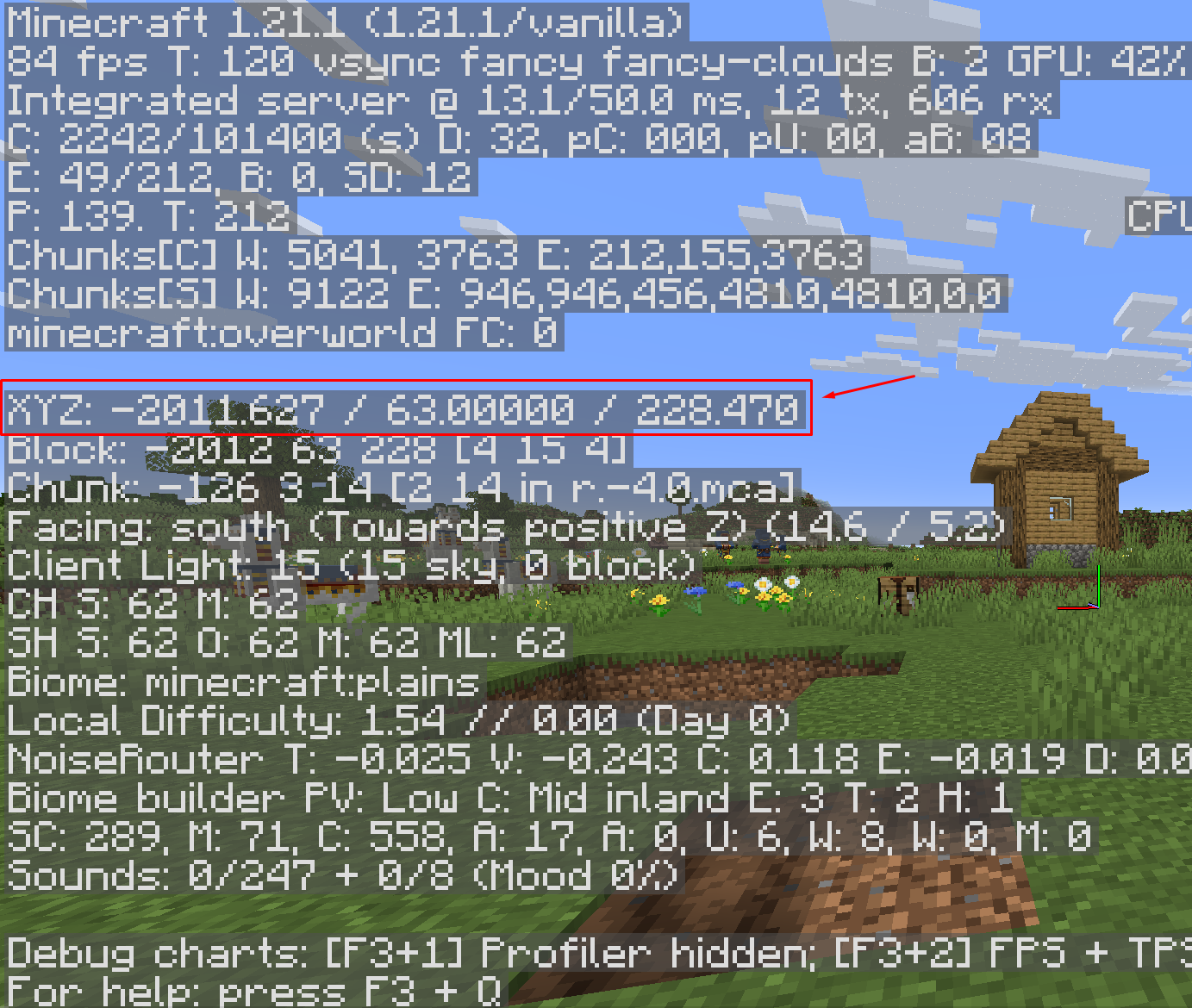
On Java, press "F3" to open the debug screen. Your coordinates will then appear in the top-left corner labeled as "XYZ" followed by three decimal numbers. The block you're standing on is listed separately as "Block" on the next line – that's the whole-number version without decimals, which is what you'd use for commands or map navigation.
The "F3" screen shows a lot of other information at the same time – light level, biome, chunk position, facing direction, and more. It's useful but visually cluttered, which is why most players who check coordinates frequently end up using a mod that shows only the "XYZ" coordinates in a small corner of the screen.
How to Check Coordinates in Bedrock Edition
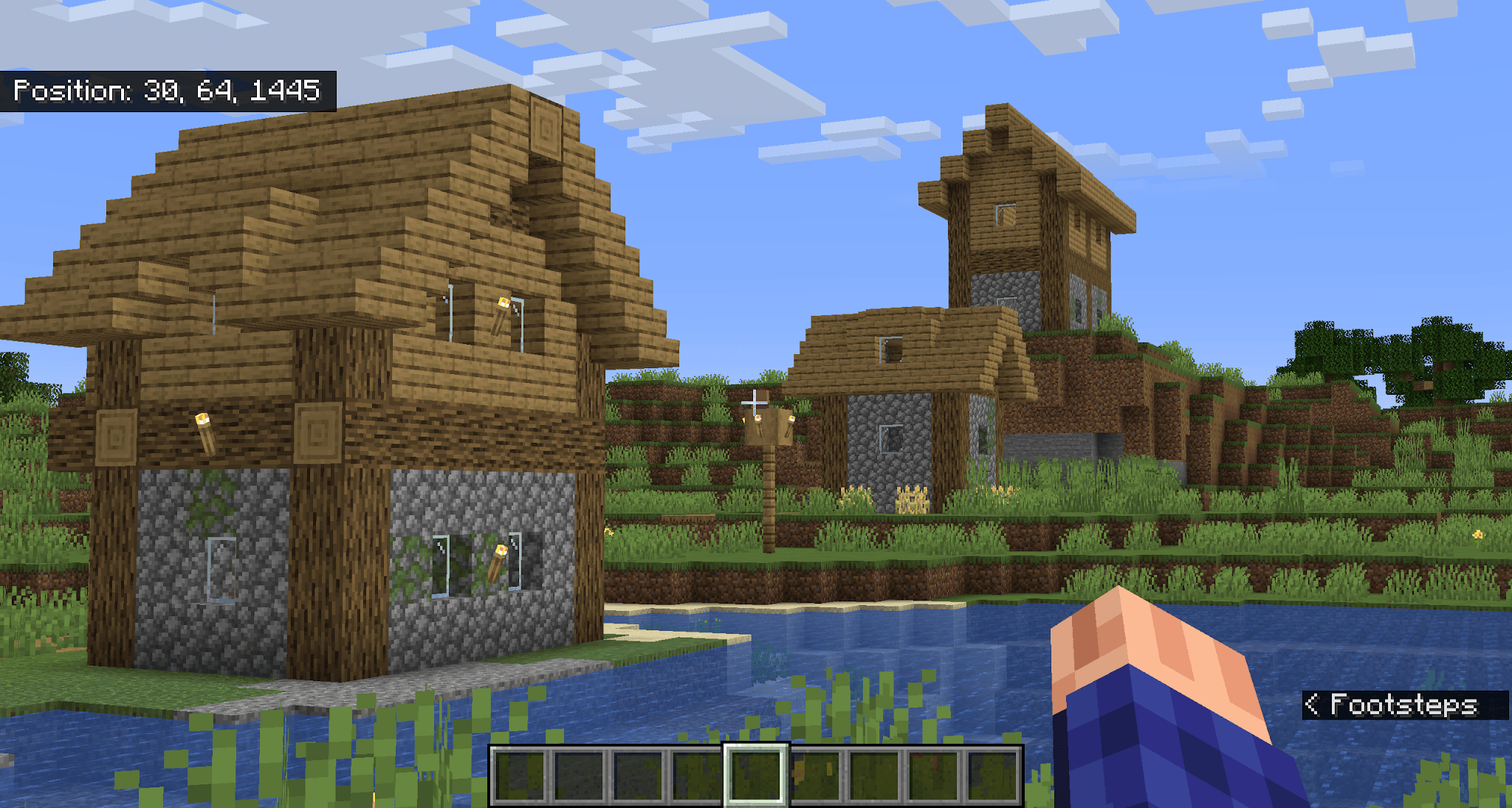
On Bedrock, open "Settings", go to "Game", and turn on "Show Coordinates". This will add a small coordinate readout to the top left of your screen that stays visible during normal play without any mods or menu shortcuts needed.
You can also enable coordinates with the command "/gamerule showcoordinates true" if commands are available in that world. The "Show Coordinates" toggle is generally more convenient for ongoing use.
The rest of this guide covers mods for Java Edition. Bedrock's built-in coordinate display already does what the overlay mods below are designed for, so the mod section applies to Java players specifically.
How Coordinates Benefit Your Gameplay
The most common uses have to do with general survival:
- Navigation – write down your base coordinates and you can always find your way home without a map or compass. Also useful for marking farms, portals, and resource deposits.
- Mining – knowing your "Y" level tells you what you're likely to find. Lower deepslate levels are commonly used for diamond mining, while ancient debris hunting in the Nether is usually done around lower "Y" levels, especially near Y=15.
- Treasure maps – buried treasure chests sit at the "X" and "Z" coordinates that correspond to the center of the red "X" on the map. Watching your coordinates while holding the map is the most reliable way to align them correctly.
- The Nether – the Nether is scaled 1:8 relative to the Overworld. If your base is at X=800 | Z=400 in the Overworld, your matching Nether portal should be at X=100 | Z=50. Checking coordinates when building portals prevents mislinked connections.
- Commands – "/teleport", "/setblock", "/fill", and most other commands use "XYZ" syntax. Having your current coordinates visible means you can copy values directly instead of opening "F3" mid-command.
Java Mods That Keep Coordinates Always Visible
Vanilla coordinates work, but they are not always comfortable to check while building, mining, or traveling. The mods below focus on keeping position information easier to see in Java Edition – either through a small coordinate HUD or through a minimap that tracks your location as you move.
Xaero's Minimap
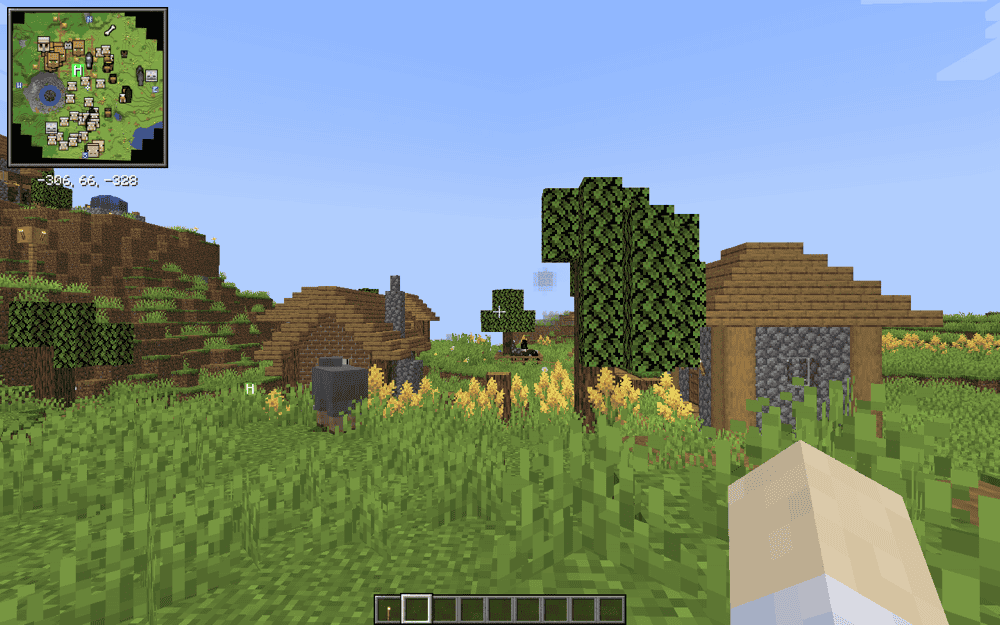
“Xaero's Minimap” adds a minimap to the corner of the screen and shows your coordinates directly under it, so you can track your position without opening the "F3" debug screen. The minimap can be square or circular, can rotate with your view or stay locked north, and can be moved around the HUD through its position settings. Press "Y" to open the settings menu, and use the zoom controls to adjust how much nearby terrain you want to see.
“Xaero's Minimap” also supports waypoints, deathpoints, entity display, cave mode, chunk grids, slime chunk display, and optional extra readouts such as biome name, light level, game time, and camera angles. Some of those readouts are disabled by default and need to be enabled in the settings.
For multiplayer, server owners can restrict features like cave mode and entity radar by installing the mod server-side, and the separate Fair-play Edition removes entity radar and cave maps for players who want a more server-friendly setup.
Immersive Overlays
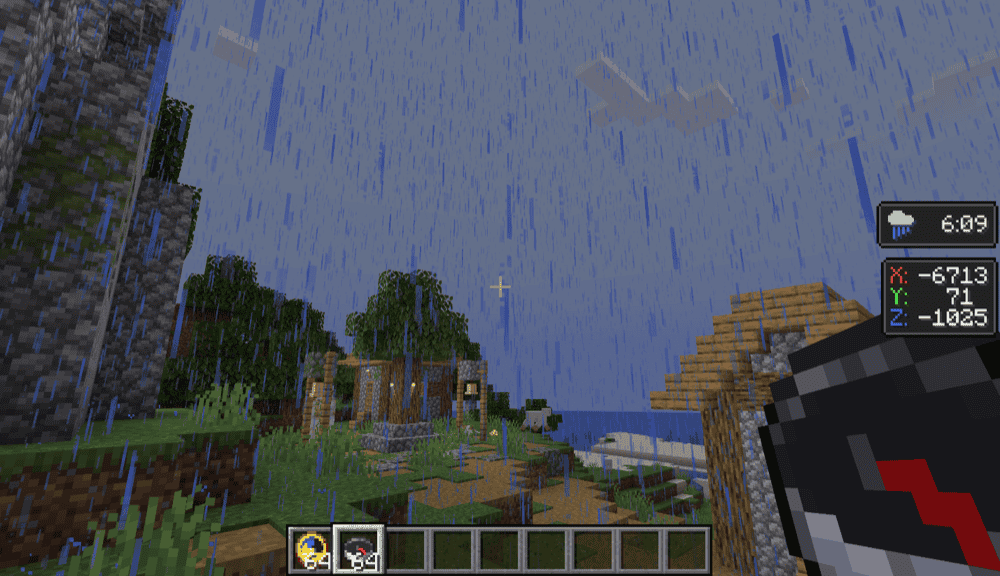
“Immersive Overlays” turns coordinate display into a survival-style HUD feature instead of a permanent debug overlay. If you have a compass in your inventory, including inside a bundle, the mod can show your "X" and "Z" coordinates on screen. Your "Y" coordinate appears when you also carry a compatible depth-display item, such as a Supplementaries Altimeter or a Depth Gauge from supported mods like “Caverns & Chasms” or “Spelunkery”.
“Immersive Overlays” also applies the same idea to other useful HUD information. A clock can show the time of day, while compatible depth-display items from supported mods can add the "Y" coordinate. This makes it a better fit for players who want coordinates and world information to feel tied to items they are carrying, rather than visible at all times like a standard HUD overlay.
Coordinates Display
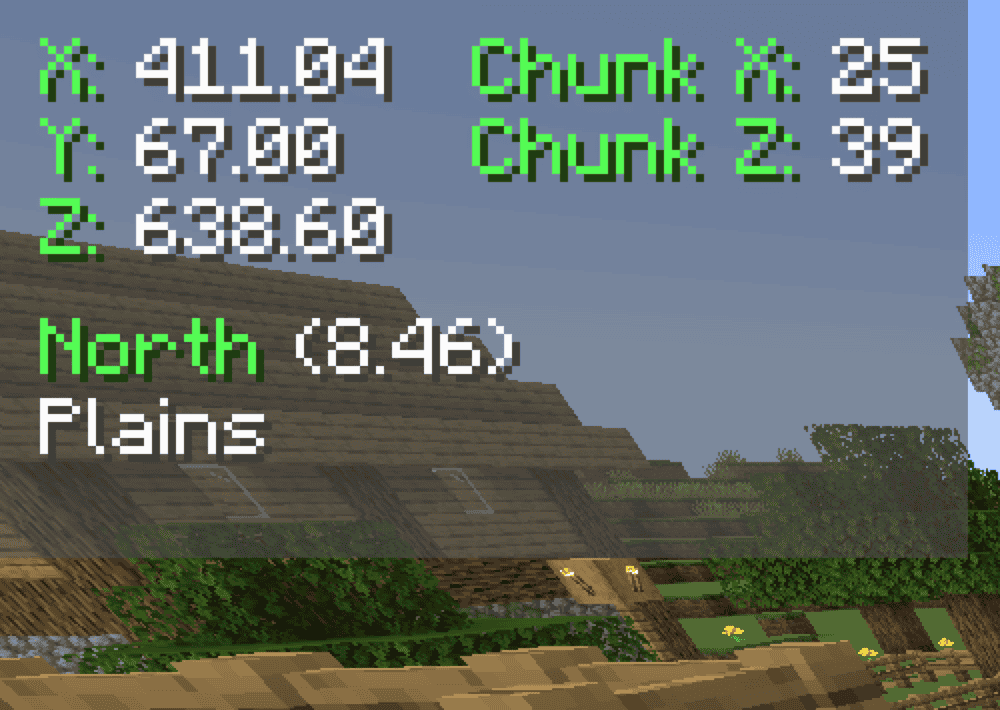
“Coordinates Display” adds a customizable coordinate HUD that stays visible during normal gameplay without opening the "F3" debug screen. Alongside "XYZ" coordinates, it can also show chunk coordinates, facing direction, biome information, and your current Minecraft version depending on the selected display mode. Multiple HUD layouts are available, including compact coordinate-only modes and larger compass-style displays.
The mod also includes HUD positioning tools, configurable colors, customizable keybindings, and a position-marking system that lets players save and share coordinates. Another useful feature is automatic death-position logging, which displays your last death coordinates on the death screen and in chat after respawning.
For players who want constant coordinate access without the full debug overlay, the mod gives more customization than a basic "XYZ" display while still staying lightweight compared to a full minimap mod.
How to Install Minecraft Mods
You can install the above mods automatically using the CurseForge app or manually by placing the mod files within your game's mods folder. Both methods allow you to easily add custom features and enhancements into your vanilla Minecraft experience.
If you want to learn more, you can read our detailed guide on how to install Minecraft mods.
Common Issues and Quick Fixes
"F3" isn't showing coordinates on Java Edition
On some laptop keyboards, "F3" is a secondary function and requires pressing "Fn" + "F3" to activate. If that still doesn't work, check whether your keyboard, operating system, or laptop function-key settings are capturing "F3" before Minecraft receives it.
If the debug screen opens but looks different than expected, you may be on an older version that displays the "XYZ" values in a slightly different format – the coordinates are still there, just labeled differently.
Coordinates aren't showing on Bedrock Edition
Go to "Settings" → "Game" and look for the "Show Coordinates" toggle. It can also be enabled per-world from the world settings screen before loading in. If you're on a Bedrock Realm and the option seems greyed out, the Realm owner's settings may be controlling it – ask them to enable coordinates in the Realm's game settings.
Minimap coordinates are in the wrong dimension scale
If you're in the Nether and want to see coordinates scaled to their Overworld equivalent, “Xaero's Minimap” has an option for displaying overworld-equivalent coordinates in scaled dimensions. Look within the settings screen ("Y" key) for dimension-related display options. This is useful for confirming portal alignment without doing the division in your head.
Immersive Overlays isn't showing any coordinates
The mod requires a compass in your inventory to display "X" and "Z". If you don't have one, the overlay won't appear. Craft a compass from 4 iron ingots surrounding a piece of redstone dust, put it in any inventory slot, and the coordinate display should appear while you're carrying it.
My game crashes after installing a coordinate or minimap mod
Check the Minecraft version, mod loader, and required dependencies first. A Fabric file will not work in a Forge profile, and a mod made for one Minecraft version can crash on another.
Open the mod's "Files" page, make sure the downloaded file matches your exact game version and loader, then check the "Relations", "Requirements", or "Dependencies" section for the required library.
If the game still crashes, remove the newest mod you added and launch again to confirm whether that mod caused the issue.