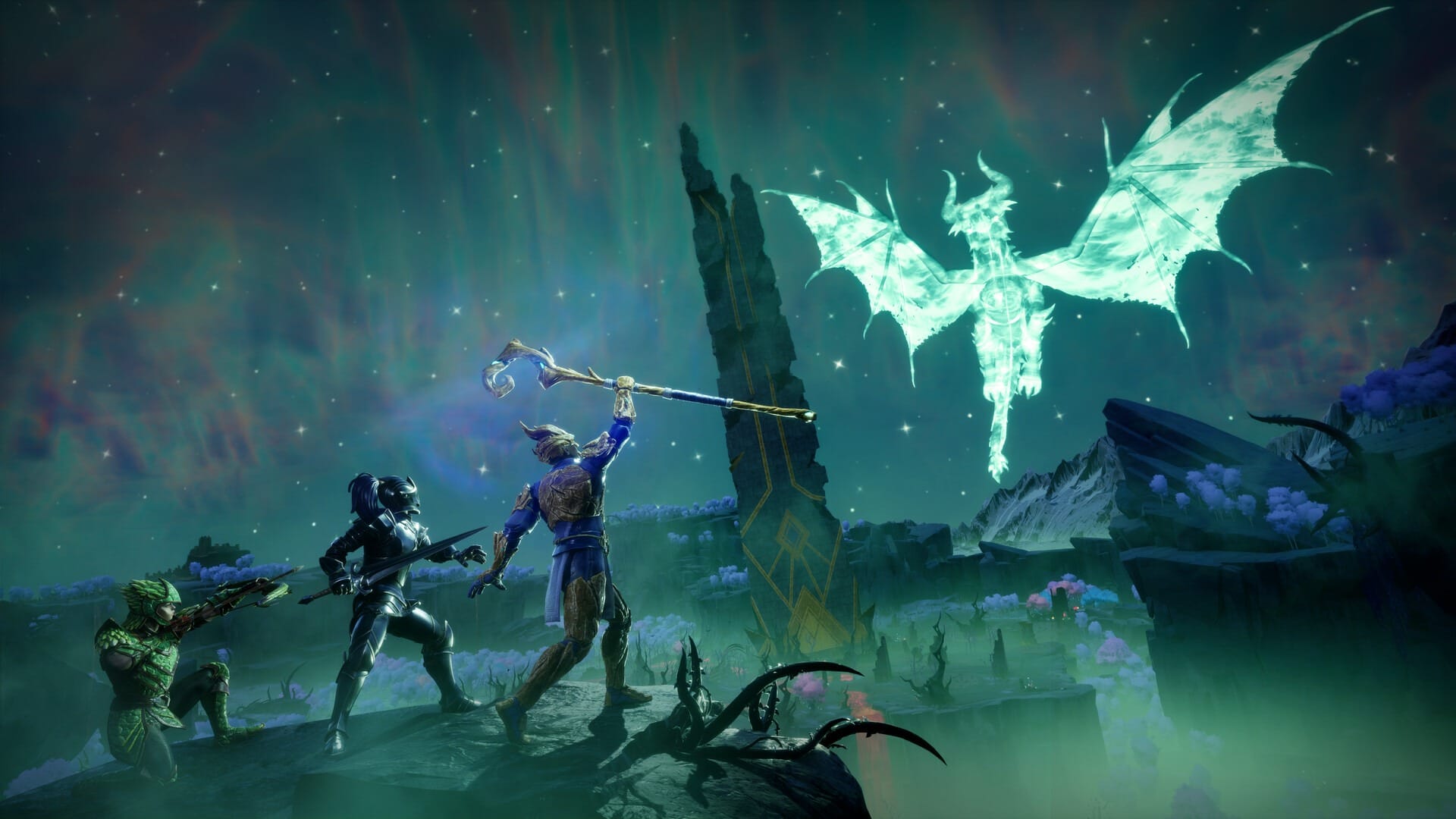
Imagine arriving on Ashenfall with little more than your tools and the promise of adventure. Dragons rule the skies, wild magic reshapes the land, and every shelter, workshop, and fortified base start their humble beginnings with the resources gathered with your very own hands.
But at some point, excitement can give way to predictability. That’s where mods come to the rescue, helping you refine the interface, adjust crafting and combat, add useful buildables, change the environment, expand on vanilla skills, or reshape the way a world progresses. The only catch is that different mod types use different folders and supporting tools.
Luckily, you have this guide at your side! Join us as we explore all available mod types for the game’s official 1.0 release, how to install and run them flawlessly, and some of the most popular community creations on players’ radar right now.
What Are Runescape Dragonwilds Mods?
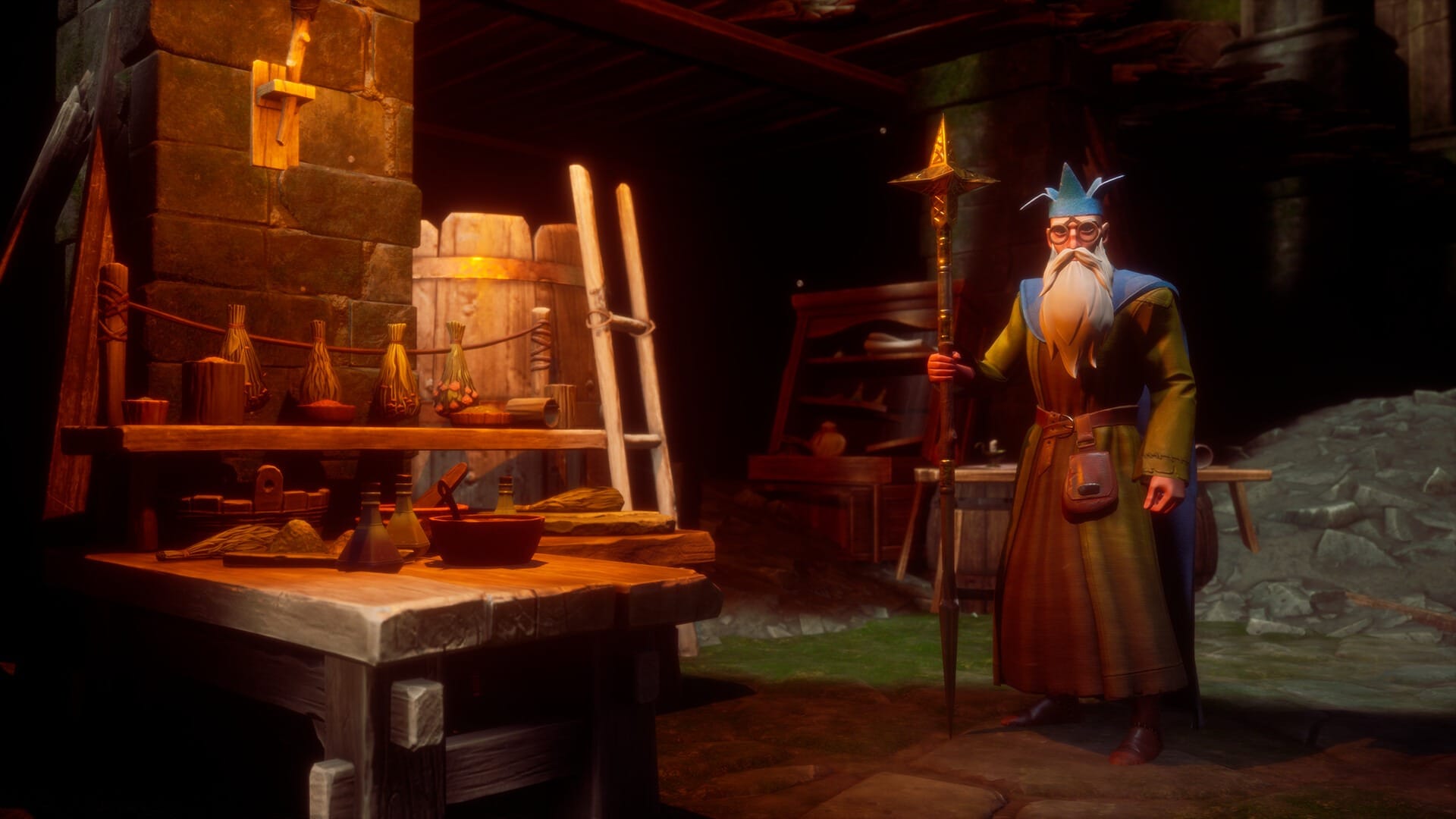
These are community-created content that change or expand the game in smaller (or sweeping) ways. Some projects replace stock assets, while others run scripts to optimize game performance, expand the item list, change game mechanics, or provide a ready-made world or character save for you to explore.
Because the game is built in Unreal Engine 5, the files involved – and where they belong – depend on how the mod was made, which is what we’ll discuss in more detail a bit later.
Why Should You Mod Runescape Dragonwilds?
Jagex’s survival-crafting spin-off already offers a substantial adventure. It trades the point-and-click formula of the popular MMORPGs of the same name for active exploration, vibrant new biomes, various sorcery shenanigans, an intricate building system, and 12 distinct skills (such as woodcutting, fishing, and farming), not to mention some hardcore boss-slaying fun!
You also get to play offline and solo, adventure with friends, or use a dedicated server for groups of up to six players. And since the game came out of Early Access on 15 September this year, you get even more content to explore on top!
With mods, however, you get to decide exactly how you want to experience the vast new world of Ashenfall. We typically see players installing these in order to:
- Reduce repetitive game loops like gathering, crafting, travel, or inventory management.
- Expand building options with new structures, decorations, or placement rules.
- Adjust combat, progression, survival systems, and other gameplay balancing acts.
- Display useful information more clearly through interface improvements.
- Enhance audio, environmental visuals, items, and other presentation details.
- Add utilities or server tools for cooperative play and world management.
Types of Available Runescape Dragonwilds Mods
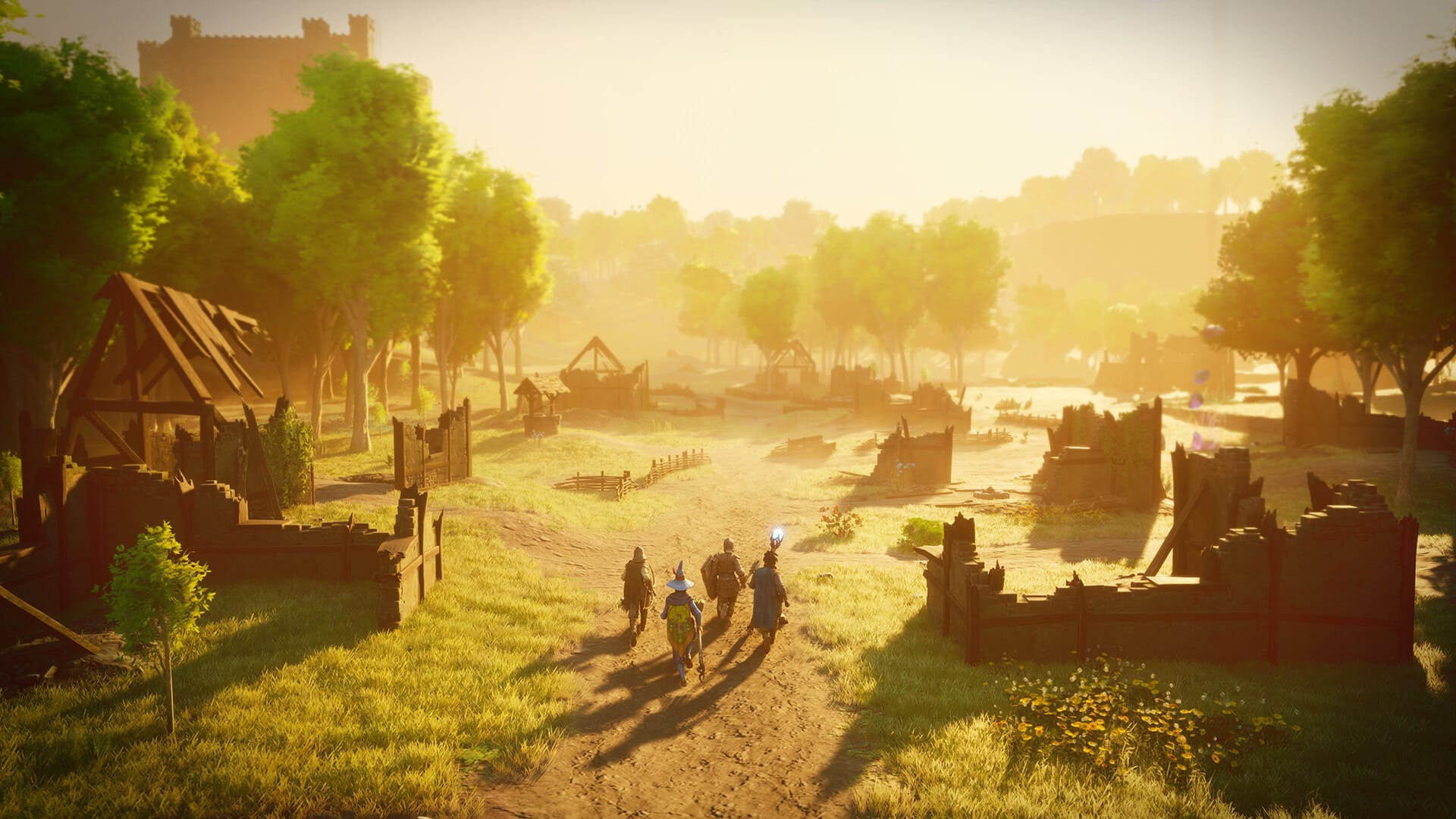
CurseForge currently offers a variety of mods spread across four main mod categories based on how they are installed. Some of these will be automatically handled for you by the CurseForge app, while others will need to be set up manually. With that said, here is the complete list:
- RuneSchema Mods: JSON file modifications based on the custom RuneSchema framework. On CurseForge, these are currently only available as downloads which you need to place manually.
- Pak Mods: Pre-packaged Unreal Engine content, commonly supplied as a .pak file or as a matching .pak, .utoc, and .ucas set. CurseForge can automatically install supported Pak projects into the game folder for you.
- UE4SS Mods: Scripted or native projects that depend on the UE4SS loader to function. CurseForge can install supported projects as long as you install UE4SS first.
- Save Files: Shared worlds or characters found in your Windows "AppData" save folders. CurseForge provides the download, but you need to place these files manually.
Additionally, you can also browse useful subcategories to quickly find the mods you're looking for:
- Adventure: new quests, points of interest, environments, mob encounters, and other adventure-enhancing changes.
- Audio: music, ambience, sound effects, voice work, and other in-game audio.
- Buildables: new structures, decorations, construction pieces, and building options.
- Crafting: recipes, workstations, production rules, and crafting-related balance changes.
- Environment: weather, lighting, vegetation, terrain presentation, and other world visuals.
- Gameplay: combat, progression, survival mechanics, and broader game systems.
- Items: weapons, armour, tools, materials, consumables, and item adjustments.
- Libraries: shared frameworks and dependencies required by other mods.
- User Interface: HUD elements, menus, notifications, information displays, and accessibility improvements.
- Utilities: modding, administration, debugging, configuration, and world-management tools.
- Vehicles And Upgrades: vehicles, travel systems, and improvements or upgrades related to them.
- Miscellaneous: projects that do not fit neatly into another subject category.
How to Install Runescape Dragonwilds Mods
To begin modding the game, ensure that you legally own the game from a reputable store front, such as Steam.
Next, you’ll need to carefully follow the installation steps for each mod type as described on each official project page. Note that the CurseForge app can handle PAK and UE4SS mods for you, the rest are manual installations.
So, before you dive into this fresh new take on Runescape, ensure that you have:
- A licensed copy of Runescape Dragonwilds.
- Access to a curated and secure mod management platform like CurseForge.
- (OPTIONAL) The CurseForge app.
Additional Checklist for Game Completionists
In addition to all of the above, we also highly recommend that you take a few minutes to prepare your game. These quick checks can help you avoid nerve-wracking compatibility issues, protect your save data, and make troubleshooting much easier if something goes wrong:
- Launch an unmodded Runescape Dragonwilds session and confirm that it is working properly.
- Check the exact Runescape Dragonwilds version as shown by the game or store client.
- Visit the official mod page to read its description and check for required dependencies.
- Install only one unfamiliar project at a time, then launch and test before adding another.
- Keep the downloaded archive and note its file version to restore it later on if needed.
Pro Tip: Back up both world and character data before using any mods. We recommend copying over the entire "AppData\RSDragonwilds\Saved" folder to a safe location so you can easily restore your world to a last known good state, if necessary.
Installing Runescape Dragonwilds Mods with CurseForge
STEP 1: Install the CurseForge Launcher
- Go to our download page and press "Get CurseForge App".
- Download either the standalone or the Overwolf version.
- Run the downloaded installer and complete the setup.
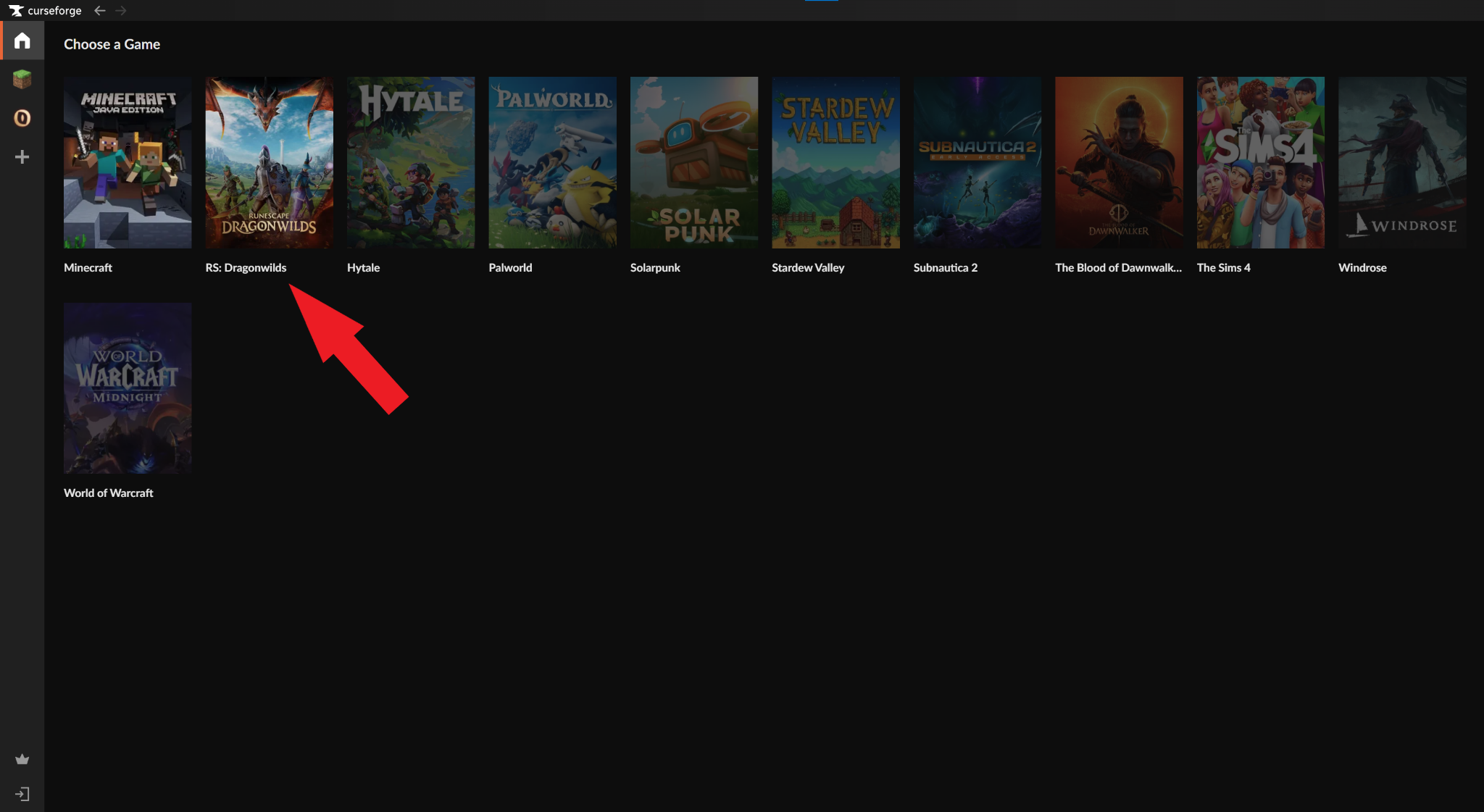
- Launch the CurseForge app and check to see that it auto‑detected Runescape Dragonwilds.
- If Runescape Dragonwilds is not auto-detected, check if you need to update the app, restart your PC, or reinstall the CurseForge app.
STEP 2: Install Mods for Runescape Dragonwilds
- Click on Runescape Dragonwilds from within CurseForge to open the mod browser.
- Click on either the "Discover" or "Browse" tabs to search for mods.
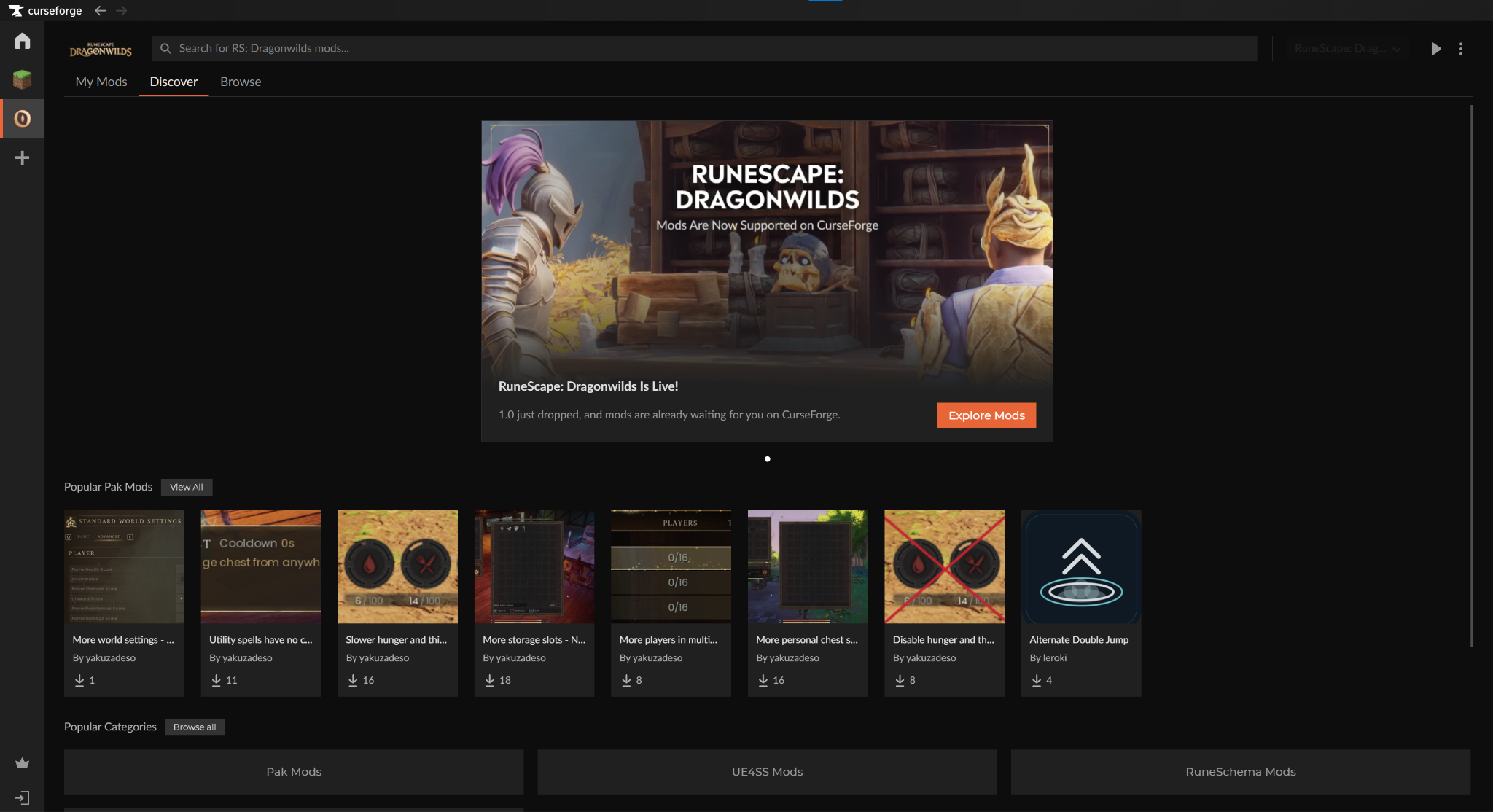
- For a supported Pak or UE4SS project, simply click "Install". CurseForge will then place its files in the correct game folder.
- For a RuneSchema project or a save file, download it from the CurseForge website and follow the installation steps outlined in the official project page.
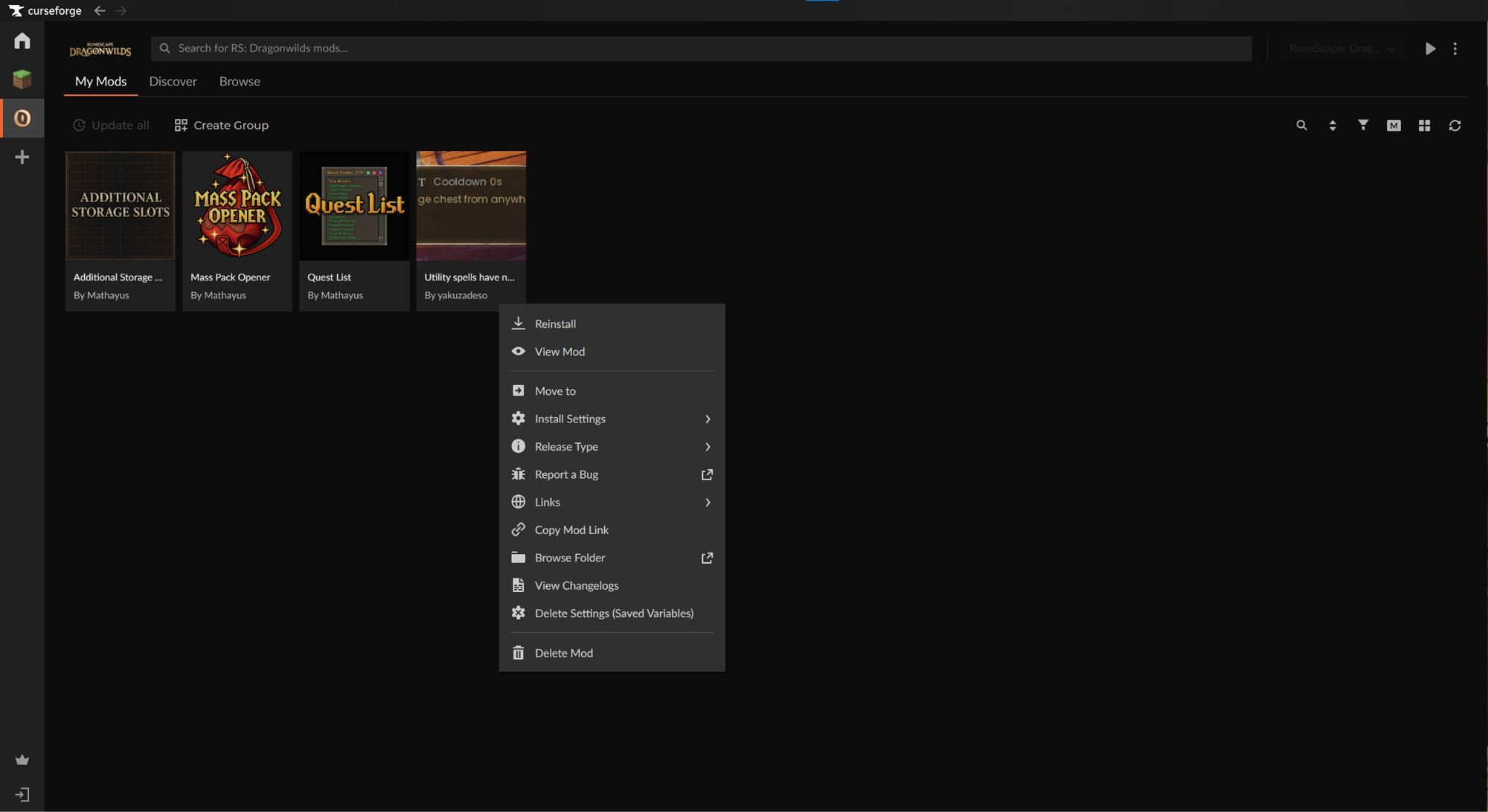
- You can manage your installed Runescape Dragonwilds mods from "Runescape Dragonwilds" → "My Mods".
STEP 3: Launch Runescape Dragonwilds
You can launch the game in one of two ways, depending on your preferences:
- CurseForge app: Click on "Runescape Dragonwilds" → "Run Game".
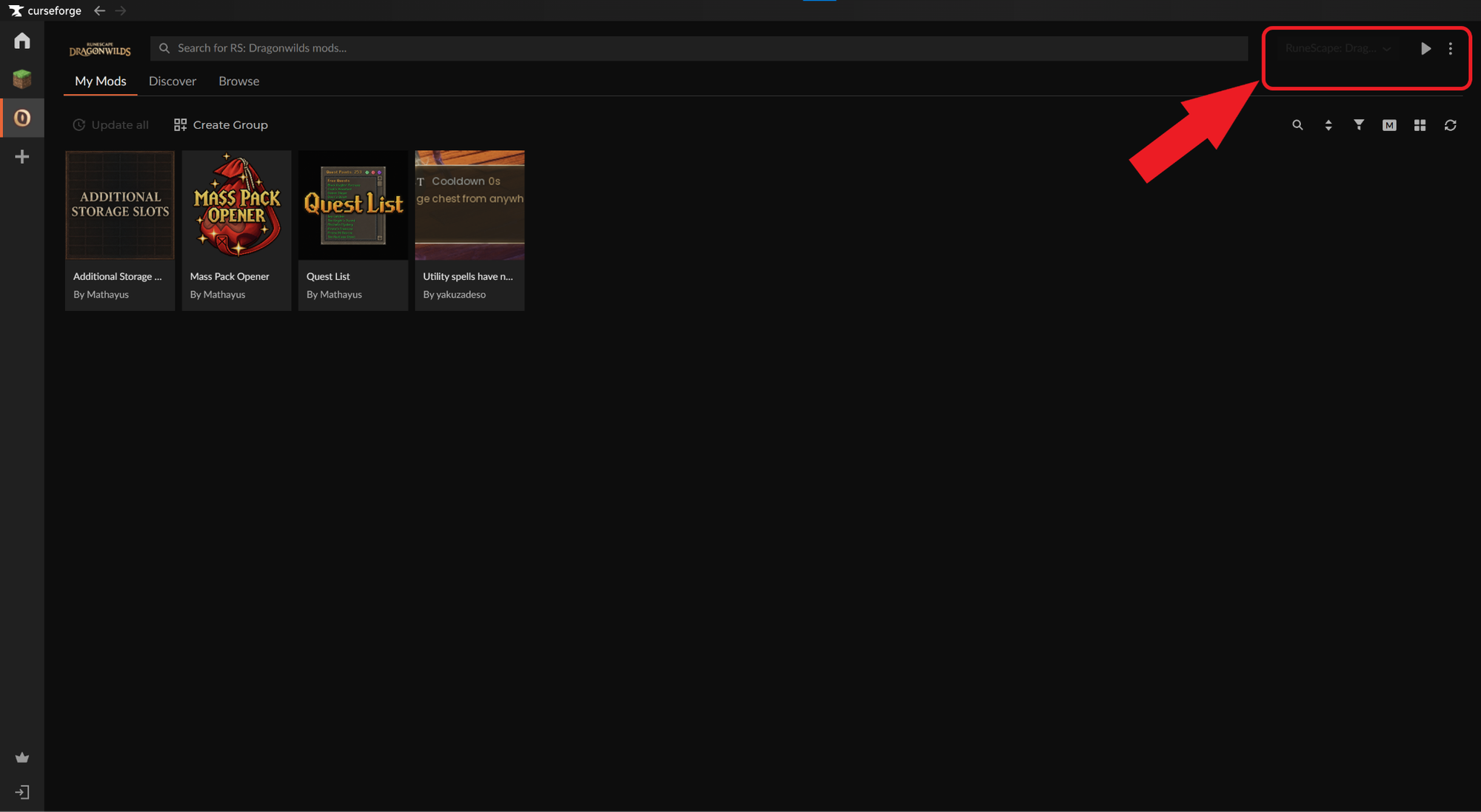
- Official store launcher: Double-click on the created Runescape Dragonwilds desktop icon or start it from within your official store launcher.
STEP 4: Check That Your Mods Work In-Game
- Review the mod page and note the exact changes you expect to see.
- Load a new world or a backed-up copy of an existing world.
- Verify each promised change and watch for missing assets, unusual menus, crashes, or multiplayer connection errors.
- If something is wrong, close the game and disable the newest mod before testing again.
Installing Runescape Dragonwilds Mods Manually
Manual installation is straightforward once you identify the project’s main category. Start from Steam by right-clicking "RuneScape: Dragonwilds" → "Manage" → "Browse local files".
This opens the game’s installation folder – the paths below continue from there. For your convenience, we’ve provided a quick comparison table summarizing the four modding methods before diving into more detail.
| Method | Best For | Difficulty | Updates & Removal |
|---|---|---|---|
| Pak Mods | Assets, items, visuals, and packaged gameplay changes. | Easy | Replace or remove the matching file set. |
| UE4SS Mods | Scripts, UI, utilities, and deeper gameplay changes. | Medium | Update the loader and individual mod carefully. |
| RuneSchema Mods | Data-driven JSON edits with reduced file conflicts. | Medium | Replace or remove the addon inside RuneSchema. |
| Save Files | Shared worlds and characters. | Easy | Remove the imported save or restore your backup. |
What Is UE4SS (and Do You Need It)?
UE4SS is a community mod loader used by both scripted and native Unreal Engine projects. You need it only when a mod lists UE4SS – or a framework built on it – as a requirement.
Here’s how to set it up correctly if you ever do need it:
- Download the latest UE4SS build and extract its archive.
- Open the game directory, then navigate to "RSDragonwilds\Binaries\Win64".
- Copy the loader archive’s contents into Win64, preserving its folder structure.
- Launch the game once, reach the main menu, and close it so UE4SS can create its folders.
- Confirm that the "ue4ss" folder and its "Mods" folder now exist before installing mods.
What About RuneSchema?
RuneSchema is a prominent community-made modding framework used by creators to inject custom assets, 3D item models, and modifications into Runescape games. It’s a necessary requirement if you’re looking to run any mods that are based on this framework, so it’s a bit similar to UE4SS in that regard – in fact, it requires UE4SS to work!
Installing Pak Mods
Pak Mods contain Unreal Engine packaged content. A project may include one .pak file or a matching .pak, .utoc, and .ucas trio. Make sure to keep every matching file together.Here are the installation steps:
- Download the version that matches your current game build and extract the archive.
- Open "RSDragonwilds\Content\Paks" and create a folder named "~mods" if it does not already exist.
- Copy the project’s .pak file – or its complete matching file set – into "RSDragonwilds\Content\Paks\~mods".
- Launch the game and verify the expected change.
Installing UE4SS Mods
UE4SS projects must match both the game and loader versions. Always follow the folder structure supplied by the author. Here are the steps:
- Install the required UE4SS build and launch the game once.
- Extract the mod and place its complete folder in "RSDragonwilds\Binaries\Win64\ue4ss\Mods", keeping all included DLL, Scripts, config, and content folders together.
- Enable the project using the file or setting named by its author, if required.
- Restart the game and test the mod before adding another.
Installing RuneSchema Mods
As already mentioned, RuneSchema is a separate, data-driven framework that reads JSON add-ons. It also depends on UE4SS, so make sure to install all three layers in order: UE4SS, RuneSchema, and only then the individual RuneSchema project. Here are the steps:
- Install a compatible UE4SS version and launch the game once.
- Download RuneSchema and place its RuneSchema folder in "RSDragonwilds\Binaries\Win64\ue4ss\Mods".
- Confirm that the framework path ends with "ue4ss\Mods\RuneSchema" and contains a subfolder named "mods".
- Extract the individual RuneSchema project into "ue4ss\Mods\RuneSchema\mods", preserving the author’s folder structure.
- Restart the game and verify the change. If it fails, check the game, UE4SS, framework, and add-on versions all at the same time.
Installing Save Files
Save files are not really installed but rather placed in the game directory. They belong in your Windows user profile, which is why CurseForge provides them as manual downloads only. Here are the steps:
- Close the game and copy "AppData\RSDragonwilds\Saved" to a safe backup location.
- Press "Windows key + R", enter "%LOCALAPPDATA%\RSDragonwilds\Saved", then select "OK".
- Place the world saves in "SaveGames" and character saves in "SaveCharacters", following the author’s instructions.
- If Windows warns that a file already exists, make sure to stop and back up the original before continuing.
- Launch the game and confirm that the imported world or character appears correctly.
Deleting Your RuneScape: Dragonwilds Mods
A mod may occasionally stop working after an update, conflict with another project, or simply not suit your playthrough. For best results, make sure to remove one project at a time and keep your save backup until the game has launched successfully without it.
Removing a Mod with CurseForge
- Open "RuneScape: Dragonwilds" → "My Mods" in CurseForge.
- Select the project you want to remove and choose "Delete Mod" or the available uninstall option.
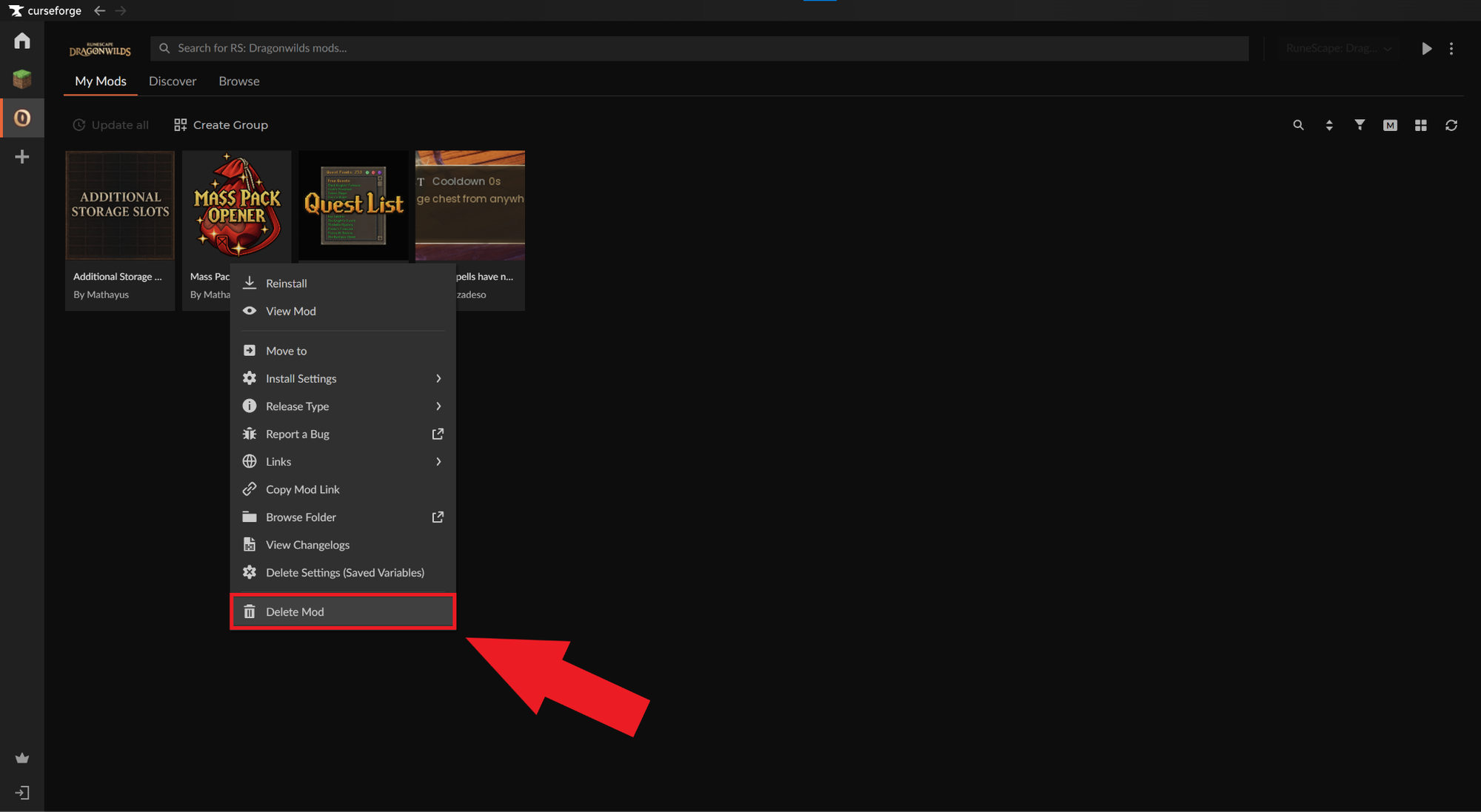
- Allow CurseForge to remove its managed files, then restart the game.
Important: Do not remove UE4SS if another installed project still requires it!
Removing a Manually Installed Mod
1: Close the game and back up the affected world and character data.
2: Move only the mod’s files to a temporary folder and:
- Pak: keep matching Pak files together.
- UE4SS: remove the project from "ue4ss\Mods", but keep any shared loader.
- RuneSchema: remove the add-on from "RuneSchema\mods", but keep shared dependencies.
3: Save file: remove the imported file or restore your original saves folder backup.
4: Relaunch and test your game. If issues persist, make sure to follow the author’s official uninstall notes.
Top Runescape Dragonwilds Mods by Popular Demand
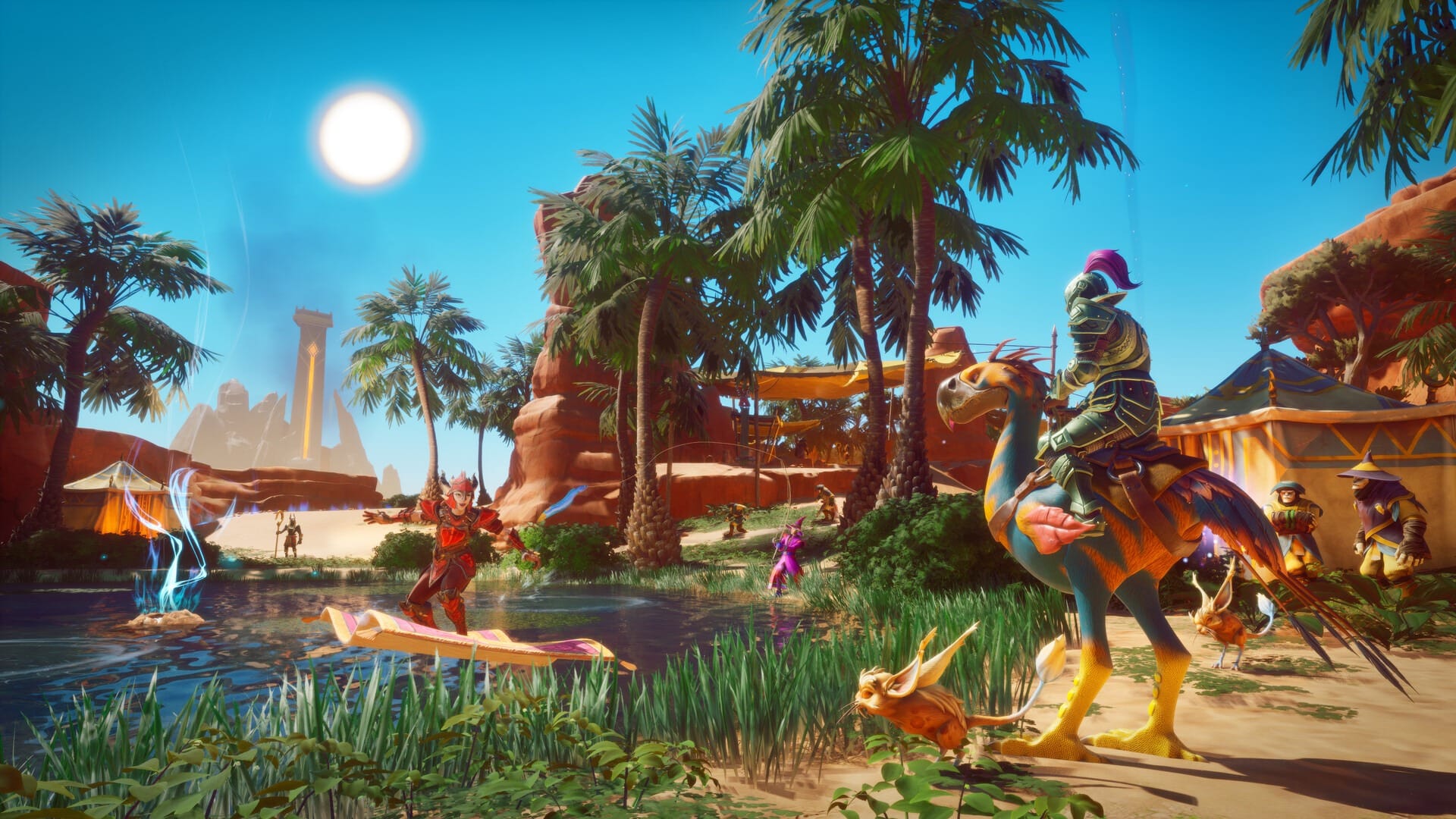
You've mastered every mod type, but now you’re faced with a choice that seemingly no magic spell can help you simplify!
Don’t worry though, as below we’ve rounded ten of the most-downloaded Runescape Dragonwilds mods from the community for you to try before deciding on what comes next.
For the complete and up-to-date list of Runescape mods, make sure to also visit the Runescape Dragonwilds Mods section of our website.
1. Quest List
2. Additional Storage Slots
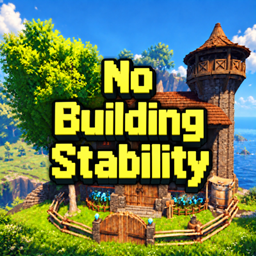
3. No Building Stability
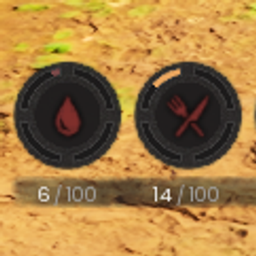
4. Slower hunger and thirst decay
5. Mass Pack Opener
6. Teleport from anywhere

7. Alternate Double Jump
8. Disable hunger and thirst
9. More players in multiplayer