Command blocks are powerful. Editing them in vanilla is not. These mods tackle the annoying parts like typing long commands, organizing edits, and testing changes, so you can build systems faster and spend less time reopening command blocks.
Since a lot of them do similar things, we are comparing them side by side so you can pick the one that fits your setup.
| Mod | Loader | Best for | Standout features | Cons |
|---|---|---|---|---|
| Better Command Block UI | Fabric, Quilt | Large command entry | Multi-line editor, proper text selection, easily traverse command block chains in UI | Client-side UI only |
| Command Block IDE | Fabric | Editing lots of command blocks fast | Workspace-style UI, multi-line editor, edit multiple blocks via one UI, apply changes without closing, datapack function editing | Multi-line formatting is stored locally, not synced in multiplayer |
| Command Block Ascension | Forge | Survival and progression servers or themed packs | Survival access to Command and Structure blocks, presets, recipes, custom machine, progression content | Can feel overpowered and leans towards Story Mode-style progression |
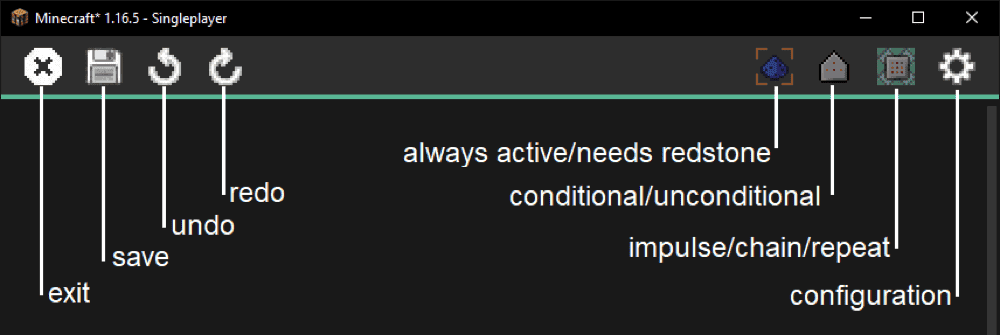
| Better Command Block Editor (Fabric) | Fabric, (has Forge port) | Multiple large and complicated commands | IDE-style UI, undo & redo, multi-line editor, open command blocks in different tabs, extra language features (constants and comments), lock command block destruction, rebind editing keys | Limited version compatibility, only available on less newer versions |
1. Better Command Block UI
2. Command Block IDE
3. Command Block Ascension
4. Better Command Block Editor - Fabric
Which Command Block Mod Should You Use?
- Better Command Block UI
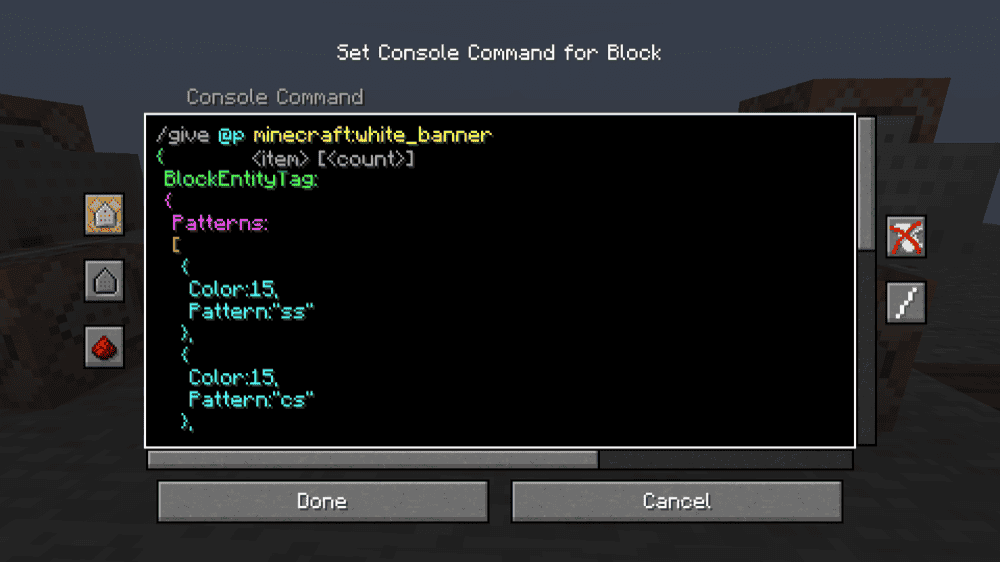
Pick this if you want the vanilla command block screen to feel like a real editor, with multi line writing, indentation, scrolling, and quality of life that makes long commands way less painful.
- Command Block IDE
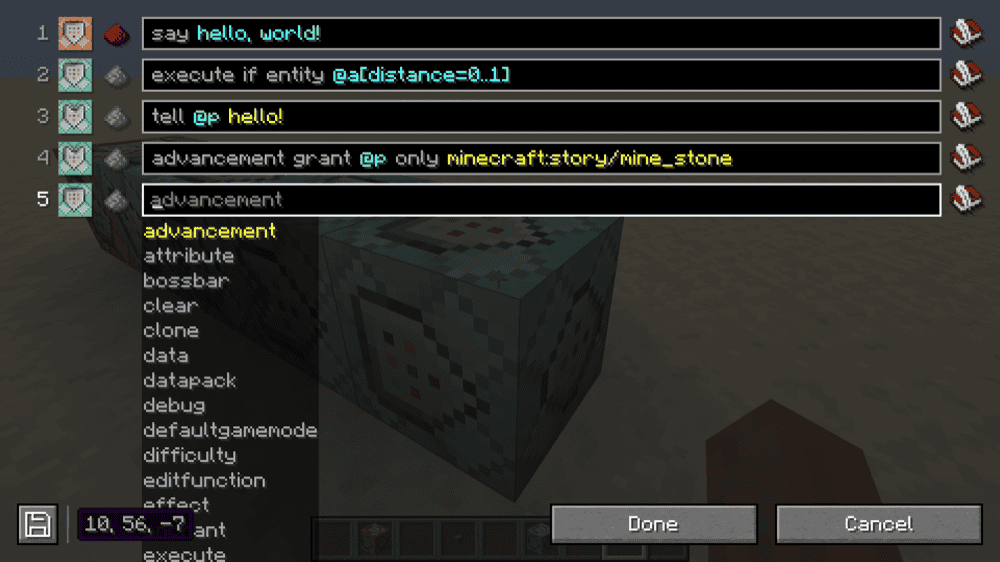
Pick this if you are building bigger systems and you want a workspace vibe where you can edit multiple command blocks quickly and apply changes without constantly opening and closing menus. If you are working with other players, stick to single-line commands since the multi-line formatting is stored locally and other people’s edits will reset your formatting.
- Command Block Ascension
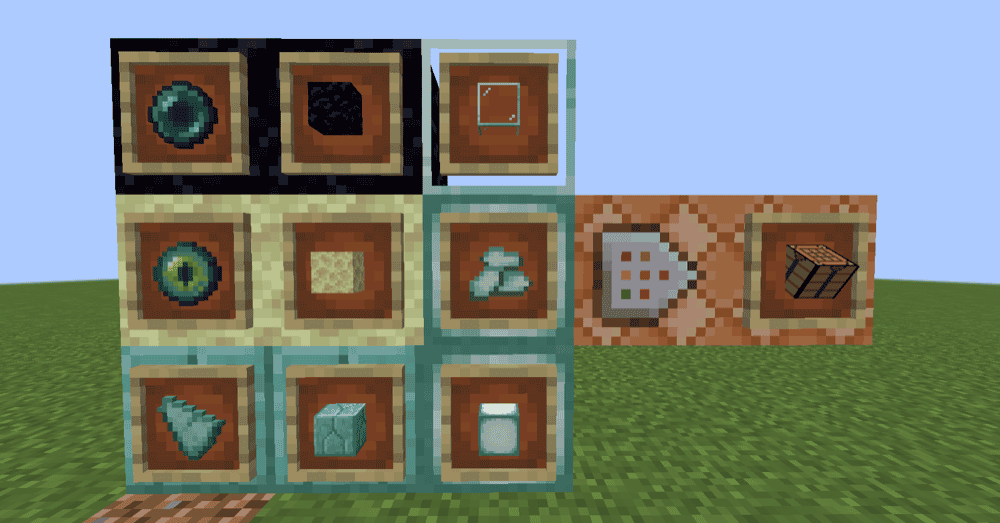
Pick this if you want command block power as part of progression in survival or a themed modpack. It is not just an editor upgrade – it is a gameplay feature – and it can feel overpowered in normal survival.
- Better Command Block Editor - Fabric
Pick this if you want a tabbed workflow and a vanilla-compatible multi-line editor, plus optional extras like breaking restrictions and rebinding editor keys. Just make sure its supported versions line up with your setup before you commit to it.
How to Install Minecraft Mods
How to Install with the CurseForge App
- Open CurseForge → Minecraft and create a profile with the mod loader and version you need (Fabric, Quilt, NeoForge, or Forge).
- In the profile screen, click "Add More Content" (or open the three dots menu next to "Play" and choose "Add More Content").
- Click on "Add More Content" from the available options.
- Search for the mod you need and click "Install".
- Play from the CurseForge app.
How to Install Mods Manually
- Install a mod loader that matches your Minecraft version (Fabric, Quilt, NeoForge, or Forge).
- Run the installer to add a new profile in the Minecraft Launcher.
- Download the mod’s .jar file from its project page. Make sure both the Minecraft version and loader version match.
- Drop the .jar into the mods folder inside your ".minecraft" directory (create the folder if it doesn’t exist).
- Launch Minecraft using the new loader profile.
Note: Make sure to check if the mod has been recognized by the game. On the title screen, click "Mods" (or "Mod Menu" if you’re using Fabric). If the mod lists any required dependencies (like Fabric API), install those too.
Common mods folder locations:
- Windows: %AppData%\.minecraft\mods
- macOS: ~/Library/Application Support/minecraft/mods
- Linux: ~/.minecraft/mods
Common Issues & Quick Fixes
Mod doesn’t load / “Missing dependency” error
- Better Command Block UI / Command Block IDE → install Fabric API.
- Better Command Block Editor (Fabric) → install Library Ferret.
- Command Block Ascension → install GeckoLib.
- Make sure you downloaded the correct loader build (Fabric vs Forge/NeoForge).
Commands still look like one long line
- Command Block IDE: multi-line formatting is stored locally in commandblockide.bin.
- If that file is deleted, commands fall back to single-line.
- In multiplayer, other players won’t see your multi-line formatting because it isn’t synced.
Why can’t my friend see the same multi-line command?
- With Command Block IDE, multi-line versions are saved on your PC only.
- If you’re collaborating, stick to single-line commands for shared visibility, or use Better Command Block UI to automatically visually split commands.
UI/config button isn’t showing
- Some Fabric mods expose settings through the Mod Menu. If you want in-game configuration screens, install Mod Menu (when supported).
Command chains are annoying to edit
- Better Command Block UI: use its chain navigation buttons to move forward/back through the chain without leaving the screen.
- Command Block IDE / Better Command Block Editor: use tabs / multi-block editing to avoid reopening every block manually.