If you are looking to start modding... We will cover both the website and the application to get you started!
In this comprehensive guide, tailored specifically for modding newcomers, we’ll walk you through the seamless process of navigating the CurseForge platform, discovering curated community content, filtering down to the exact modpacks you want to play, and picking the perfect application version for your desktop setup.
Let’s jump right in and upgrade your gaming experience!
The Website: A Quick Guide
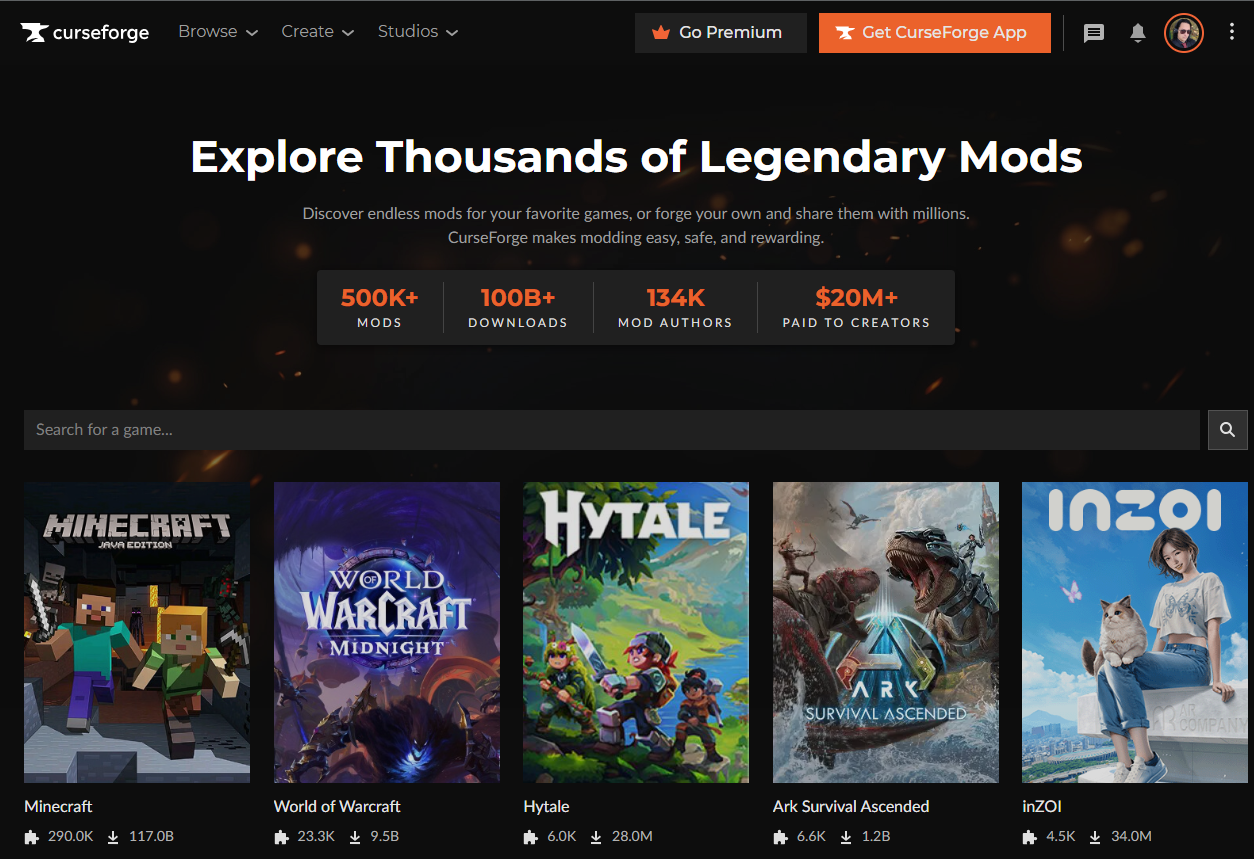
The first view you will see on the website is the game selection view, where you can browse the most popular games on the platform and dive deeper into the specific games. In this guide, we are going to focus on Minecraft and show how you can easily find modpacks and mods.
The Carousel: Easiest Way To Discover Popular Content
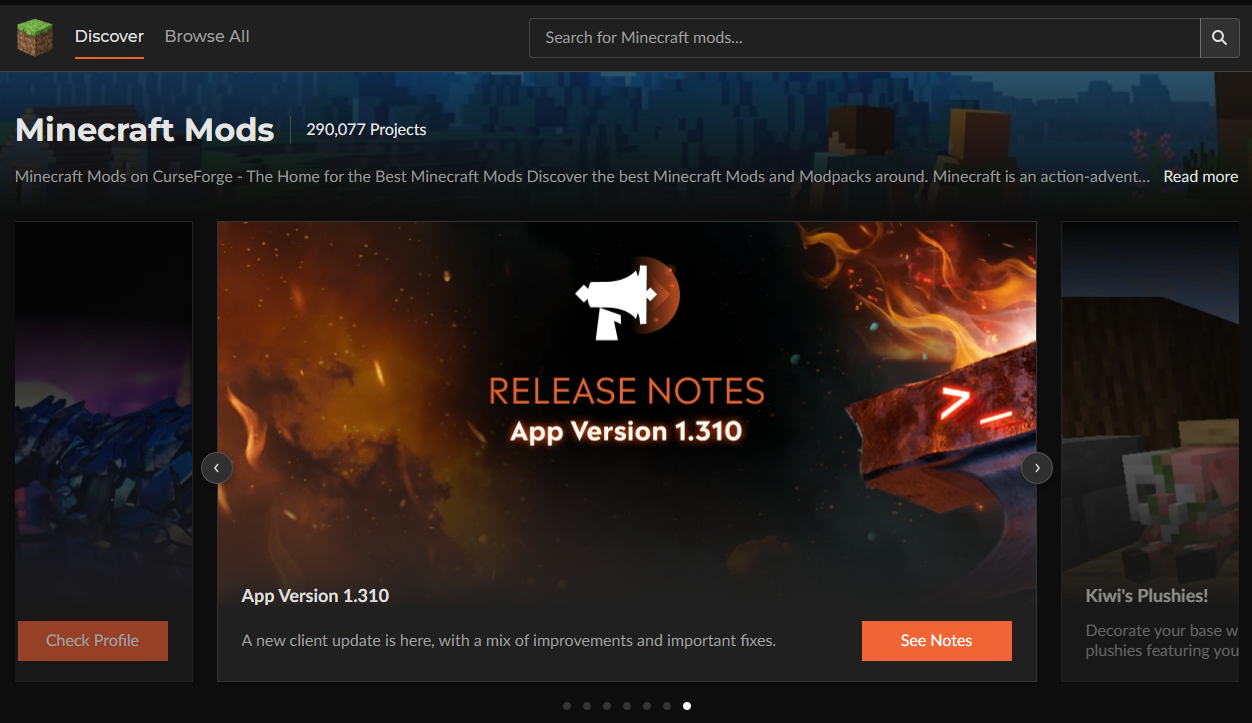
When we click the Minecraft entry in the game selection view, we navigate to the game detail view. We are shown how many projects the game has, a brief text about the game, and then the carousel, which shows blog posts and featured projects. Right beneath this, we have the "Monthly Theme" section, which is based on polls on Discord.
Monthly Themes: The Community Votes
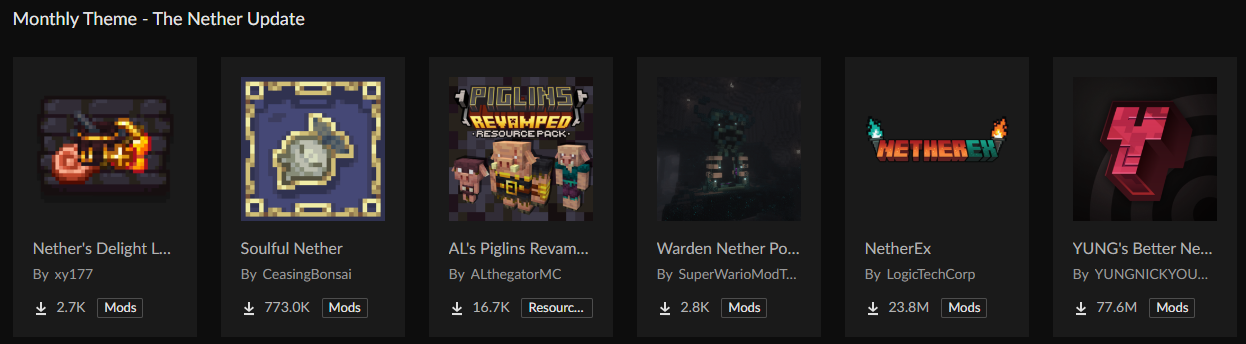
Once a month, CurseForge opens a poll on their Discord and lets us, the users, vote on the monthly theme for the coming month. They also post about it on their Reddit to ensure users don't miss the opportunity to vote on the upcoming theme.
This way, you can help us select the curated content on the platform!
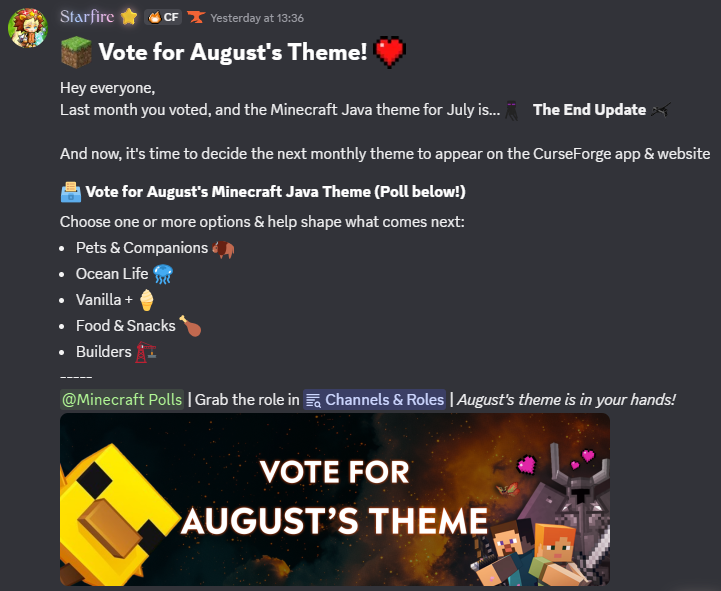
Join the CurseForge Discord today and vote for the theme you want to see!
Community Picks: A Curated Collection of Projects
Another good way to find curated content is to look at the Community Picks collections, where Community Champions, Content Creators, and CurseForge itself have put together their favorite content in a collection of projects, for you to check out!
Finding The Projects That You Want To Play Today
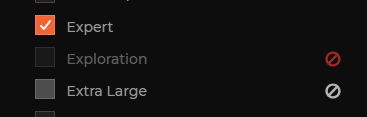
So, while we are talking about Minecraft, we're going to show how to find popular modpacks, so click on "Browse All" in the menu at the top, select "Modpacks" in the Filters section, and if there are any categories you want to include or exclude for your search, you can either check the checkbox, or click the "Exclude" symbol that appears when you hover an option. In the image below, I'm showing the different states of selections. We have selected Expert, excluded Exploration, and are currently hovering over Extra Large, which shows the exclusion icon.
Great, now that we have filtered the results a bit, we can go ahead and select a modpack that looks interesting. In my case, I selected "After The Nukes", as it was the top result when sorted by Relevance.
Finding What You Are Looking For
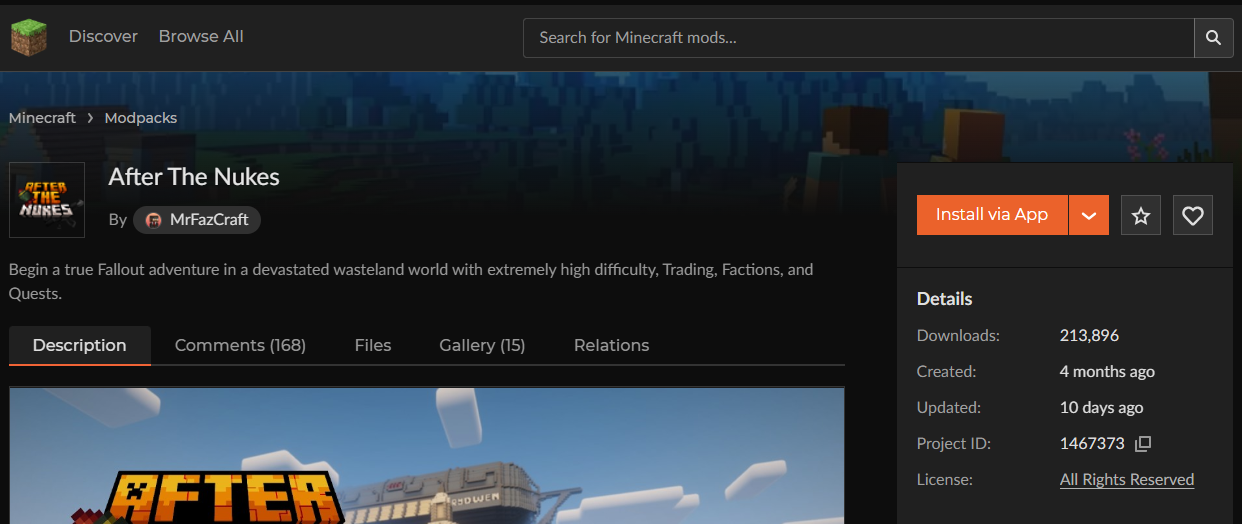
The first things you will be presented with, of course, are the project name, logotype, and a summary. We have some metadata in the right part of the screen, and then we have the actual project description, where authors showcase their project with videos, images, and descriptive text. In the upper right, we are also given a button to install via CurseForge, or download the file manually, which you rarely want to do with modpacks, as the zip file mainly contains a manifest of what projects are to be downloaded from CurseForge, the configs, and 3rd party projects that are not available on the CurseForge platform.
The Authors Are The Backbone of The Platform
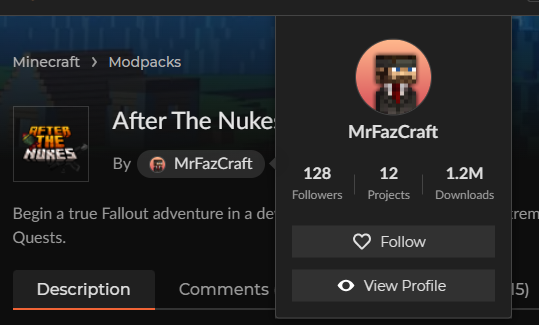
If you like what an author has done, you can also find more information about them by hovering over their name on that page. You can also click "View Profile" to access their list of projects in which they are involved in some way.
The CurseForge Application(s), Overwolf, and Standalone
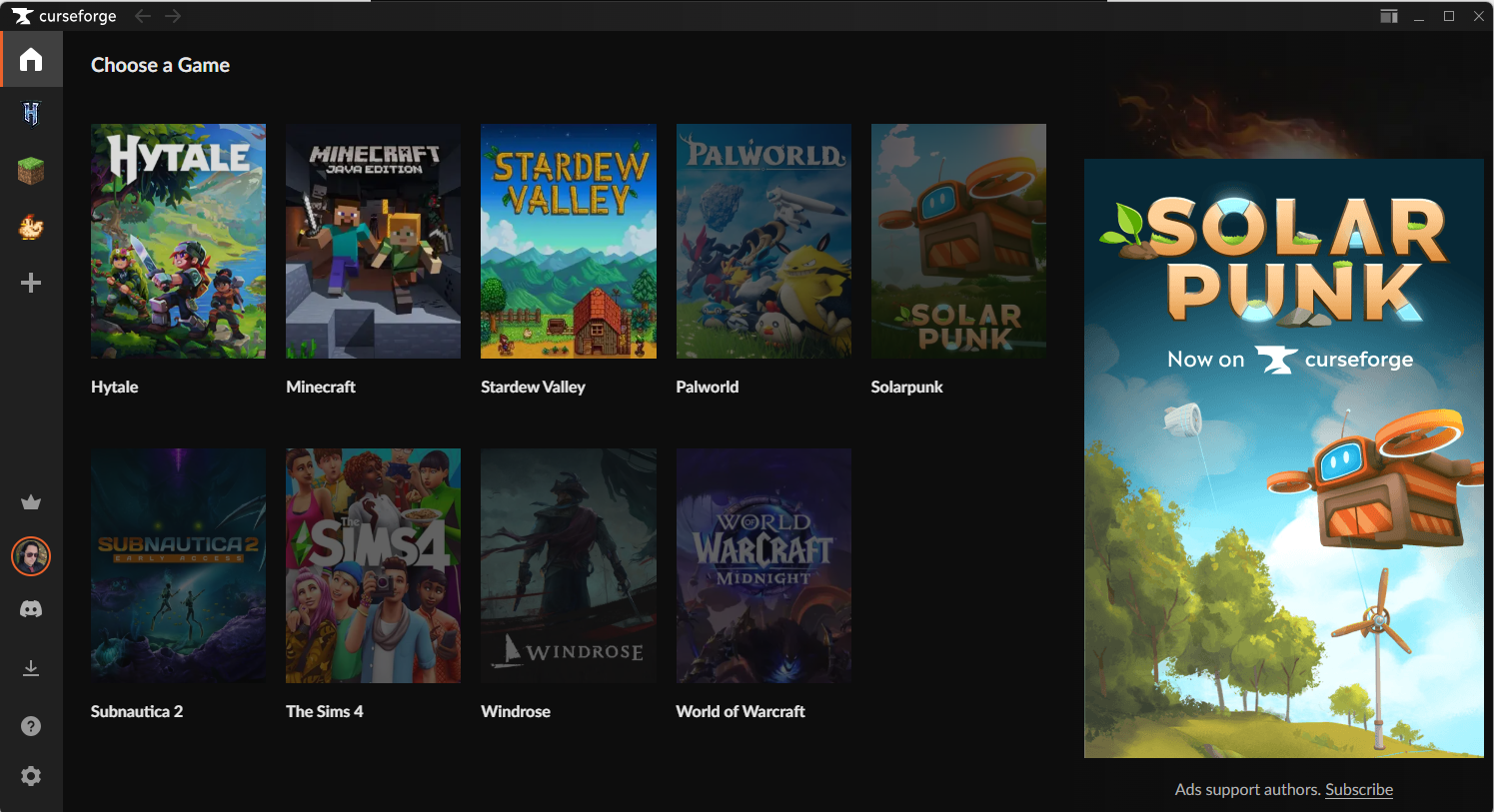
Downloading things manually is a thing of the past, and often made modding your games a mess to keep track of, which is one of the many reasons there are several applications to help download, install, and manage your mods for different games, and CurseForge is one of those applications.
Downloading The Application
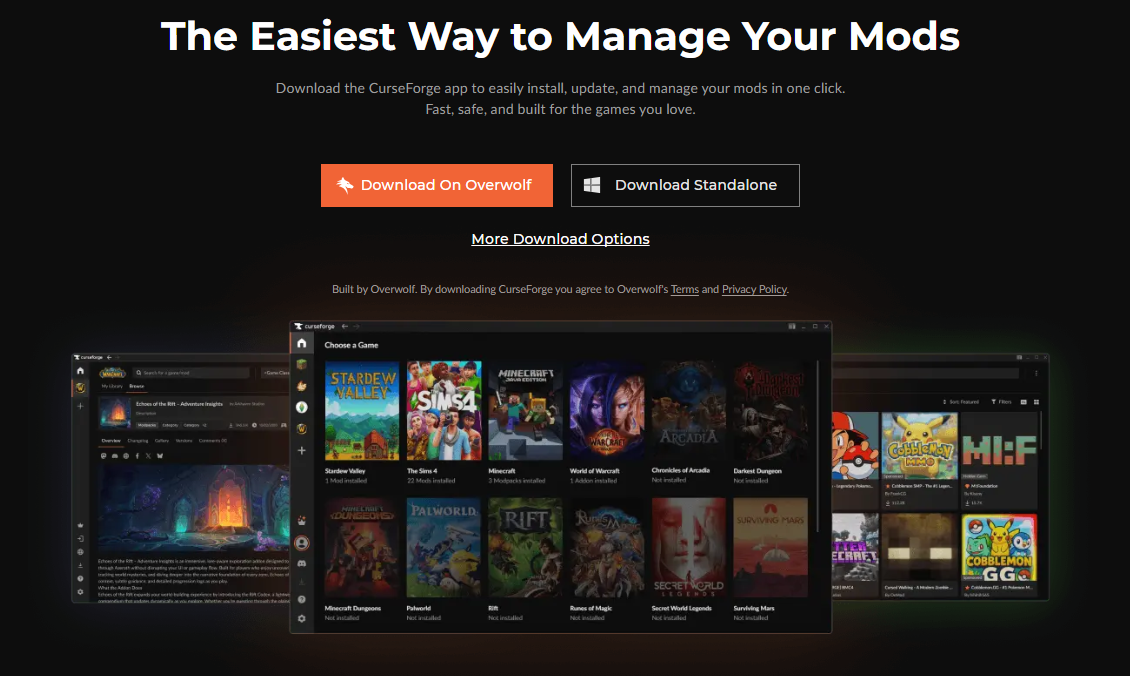
The application can be downloaded from the CurseForge website by clicking the "Get CurseForge App" button in the top right. There is currently no official iOS or Android app, but the website works pretty well.
Some quick facts about the options you have! For Windows, you have the Overwolf version and the Standalone version, and for macOS, there is just one version, and for Linux, there is the AppImage version and a .deb package.
On Windows, there are a few differences between the Overwolf and Standalone versions, mainly in which games they support. The Overwolf version supports more games than the Standalone one, but that's about it.
As with the website, we'll focus on Minecraft here as well!
Preparing To Mod Minecraft Like A Professional
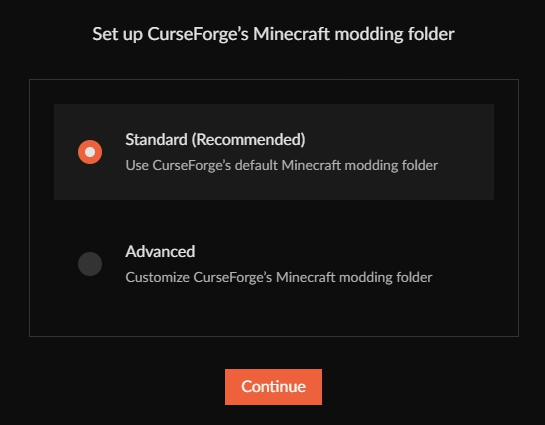
First, we click on the Minecraft grass block icon. CurseForge will ask you where you want to set your modding folder. You can either use the default location or set a location yourself. If your system drive isn't very large, you might want to put the modding folder on a drive with more space.
Oh, how to know which drive on your computer has the most space? I'll show you! The easiest way to do it is by opening Explorer, navigating to "This Computer", and then you will see something like (depending on how many drives you have).
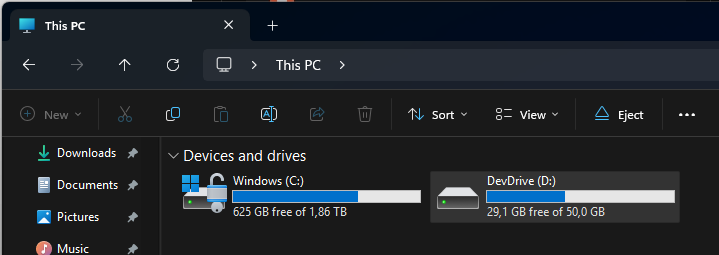
In this case, my C: is the largest at almost 2 Terabytes, while my D: is only 50 Gigabytes. I also have 625 Gigabytes free on C: and only 29 Gigabytes on D:. So the best option is to use the Standard (Recommended) selection in my case; use the drive with the most free space.
How To Find Content In The Application
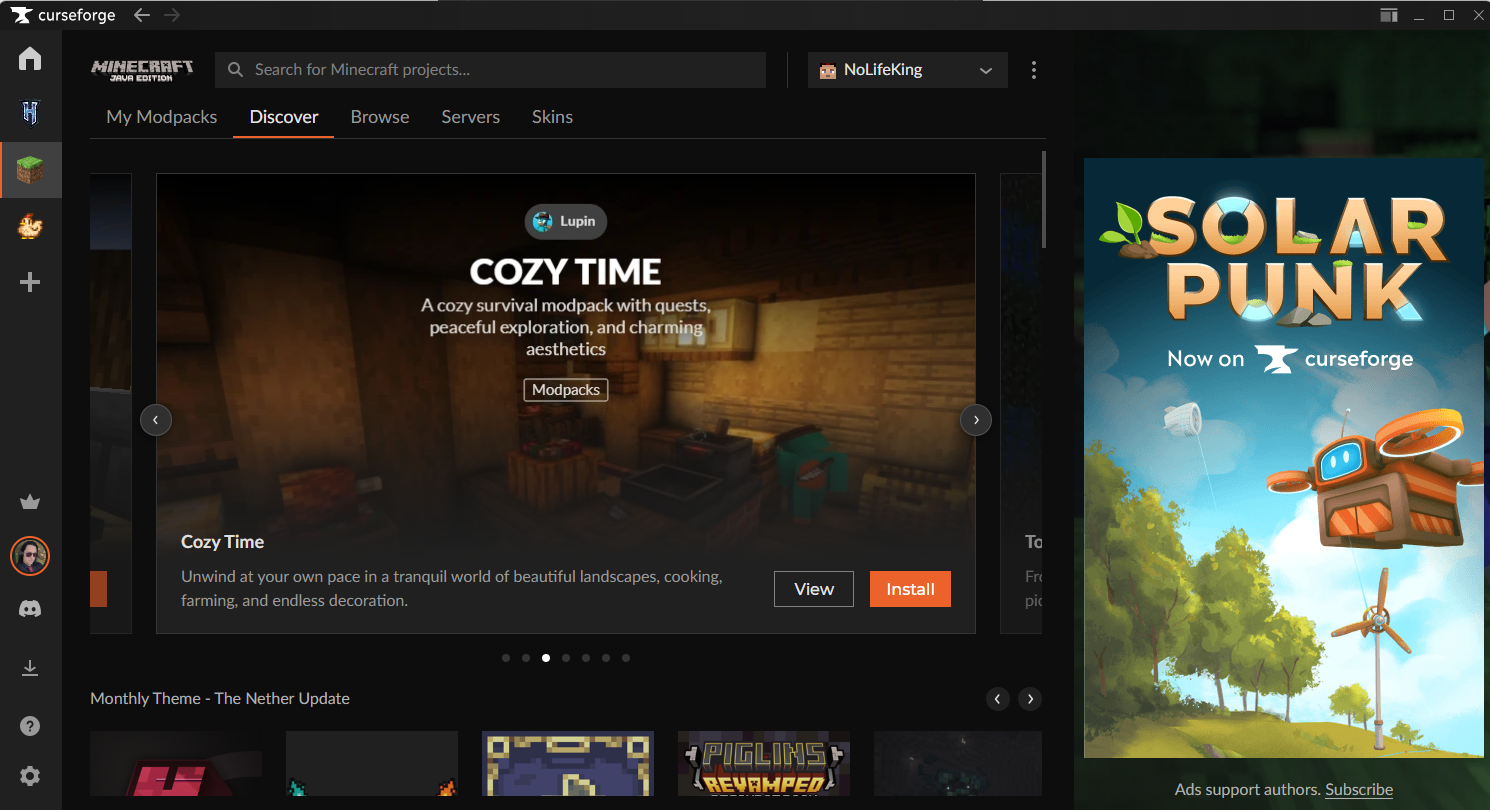
A great way to find popular content is to use the "Discover" tab, where you have this carousel with featured projects, modpacks, among other things, and just below that, we find the Monthly Theme again!
From here, it is really easy to get started; click "Install" on the things you want. Modpacks will take longer to install than singular mods, as they are collections of mods, resource packs, data packs, shaders, and configurations for that specific modpack, to give you a customized gaming experience, whether you like running from zombies, figuring out how to survive on a sky map, or just some quality-of-life packs that enhance that vanilla gameplay with some extra features.
So, Where Are My Other Games?
Well, that's the thing... Not all games are available in the CurseForge application, nor in the Overwolf or Standalone versions, as they are available only in-game.
Some of these games include Hogwarts Legacy, ARK: Survival Ascended, and inZOI. They have their own mod browsers and install mods directly from within the game, rather than through an external mod manager.