You can use Minecraft Bedrock cheats to get resources, avoid danger, change the difficulty, apply status effects, or turn a "Survival" world into a controlled building sandbox. Bedrock also includes world settings that remove specific hazards without requiring a separate command each time.
Today, we’ll share with you how to enable cheats, how they affect achievements and trophies, and which cheat commands and world settings are useful in "Survival" and "Creative" modes. We’ll also recommend several CurseForge addons that provide cheat-style menus, tools, and shortcuts, so make sure to keep reading!
What Are Minecraft Bedrock Cheats?
In Bedrock Edition, cheats include protected slash commands and world settings that bypass normal progression or change the game’s rules. They can keep your inventory after death, grant items instantly, switch game modes, or disable damage. Some addons offer similar advantages through in-game menus.
How to Enable Cheats in Minecraft Bedrock
When Creating a New World
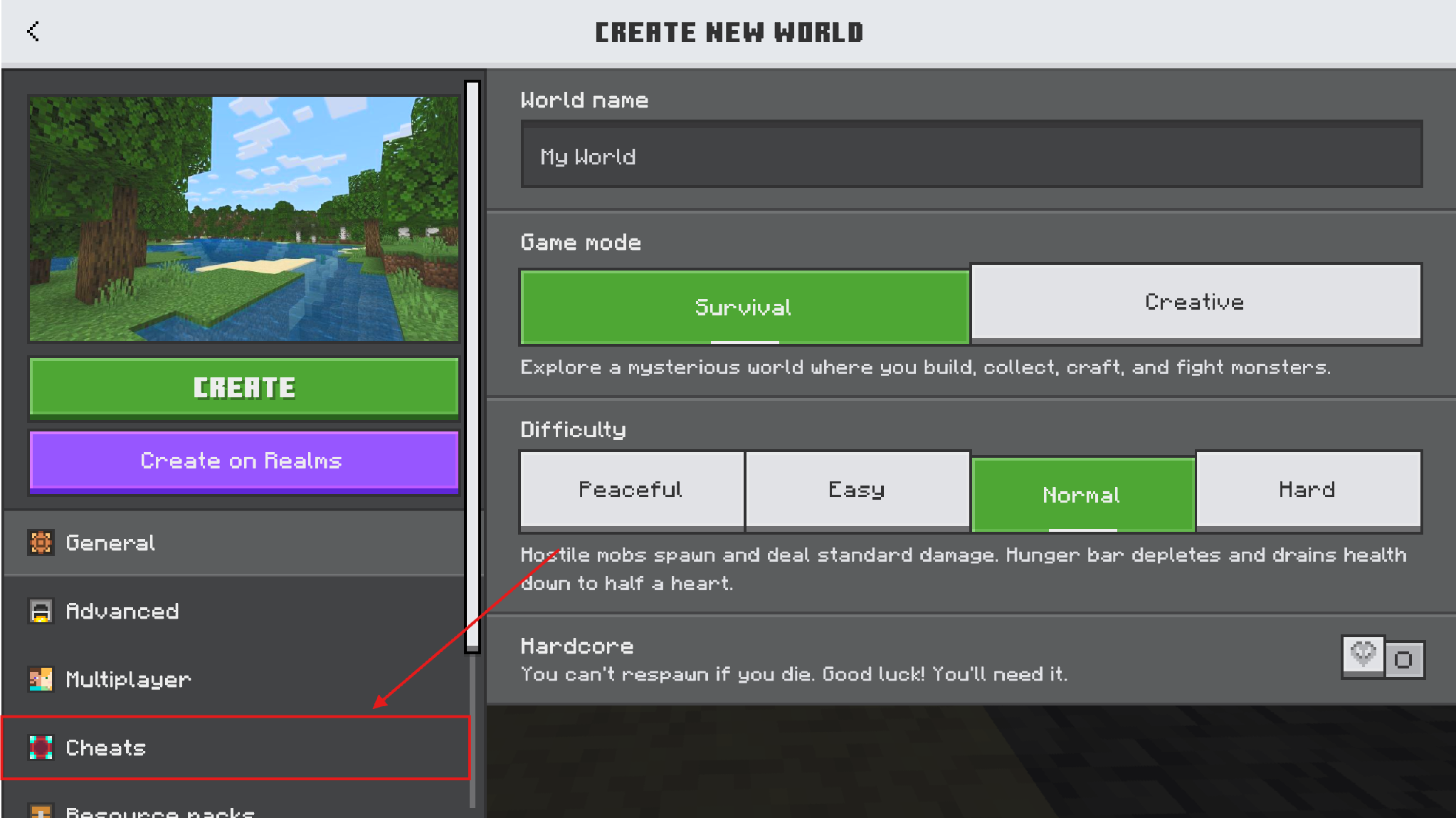
- Select "Cheats" from the left side of the "Create New World" screen.
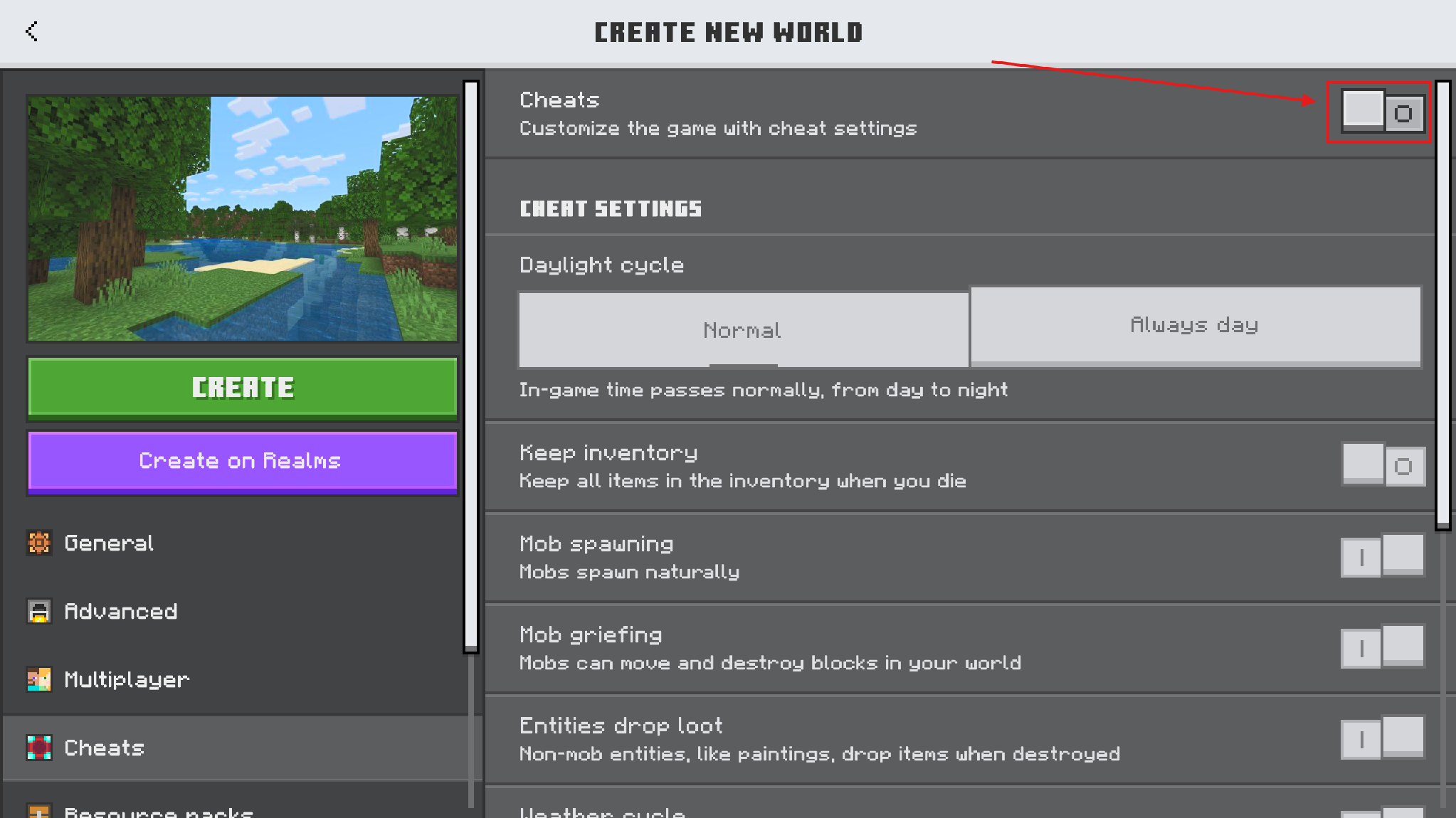
- Turn on "Cheats".
- Finish configuring the world and select "Create".
- Select "Create anyway" when the "You can't earn achievements" warning appears.
After Already Entering a World
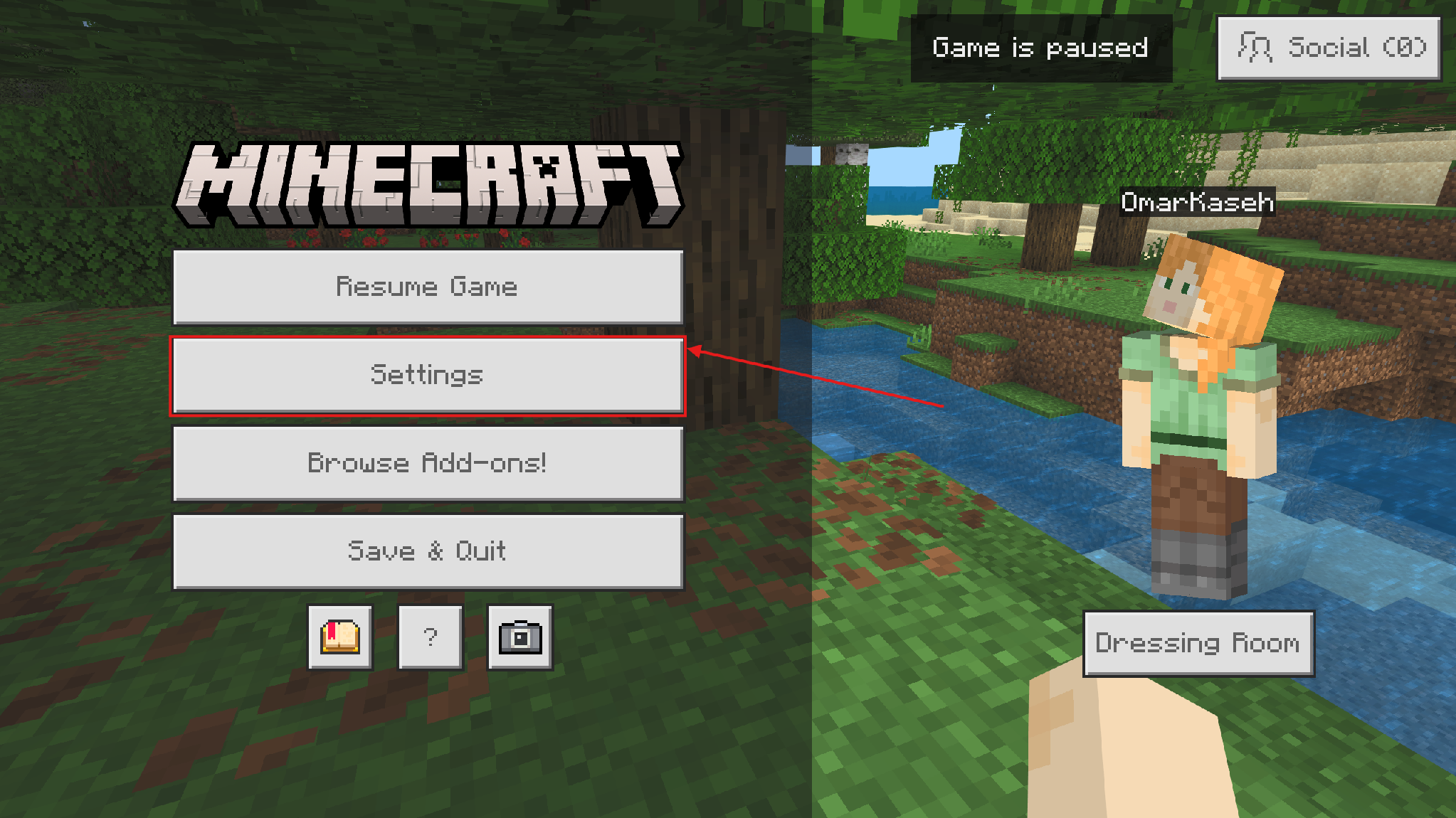
- Pause the game and select "Settings".
- Select "Game" from the left menu.
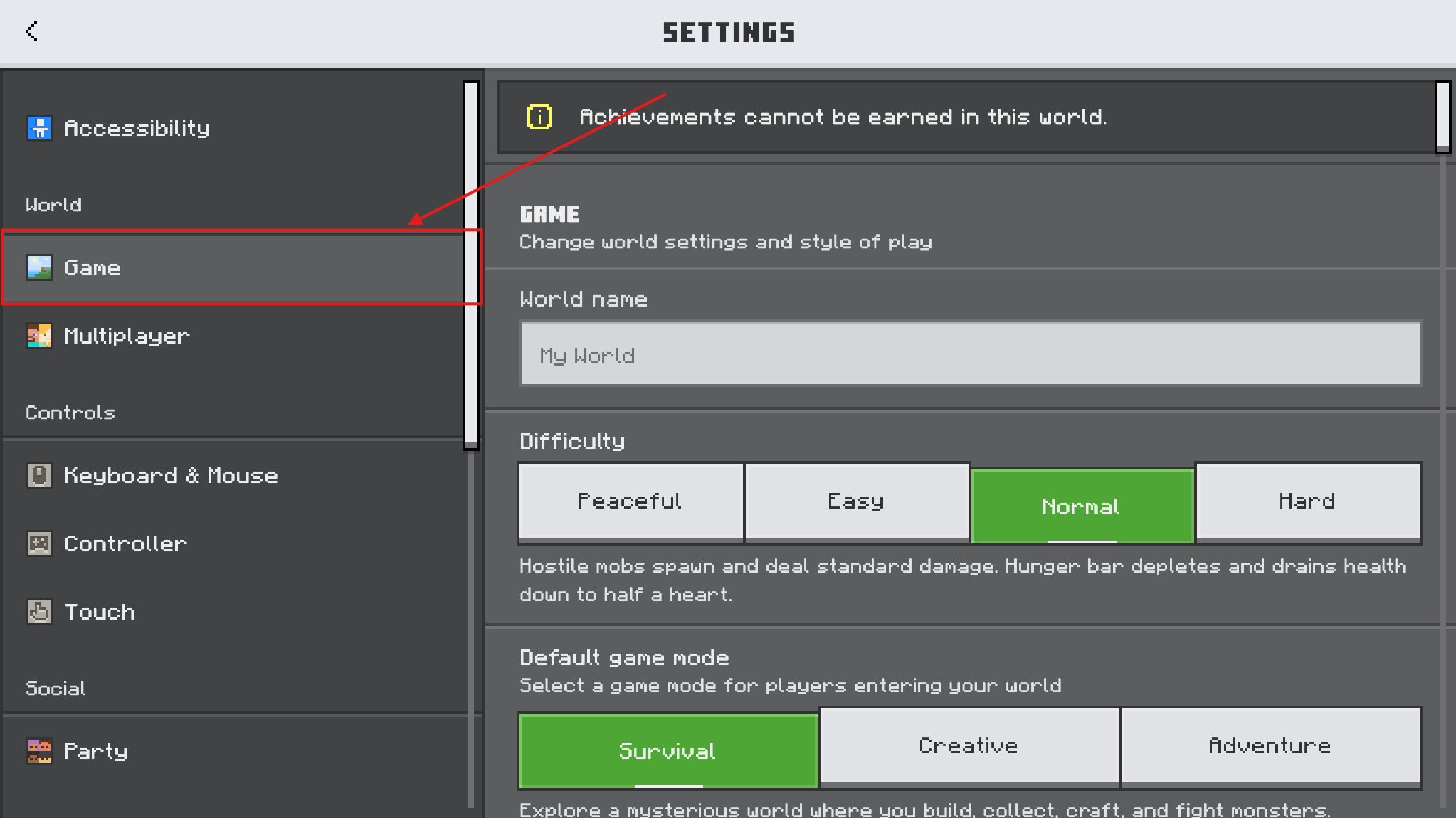
- Scroll to the "Cheats" section and turn on "Activate cheats".
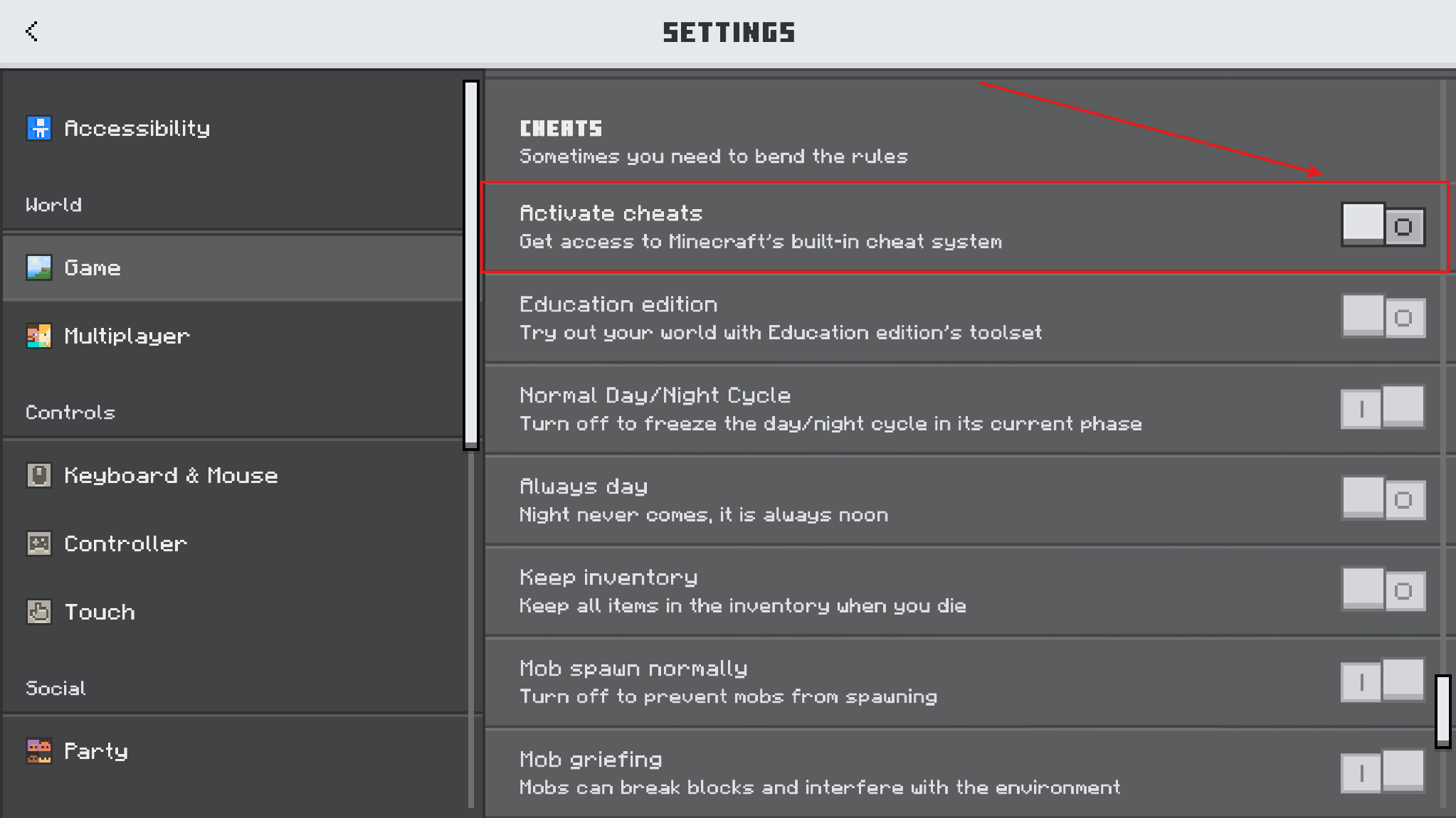
- Select "Continue" when the "Turn off achievements?" warning appears.
Note: Minecraft Bedrock leaves cheats off by default in "Survival" mode and activates them automatically when you select "Creative" mode.
Enabling Cheats in Multiplayer or Inside a Realm
If you own the world or Realm, you control whether it allows cheats. If you join someone else’s world, you need the "Operator Commands" permission enabled to use protected commands.
What Cheats Do to Achievements and Trophies
Before you activate cheats, select the pencil icon beside the world and choose "Copy World". We recommend keeping the untouched copy for achievement-enabled "Survival" progress and using the duplicate for experiments.
Important: Activating cheats permanently disables achievements in that world, even if you turn cheats off later, so make sure to do it in a world where you are not planning to farm them!
Best Minecraft Bedrock Cheat Commands for Survival
Open chat and enter one of the commands below after enabling cheats. In these examples, "@s" means the command affects you.
| Purpose | Command | What It Does |
|---|---|---|
| Get valuable resources | "/give @s diamond 64" | Adds 64 diamonds to your inventory. Replace diamond or 64 to request a different item or quantity. |
| See in dark areas | "/effect @s night_vision 999999" | Gives you Night Vision for 999,999 seconds. |
| Remove most hostile danger | "/difficulty peaceful" | Sets the entire world’s difficulty to Peaceful. Enter "/difficulty normal" to return to Normal. |
| Skip the night | "/time set day" | Sets the current time to day. The clock keeps moving unless you turn off the daylight cycle. |
| Enter "Creative" mode | "/gamemode creative" | Switches you to "Creative" mode, giving you access to the "Creative" inventory and flight. Enter "/gamemode survival" to return. |
Best Minecraft Bedrock Cheat Settings for Survival
| Setting | Recommended Value | What It Does |
|---|---|---|
| Keep Inventory | On | Keep your inventory after death, removing the risk of losing collected gear and resources. |
| Immediate Respawn | On | Respawn immediately and skip the death screen. |
| Fall Damage | Off | Makes you immune to fall damage. |
| Fire Damage | Off | Stops fire from damaging you and other affected entities. |
| Drowning Damage | Off | Stops you from taking drowning damage underwater. |
| Mob Griefing | Off | Stops creatures such as Creepers and Endermen from changing or destroying blocks. |
| Mob Spawning | Off | Stops natural mob spawning, making exploration and building quieter and safer. |
Note: These settings apply globally and so they change the rules for the whole world. Due to this, we suggest telling everyone before you change them in a shared world.
Best Minecraft Bedrock Cheat Settings for Creative Mode
"Creative" mode already gives you unlimited blocks, flight, and instant block breaking. With that said, these settings make large builds and test worlds even easier to control.
| Setting | Recommended Value | What It Does |
|---|---|---|
| Always Day | On | Keeps the world bright while you build. |
| Weather Cycle | Off | Keeps rain and thunderstorms from returning after you clear the weather. |
| Mob Spawning | Off | Keeps naturally spawning creatures out of build areas. |
| Mob Griefing | Off | Prevents mobs from changing blocks and protects builds from Creeper explosions. |
| TNT Explodes | Off | Stops TNT from exploding and damaging the world. |
| Fire Spreads | Off | Stops fire from spreading through flammable builds. |
| Tile Drops | Off | Prevents blocks from dropping items when destroyed, which reduces clutter during large demolitions. |
Tip: For a controlled test world, turn on "Always Day" and turn off "Weather Cycle", "Mob Spawning", and "TNT Explodes".
Minecraft Bedrock Cheat Addons to Try Next
The following Minecraft Bedrock addons give you easier ways to bend the rules without entering every cheat manually. Their features range from all-in-one control menus and "Hardcore" survival tools to a simple "Creative" mode switcher, so you can choose how much control you want over your world.
Ultimate Cheat Menu
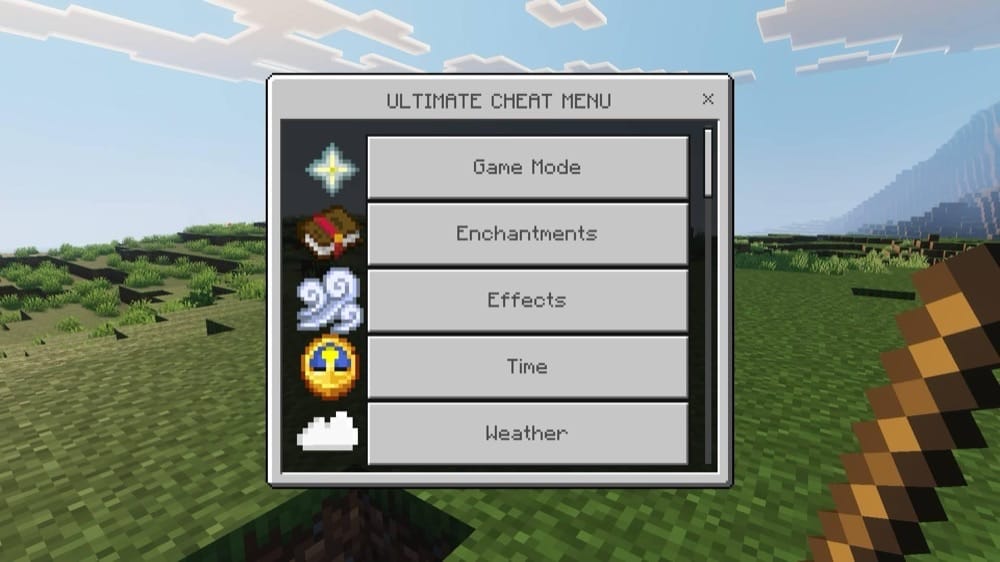
The “Ultimate Cheat Menu” addon places an extensive collection of cheat-like controls inside one button-based interface. You can switch game modes, change game rules, control the time and weather, add effects or XP, enchant items, and activate survival assists such as God Mode, Auto Totem, infinite breath, and fall-damage protection. To use it, rename a standard stick to “UCM” in an anvil, then hold it and right-click to open the menu.
The addon also includes teleportation, waypoints, ore and chest tracking, vein mining, tree chopping, automatic crop harvesting, inventory sorting, and multiplayer monitoring tools. It works in Survival, Hardcore, and SMP servers when the pack is installed and active.
Hardcore Cheater
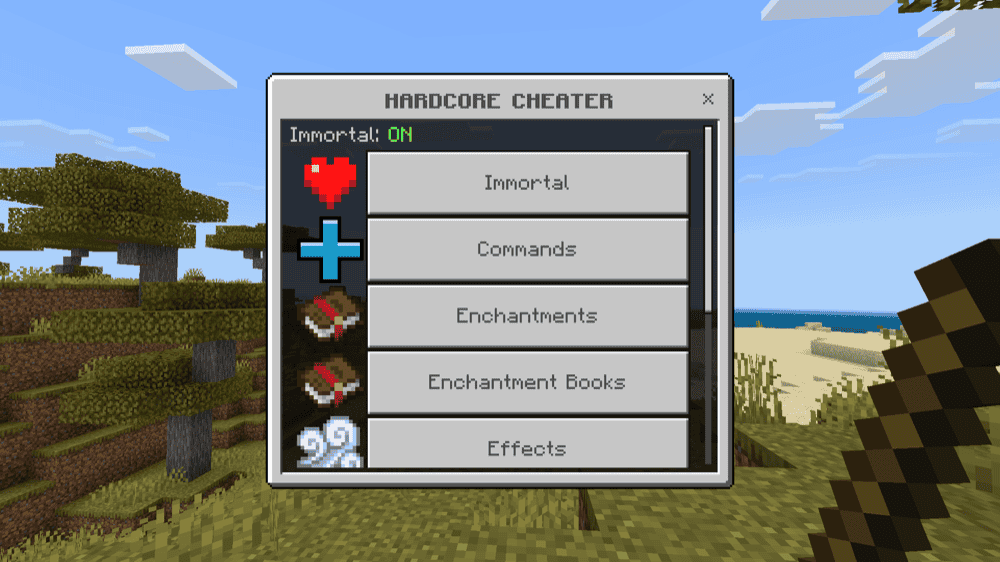
The “Hardcore Cheater” addon adds a focused cheat menu for Hardcore worlds, where a single death normally ends the run. Immortal Mode lets you toggle invincibility, while the other controls allow you to apply enchantments and effects, add XP, repair equipment, teleport to players or coordinates, save waypoints, and obtain enchanted books without switching to "Creative" mode.
When you first enter a world with the pack active, it automatically gives you an “hc” stick – hold the stick and right-click to open the menu. The built-in command console also saves your 15 most recent commands for quicker re-use.
Cheat Menu
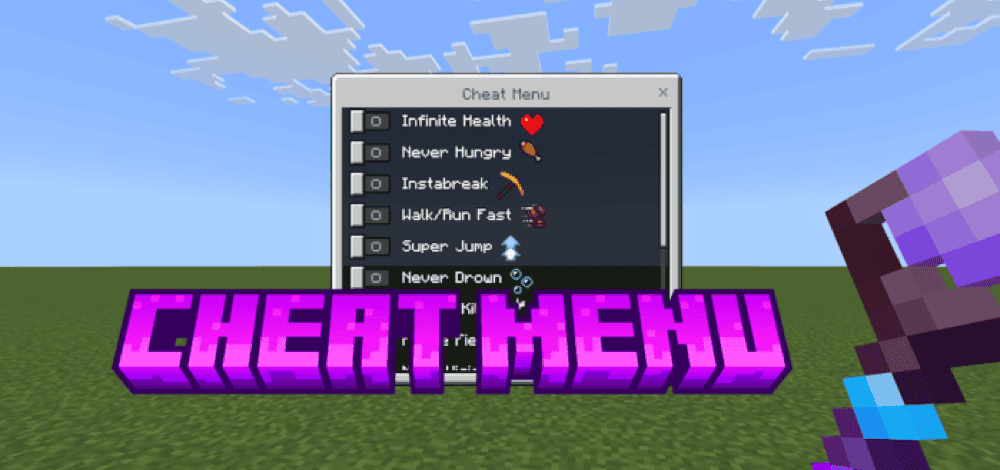
“Cheat Menu” provides 14 selectable advantages, including infinite health and durability, permanent saturation, faster mining and movement, enhanced jumping, water breathing, fire resistance, night vision, one-hit kills, a protective force field, an item magnet, and adjustable XP. Craft the Cheat Staff from its Crown, Core, and Handle components, then hold it and right-click to open the menu.
The first person to join a newly created world receives admin access. From the admin menu, you can reset everyone’s active cheats, prevent other players from opening the menu, and switch between "Survival", "Creative", "Adventure", and "Spectator" modes. These controls make the addon particularly useful for managing access on shared servers and Realms.
Creative Mode Switcher
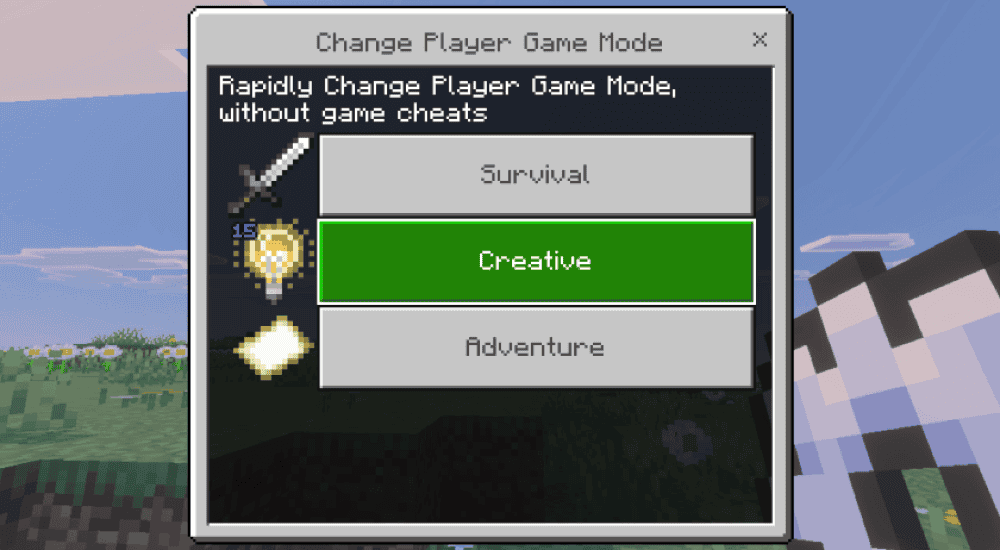
Finally, this “Creative Mode Switcher” addon adds a handheld Game Mode Switcher that lets you move between "Survival" and "Creative" modes without turning on "Activate cheats". "Creative" mode gives you flight and access to the full "Creative" inventory, making the addon useful for testing builds or collecting materials quickly.
The item appears automatically about 30 seconds after you join, and you can craft it at a crafting table if it does not arrive. Hold the item and right-click to open its menu, select "Creative", then use it again and select "Survival" when you want to switch back.
How to Install Minecraft Addons
You can install Bedrock addons automatically from the official Minecraft Marketplace or manually by downloading them from a trusted source like the CurseForge website. For each of the addons above, open the linked project page and download its associated “.mcaddon” file. Opening the downloaded file should launch Minecraft and begin the import.
After the import finishes, edit the world and check both "Behavior Packs" → "Available" and "Resource Packs" → "Available". If all went well, activating the packs included with the addon should add its features to that world. If the project lists an experiment under "Requirements", you should enable it as well before loading the world.
For a complete walkthrough, check out our guide on how to install Minecraft Bedrock addons.
Common Issues and Quick Fixes
My cheat command does not run
You may have left "Activate cheats" turned off, entered the command incorrectly, or lack "Operator Commands" permission. Make sure "Activate cheats" is turned on, check the command for mistakes, and confirm your permission level.
My imported addon does not appear
You may not have activated every required resource pack, behavior pack, dependency, or experiment. Edit the world, follow every setup requirement on the project page, and restart Minecraft if the addon still does not appear.
My addon works locally, but not on my Realm
The active Realm world slot may not include the required packs. Open the Realm settings, select the active world slot, activate the required resource and behavior packs, and ask everyone to re-connect.
My cheat menu item is missing
Some addons give you the menu item when you enter the world, while others require you to craft or rename an item or use a specific input. If this happens, make sure to re-join the world and follow the project page’s opening instructions.
My world lags or crashes after installing an addon
Your Minecraft Bedrock version may not support the selected project file, or another active pack may conflict with it. Confirm the file’s compatibility and test the addon in a copied world with your other packs disabled. If the world runs correctly, reactivate the other packs one at a time to identify the conflict.
My friend cannot use cheats
Your friend may lack the "Operator Commands" permission. Open the pause menu, select the permissions icon beside their name, and enable "Operator Commands" only if you want them to use protected commands.