You’re all set up for another night of Battle Royale shenanigans… but secretly, you want more. If that’s you right now, then we would very much like to acquaint you with the wonderful world of custom UGC game modes! Think combat arenas, training maps, survival challenges, racing modes, parkour courses, party games, and plenty of other twists on the usual PUBG Battle Royale formula we’re all too familiar with.
What’s great is that getting into any of these is pretty straightforward as well. All you need to do is either jump straight into the action through the developer-approved PUBG: Playgrounds mode selection, or download and install any custom mode your heart desires from the CurseForge website.
Here’s everything you need to know to get you playing custom PUBG modes in no time. But first…
What Are Custom PUBG Modes?
Custom PUBG modes are community-made experiences built with the game’s official UGC tools (PUBG’s built-in editor), rather than traditional third-party mods. Think of them as new ways to play the game using heavily modified versions of its own maps, objects, rules, and gameplay systems.
Creators can mix and match teams, scoring, vehicles, AI, checkpoints, and custom rules to build everything from competitive PvP arenas and training grounds to racing tracks and parkour courses.
Why Add New Modes to PUBG?
Custom modes are a great way to break away from the usual PUBG routine and see what the community can do with the game’s engine. So, whether you want to sharpen your gunplay, duke it out in a custom arena, race like a madman, tackle a parkour course, try a sweat-inducing PvE challenge, or play something completely off-the-wall, custom modes offer you plenty of ways to experience PUBG like never before.
Types of Custom PUBG Modes
In addition to the official PUBG: Playgrounds selection, you can also access a variety of modes through the CurseForge website. Once there, you can filter modes by any of these six main categories:
- Battle (Free-For-All): Every player for themselves, with fast-paced PvP focused on outplaying or outscoring everyone else.
- Battle (Team): Team-based combat where players work together against opposing teams, often with custom objectives or scoring rules.
- Casual: Laid-back experiences focused on fun and unusual ideas, including party games, experimental rules, and other creative modes.
- Parkour: Obstacle courses built around movement, jumping, and reaching the finish as quickly or stylishly as possible.
- PvE: Modes where players face AI-controlled enemies or environmental challenges instead of fighting other players.
- Training: Practice-focused modes designed to sharpen skills such as aiming, movement, weapon handling, and other PUBG mechanics.
How to Set Up Custom PUBG Modes
You can currently access PUBG community modes in one of two ways:
- PUBG: Playgrounds: The easiest option for modes that have been officially selected and added to the game by the developers themselves.
- Manual CurseForge installation: Best when you want to download and play a specific mode that is available on CurseForge.
Playing Custom Modes Through PUBG: Playgrounds
For modes that have been selected for Playgrounds, this is hands-down the simplest option as there’s no file management involved.
STEP 1: Launch PUBG: Battlegrounds
Start PUBG normally and allow the game to finish downloading any required updates.
STEP 2: Open PUBG: Playgrounds
From the "Play" menu, enter "Playgrounds".
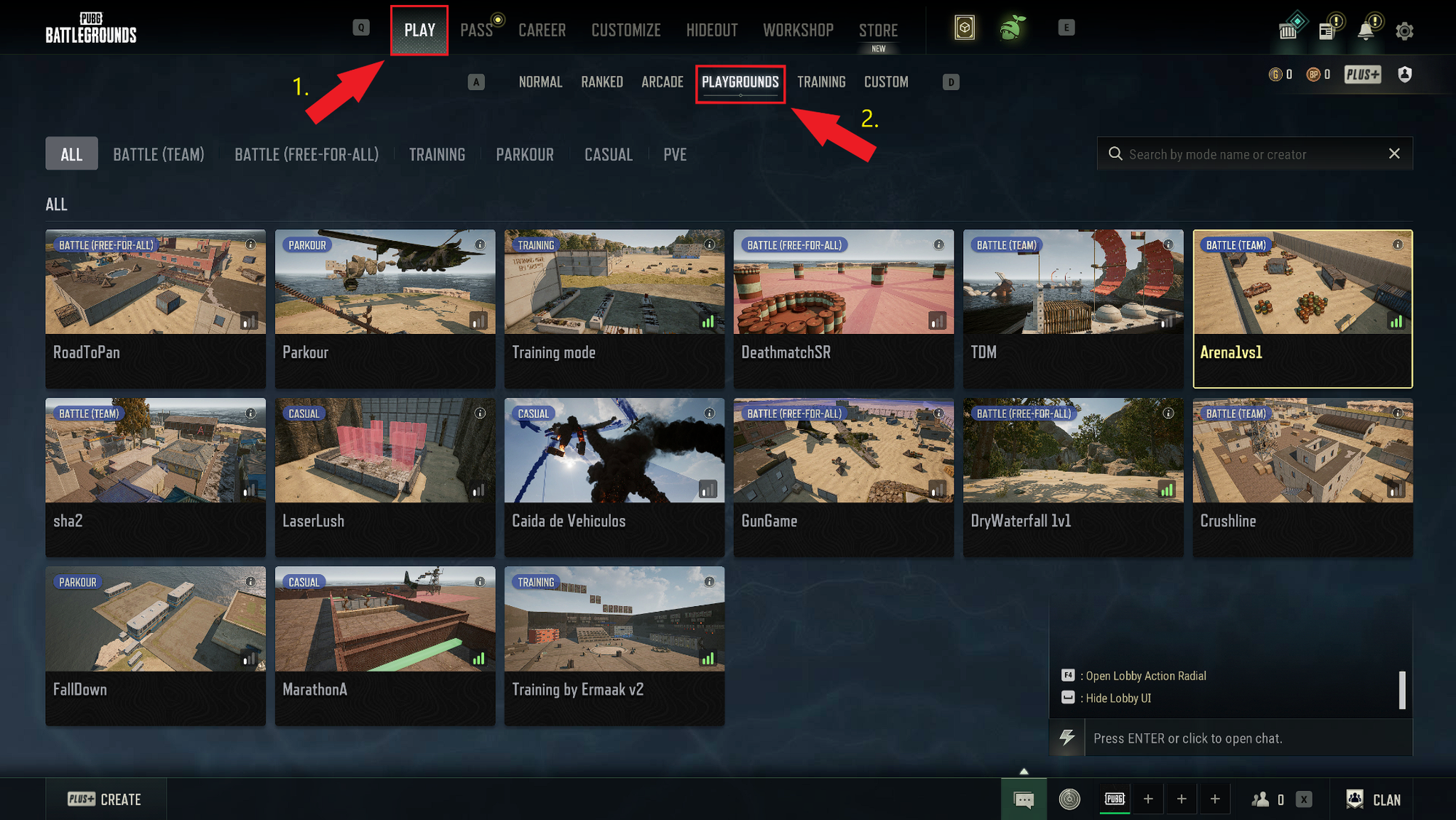
STEP 3: Choose a Custom Mode
Browse the currently available community modes and select the one you want to play.
STEP 4: Join and Play!
Select the mode and follow its matchmaking or lobby prompts to start playing.
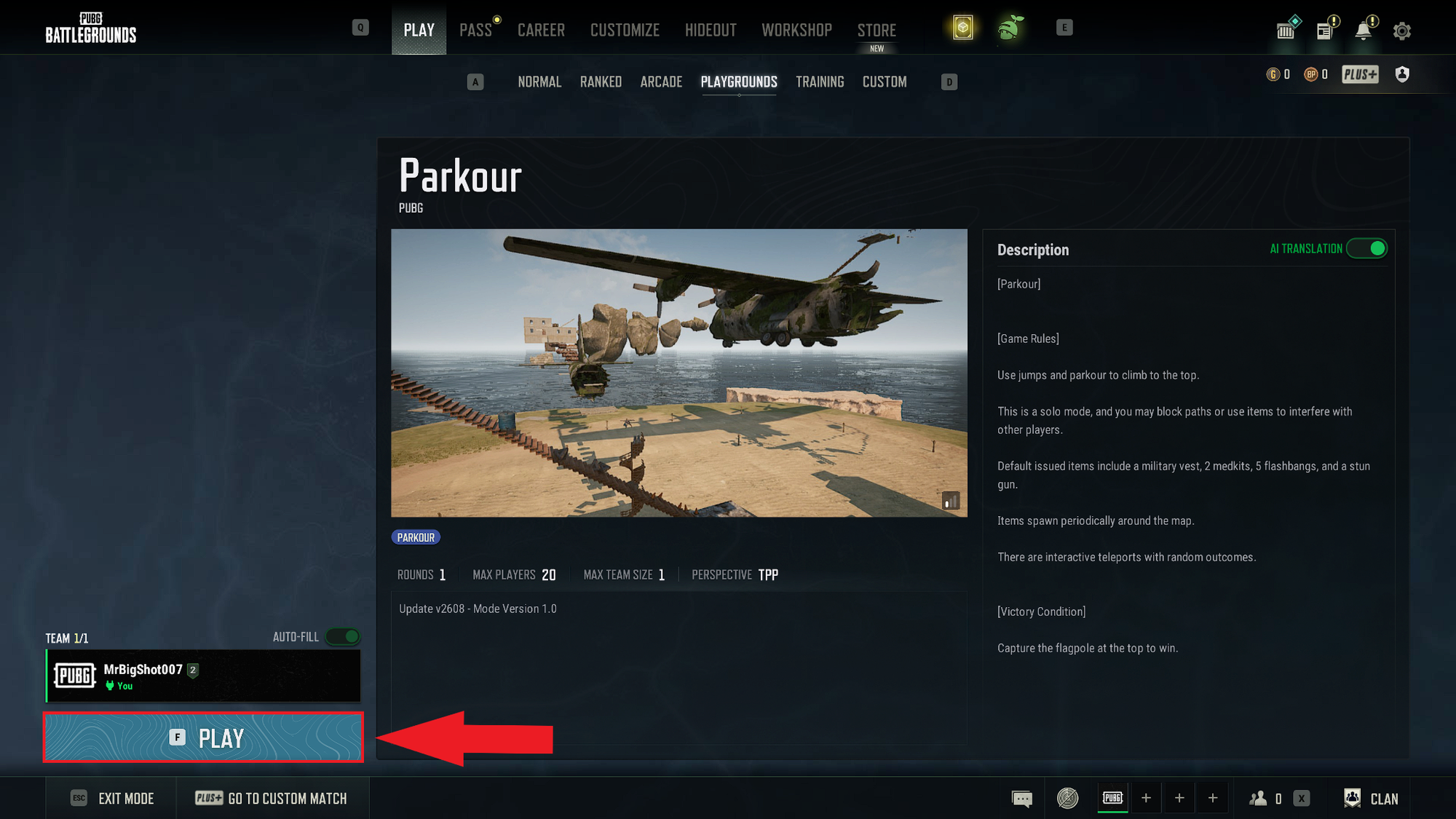
That is it! If the mode is already available in Playgrounds, you do not need to download or move any files manually.
Installing Custom Modes with CurseForge
If a mode is available on CurseForge but not in Playgrounds, you can download its ".pugc" file and add it to PUBG manually. Here’s how to do just that.
STEP 1: Download a PUBG Mode From CurseForge
Visit the PUBG: Battlegrounds section on CurseForge and find the mode you want to install, then open the project page and click "Download".
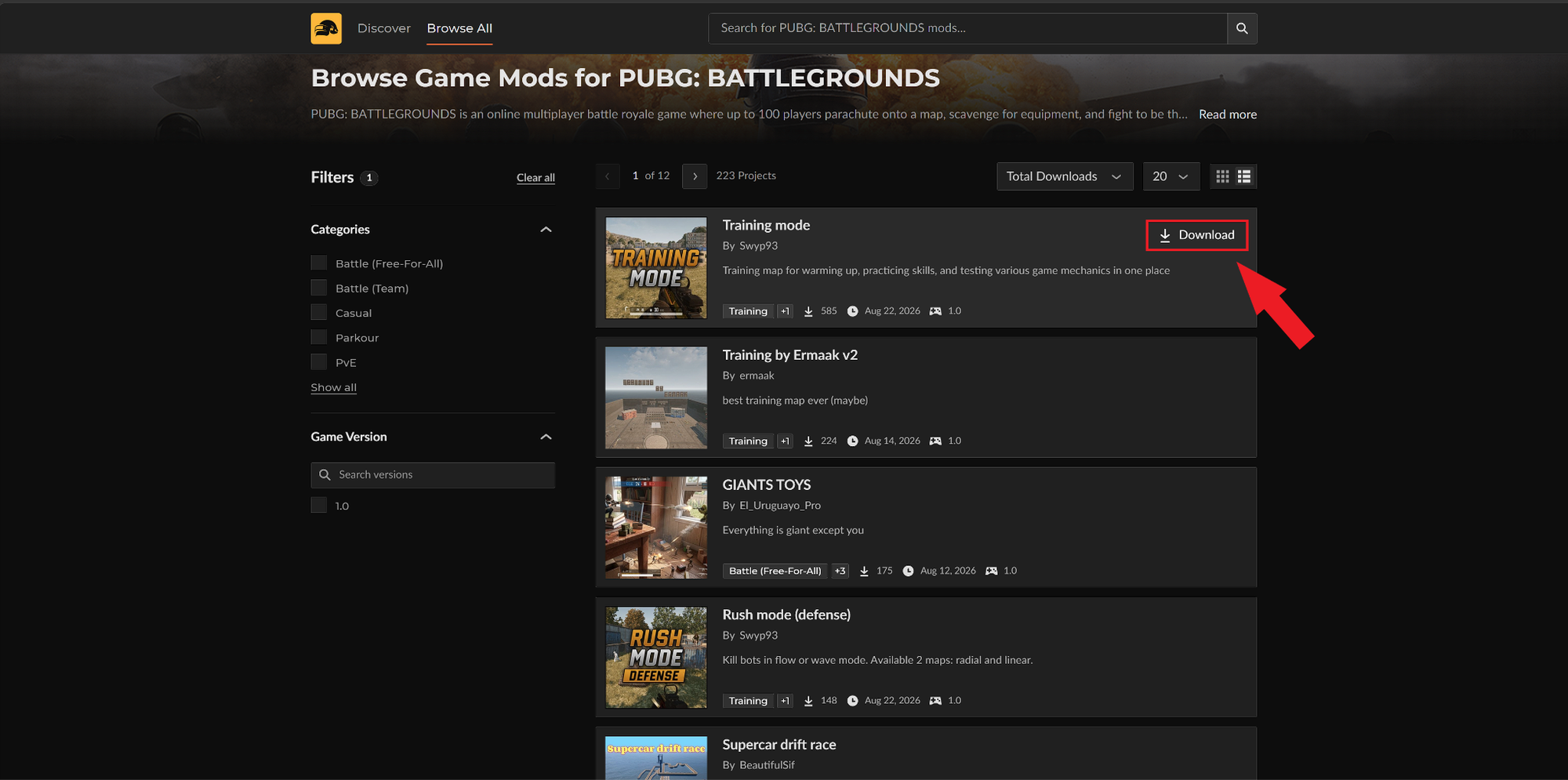
You can then find the file within the default "Downloads" folder of your browser (unless you’ve specified otherwise).
STEP 2: Open the PUBG UGC Folder
- Press: "Windows Key + R"
- In the Run box, type "%localappdata%".
- Press "Enter".
- Now navigate to "TslGame" → "Saved" → "UGC"
Important: If the UGC folder does not already exist, make sure to create it manually.
STEP 3: Move the Downloaded Mode Into the UGC Folder
Move or extract the downloaded custom mode file into "AppData/Local/TslGame/Saved/UGC".
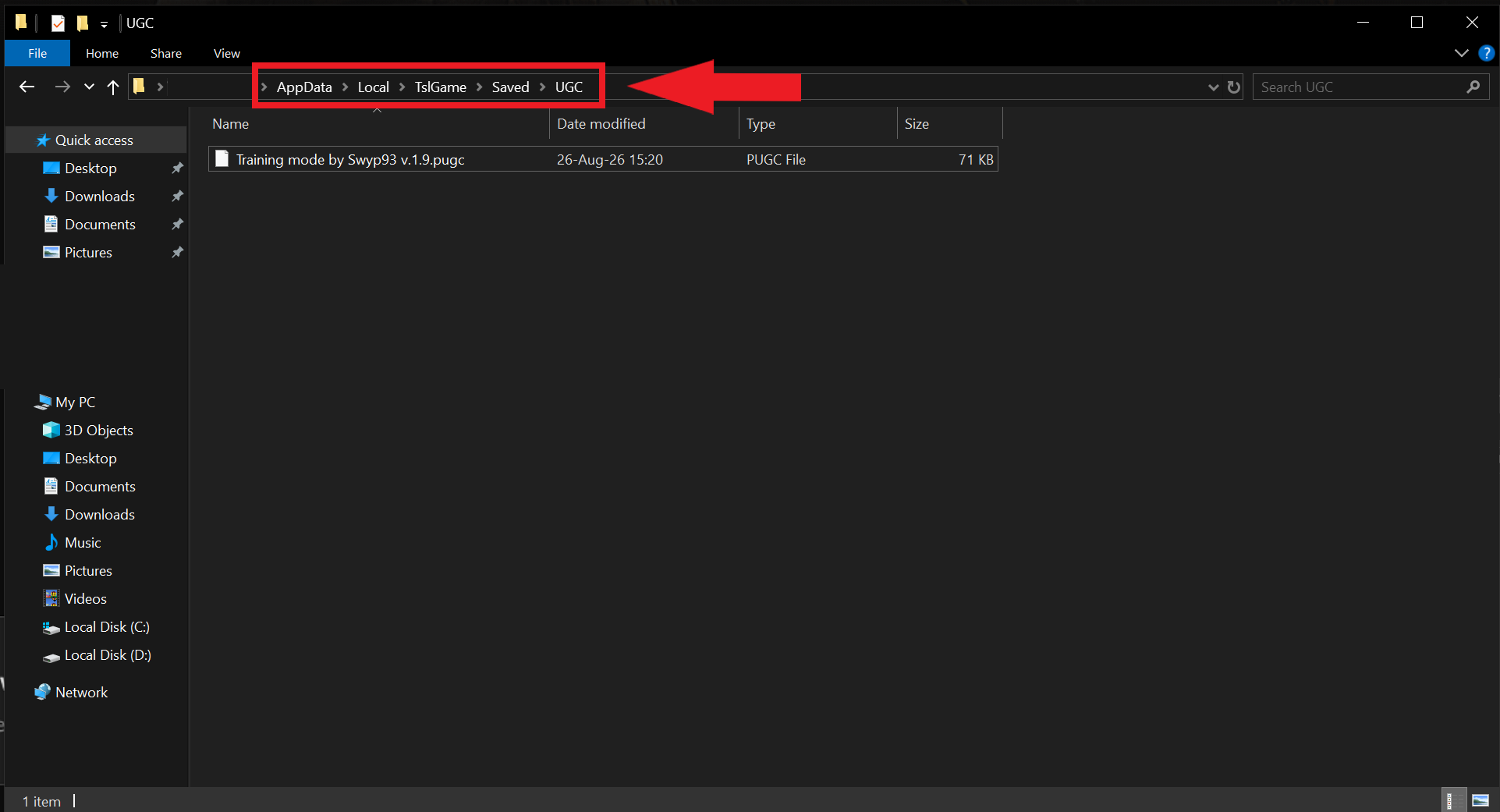
If the project comes in an archive, we recommend reading the official project page in case you need to unpack it first.
STEP 4: Launch PUBG and Create a UGC Room
- Start up PUBG: Battlegrounds.
- Navigate to "Play" → "Custom".
- Click "Create" to create a room.
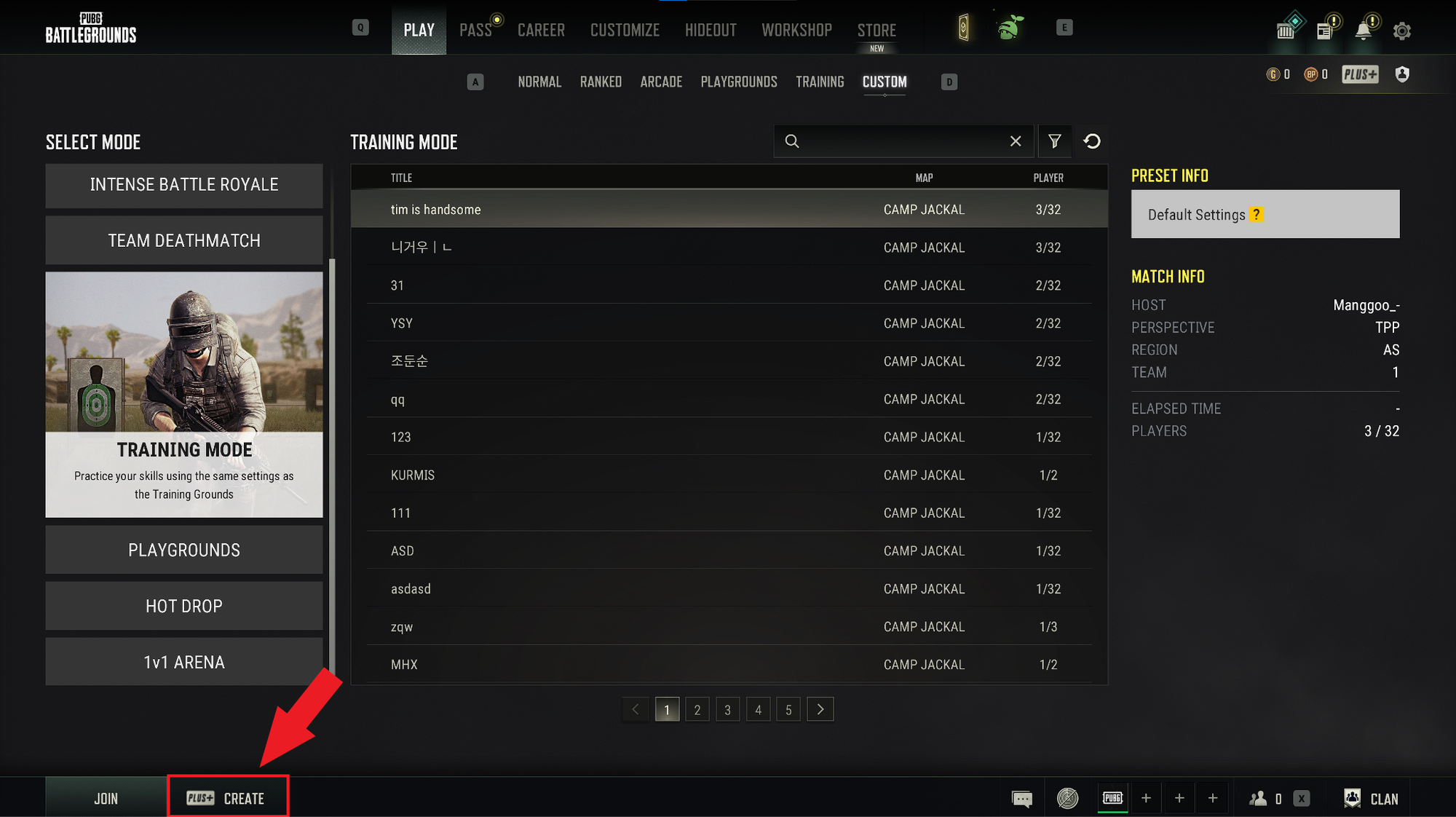
Important: Lobby creation is available to "Plus+" members only. If you want to take advantage of custom modes, you need to purchase this upgrade first from the in-game store.
STEP 5: Load the Downloaded Mode
Once you are inside the UGC room, press "F10", choose the downloaded mode file you placed in the UGC folder, and load it.
STEP 6: Start the Mode
Press "P" to open the "Edit Manager", then click "Play". Your downloaded mode should now start.
Deleting Custom PUBG Modes
If a mode that you downloaded from CurseForge is causing you issues or you simply want to prune your custom modes list, all you need to do is head over to "AppData/Local/TslGame/Saved/UGC" and delete that mode’s folder. The game should then no longer “see” the mode once you press "F10".
Frequently Asked Questions
My downloaded mode isn’t visible after pressing "F10"
Confirm that the mode file is inside the correct directory: "AppData/Local/TslGame/Saved/UGC". Additionally, make sure you have not accidentally placed it inside an extra nested folder.
PUBG crashes when I try to launch or play a custom mode
We recommend removing old Steam launch options, verifying the integrity of the game files, and updating Windows. If the game crashes persist, you could also perform a clean reinstall as a measure of last resort.
How do I verify PUBG's game files on Steam?
Verifying the files is one of the first things to try if PUBG crashes or appears to be missing content. Here are the steps:
- Restart your PC and launch Steam.
- Open your "Library".
- Right-click PUBG: Battlegrounds or select its gear icon.
- Choose "Properties…".
- Open "Installed Files".
- Select "Verify integrity of game files".
Steam will then inspect the installation and replace missing or damaged files where necessary.
PUBG is lagging or stuttering during a custom mode
Custom modes can be more demanding depending on how many devices, vehicles, AI players, and effects are visualized on your screen at the same time. If performance drops, we recommend lowering your graphics settings or trying any of the available upscaling technologies (such as FSR or DLSS) to reach a good compromise between stable FPS and graphical fidelity.
PUBG crashes immediately after seeing the logo
If this notorious issue happens to you, some of the steps you can take to fix the issue include:
- Restarting Steam.
- Verifying the integrity of PUBG's game files.
- Installing any available Windows updates.
I’m getting a “Frequency Out of Range” error
This usually points to a monitor or display configuration problem rather than the downloaded custom mode itself. We recommend checking your display drivers and ensuring your monitor is using a supported refresh rate. If the problem started after a graphics-driver update, try reverting to an earlier driver version.
Are all normal PUBG features also available in custom modes?
Not necessarily. Custom and special modes may use their own match rules, team structures, cameras, respawn settings, inventories, or other restrictions. Mode creators can explicitly configure options including team size, friendly fire, player camera, respawning, death boxes, spectators, and inventory behavior.
Top 10 Custom PUBG Modes by Community Downloads
Knowing how to install PUBG modes is only half the fun. The next step is deciding what to play! Below, we’ve gathered the top 10 list as voted by popular demand. For the complete and updated mod list, please visit the official CurseForge PUBG Modes section instead.

1. Training mode


3. Rush mode (defense)

4. GIANTS TOYS

5. Symmetrical Control Point

6. Hide-and-Seek

7. Hyper’s Parkour Panic

8. Aim training

