Building tall walls or reaching an unfinished roof can quickly turn a simple project into a cycle of placing and removing temporary blocks. But fear not, for we have you fully covered!
In this guide, we'll walk you through the scaffolding recipe, explain how its climbing and support rules work, and look at mods that offer faster building tools or permanent lifts.
What You Will Need
Crafting is the main renewable way to get scaffolding, although you can also find it in trial chamber chests. For the recipe, you'll need two materials:
- Bamboo, which generates as scattered stalks in most jungle biomes and grows especially densely in bamboo jungles. Each crafting cycle uses 6 bundles of bamboo.
- String, obtained by killing spiders, breaking cobwebs with a sword, fishing, or opening certain loot chests.
How to Make Scaffolding
The recipe gives you 6 scaffolds per crafting cycle and has a very strict layout, as shown below. Here are the exact steps to get from no scaffolding to lots of it.
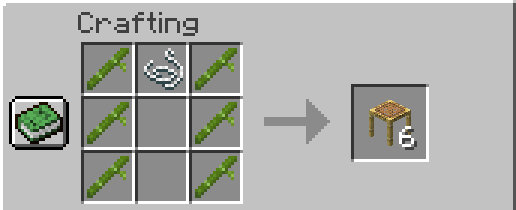
- Open a crafting table.
- Place bamboo down the left and right columns, 3 in each, leaving the middle column empty apart from the top square.
- Put 1 string in the top-middle slot.
- Congrats – you’ve got your very first scaffolding!
Note: That's 6 bamboo and 1 string for 6 blocks. A small bamboo farm can supply the main ingredient for large projects, but you will still need one piece of string for every batch.
How to Use Scaffolding Efficiently
Scaffolding has its own placement, climbing, and support rules. Make sure to always place the first block on a solid surface, then use the methods we’ve listed below to extend and move through the structure.
1. Building Up
Place scaffolding into an existing column to add a new block to the top of the stack. This lets you continue building upward without aiming at the highest block. On Java Edition, using the side of a scaffolding block also places the new piece at the top of that column.
2. Climbing
Move inside the scaffolding column and hold the jump control to climb. Hold the sneak control to descend. On a keyboard, these controls are usually "Space" and "Shift." You can move through the column while climbing because scaffolding does not behave like a normal solid block.
3. Building Out
Scaffolding can also extend horizontally to create temporary platforms and bridges. In Java Edition, clicking the top of a scaffolding block places the next piece to the side, in the direction you are facing.
If you want more control, hold down "sneak" while placing the scaffolding. This makes it behave more like a normal block, so the new piece attaches to the side you are actually targeting instead of using the usual scaffolding shortcut.
A horizontal run can extend up to 6 blocks from its nearest supported column. Any scaffolding placed beyond that limit will fall to the ground as an item.
4. Tearing It Down
Break the lowest supporting block to make the scaffolding above it collapse and drop as items. This lets you clear a tall temporary column without climbing back to the top and removing every block individually.
Scaffolding Tips and Common Uses
Below are a few things worth knowing once you're using scaffolding regularly:
- It's the go-to for tall builds, letting you reach the top of a tower or wall without dirt-stacking.
- Scaffolding can be waterlogged, so it doubles as a quick way up and down an underwater column.
- It makes for a fast temporary bridge across gaps, as long as each horizontal section stays within 6 blocks of a scaffolding column that reaches a solid block below.
- You can burn leftover scaffolding as furnace fuel, though it's not very efficient at this, smelting only a quarter of an item per block.
Java vs. Bedrock Edition Differences
The crafting recipe, climbing controls, six-block support limit, waterlogging, and fuel value all work the same across both Java Edition and Bedrock Edition.
Java Edition has two placement shortcuts. Using the side of a scaffolding block adds the new piece to the top of its column, while using the top face extends the structure sideways in the direction you are facing. These placement shortcuts do not work the same way in Bedrock Edition.
Scaffolding also breaks instantly in Java Edition. It does not catch fire from lava and can be placed inside lava, although direct contact with fire still destroys it. In Bedrock Edition, scaffolding takes a short time to break, and an axe removes it the fastest. You cannot place it inside lava, and scaffolding placed next to fire or lava is destroyed.
Mods That Work Well With Scaffolding
Scaffolding is great for a quick climb but requires crafting, placing, and clearing blocks every time. These mods take two different routes around that. Some let you place whole walls or towers in a single click, so you never need to climb to build in the first place. Others drop in permanent elevators that handle vertical travel for good.
OpenBlocks Elevator
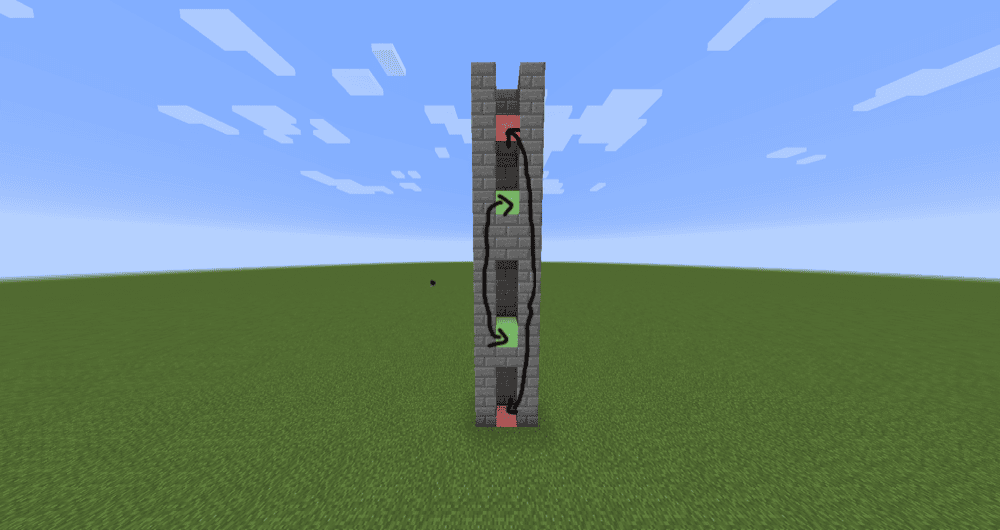
“OpenBlocks Elevator” adds teleporting elevator blocks that provide a permanent alternative to scaffolding for moving between floors. Place two or more elevators at the same "X" and "Z" coordinates, then use the jump control to travel to the elevator above or the sneak control to move to the one below.
You can adjust the maximum distance between elevators and optionally make each teleport consume experience points through the world configuration. You can right-click an elevator with an empty hand to open its options, or right-click it with a supported solid block to camouflage it and help the elevator blend into the surrounding floor.
Building Gadgets
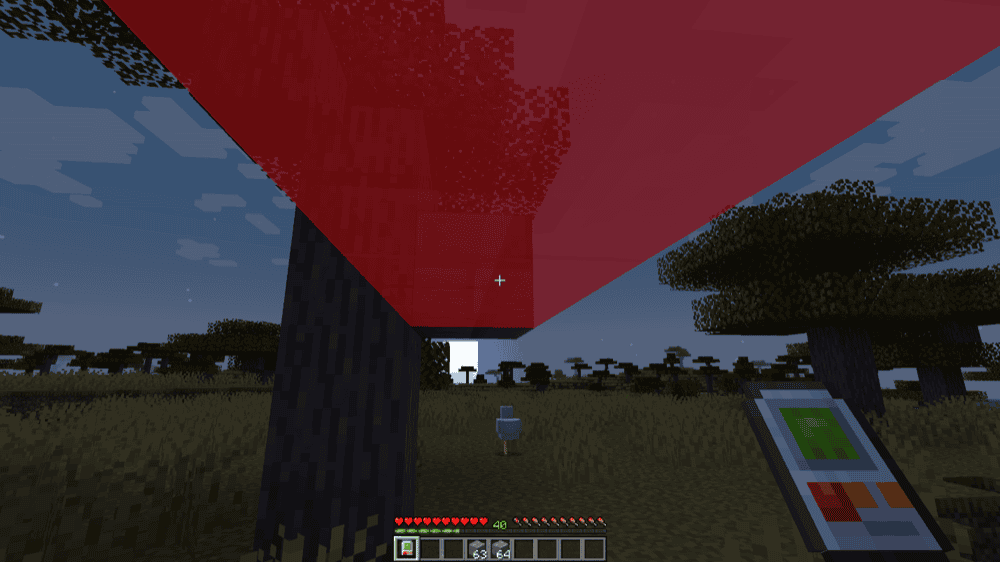
“Building Gadgets” adds several tools for placing and modifying large groups of blocks more efficiently. The Building Gadget lets you select a block type and place it from a distance using modes for vertical columns, horizontal rows, walls, stairs, and other patterns. This can reduce how often you need to build temporary scaffolding just to reach the upper parts of a large structure.
The Copy-Paste Gadget can save a selected area and rebuild it in another location, while the Exchanging Gadget replaces matching blocks across a chosen area. Gadgets normally use materials from your inventory, but you can also bind them to a compatible inventory block when you want access to a larger supply.
Building Wands
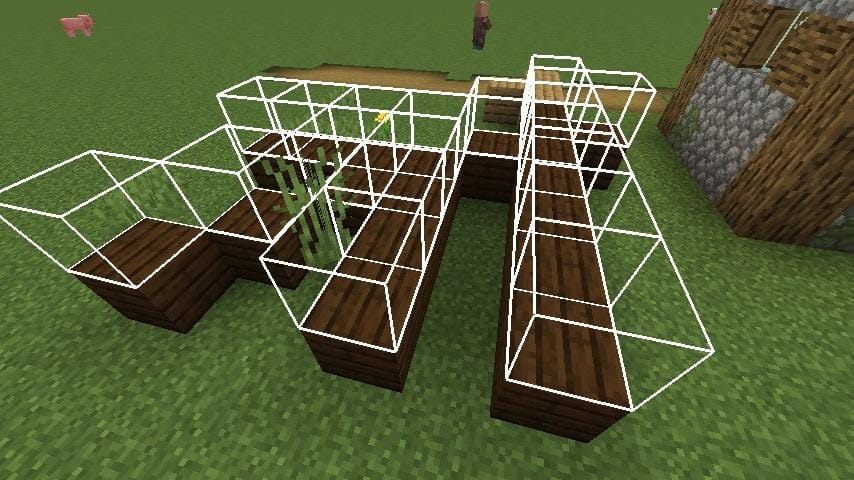
“Building Wands” adds upgradeable wands that place multiple blocks in a single action. Its modes include rows, columns, filled areas, grids, lines, circles, and copy-and-paste placement, allowing you to extend walls, floors, and other large sections without repeatedly climbing scaffolding. The Stone, Iron, Diamond, and Netherite tiers can place up to 16, 32, 64, and 256 blocks, respectively, per action and by default.
The wand will show you a preview before placing blocks, and if playing “Survival Mode,” you can also pull materials from shulker boxes in your inventory. Version 3 also adds an updated settings screen, adjustable reach, position pinning, and faster mode selection by tapping or holding down "V."
Moving Elevators
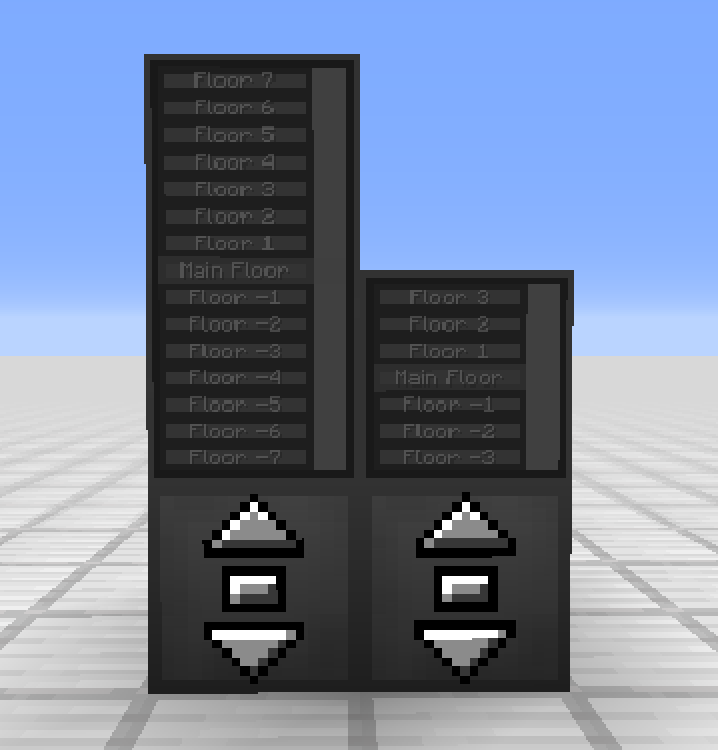
“Moving Elevators” adds physical elevator platforms that carry players and other entities between multiple floors. To build one, place at least two Elevator Controllers above or below each other while keeping them aligned and facing the same direction. You can then configure the platform's size, offset, and speed before placing at least one block inside the cabin area.
The controller buttons let you request the platform or send it up and down, providing a permanent way to move through tall builds without placing temporary scaffolding. Optional Elevator Displays show the available floors and the platform's current position, while floor names, button colors, and block disguises let you match the system to the surrounding build.
How to Install Minecraft Mods
You can install the above mods automatically using the CurseForge app or manually by placing the mod files within your game's mods folder. Both methods allow you to easily add custom features and enhancements into your Minecraft experience.
If you want to learn more, you can read our detailed guide on how to install Minecraft mods.
Common Issues and Quick Fixes
My scaffolding keeps falling to the ground
Scaffolding only holds 6 blocks out from its nearest support. If pieces are dropping, you've likely stretched a horizontal run too far from a grounded column. Make sure to bring a support down to the floor within that range, or start a new vertical line to anchor the section that's falling.
I can't climb up my scaffolding
To go up, stand inside the column and hold down "jump"; to go down, hold down "sneak." If you're not moving, make sure you're actually inside the scaffolding rather than standing on top and that there's open scaffolding above you to climb into.
My whole scaffolding tower disappeared
That's by design. Breaking the bottom block drops every scaffolding block resting on top of it, which is meant to make cleanup fast. If you only want part of it gone, the best way to go about it is to break it from the top down instead of knocking out the base.
I can't find bamboo to craft it
Bamboo generates as scattered stalks in most jungle biomes and in much larger amounts inside Bamboo Jungles. It does not generate naturally in Sparse Jungles, however. You can also obtain bamboo while fishing in a jungle or from jungle temple and shipwreck supply chests.
Once you have at least one piece, plant it on a suitable block, such as grass or dirt. Bamboo grows quickly, and breaking the lower part of a mature stalk lets you collect the blocks above it for future crafting.
My game crashes on startup after installing mods
A startup crash usually means one of five things:
- The mod file does not match your Minecraft version.
- The mod was made for a different loader or another version of its loader.
- A required dependency is missing.
- Some of your mods are incompatible with each other.
- If you’re playing on Forge or NeoForge with an AMD graphics card and frequently experiencing crashes, your GPU driver might be outdated. If that’s the case, we recommend installing the latest drivers from the official AMD website.
Additionally, check that you installed the correct Forge, Fabric, Quilt, or NeoForge file for your profile, then look at the mod page for any required files, especially for Fabric API on Fabric profiles and for Quilted Fabric API on Quilt profiles.
Also note that Minecraft mod loaders are their own separate systems, so a Fabric file will not work in a Forge profile, with the same being true for NeoForge or Quilt builds.