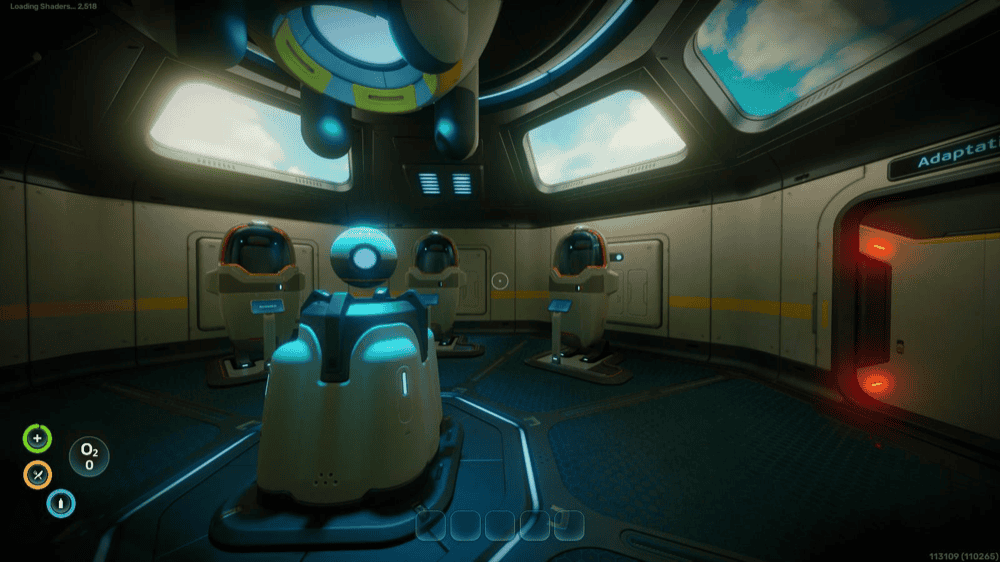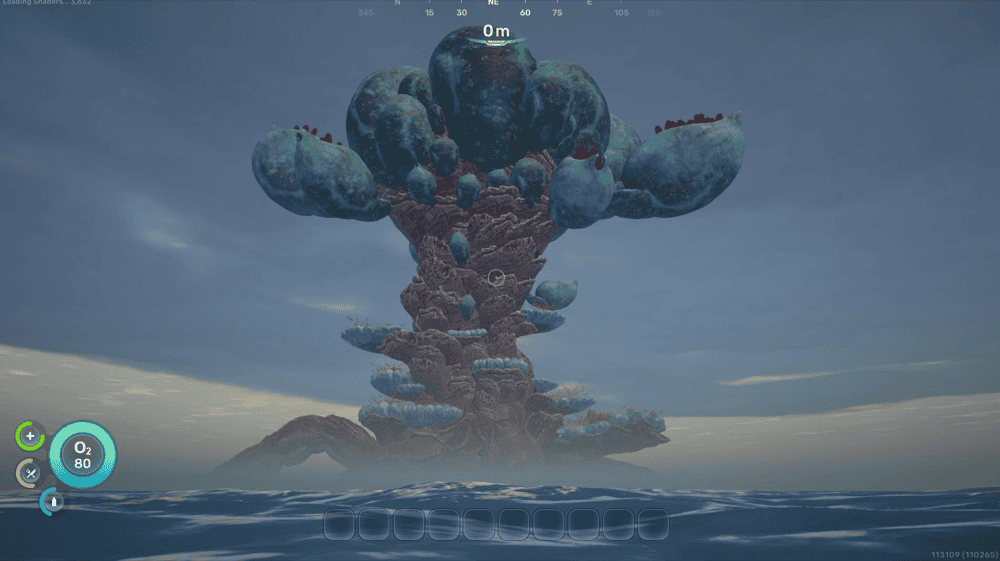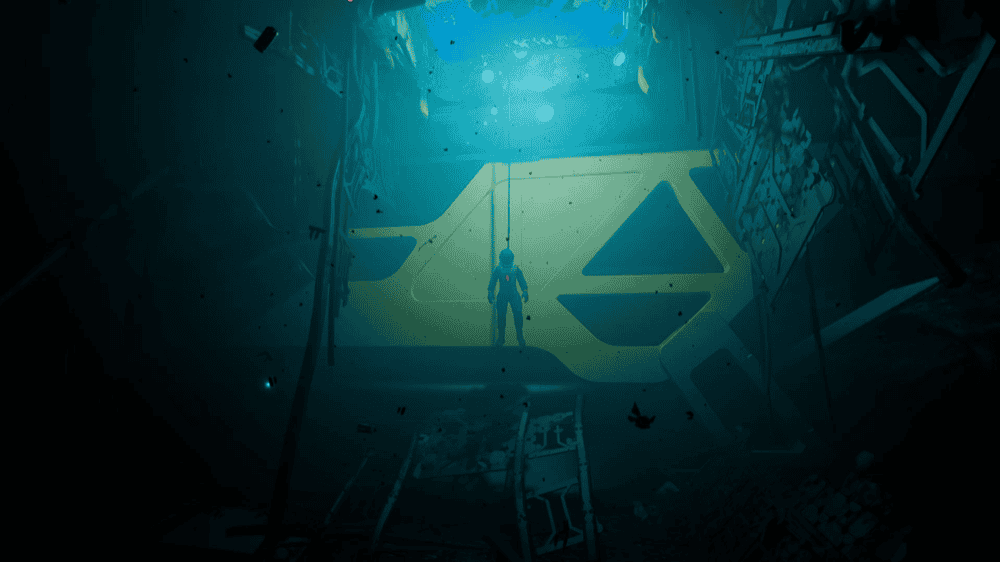
As fun as Subnautica 2’s new biomes, creatures, mechanics, and craftables are, at some point the Early Access nature of the game can creep in as you catch yourself visiting the same spots, fighting the same mobs, and generally doing the same things ad infinitum.
Luckily, there's hardly any game out there that doesn’t have a modding community, Subnautica 2 included. But where do you even begin – isn’t modding an arcane art of sorts reserved only for the power users among us?
Well, not quite! In fact, it’s never been easier to mod your favourite game, as long as you follow a few simple rules. So, if you’ve heard of modding and all the joys it can bring to the treacherous underwater world of Subnautica 2, but never really took the leap, this guide will take you through everything you need to get started – from why you should bother installing mods at all to how to properly set them up and some common issues to watch out for.
Let’s dive right into it.
What Are Subnautica 2 Mods?
These are game-enhancing additions specifically made for Subnautica 2 – an ocean-themed survival adventure developed by Unknown Worlds that will take you through diverse biomes, scary leviathan encounters, and jaw-dropping sea environments, topped only by the extensive base building and crafting mechanics baked into the game.
Despite Subnautica 2 having just launched in Early Access in May 2026, Subnautica‘s 1 notorious mod creators have already started to work on utility and gameplay mods for the game. Some of the more likely improvements we might see here include new craftables, automated resource sorting systems, expanded quickslots, improved UI and graphics, new biomes, creatures, and vehicles, and of course – base building updates.
Why Should You Mod Subnautica 2?
The first game set a high bar for its unique survival setting, vertical exploration, base building mechanics, and modular vehicles, among a bunch of other things, so it’s no wonder that the sequel has been so highly anticipated.
That being said, Early Access often ships with just a fraction of their intended environments, encounters, story arcs, and in-game systems, which is why you’ll likely run out of things to do relatively soon – especially if you plan to binge the game on your free weekend.
In addition, some of the predecessor’s quirks, like limited inventory space, tedious item management, or lacklustre UI might find their way into Subnautica 2 as well, all of which are already being fixed using mods. So, if you’re looking for an unforgettable underwater adventure as opposed to a highly complex game of Tetris, we highly recommend you give modding a try!
Types of Subnautica 2 Mods
There is already dozens of mods being uploaded to CurseForge divided into 12 main categories:
- Adventure: If you want new story content for your game, this is the place to be.
- Audio: Get fresh background music, a variety of in-game sound effects, and more.
- Buildables: Craving new rooms or vehicles to build? Click this one!
- Crafting: Great if you need more variety when it comes to crafting recipes.
- Environment: From simple flashlight updates to full-on raytracing, it’s all here.
- Gameplay: Enhance your vehicles, biomods, game mods and much more.
- Items: Includes upgrades to everything item-related in the game, like better storage.
- Libraries: Contains specific libraries that some mods may need to work in-game.
- Miscellaneous: Fly above water, extend daytime, and disable vignette effects.
- User Interface: Remove the game intro, upgrade your HUD, and improve inventory UI.
- Utilities: Home to the smaller quality-of-life mods that make all the difference.
- Vehicles And Upgrades: You’ll be getting exactly what it says on the tin!
How to Install Subnautica 2 Mods
To begin modding the game, you first need to own an official copy of Subnautica 2 from a reputable store front, such as Steam or Windows Store. You can also download the CurseForge app to make your modding experience easier, especially when it comes to managing and installing mods.
One of the advantages of CurseForge is that mods are analyzed by human moderators and scanned for malware using specialized tools to make the risk of getting malware as improbable as possible compared to other platforms that don't always care about malware and security.
So, before you jump into your submarine and venture deep into the unknown, make sure you have:
- A legal copy of Subnautica 2.
- An up-to-date version of the CurseForge app.
That’s it! Here is the step-by-step guide in more detail.
STEP 1: Install the CurseForge Launcher
STEP 1: Install the CurseForge Launcher
- Go to our download page and press "Get CurseForge App".
- Download either the standalone or the Overwolf version.
- Run the downloaded installer and complete the setup.
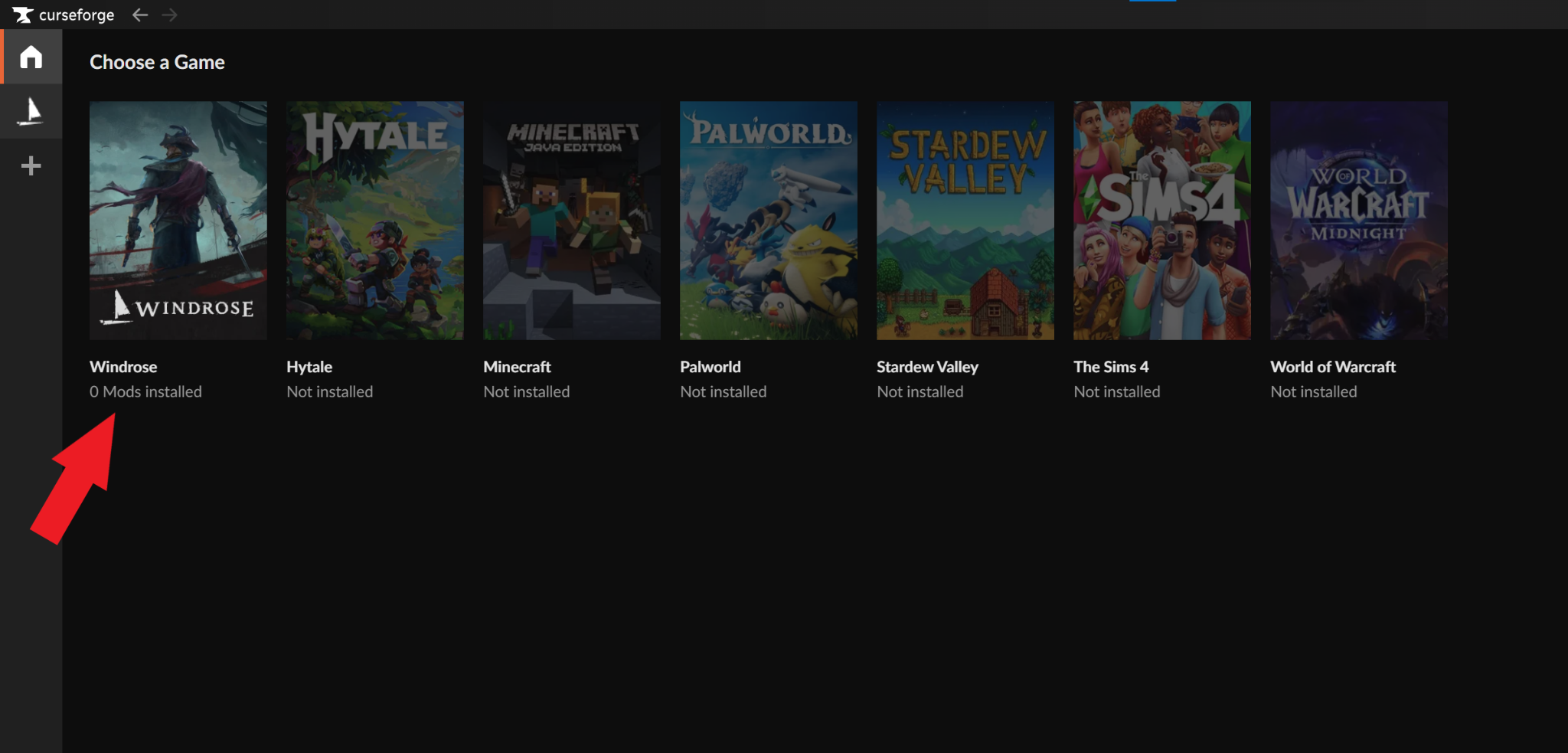
- Launch the CurseForge app and check to see that it auto‑detected Subnautica 2.
- If Subnautica 2 is not auto-detected, check if you need to update the app, restart your PC, or reinstall the CurseForge app.
STEP 2: Install Mods for Subnautica 2
- Click on Subnautica 2 from within CurseForge to open the mod browser.
- Click on either the "Discover" or "Browse" tabs to search for mods.
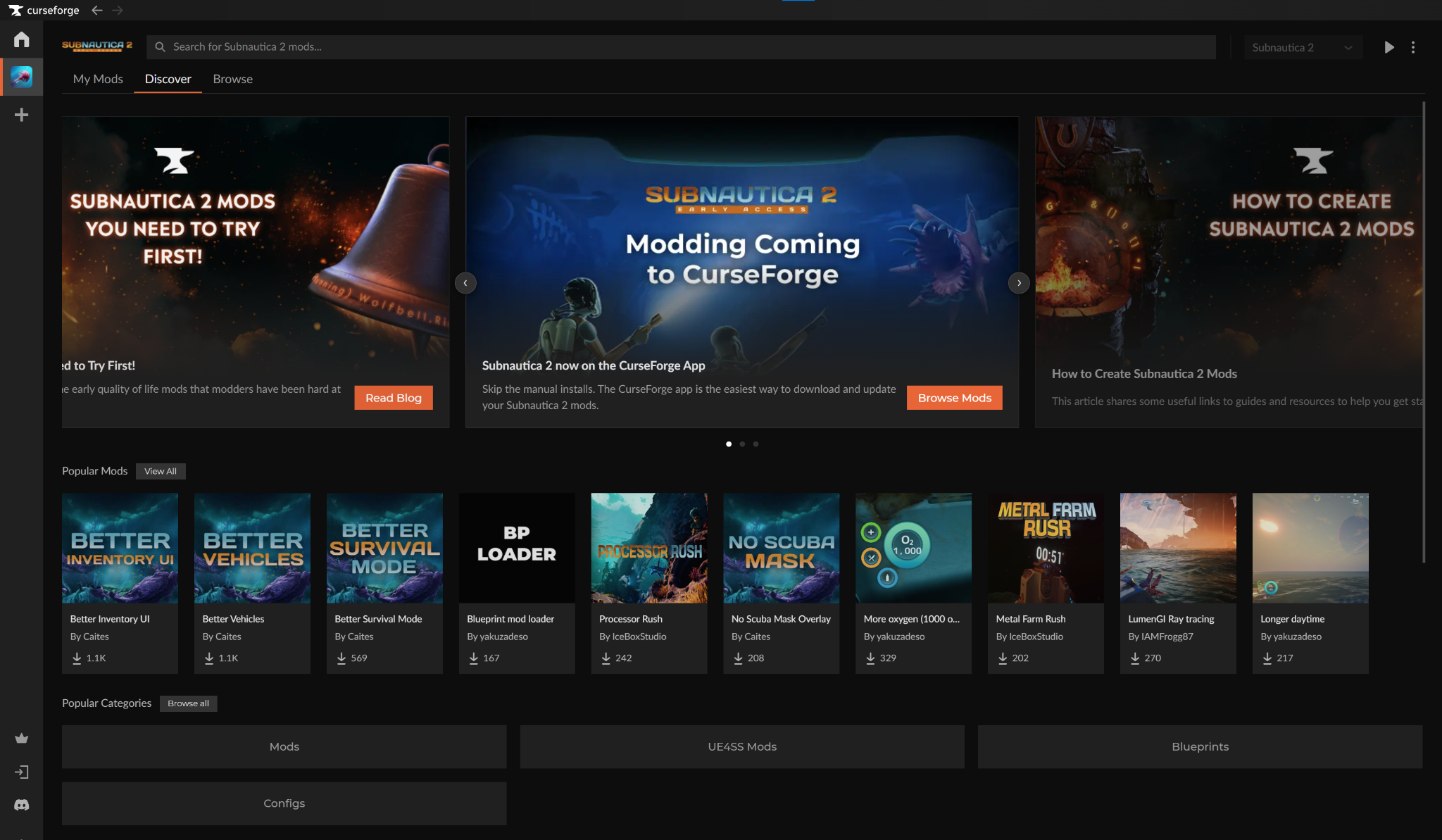
- Highlight a mod and click "Install" to add it to the core Subnautica 2 game.
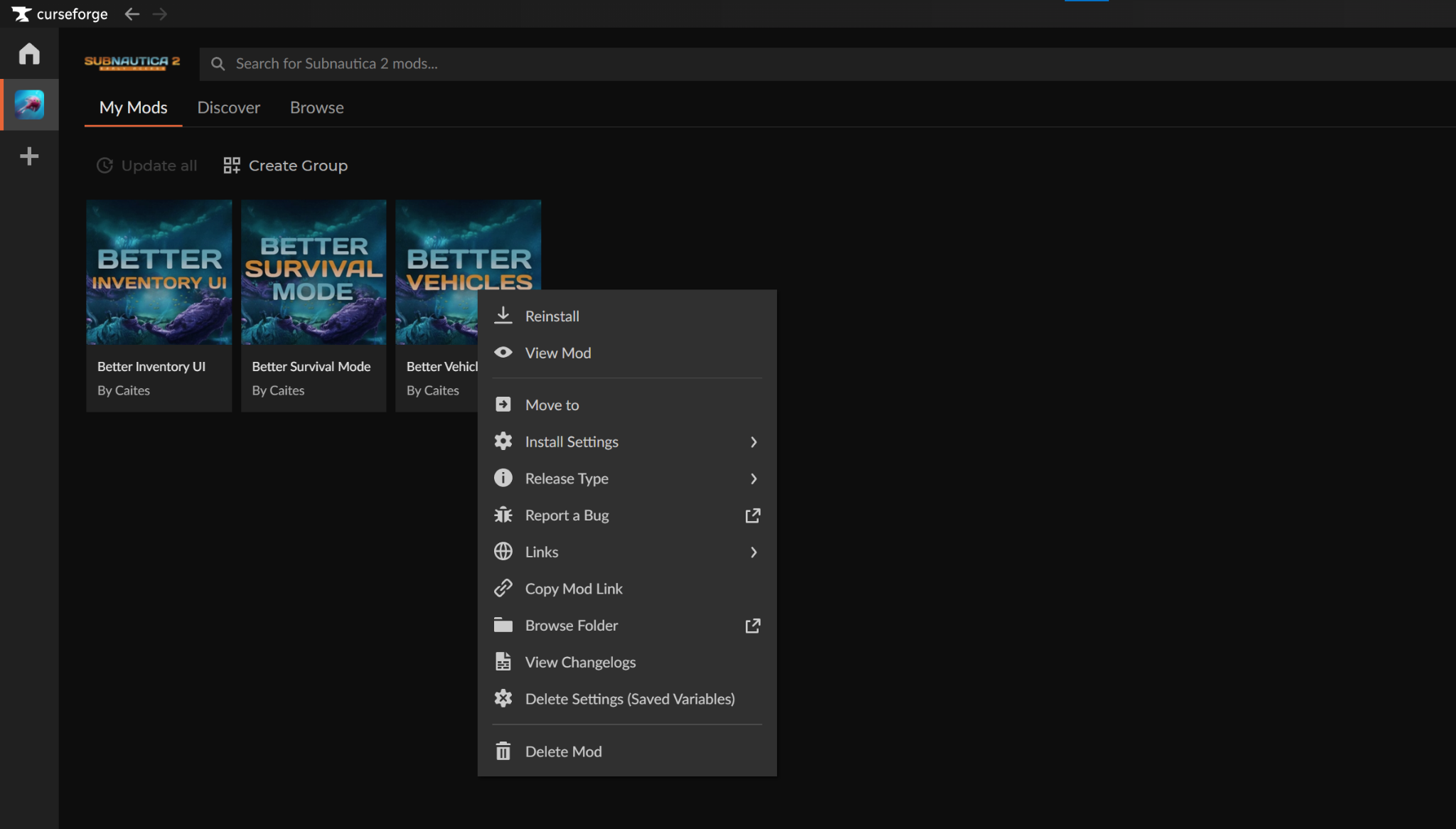
- You can manage your installed Subnautica 2 mods from Subnautica 2 → "My Mods".
STEP 3: Launch Subnautica 2
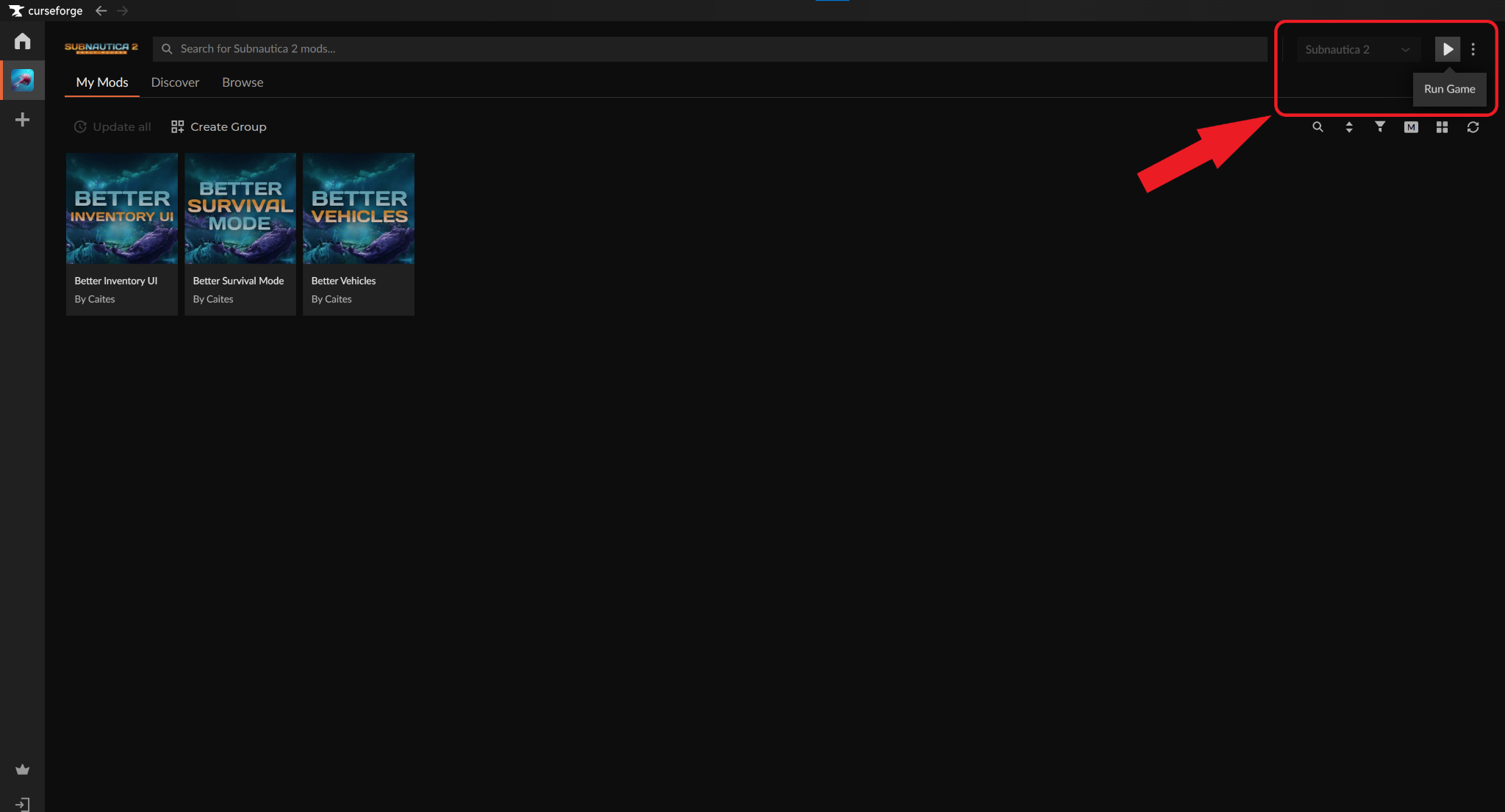
You can launch the game in one of two ways, depending on your preferences:
- CurseForge app: Click on Subnautica 2 → "Run Game".
- Official store launcher: Double-click on the created Subnautica 2 desktop icon or start it from within your official store launcher.
STEP 4: Check That Your Mods Work In-Game
- Note down all the changes that your mod(s) are making to your game.
- Load up a new or an existing world.
- Manually verify that each change has taken effect.
Pro Tip: Make sure to save your world or server BEFORE using mods. That way, if a mod causes issues, you can simply uninstall it and resume your game from where you left off.
How to Install Subnautica 2 Mods Without CurseForge
Subnautica 2 is currently officially supported on Windows and Xbox Series X|S. Because of this, we will focus on how to install Subnautica 2 mods on Windows specifically.
- Download the UE4SS mod loader for Subnautica 2.
- Open your game folder and navigate to "Subnautica 2" → "Binaries" → Win64".
- Extract the downloaded UE4SS files and paste them into the "Win64" folder to install the loader.
- Download, extract, and place the mod files (typically ending on .utoc) into the "Mods" folder generated by UE4SS.
- Launch the game.
Tip: CurseForge handles all of these steps for you – all you need to do is choose a mod, click “Install”, and dive straight into Subnautica 2.
Important: Not all mods may use the .utoc format. If a mod contains different file types, it likely requires a specific installation process, so always check the individual project page for unique instructions.
Deleting Subnautica 2 Mods
Sometimes, a mod may not work as expected, break the game, or interfere with other mods. This goes double for Early Access titles that are still in active development and don’t offer official mod support.
Luckily, most issues can be instantly fixed by deleting the problematic mod that’s caused them. To delete a mod, simply remove it from the UE4SS "Mods" folder and it will no longer affect the game.
Top 10 Mods by Community Downloads
Knowing how to install Subnautica 2 is all good and well – but where do you even begin?
Don’t sweat it! Below, we’ve rounded up a few essential mods to help you get started, ranked by total downloads. For the complete and updated mod list, please visit our Subnautica 2 Mods section instead.


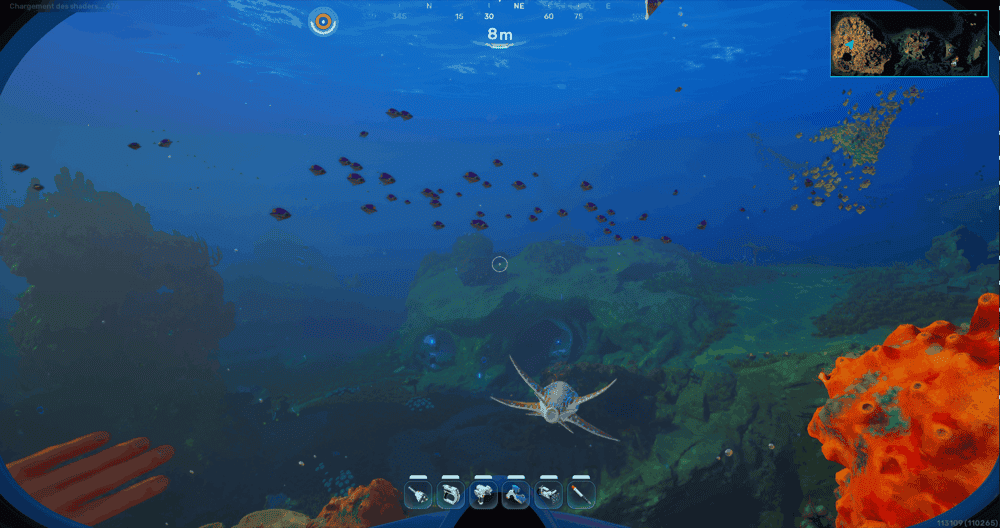
Better HUD
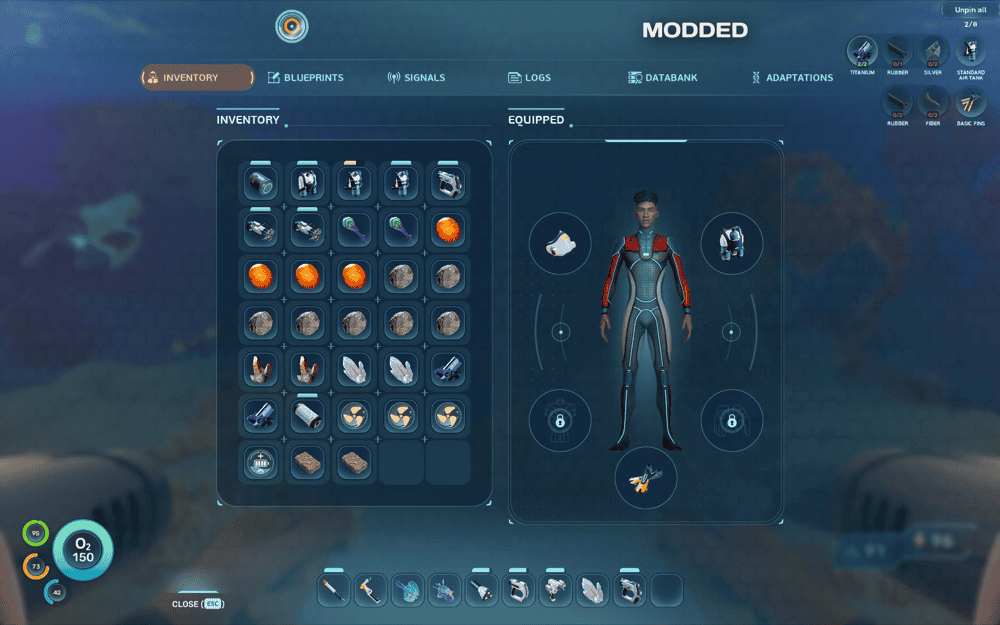
Numerous adjustments to make HUD slim, clean and non-intrusive while keeping menus big and readable.