The Asset Editor is Hytale's in-game editor for data assets. It's included in Hytale Early Access and lets you create and override a lot of game content without starting with Java plugins. You get a visual interface for defining blocks, items, NPCs, loot tables, and other game data. Instead of hand-editing JSON files, you fill in forms and the editor handles most of the file structure.
Want to tweak loot drops, clone a base-game asset, or wire up a new block? This is where you start. The editor runs inside Hytale in Creative Mode, so you can test changes without switching programs. For deeper programmatic changes like custom commands or complex game mechanics, you'll need server plugins, but for most content creation, the "Asset Editor" covers what you need.
What the Asset Editor Does
The "Asset Editor" gives you a visual interface for data assets, the JSON-based files that define how things work in Hytale. You can create brand new content or override existing game content by duplicating it into your own asset pack.
When you save your work, the editor organizes your files into an Asset Pack. An Asset Pack is typically a ZIP or folder with a "manifest.json" file and your asset definitions. Packs created with the in-game "Asset Editor" are stored in the current world's mods folder, which means you may need to copy them into the main "Mods" folder to reuse them in other worlds or share them.
What You Can Create Using the Asset Editor
Blocks and Items
Create new block types, items, tools, and custom materials. Set properties like hardness, blast resistance, what tools are needed to break them, and what they drop when destroyed.
NPCs and Entities
Define stats, behaviors, and loot drops for creatures. Complex NPC behavior trees have limited GUI support right now, so you may need to edit JSON directly for advanced behaviors. A dedicated node editor for NPC behaviors is planned for future updates.
World Generation
Modify terrain biomes, structures, and population rules. Like NPCs, detailed world-gen graphs don't have full GUI support yet, so some customization may require working with JSON files.
Loot Tables and Progression
Configure drop pools, chest loot, quest rewards, and how items are distributed in the world.
Particles and Effects
Design particle systems for visual effects. Spawn particles on events, attach them to entities, and set motion and timing.
User Interface
Hytale already supports asset-driven UIs, but the current UI setup is still incomplete and limited. You can create some layouts and widgets, but this feature is still evolving.
How the Asset Editor Works With Other Tools
The "Asset Editor" handles data and references to art assets, but it doesn't create the art itself. For 3D models, you'll use Blockbench with the official Hytale plugin. Models created in Blockbench import into your asset pack. For textures, you'll use any image editor. The "Asset Editor" just points to these files as it doesn't paint textures or sculpt models.
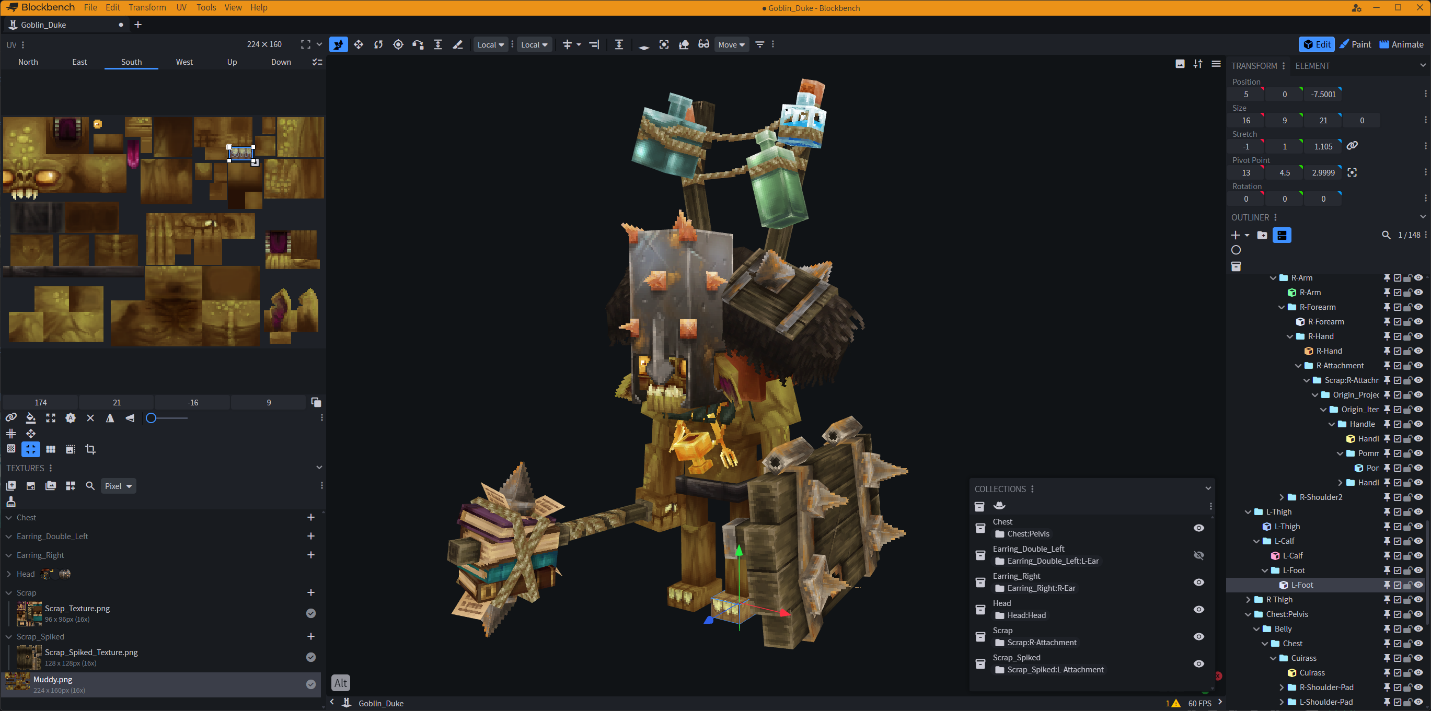
Under the hood, the "Asset Editor" is still working with JSON-based data – you just don't have to start there. The editor generates the structure, and you can always dig into the files directly if you need more control.
How the Workflow Looks in Practice
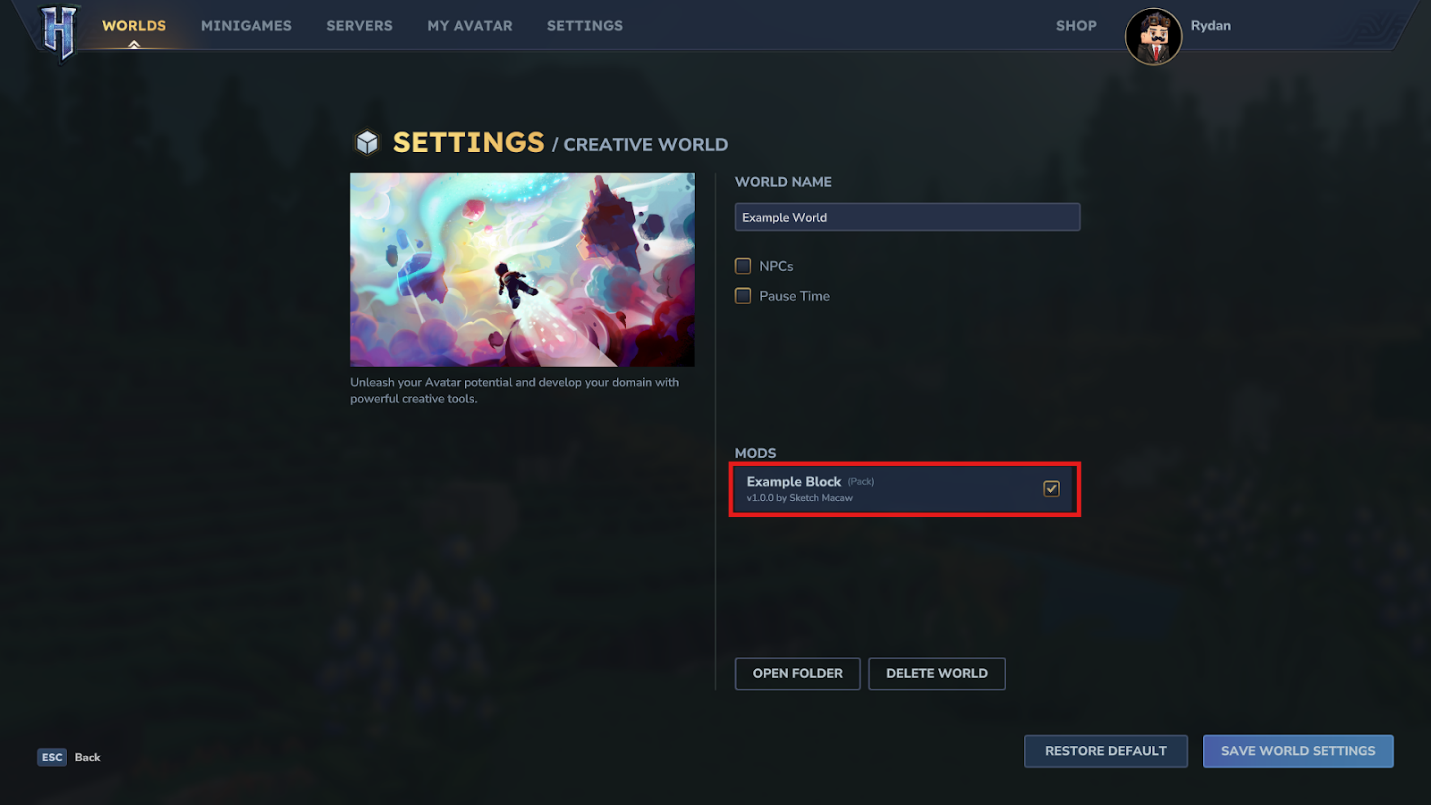
Adding the Pack to Your World
Before you can edit a Pack in-game, you need to add it to your world first.
- Open Hytale.
- Go to the "Worlds" tab.
- Right-click the world you want to edit.
- Enable the Pack you want to use, then save the world settings.
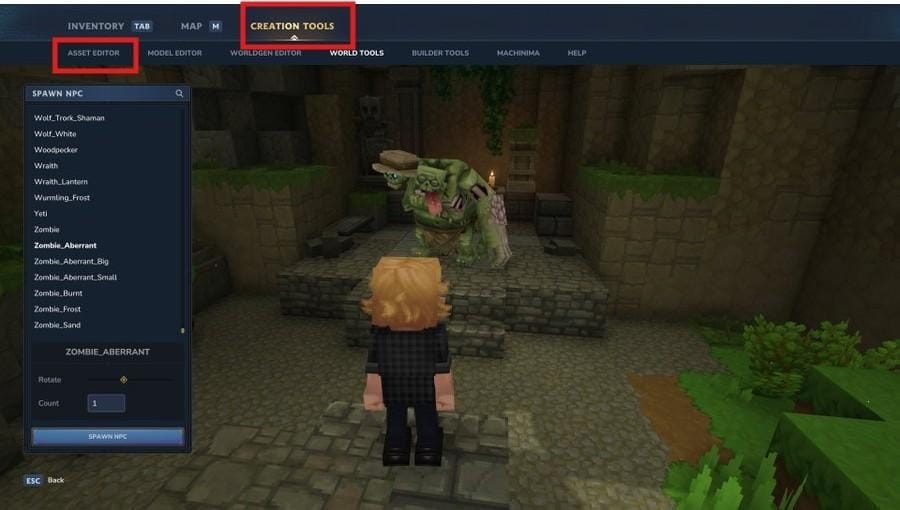
Opening the "Asset Editor"
- Enter the world.
- Open your inventory.
- Open the "Creation Tools" tab.
- Click "Asset Editor".
Adding or Editing Assets
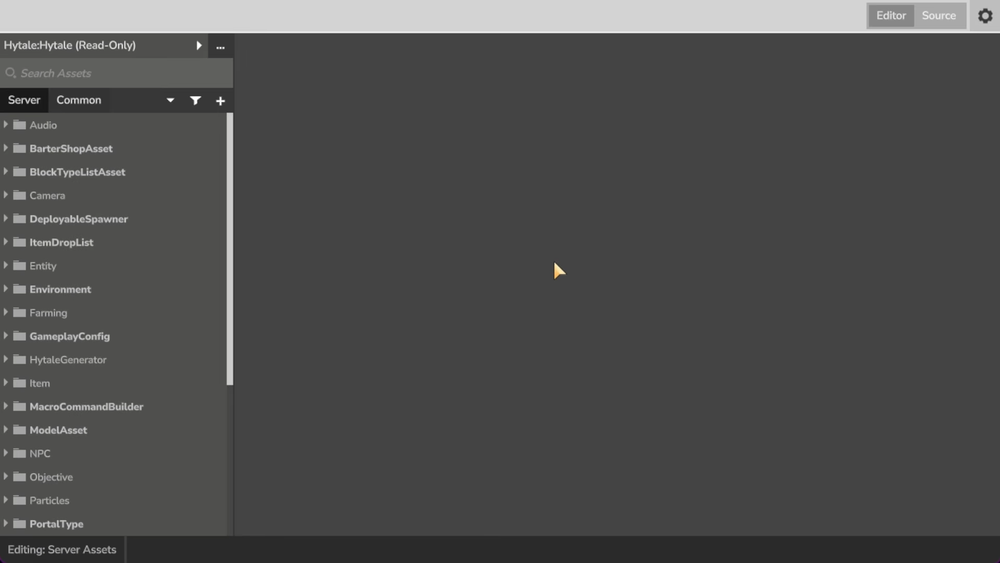
Pick a category like "Blocks", "Items", or "NPCs" from the asset list. You can create a fresh asset from scratch, or duplicate an existing one from the base game to override it. Simply fill in the required fields, like ID, display name, stats, and references to models or textures.
Saving Your Work
Make sure to save frequently. The editor writes your data into the asset pack structure. Early Access tools can crash, so saving often prevents lost work.
Testing Your Changes
First save and then exit editing mode before reloading your world with the asset pack enabled. On servers, joining players get the assets automatically through the server without manual installation on their end.
Iterating and Refining Your Creations
Go back to Creative Mode to tweak anything, then edit, save, and test – that's the core workflow. Testing as you go catches errors early, so make sure to do that as well.
File organization and IDs
Use clear, descriptive identifiers for your assets to avoid conflicts with other mods. When duplicating assets from the base game, double-check the IDs as well.
Asset Packs require a "manifest.json" file and assets organized in the correct folders. The exact folder structure depends on asset type, so blocks, items, entities, models, and textures each have their own paths. The "Asset Editor" handles this organization automatically when you save your work through the GUI.
Tip: Always create folders and assets through the editor interface rather than manually editing files, since the editor enforces the correct structure and catches errors early.
Current Limitations
Complex Behaviors Need JSON
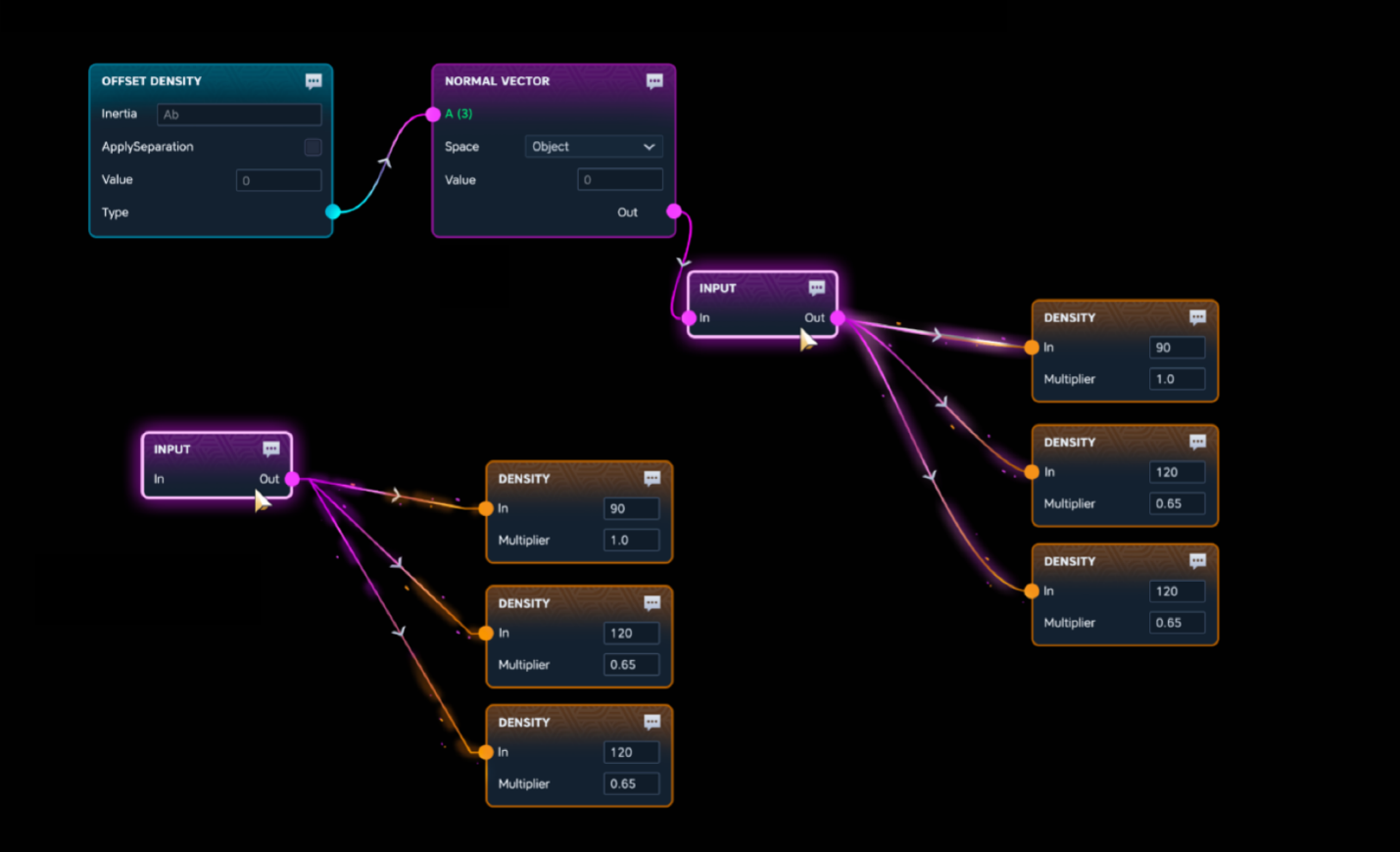
Advanced NPC behavior trees and detailed world-generation graphs have limited GUI support. You may need to modify JSON files directly for complex customization. Visual node editors for these systems are planned for future updates.
No Custom Client Mods
Hytale is server-first, meaning that all changes happen server-side through asset packs or plugins. This means there's no support for custom client-side mods as players joining modded servers get the content automatically from the server.
Art Assets Need External Tools
The editor won't paint textures or sculpt 3D models. You need Blockbench for models and an image editor for textures. The editor references those files once they're created.
Packaging Workflow is Incomplete
Creating shareable, dependency-managed packages works, but the workflow isn't as polished as it’s expected to be in the future. Packs created in the "Asset Editor" are stored in the current world's mods folder, so you may need to copy them elsewhere to share or reuse them later on.
Possible Stability Issues
The editor is powerful but still in Early Access, so expect occasional crashes and always keep backups of your world and pack files.
Common Issues and Quick Fixes
Asset Editor doesn't open
Make sure you're in Creative Mode and have the right permissions as the editor only works in Creative Mode. Open "Creation Tools" and look for the asset editing interface.
Changes don't appear in-game
After saving your build in the "Asset Editor", reload the world or restart the server with the pack enabled as your changes likely won't show up until the pack is re-loaded.
I get missing models or textures
The "Asset Editor" references art files but doesn't create them. If a model or texture is missing, check that the files exist in your pack's appropriate folders and that the file paths in your asset definitions are correct.
Pack won't load or causes errors
Check the game logs for error messages. Common causes are invalid JSON, missing dependencies, or file path issues. Make sure all required fields are filled in and all referenced files exist.
I can't duplicate base game assets
If you can't duplicate an existing asset, make sure you're working in an asset pack and not trying to edit the base game files directly as base game files are read-only. Instead, you need to duplicate assets into your own pack to modify them.
IDs conflict with other mods
Use unique, descriptive IDs for your assets. If two packs use the same ID, one will override the other. Check your IDs carefully, especially when duplicating assets or working with multiple packs.
My pack is only applied to one world
Packs created with the in-game "Asset Editor" are stored in the current world's mods folder. To use them in other worlds or share them, you'll need to copy the pack to the main "Mods" folder.
Conclusion
The Hytale Asset Editor is the best place to start if you want to create or override data-driven content without jumping straight into Java plugins. It already covers a wide range of asset types, but some advanced NPC behavior, world generation, and other deeper systems still need JSON edits or external tools while Early Access development continues. For most creators, the smartest workflow is to build in the editor, test often, and only move into more technical tools when the in-game workflow stops covering what you need.
Frequently Asked Questions
Do I need to know how to code?
Not for most content creation. The "Asset Editor" handles data assets through forms in the GUI. For deeper programmatic changes like custom commands or advanced gameplay systems, you'll need server plugins, which do require Java programming.
Can I modify base game content?
Yes. You duplicate the existing asset into your pack and modify it there. If your asset uses the same ID as a base game asset, your version will override the default. Base game files themselves can't be edited directly.
How do I share my assets?
On CurseForge, Hytale packs are uploaded as ZIP files under the Mods class. After download, creators can install them and enable them on a world through Hytale's mod workflow. If your pack relies on content from other packs, you can set up those dependencies in "manifest.json".
What's the difference between asset packs and plugins?
Asset packs are data-driven mods created with the "Asset Editor" and so they don't require code. Plugins are Java-based mods that add custom gameplay logic, commands, and deeper mechanics – these need programming knowledge to work properly. On CurseForge, packs are uploaded as ZIPs while plugins are uploaded as JARs.
Can I use assets from other packs?
Yes. If your project relies on another pack, list those dependencies in "manifest.json" so users know what else they need to install.
Why can't I edit some NPC behaviors or world-gen features?
Complex behavior trees and detailed world-gen graphs have limited GUI support. You may need to edit JSON files directly for advanced customization. Visual node editors for these systems are planned for future updates.
Do players need to install my pack to join my server?
No, as Hytale is server-first. When you install an asset pack or mod on a server, players joining that server get the content automatically.