
Playing The Sims 4 is like wrapping yourself in a warm, cozy blanket of creativity and possibility. It’s a game where you can build your dream home, create unique stories, and bring your wildest ideas to life, all without ever leaving your own cozy space. But what if there were even more possibilities?! If you’ve ever wanted to take your gameplay to the next level, there’s a little secret tucked away in your game that lets you bend the very fabric of the The Sims 4 universe: Console Commands.
Don't be intimidated! Using Sims 4 console commands in Sims 4 is easier than you think! Simple, and right at your fingertips, with a few simple keystrokes, you'll be breezing through your game with ease. Whether you’re looking to boost your sim's happiness, get a little (or a lot of) extra simoleons, or unleash some fun chaos, the power is in your hands. So let's learn how to take your Sims 4 experience to the next level.
First Things First: Accessing the Console
Before you can type in any commands, you need to access the console command center.
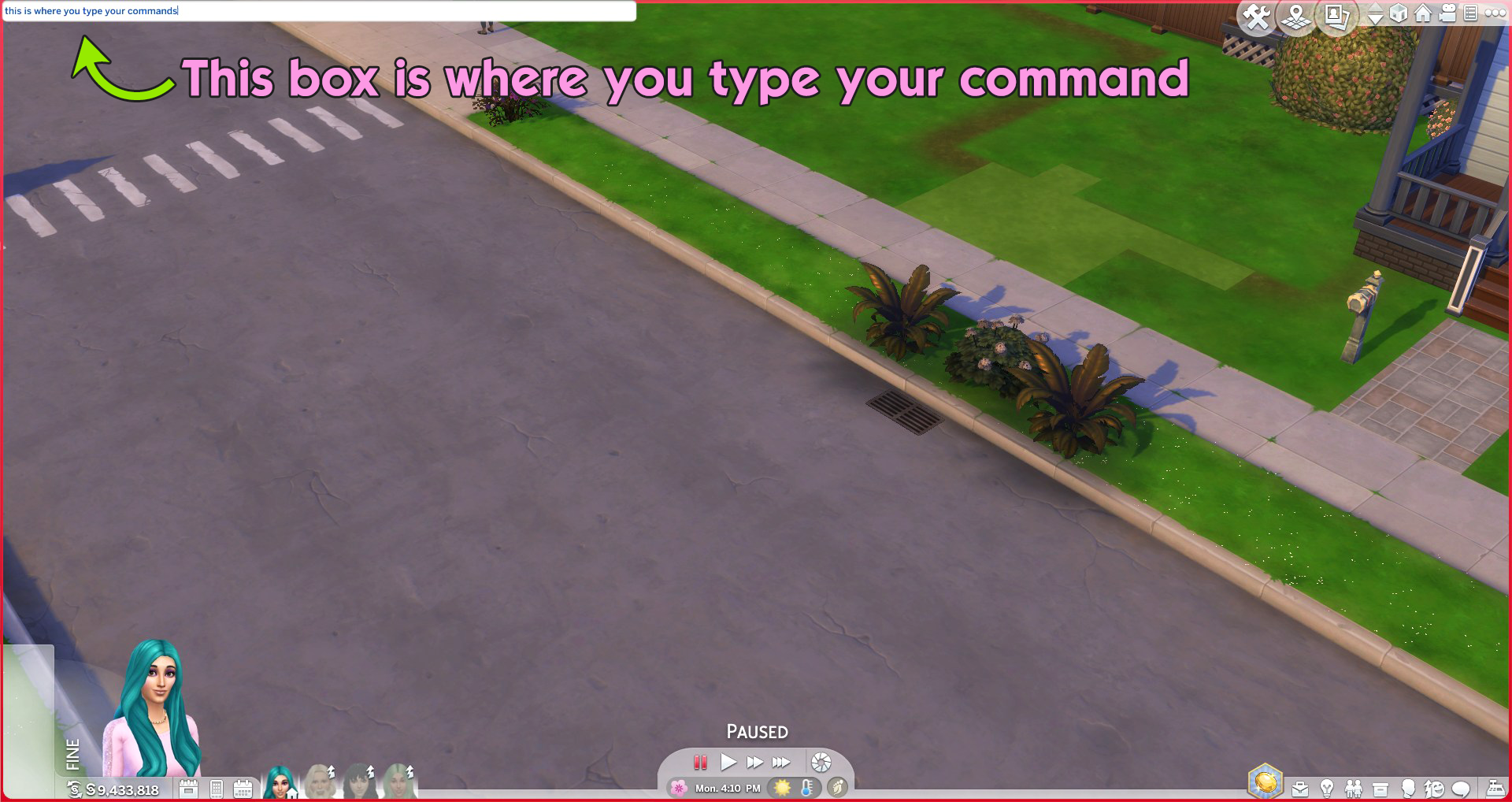
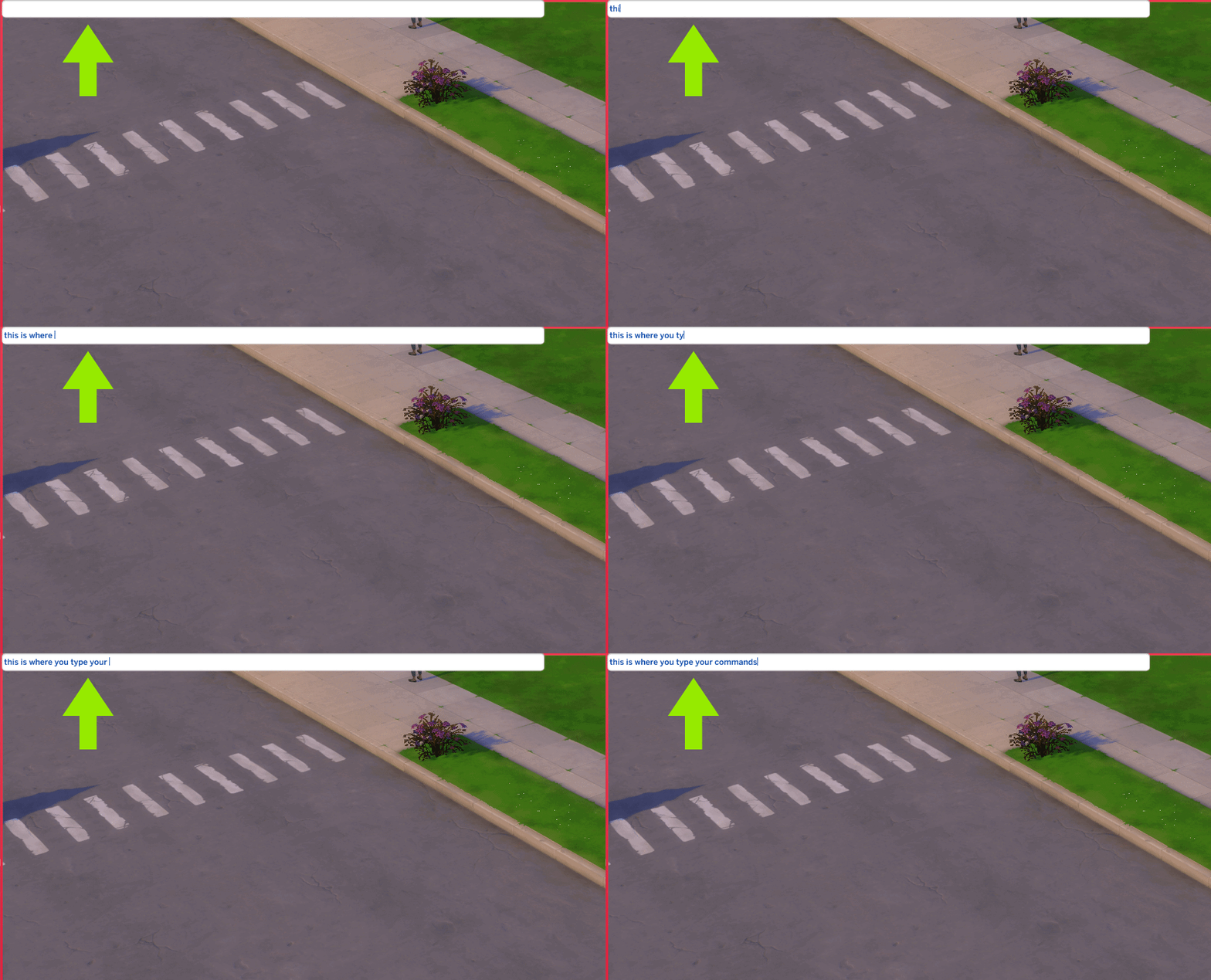
Press: Ctrl + Shift + C (For Mac users, it's Cmd + Shift + C)
This will open the command box. It's a small rectangular box that will appear in the upper left part of your screen (shown above). This is your magical doorway to all of the console command fun! Click your mouse cursor here so that you can type any of the following commands and press enter to make it so, all the details below!

Motherlode
The classic. The holy grail. The one everyone talks about.
Type: motherlode
Want to live extravagantly in The Sims 4 or just be able to provide your sims with a wonderful life? Type in this command, and BOOM! Your sim gets an instant 50,000 simoleons. Who needs a side hustle when you’ve got the "motherlode" of simoleons whenever you want it?
Tip: Use this command when your sim’s stuck in a career rut and you need to redecorate all of the rooms. & that swimming pool isn’t going to buy itself, you know.

Kaching
The slightly less dramatic cousin of Motherlode.
Type: kaching
This command gives you a more modest 1,000 simoleons every time you enter it. It’s like finding a $20 bill in your pocket. Just a little bit, but it can be a big help!
Tip: Perfect for a little extra cash when you need it to furnish a tiny house, or cater to that one Sim who insists on wearing a new outfit every day (yes, we see you, fashion-forward Sim)!

Show Hidden Objects
Find all the hidden goodies!
Type: bb.showhiddenobjects
This cheat reveals secret items in the game that aren’t normally visible in build mode. It’s like unlocking a whole new selection of objects to decorate your world with!
Tip: After using this cheat, click on the "debug" items that appear in your build catalog. You’ll find all sorts of quirky, fun objects, like extra furniture, special decorations, and even some random hidden gems. It’s like discovering a whole new world of possibilities for your builds!

Build Mode Magnificence with bb.moveobjects
Be an architectural god!
Type: bb.moveobjects on
This command will let you move objects around in build mode without worrying about the usual restrictions (no more annoying invisible walls or misplaced rugs). Simply type in this command and hold down the Alt key while moving your objects around to place. It’s your time to shine as the ultimate home organizer and clutter extraordinaire, and place every item just right to create your spaces exactly how you want!
Tip: If you’re ever frustrated with those objects that don’t seem to align right, this cheat is your best friend.

Reset Sim
When your sim is having a moment.
Type: resetSim [FirstName] [LastName]
Stuck in a weird animation loop? Sims is trying to eat pancakes, but can’t seem to make it to the table? Just type in "resetsim" followed by the sim’s name (without the brackets) and "poof"! They’re back to normal.
Tip: This is a lifesaver if your sim’s actions are completely glitching, or if they’ve gotten themselves stuck inside a wall. We’ve all been there.

Testing Cheats
Diving a little deeper, for a little more fun!
Type: testingcheats true
This one opens up a world of possibilities, literally! After typing in this one, you can shift-click on Sims, objects, or even the ground to access advanced cheats like:
- Change a sim’s career
- Max out skill levels
- Modify relationships
- Make your sim happy again (because we all need that sometimes)
Tip: Having this command turned on is a prerequisite for using the commands listed above.
Want your sim to be the world’s best chef with zero effort? You got it. Want to make your sim hate their best friend? Go for it.

Full Edit Mode
Because sometimes your sim needs a whole new makeover. Or a whole new life! (use the testingcheats true command first, or this one will not work)
type: cas.fulleditmode
This cheat opens up the full Create-A-Sim mode, letting you edit your sim’s appearance, traits, and even life stage when you enter CAS mode! Want to give your sim a total makeover or change their age? No problem. Just dive into full edit mode and change anything you like in CAS.
Tip: You can use this to change your sim's traits, outfits, or even give them a completely new personality. Want to turn your rebellious teen into a business mogul? It’s all possible!

Change Lot Traits
Why settle for normal when you can add a little fun?
Type: traits.equip_trait [Trait Name]
Want to change the vibe of your lot? With this cheat, you can make your sim’s house haunted, or even give it traits like “gremlins” for some extra chaos. Is it practical? Absolutely not. Is it fun? Absolutely yes!
Tip: Use this to create the most unpredictable environment, or just curate the lot you're using to your own specifications for maximum enjoyment!

Headline Effects - Remove the Plumbob & Pop-Ups
Because sometimes, you just want to enjoy the drama without the pop-ups, or get that perfect screenshot!
Type: headlineeffects off
To turn them back on: headlineeffects on
This command lets you toggle the display of thought bubbles and other headline effects in the game. Whether you're trying to get a cleaner screenshot or want to enjoy the game without all the visual clutter, you can turn them off. Note that you cannot adjust in-game lighting with the headline effects off; they must be turned back on to do so. To turn them back on, the command is changed slightly to say "headlineeffects on".
Tip: Use this command if you’re going for some perfect, uninterrupted screenshots or want to focus on the action without the constant bubbles and mood tags. Perfect for creating a clean, drama-free zone!

Change Time of Day
Because who says your sims need to follow the sun?
Type: timeofday [Time]
Use this cheat to change the time of day instantly! Want to skip past a boring morning or jump straight to a fun evening party? Just type in timeofday followed by your desired time (e.g., timeofday 21:00 for 9 PM, without the brackets), and watch the clock change at your command.
Tip: Perfect for when you want to make sure your sim’s day is exactly how you want it. No more waiting around for that perfect sunset! Just make sure you're using the death.toggle off command (listed below) so that your Sim's needs don't decay in an instant and ruin the fun!

Toggle Off Sim Death
Because sometimes, you just want to keep your sims immortal!
Type: death.toggle off
This command disables death in the game, meaning your sims can live forever without worrying about Grim Reaper visits. Whether you're trying to create the ultimate eternal family or just want to avoid the heartbreak of losing a beloved sim, this cheat lets you keep the drama-free good times rolling!
Tip: Use this if you’re working on a long-term legacy challenge, or just want to avoid the pain of unexpected sim deaths. To turn it off again, just type death.toggle on into the command console. *death.toggle off command is highly recommended with the change time of day & advance time commands.

Advance Time
Because sometimes, you just need to skip ahead!
Type: clock.advance_time [time in sim hours]
Example: clock.advance_game_time 8 30 0 (will forward time 8 and a half hours).
This command lets you fast forward time in your game, whether you want to skip through a long workday, get to the weekend faster, or just speed up a sim’s life a little. Simply type in the number of hours you want to advance, and ta-da! Time is on your side.
Tip: Use this to skip past boring moments or to get to a special event you’re excited about, like a sim’s birthday or a much-needed vacation!
Tip: If you’ve used the advance time command and fast-forwarded through a lot of hours, make sure to use death.toggle off (listed above) beforehand, and refill your sims' needs before saving and exiting the game! If you don’t, they might be starving, tired, or in desperate need of a bathroom break when you load back in, and we all know what that can lead to. A quick cheat like fillmotive motive_energy (for energy) or fillmotive motive_hunger (for hunger) will ensure your sims won’t be in "grave" danger when you start the game again. Just save their lives before you save your game!

Change Weather
Become the ultimate weather wizard and set the mood for any occasion, no forecast required, although Seasons is.
weather.start_weather_event [Weather Type]
Weather Types for the Change Weather Command:
- Sunny: Clear skies, perfect for any outdoor activity. weather.start_weather_event sunny
- Rain: A light, soothing drizzle to set the mood.
weather.start_weather_event rain - Rainstorm: Heavy rain, often with a dramatic effect.
weather.start_weather_event rainstorm - Thunderstorm: Stormy skies with dramatic thunder and lightning!
weather.start_weather_event thunderstorm - Snow: Beautiful, fluffy snowflakes — perfect for winter fun.
weather.start_weather_event snow - Fog: A mysterious, misty atmosphere to add some drama.
weather.start_weather_event fog - Windy: A breezy day with gusts of wind. Great for flying kites!
weather.start_weather_event windy - Hail: Ice falling from the sky — better take cover!
weather.start_weather_event hail - Lightning: Just lightning with no rain — perfect for dramatic moments.
weather.start_weather_event lightning - Heatwave: Extreme heat — make sure your sim has plenty of water!
weather.start_weather_event heatwave
This cheat allows you to instantly change the weather, whether you’re craving a bright sunny day, a thunderstorm, or even a blizzard. Just type in the type of weather you want, and the skies will be yours to command!
Here are even more additional weather cheat commands:
- weather.start_weather_event weather_sunny_cool
- weather.start_weather_event weather_sunny_warm
- weather.start_weather_event weather_cloudy_cool
- weather.start_weather_event weather_cloudy_warm
- weather.start_weather_event weather_sunny_freezing
- weather.start_weather_event weather_sunny_burning
- weather.start_weather_event weather_rain_light_cool
- weather.start_weather_event weather_rain_storm_cold
- weather.start_weather_event weather_rain_heavy_warm
- weather.start_weather_event weather_snow_light_freezing
- weather.start_weather_event weather_snow_heavy_freezing
- weather.start_weather_event weather_sunshower_hot
- weather.start_weather_event weather_snow_thundersnow
Tip: Use this to create dramatic moments in your sim’s life. Imagine a romance blossoming under a starry sky, or somber walk during a rainstorm. Or, throw a pool party during a snowstorm for some silly fun!

Change Season
Because who doesn’t love a good seasonal switch-up? (Seasons required)
Type: seasons.add_season [Season Number]
seasons.set_season 1 (for fall)
seasons.set_season 2 (for winter)
seasons.set_season 3 (for spring)
seasons.set_season 0 (for summer)
This command lets you instantly change the season, whether you want a sunny summer day or a cozy winter night. Just type in the season you want, and your sim is in a whole new climate!
Tip: Switch up the seasons to match your sim’s mood or storyline, or match the season you're experiencing in your life? The choice is yours!

Enable Free Build
Let your creativity run wild! No restrictions!
Type: bb.enablefreebuild
This cheat removes all the usual restrictions on lot placement and building, allowing you to build anywhere, even on restricted or locked lots like the starter homes or public spaces. Want to build your dream mansion in the middle of a park? Or create a cozy little cottage on the beach? This cheat lets you do that!
Tip: Use this command when you're feeling creative and need to build in unconventional places, like on a lot you’d normally be restricted from. It’s the ultimate cheat for turning your wildest Sims 4 builds into a reality!

Help Command
Because sometimes, even cheat masters need a little guidance! This is a curated list, but there are many other commands you can make use of.
Type: help
If you're ever unsure about a command, need a quick refresher, or just want to browse all the available commands, just type help into the console. This will give you a list of all available commands and cheats in the game, making it easier to find what you need. It’s having an in-game cheat guide whenever you need it!
Tip: Use the help command when you're experimenting with new cheats or can't remember the exact syntax for something. It’s a great starting point when you’re not sure where to begin!

Other Useful shortcuts in build mode:
- Ctrl + F - Create quarter tiles for the floor.
- Shift + C - More editing options for roofs.
- Shift + E - Position the same object multiple times.
- Shift + [ / ] - Reduce or enlarge the selected object (may differ on keyboards in different languages)
- G - Toggles the grid in build mode.
With these console commands in your back pocket, you’ll be able to shape your sim world however you see fit. Unlock the full potential of your game, from building your dream home, or just making sure no Sim ever goes hungry again, and you're in total control! So go ahead, experiment with ease, and let your creativity run wild with the limitless possibilities!