After spending enough hours roaming the blocky worlds, you start finding your way around Minecraft by visual cues alone: the dark tunnel on the way home, the river beside your base, and the sunrise above the same roof. Then a torch glows in your hand, waves move across the water, dropped tools land at your feet, and fireflies drift between the trees. Suddenly, that familiar walk is worth re-threading again.
You do not need to abandon the world or survival loop you already enjoy to make those moments feel new. The ten visual addons below change what you see while running, mining, collecting loot, crossing water, and watching the weather roll in. We ranked our picks by community downloads, and some may have you re-opening an old world just to see how different it looks.
1. System Dynamic Light
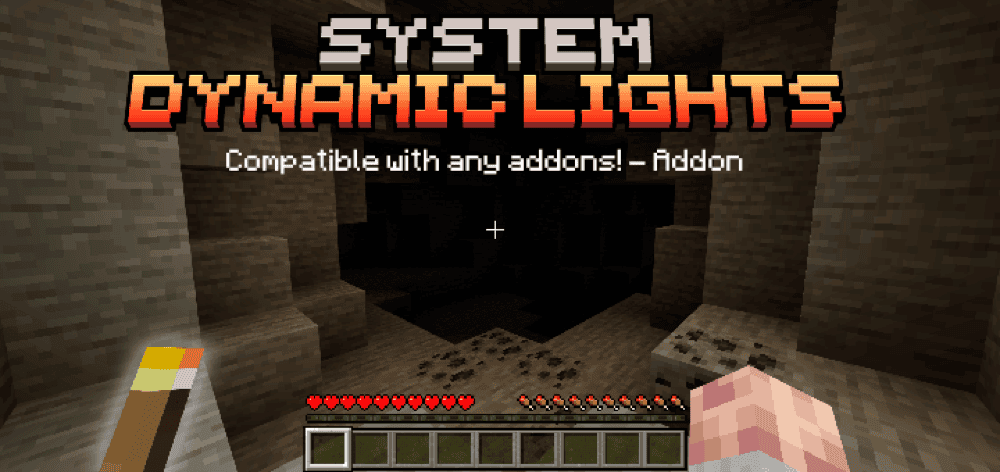
“System Dynamic Light” lets supported items illuminate your surroundings without requiring you to place them. Carry a torch, lantern, glowstone, or another compatible light source in your main hand or offhand to see while exploring caves. Dropped light sources, burning entities, naturally glowing mobs, and compatible lantern helmets can also produce light.
With this addon, you can use the included configuration book to select which lighting features work, choose the supported dimensions, prioritize main-hand, offhand, or helmet lighting, and limit the number of dropped items that emit light. You can also configure how supported items move into your offhand and place compatible lights directly from that slot.
2. Raiyon's Dynamic Lightning
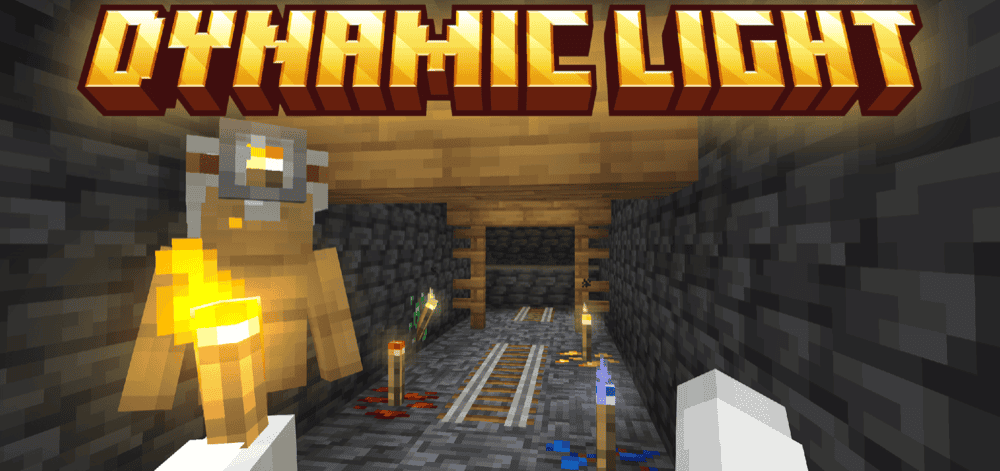
“Raiyon's Dynamic Lightning” lets compatible items illuminate the area around you while you explore. The amount of emitted light also changes depending on the item type. Simply right-click or hold the screen while carrying a torch to equip it in your offhand, or wear the mining helmet to keep both hands free.
The addon also offers 16 colored torch variants and a Sea Torch that you can place underwater. With "Vibrant Visuals" enabled, compatible handheld and placed lights produce matching colors, such as red light from a Redstone Torch. If you use “Actions & Stuff,” make sure to activate its resource pack together with the optional “compatibility pack” to display the colored torches correctly.
3. More Body Actions!
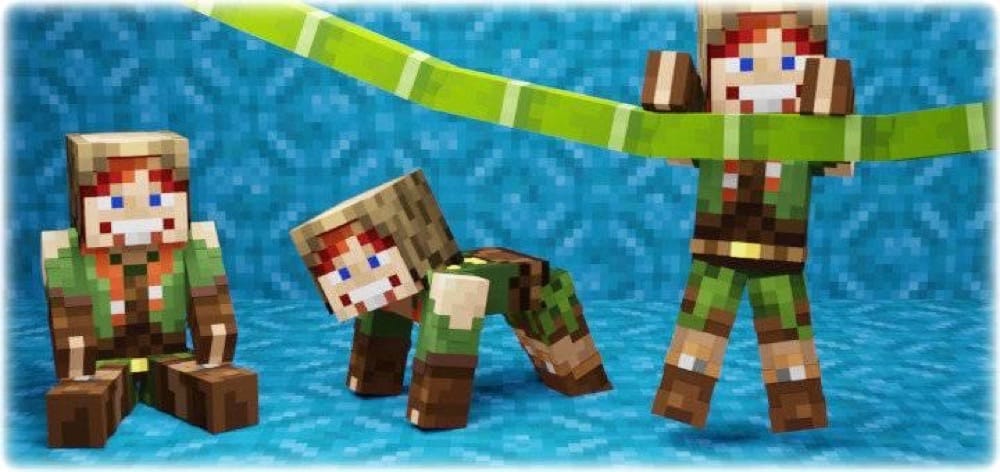
“More Body Actions!” finally lets your character truly settle into the places you build instead of standing stiffly beside them. You can sit beside a campfire or on stairs, lie down wherever there is room, and crawl through one-block-high openings. With both hands empty, you can also catch the edge of a short wall, move sideways, and pull yourself to the top.
The first-person camera follows each pose, dropping to your eye level while you sit, lie down, or crawl. It also supports multiplayer and custom characters from Minecraft’s "Dressing Room". You can relax with friends, build a hidden crawlspace entrance, or climb out of a water pit together, and the addon remembers your pose when you leave and rejoin the world.
4. Holograms on dropped items!
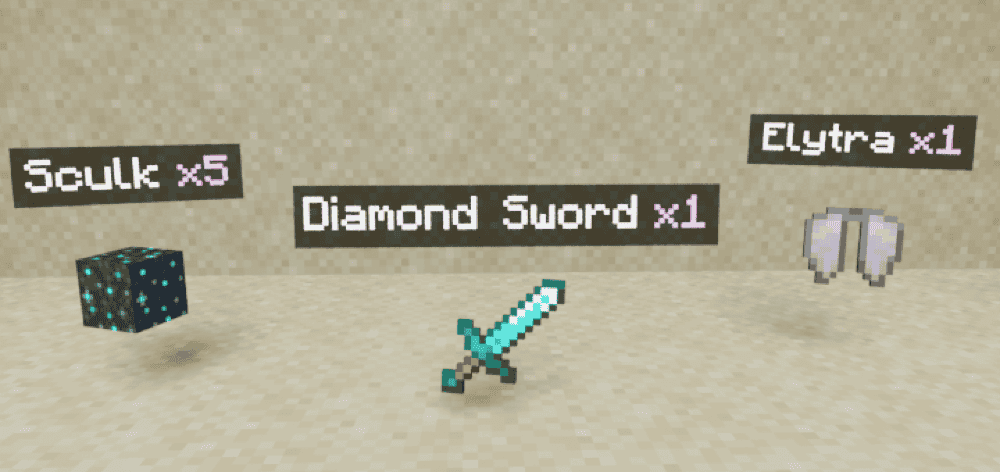
“Holograms on dropped items!” takes the guesswork out of sorting through the aftermath of a mining trip, mob fight, or accidental inventory spill. Each newly dropped item receives a floating label with its name and stack amount, making valuable loot easier to spot without studying every tiny texture. Its visibility check keeps labels from appearing through blocks or thick grass as well, helping the screen stay readable.
You can display labels above nearby drops or only when you point your crosshair at an item. Colors, font size, viewing range, and label format are all adjustable, so the holograms can remain subtle or stand out when the ground is covered in loot. Multiplayer support also makes the addon useful for shared farms, boss fights, and group mining trips.
5. Raiyon's Item Physics
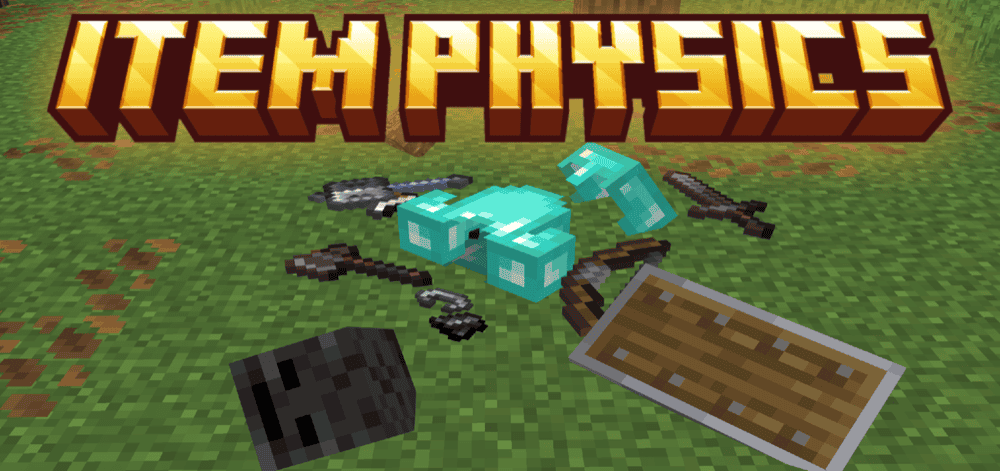
“Raiyon’s Item Physics” gives dropped loot some much-needed weight. Instead of bobbing and spinning in midair, tools, blocks, and other items settle onto the ground, making the aftermath of a mining trip or mob fight look far more believable. You collect them by hitting or interacting with them, while sneaking gathers nearby drops when you want to clear the area quickly.
Familiar item rules still apply, so netherite survives lava, items that normally float rise in water, and renamed gear displays its name on the ground. Most loot disappears after the usual five minutes, while named items and Nether stars remain. You can also continue earning achievements with this addon active.
6. Lunac Shaders 3.0 | Vibrant Visuals Shader
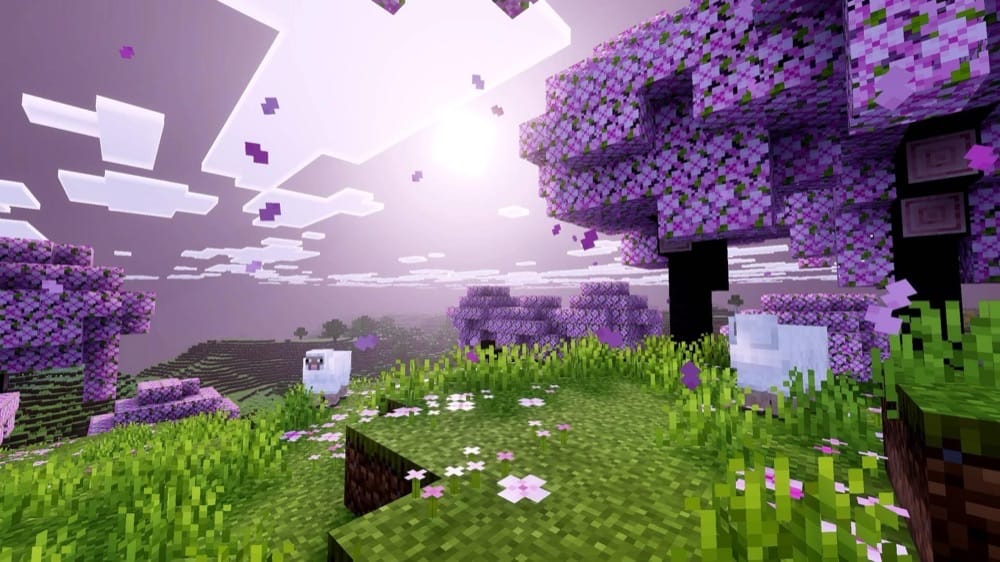
“Lunac Shaders 3.0 | Vibrant Visuals Shader” can make even a familiar world worth stopping to look at again. Water becomes clearer and gains rolling waves and biome-specific colors, while reflections, natural-looking shadows, and richer lighting give builds and landscapes more depth.
The sky and atmosphere shift as the day passes and as you travel between biomes, so sunrise over an ocean feels different from evening in a forest. The pack aims for an RTX-inspired look without requiring an RTX graphics card, although you will still need a capable device that supports Minecraft’s "Vibrant Visuals" mode.
7. Java Aspects
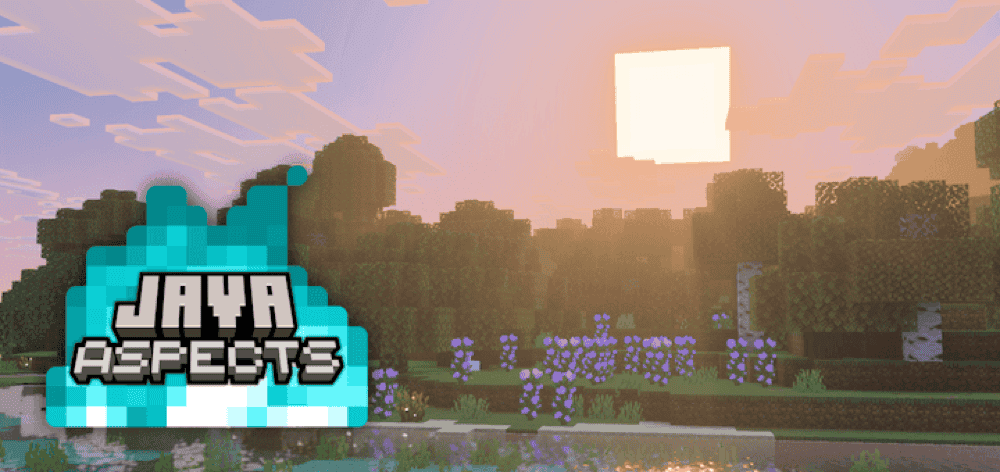
“Java Aspects” brings the look and feel of Java Edition into Bedrock through hundreds of small details you notice everywhere. Water becomes clearer, skies and foliage adopt Java-style colors, blocks gain familiar texture variation, and explosions use Java-like particles. Player and mob animations, sound effects, menus, and item presentation also change, making the pack feel like much more than a simple texture swap.
The default option follows Java Edition’s modern appearance. "Compatibility Mode" lets another resource pack control the textures while “Java Aspects” keeps its sounds, animations, and interface wording. An optional companion pack can also add Java-style icons to inventory screens.
8. Clear Water Texture Pack
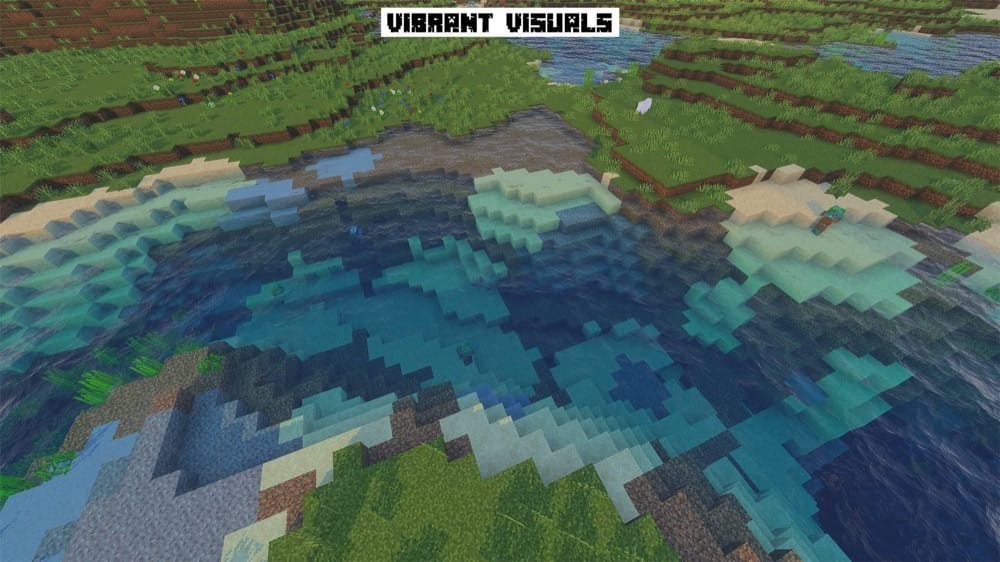
“Clear Water Texture Pack” turns oceans and rivers into clear water, making fishes, corals, shipwrecks, ruins, and ocean monuments much easier to spot from the surface.
The "Simple/Fancy" version lets you choose between a clear vanilla-style blue, an emerald-green shade, and a brighter blue inspired by RTX water. The "Vibrant Visuals" version improves visibility from the surface and adds natural-looking waves. It can run by itself or alongside another shader, giving you clearer water without replacing the rest of the world’s atmosphere.
9. Relic Player Animations V2.0
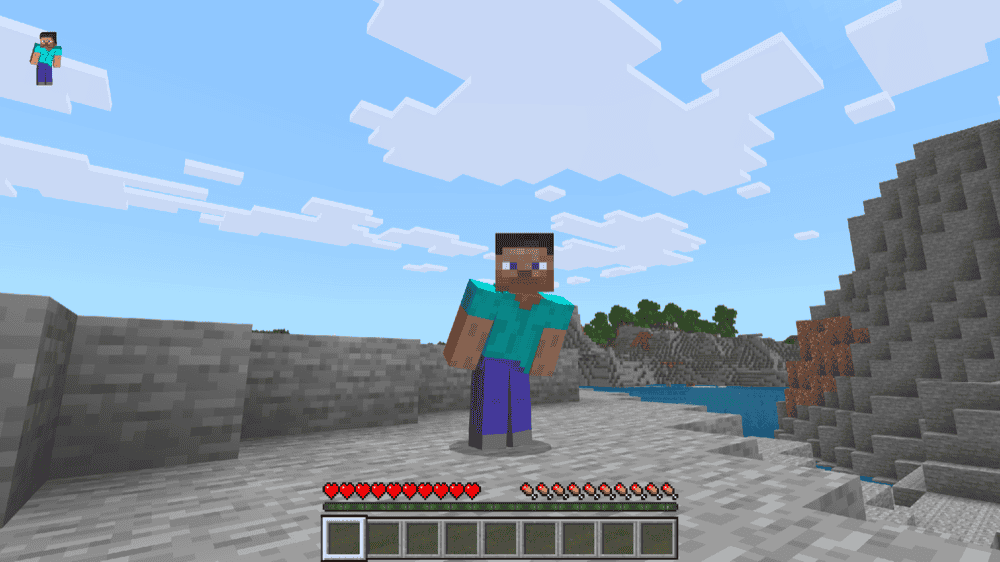
“Relic Player Animations V2.0” loosens up Minecraft’s stiff character movement, so your avatar no longer looks like it is marching through every adventure. Walking and sprinting gain fuller body motion, jumps tuck the legs before landing, and swimming takes on a smooth breaststroke. Crouching, sitting, breathing, and small idle gestures also give quieter moments more personality.
Weapon-ready stances change when you hold a sword, axe, shield, or bow, while quicker transitions make the shift from running to stopping or aiming to attacking feel less abrupt. Friends can also see the animations in multiplayer, and the creator claims that the pack doesn’t require good hardware in order to run well. It fits especially well in RPG worlds, PvP matches, and cinematic maps where you regularly see your character in motion.
10. VFXCore - Immersive Visual Effects
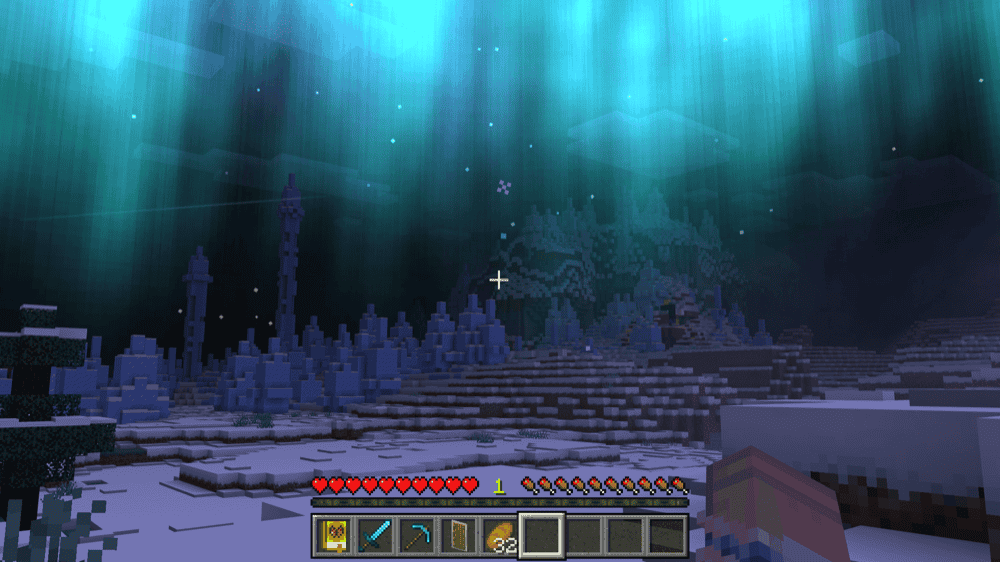
“VFXCore - Immersive Visual Effects” makes the world feel busy (in a good way) even when no mobs are nearby. Butterflies weave through flower beds, fireflies glow after dark, and birds add seasonal calls to the surrounding soundscape. Falling petals, leaf litter, wildflowers, pebbles, and mushrooms give the ground more character, while drifting clouds, color-shifting fog, auroras, shooting stars, meteor showers, and rainbows bring the sky to life.
Weather and movement leave their own visual marks, too. Blizzards, sandstorms, snow flurries, and ground fog change the mood during exploration, while boats leave trails through the water and running players kick up dust or leave footprints behind. Colored dynamic lights, glowing furnaces, water splashes, and biome-specific sounds add even more atmosphere.
Additionally, an in-game settings book lets you switch each effect on or off to your liking, and achievements also remain available while you use the addon.
How to Install Minecraft Addons
You can add Bedrock addons automatically from the official Minecraft Marketplace or download and install them manually from CurseForge’s Bedrock addons browser.
If you pick the second option, make sure to open the linked project page of each of the addons above and download its associated “.mcaddon” file. Running the downloaded file should then launch Minecraft and begin the import.
After the import finishes, don’t forget to edit the world and check both "Behavior Packs" → "Available" and "Resource Packs" → "Available". If all went well, activating the packs included with the addon should add its features to that world. If the project lists an experiment under "Requirements", you should enable it as well before loading the world.
For a complete walkthrough, check out our guide on how to install Minecraft Bedrock addons.
Common Issues and Quick Fixes
My visual addon does not appear
If Minecraft confirms the import but your world looks unchanged, the pack may only be installed instead of properly activated. The world’s "Resource Packs" and "Behavior Packs" menus will show whether every required pack sits under "Active" and whether an older duplicate is still enabled. On a Realm, those packs also need to be active in the current world slot.
I cannot enable Vibrant Visuals
A gray or missing "Vibrant Visuals" option does not always mean your device is unsupported. Minecraft only lets you change it from "Settings" → "Video" before entering a world, and an incompatible world or texture pack can also disable it. If your device does not meet the requirements, a "Simple" or "Fancy" edition will likely be a better fit when one is available.
My lighting, particles, or item labels are missing
If an addon works only in part, the missing effect often points to the cause of the issue. For example, “Holograms on dropped items!” only labels loot dropped after activation, while “System Dynamic Light” needs a supported light source and its main switch enabled in the configuration book. For anything else, make sure to compare the experiment named on the project page with your world settings instead of turning on every experimental option.
My player animations or actions are broken
“More Body Actions!” replaces "player.json", so another addon that edits the same file can quietly override it and break poses or first-person movement. A copied world with only “More Body Actions!”, both of its packs, and "Beta APIs" enabled can expose that conflict.
My visual packs do not look right together
Two packs can work correctly and still disagree over the same water, sky, fog, or texture. Bedrock gives the higher resource pack priority, so the pack whose look you want should sit above the other. For example, “Clear Water” belongs above a shader, while “Java Aspects’” "Compatibility Mode" expects the other texture pack to sit above it.
My world slows down or looks wrong
Dynamic lights, weather, labels, and a shader pack can become expensive when they all run together. "Favor Performance" is a good first stop for "Vibrant Visuals", while “VFXCore” lets you disable individual effects or use its optimization mode.
In addition, we’ve found that “Lunac Shaders” looks sharper at "Native" resolution, but "Auto" may run better, and its brightness setting can correct an image that looks too dark.