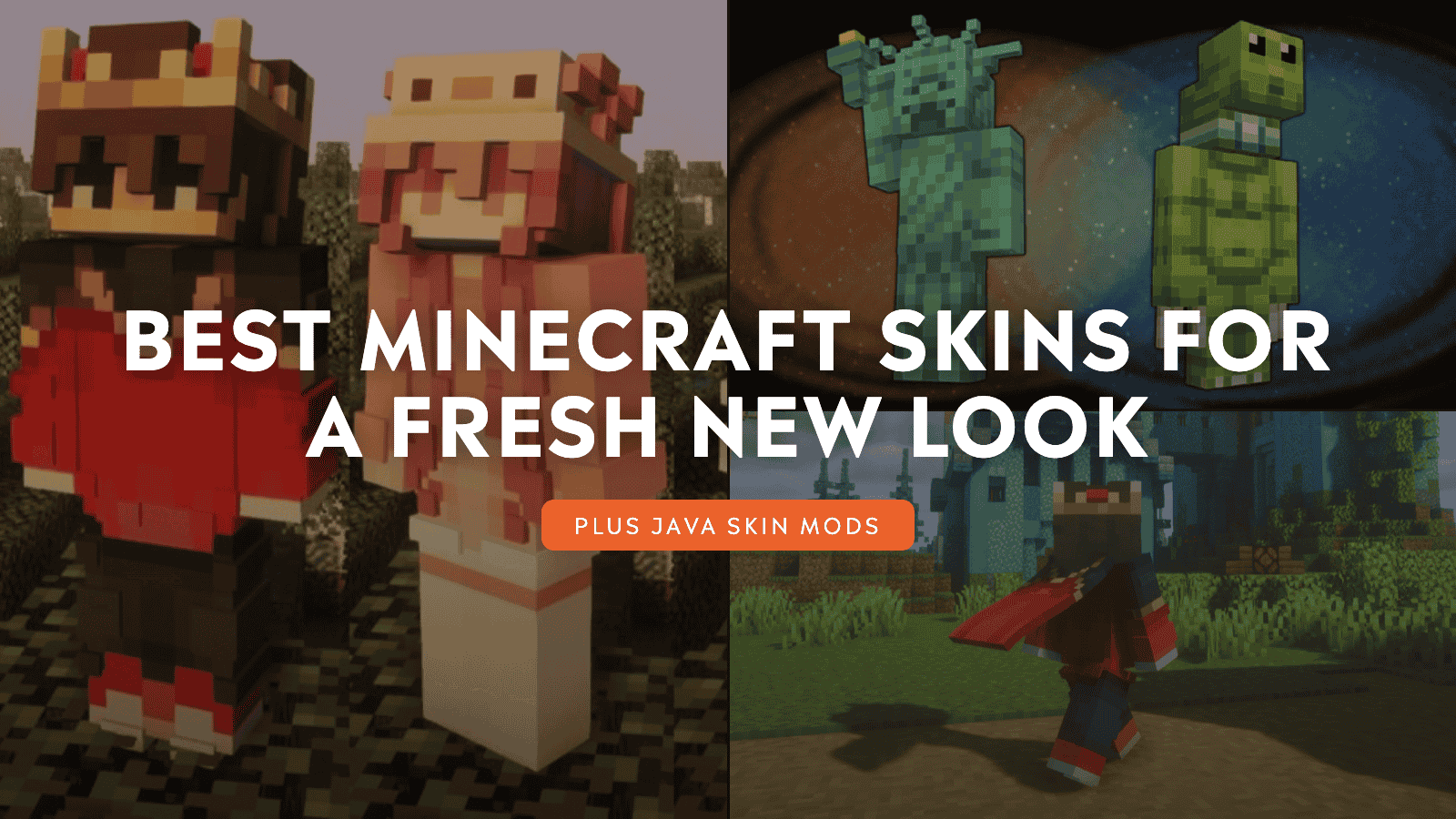
A fresh skin is the quickest way to make your Minecraft character truly feel like yours, and the CurseForge community has built a growing collection of Bedrock skin packs to choose from. The tricky part is knowing which ones are worth installing.
In this guide, we will round up the most popular Bedrock skin packs on CurseForge, walk you through the steps to installing them on Bedrock, and point Java players toward mods that take character customization even further.
Top 10 Most Popular Bedrock Skin Packs by Community Downloads
The list below mixes 4D and 5D skins, meme packs, horror skins, hero-inspired looks, YouTuber skins, and camouflage designs, giving you a range of styles to choose from.
1. Alleis Skin Pack
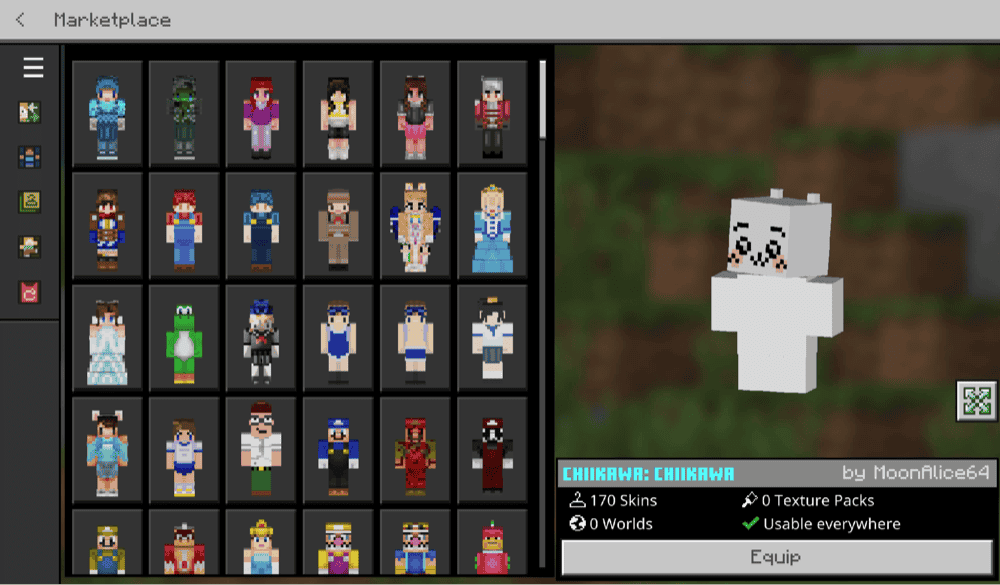
“Alleis Skin Pack” is a large 4D and 5D Bedrock skin pack with 170 skins split between Hive Cosmetics and normal 4D skins. It focuses on layered designs that add more shape and detail than a flat standard skin, with examples including NPC Chester, Moria-Chan, Tearmoon Empire – Mia, Mint, Ichigo-chan, and Serena from Pokemon XY.
Important: the creator notes that this pack cannot be installed through the normal ".mcpack" method, so make sure to follow the installation instructions on the project page before adding it to Minecraft Bedrock.
2. Best Meme & Funny Skins to troll your friends
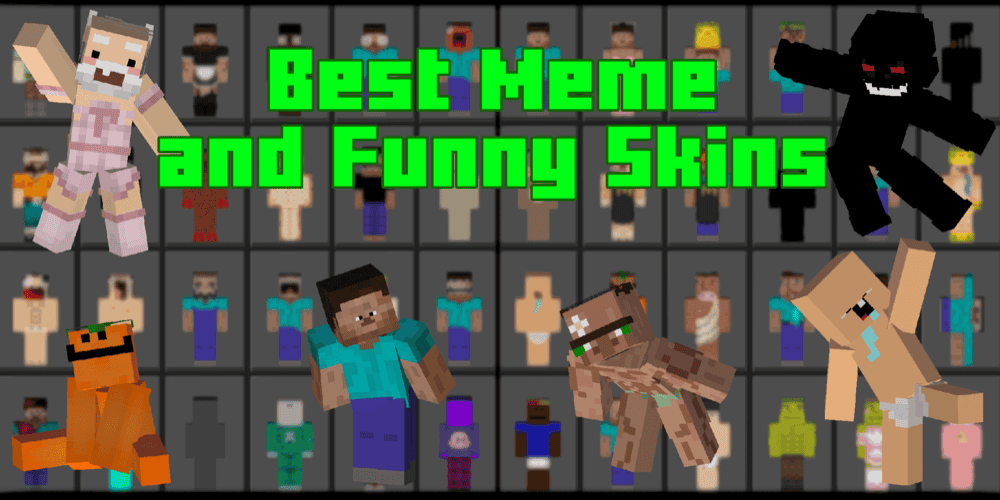
“Best Meme & Funny Skins to troll your friends” is a Bedrock skin pack made for players who want silly, weird, or spooky looks in multiplayer. It includes more than 100 skins, with examples like Herobrine, Noob Steve, a buff villager, and a zombie wearing sunglasses.
This is a good pick for casual servers, hide-and-seek games, or just messing around with friends. The pack is less about one polished theme and more about having a big set of joke skins you can swap between whenever you want something ridiculous.
3. Random Meme Skinpack
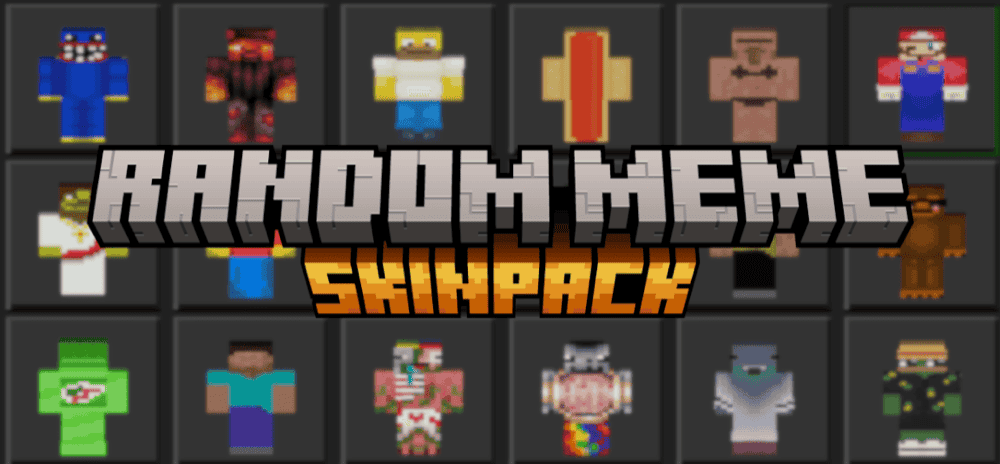
“Random Meme Skinpack” is a Bedrock skin pack with more than 90 skins built around a mix of meme, cartoon-inspired, animal, fantasy, and joke designs. Instead of sticking to one theme, it gives you a wide spread of looks, from silly characters to strange costumes and roleplay-style skins.
It is a good choice if you like changing your skin often or want one pack with a little bit of everything. The preview shows a large variety of designs, so this works best for players who want fun options rather than a polished matching set.
4. Anime Power Skin Pack
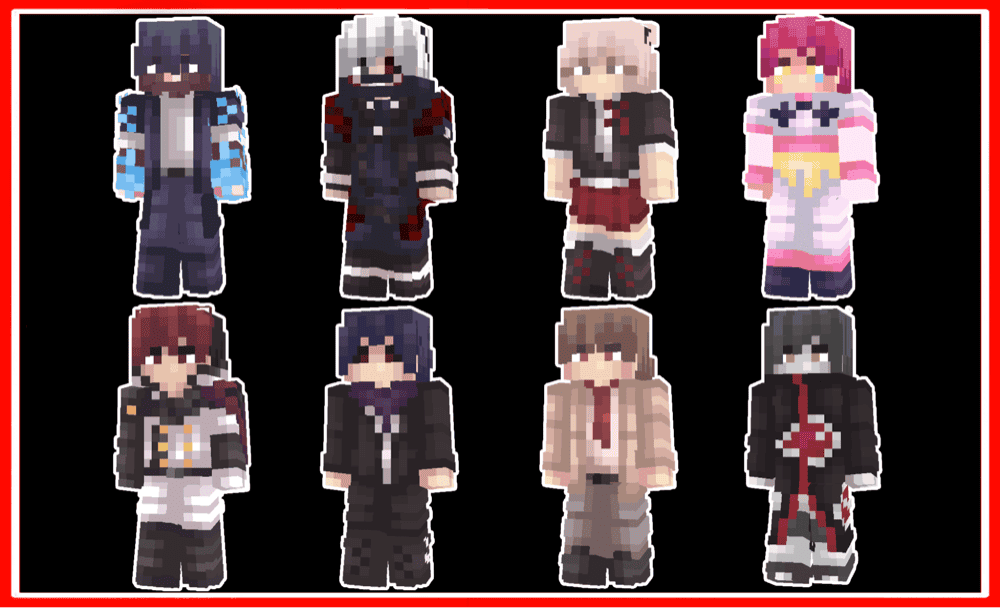
“Anime Power Skin Pack” is a Bedrock skin pack with 29 anime-inspired villain skins. The designs lean into dramatic outfits, dark colors, masks, armor, and bold character styles, making it a good pick if you want your character to look more intense than a standard survival skin.
This pack is best for players who enjoy anime-style skins and want a small, focused set instead of a huge mixed collection. Since the skins are fan-made and inspired by existing anime styles, they are best used for personal play.
5. Neon Cyber Glow - Skin Pack
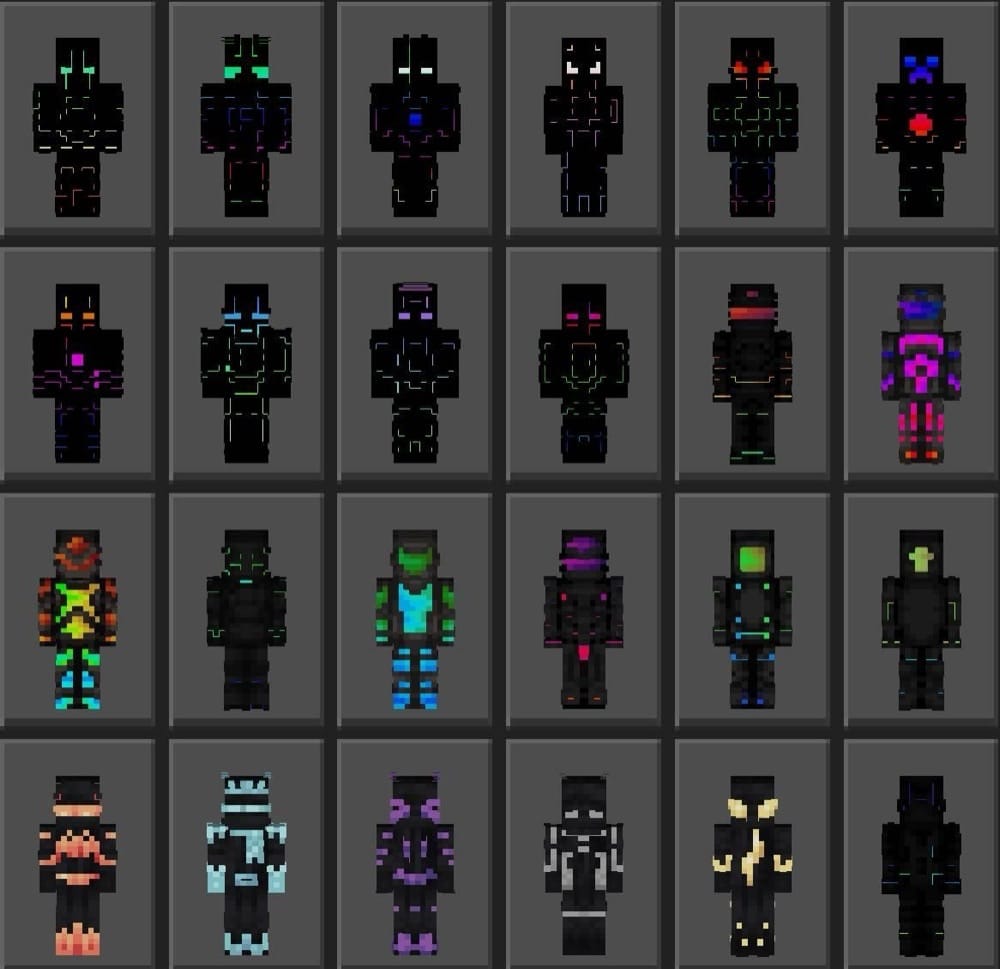
“Neon Cyber Glow - Skin Pack” is a Bedrock skin pack with 24 bright, futuristic skins. The designs use dark outfits with glowing neon lines, colorful accents, helmets, masks, and high-tech armor details, giving the whole pack a cyber-style look.
This is a good pick if you want a matching set of skins for a group or server, especially for futuristic builds, sci-fi roleplay, or players who like bold colors that stand out in-game.
6. SRG's Skin Pack
“SRG's Skin Pack” is a large Bedrock skin pack with more than 540 skins, including 4D skins, 5D skins, and Hive-style cosmetics. The pack has a wide mix of designs, from character skins and animals to meme-style looks, creature skins, and more detailed cosmetic models.
Important: the creator notes that this pack does not work through the normal ".mcpack" install method, so make sure to rename the file to ".zip", unzip it, and follow the included "readme.txt" instructions before adding it to Minecraft Bedrock.
7. Super Heroes
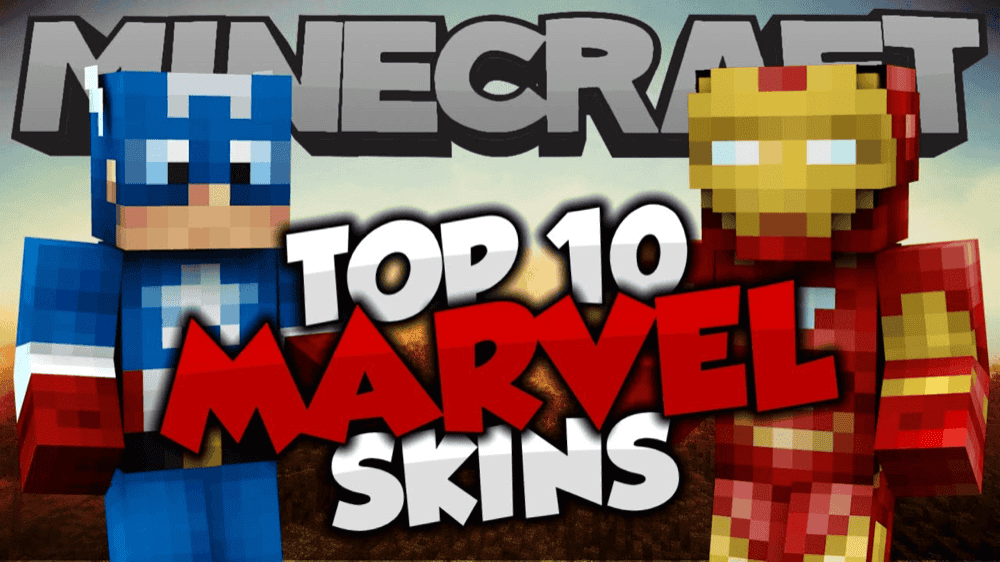
“Super Heroes” is a Bedrock skin pack with 23 superhero skins inspired by familiar comic and movie characters. The pack includes bold, costume-style designs based on heroes like Iron Man, Spider-Man, Captain America, Thor, and more.
The pack works well for roleplay, themed servers, or anyone who wants a quick hero-style look without building a custom skin from scratch. Since the skins are fan-made designs inspired by existing characters, they are best used for personal play.
8. Italian Youtubers Skin Pack
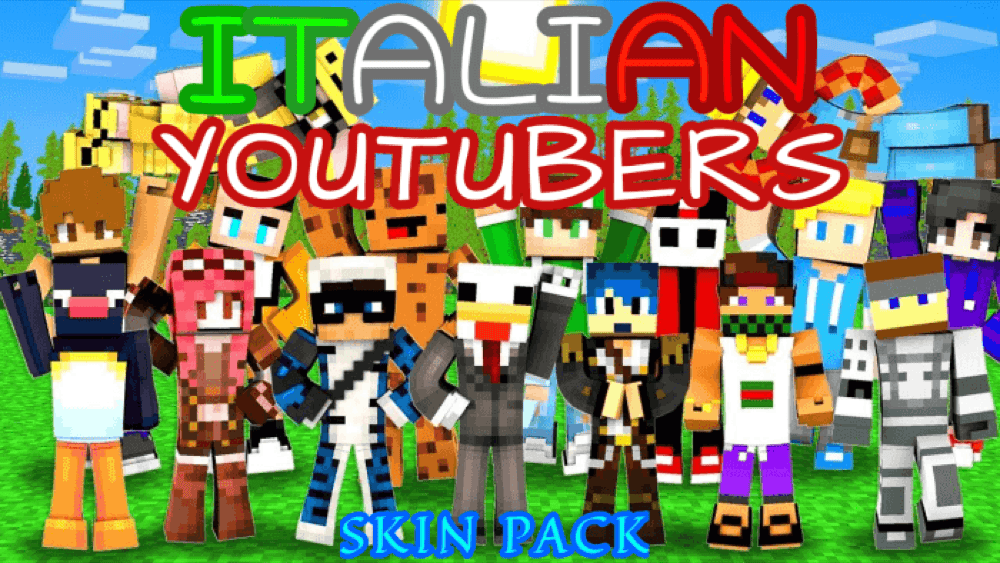
“Italian Youtubers Skin Pack” is a Bedrock skin pack with over 40 skins based on well-known Italian content creators, plus a few American YouTubers who are especially popular with Italian Minecraft fans. The full list includes names like Kendal, Surry, St3pNy, LolloLacustre, LyonWGF, Dream, Technoblade, and more.
This one is mainly for players who follow the Italian Minecraft community and want to play as creators they recognize. Since these are fan-made skins based on real content creators, they are best used for personal play.
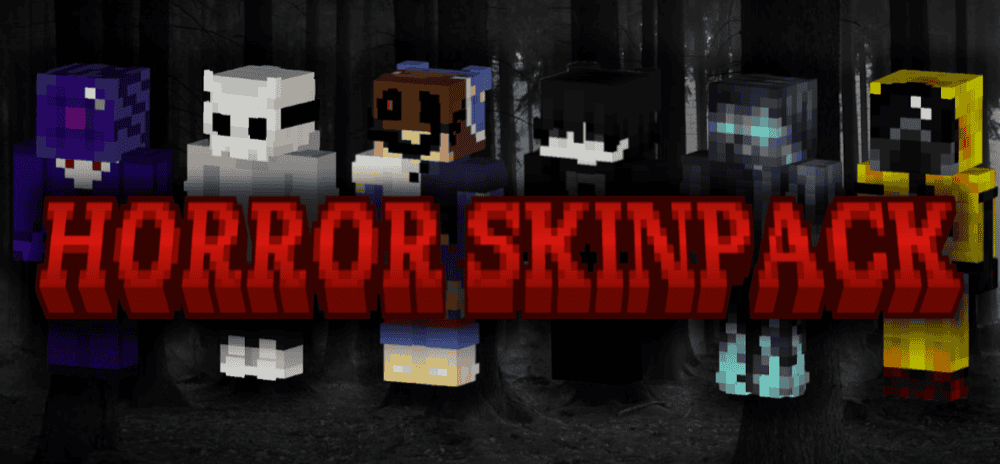
9. Halloween Horror Skinpack
10. Camouflage and Trolling Skinpack
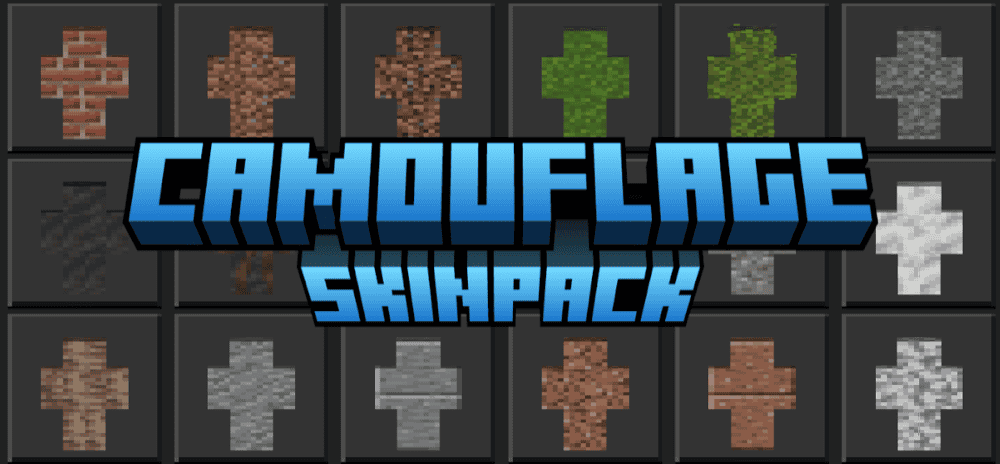
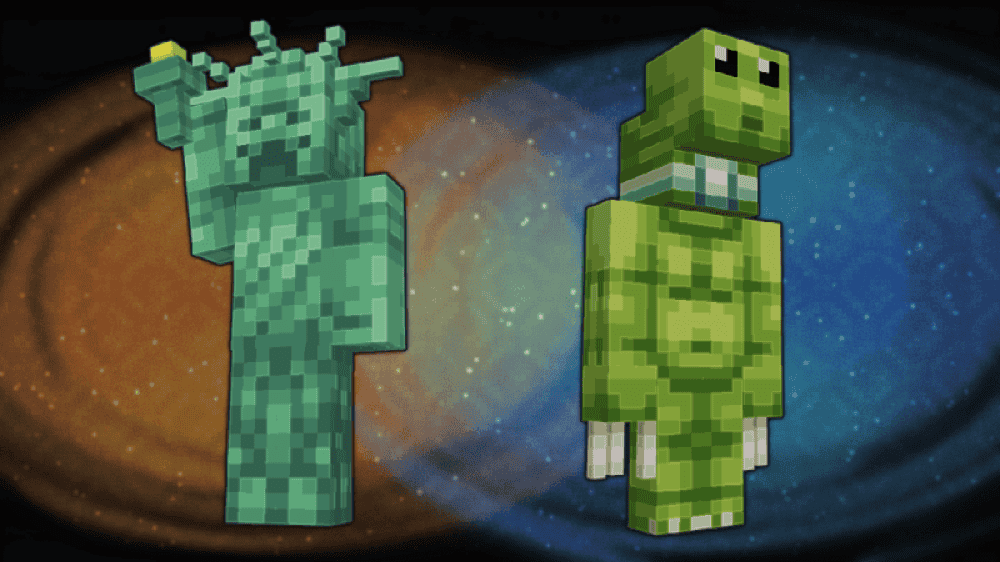
“Camouflage and Trolling Skinpack” is a Bedrock skin pack with block-themed skins made to blend into the world. The designs mimic common blocks and natural textures such as grass, leaves, stone, wood, trees, and cacti, making the pack useful for hiding, pranking friends, or playing sneaky multiplayer games.
The pack works especially well for hide-and-seek, roleplay, and survival worlds where blending into the environment is part of the fun.
How to Install a Bedrock Skin Pack
Most skin packs download as ".mcpack" files that you import into Minecraft Bedrock. Before opening the file, check the project description first, because some packs may include special installation steps.
Download and Import the Pack
- On the skin pack's CurseForge page, open the "Files" tab and download the file that matches your Minecraft version. Before opening it, check the description for any special install notes.
- For standard ".mcpack" files, open the downloaded file. On Windows and mobile, this usually launches Minecraft and imports the pack automatically, so there is no need to unzip it first.
- On mobile, use your device's file manager to open the file, then choose Minecraft if your phone or tablet asks which app to use.
- If the file does not open on its own, set Minecraft, or Minecraft for Windows on PC, as the app that opens ".mcpack" files, then open it again.
Follow Special Install Instructions When Needed
Some skin packs do not use the normal ".mcpack" import flow. If the creator says the pack needs a manual install, follow the instructions on that specific CurseForge page instead of importing it normally.
In some cases, this may involve renaming the file, unzipping it, and moving the skin pack folder into the folder named by the creator. We also recommend not using a single manual folder path for every pack, since some creators package their files differently.
Enable and Use the Skin Pack
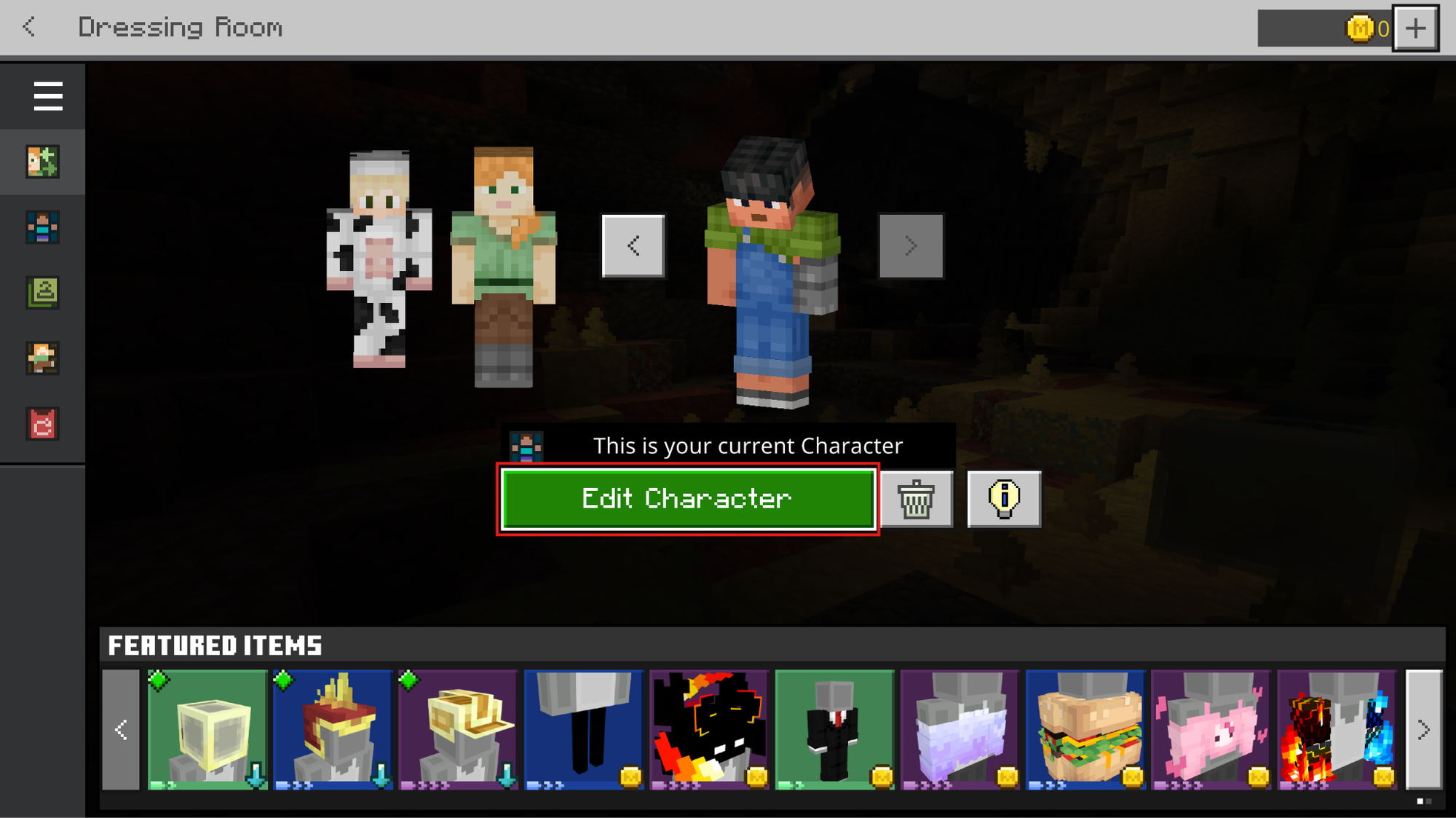
- In Minecraft Bedrock, open the "Dressing Room" from the main menu.
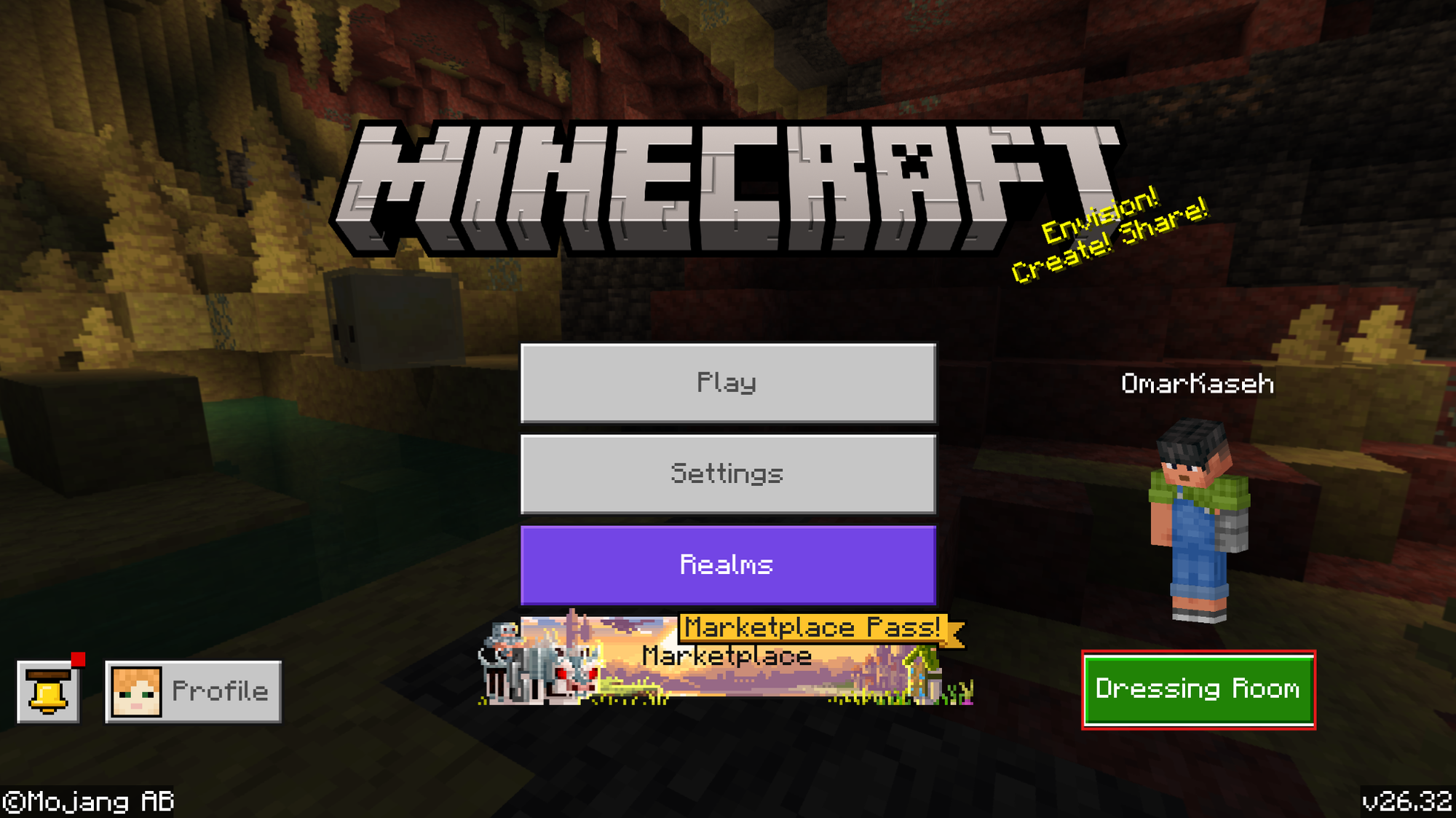
- Select the character you want to change, then choose "Edit Character".
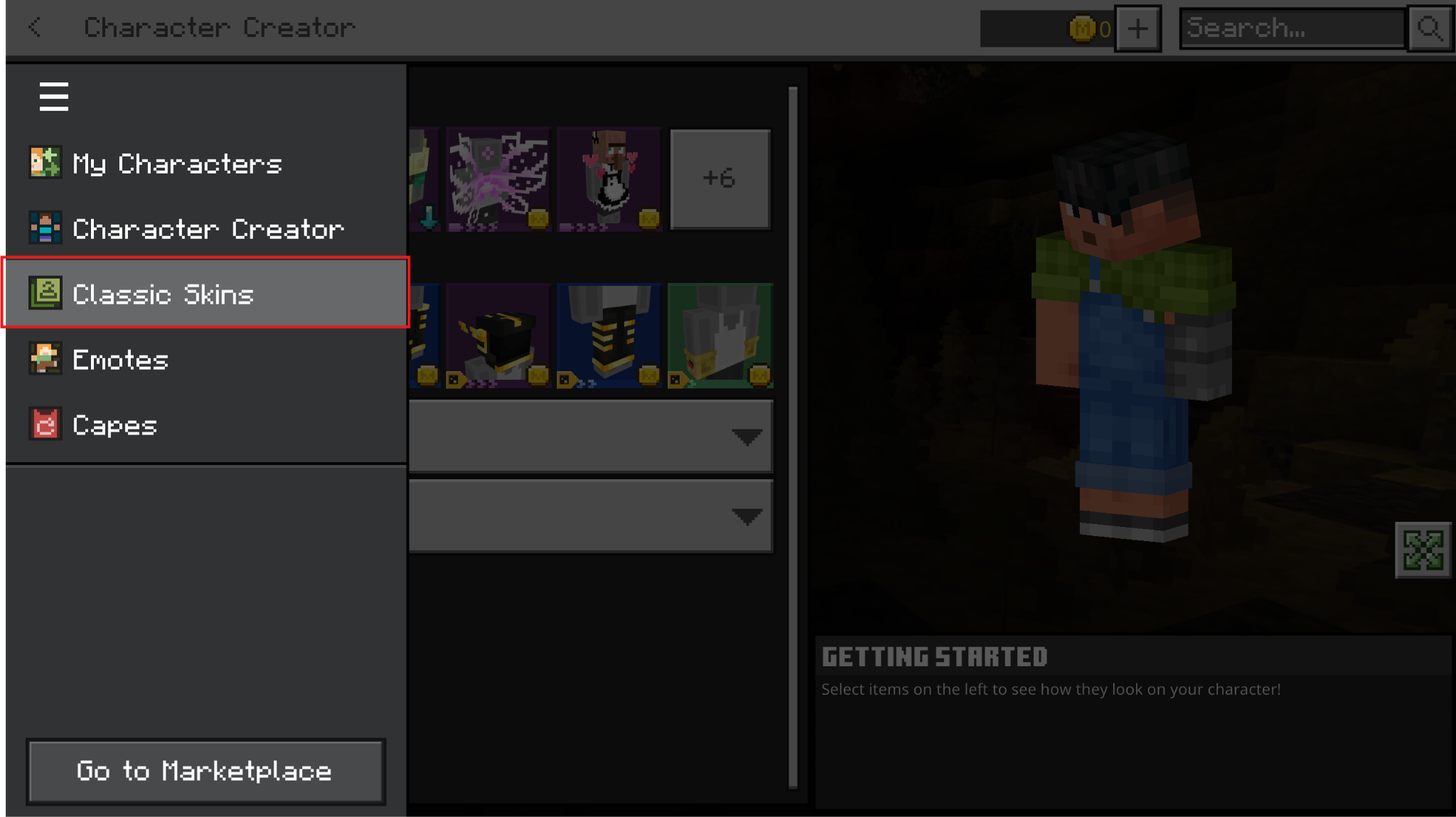
- Open the "Classic Skins" tab on the left.
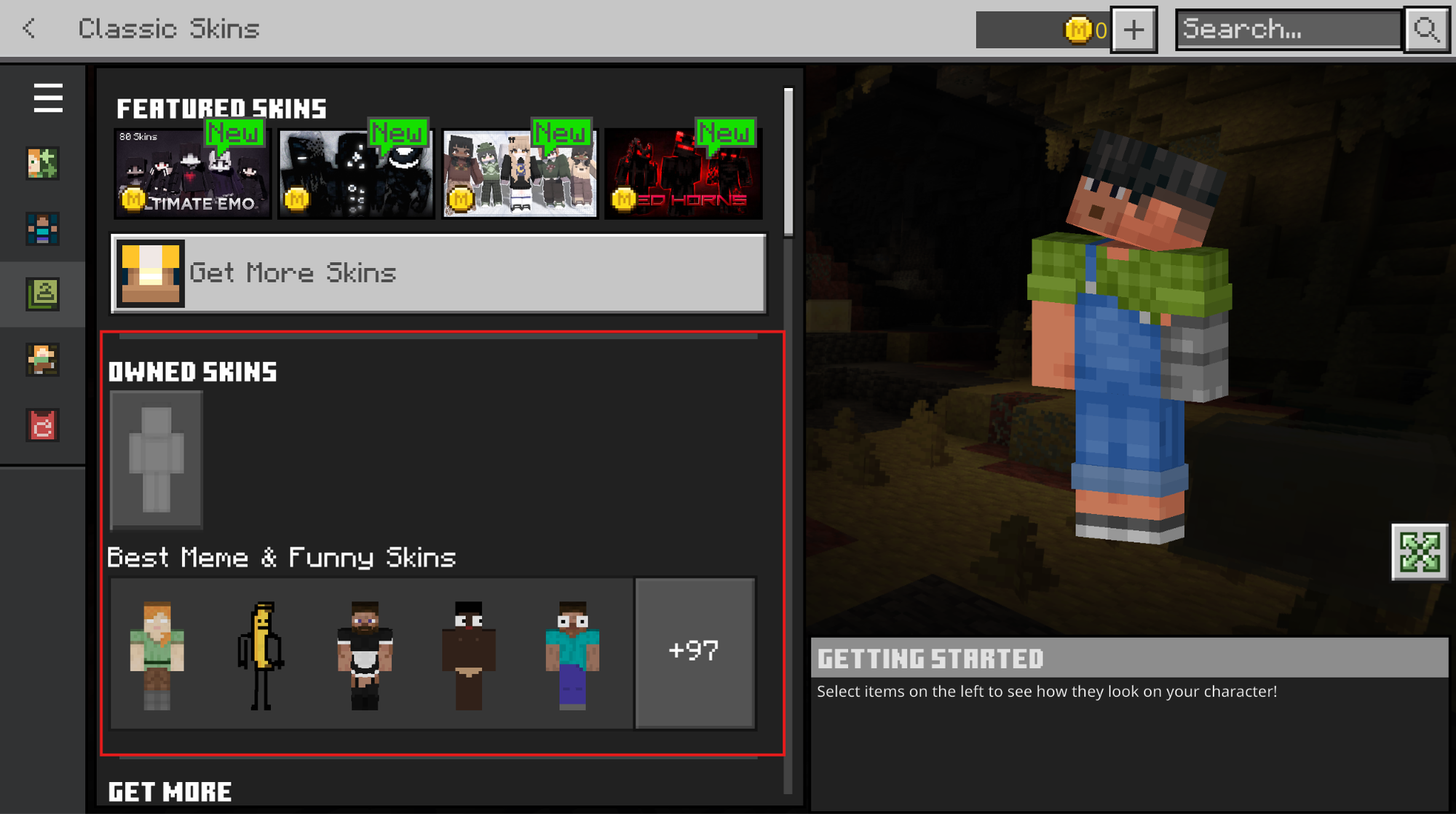
- Look under your owned skins or imported packs, then choose the skin you want.
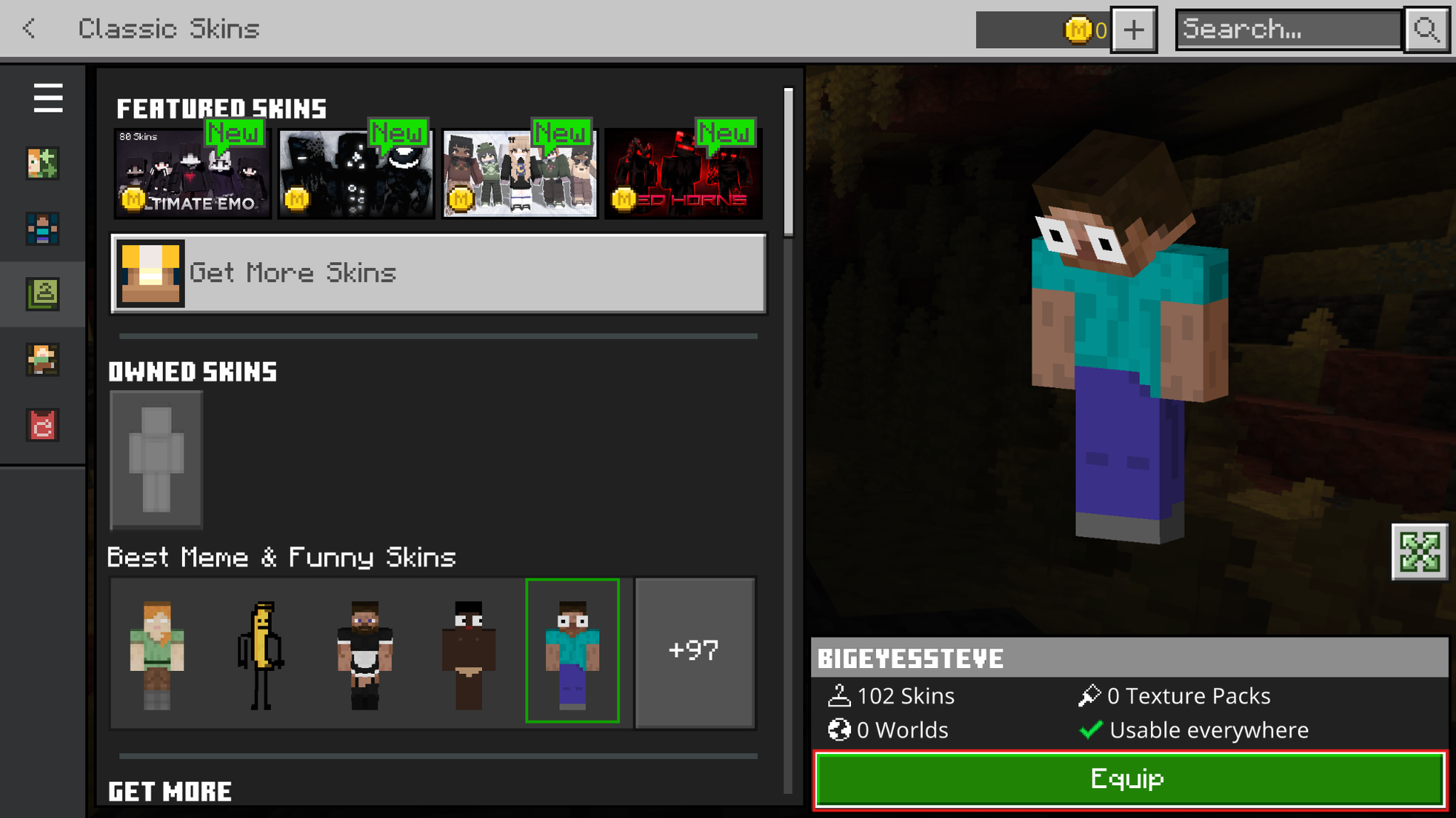
- Select "Equip" to apply it to your character.
Want to Customize Further? Check Out These Java Skin Mods
If you play Java Edition and want to go past flat skins, a different set of options opens up client-side mods that reshape the player model or add depth and movement to it. These are Java-only and won't work on Bedrock Edition, but they're among the best in their category.
They generally fall into two groups – one for rebuilding the model and one for adding depth and animation to the skin you already have.
Managing and Previewing Skins in the CurseForge App
Java players also have a new way to manage skins through the CurseForge app. The May 2026 update added a "Skins" tab where you can upload custom skins, browse CurseForge and default Minecraft skins, and preview your character in a live 3D viewer with capes and Elytra.
So, make sure to download the CurseForge app to try the new "Skins" tab. If the tab is invisible, make sure to select the "Use CurseForge launcher" option under "Settings" → "Minecraft".
3D Player Model Mods
Customizable Player Models
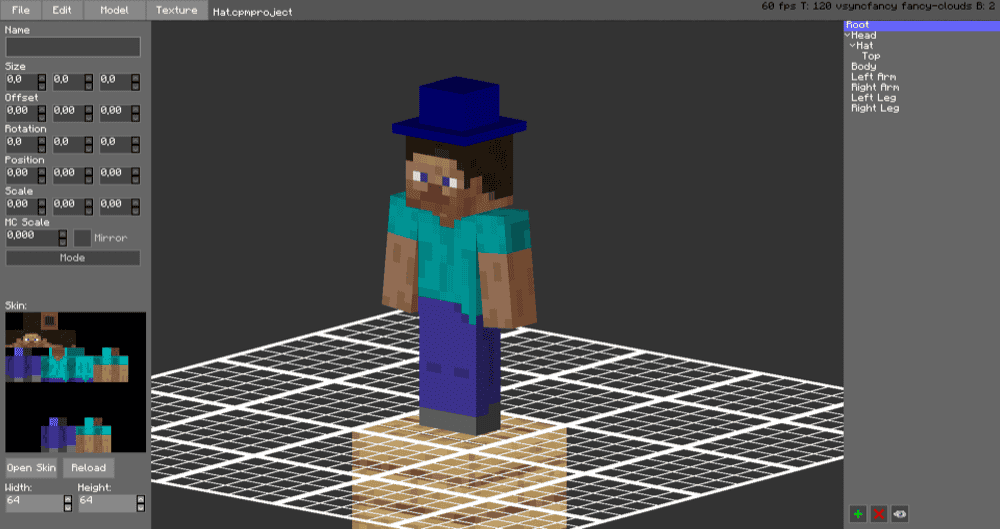
“Customizable Player Models” lets Java players build a custom avatar with an in-game editor. You can add things like hats, ears, tails, accessories, custom textures, and glowing parts, or adjust parts of the normal player model to better match your skin.
When you finish a model, you can export it and upload the exported image as your Minecraft skin. You can also browse shared models on the CPM Models website, which is helpful if you want to start from an existing design instead of making everything yourself.
Figura
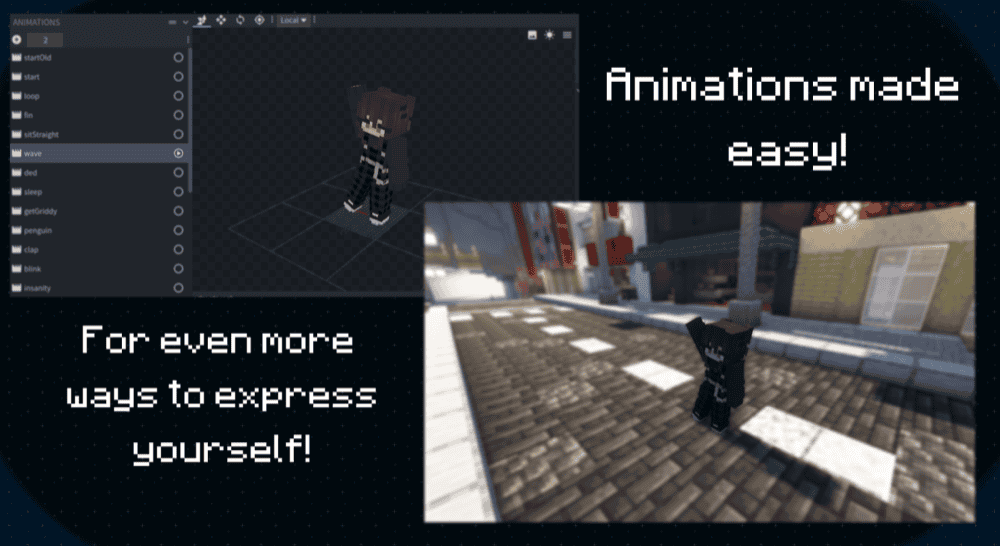
“Figura” lets Java players create custom avatars that go far beyond a normal skin. You can build your model in Blockbench, add custom shapes, make animations, or use emissive details – texture areas designed to stay bright in darkness, such as glowing eyes, symbols, or armor lights.
Figura creates these effects through a matching texture file with “_e” added to its name, while transparent black marks the areas that should not glow. You can also show your avatar to other players who use “Figura”, all without needing the server to install the mod.
The mod also includes optional Lua scripting for players who want more advanced avatar behavior, plus a permission system that helps control what unusual models can do or show. This way, you can find artists in the FiguraMC Discord server uploading skins of druids, angels, and even dragons so convincing you wouldn’t recognize them as a player character model!
Overall, this mod is more advanced than a simple skin upgrade, but it is also one of the strongest picks if you want an expressive custom character with movement, effects, and extra personality.
3D Skin Layers
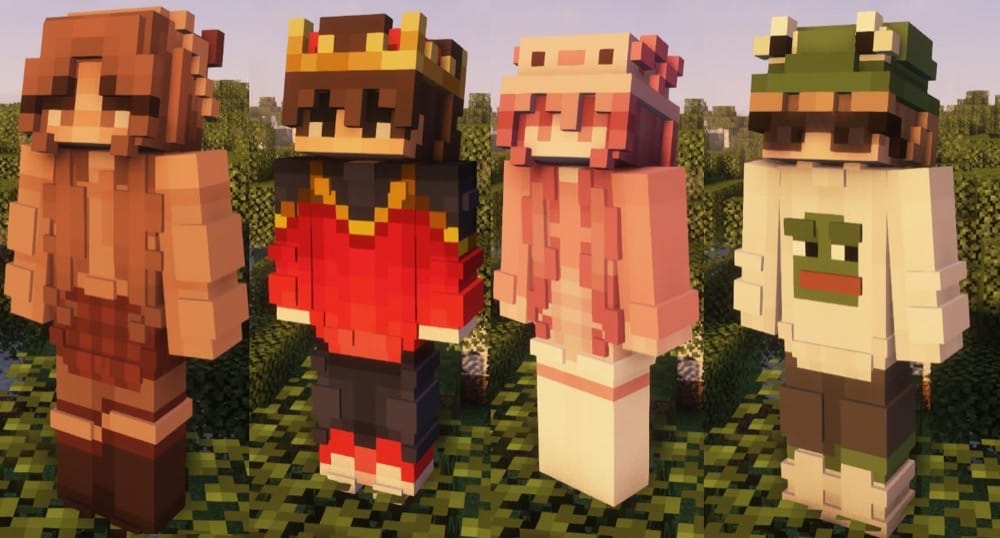
“3D Skin Layers” turns the flat outer layer of a Java skin into real 3D detail. That means parts like jackets, sleeves, hats, hair, glasses, and visors can look like they have actual depth instead of sitting flat on the player model.
The mod also switches distant players back to the normal flat style to help with performance, which makes it a simple visual upgrade for players who want their existing skin to look more detailed without lowering their FPS.
Wavey Capes
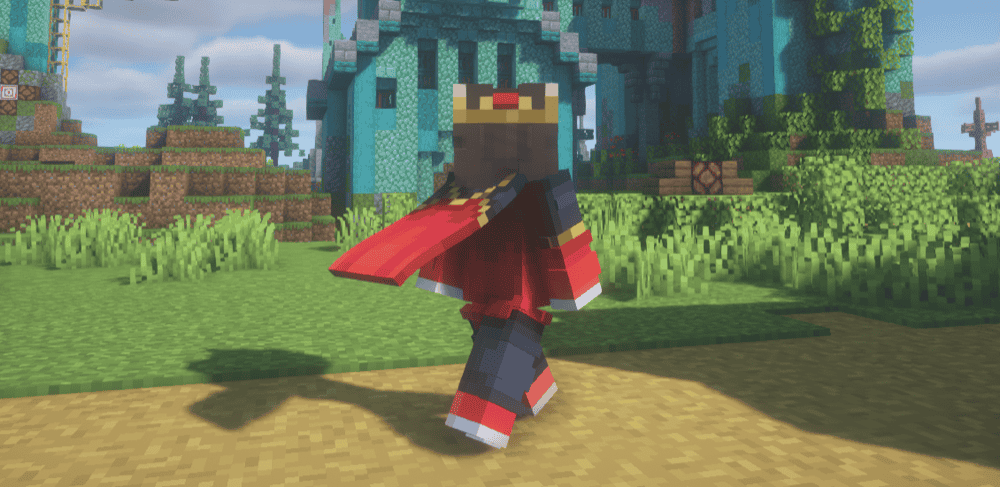
“Wavey Capes” makes Minecraft capes feel less stiff by adding smooth movement and cape physics. Instead of hanging like a flat slab, your cape bends and flows as you move, swim, and turn.
You can also adjust the look through the in-game configuration, with options for different cape styles and movement settings. Note that the mod will not give you a cape by itself, so you will need an existing cape from Mojang or another supported cosmetic mod to make use of it.
Ears
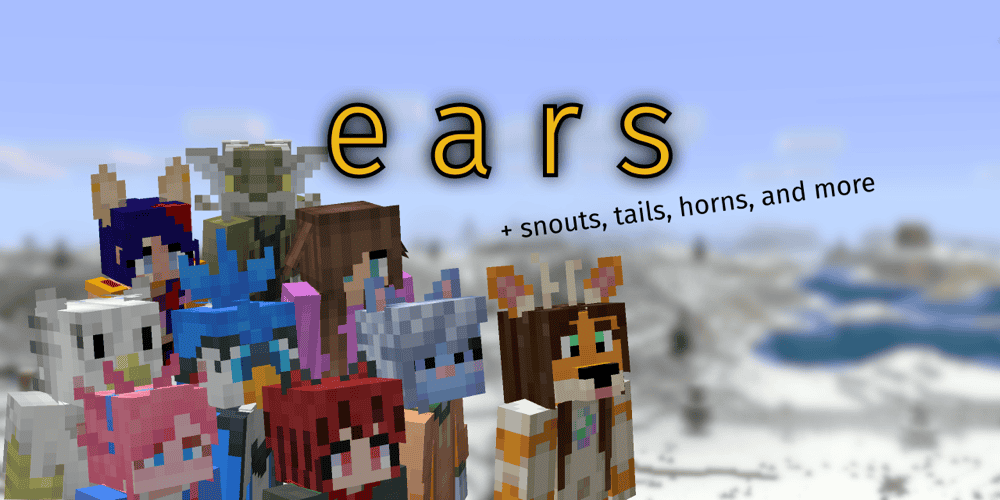
“Ears” adds extra skin-based features like ears, snouts, muzzles, tails, horns, wings, and claws to Java player models. Instead of replacing your whole character model, it reads special pixels from your Minecraft skin and turns them into small 2D and 3D details.
It is a lighter option than building a full custom model, but it does require you to draw or configure those additions yourself. You can set up your skin through the Manipulator, which helps prepare the extra Ears features before uploading the skin.
How to Install Minecraft Mods
You can install the above mods automatically using the CurseForge app or manually by placing the mod files within your game's mods folder. Both methods allow you to easily add custom features and enhancements into your Minecraft experience.
If you want to learn more, you can read our detailed guide on how to install Minecraft mods.
Common Issues and Quick Fixes
My skin pack downloaded but doesn't show up in Minecraft
A downloaded Bedrock skin pack still has to be imported before it appears in-game. For standard ".mcpack" files, open the file so Minecraft launches and imports it, then check under your owned skins in the character menu.
If nothing appears, go back to the CurseForge page and read the creator's installation notes, because some packs use special steps instead of a normal ".mcpack" import.
The updated skin pack still shows the old version
Some creators ask players to delete the older version of a skin pack before installing an update. Open Minecraft Bedrock's in-game settings, remove the old version from your storage or skin pack list, then import the updated file again. This helps prevent Minecraft from loading the older pack by mistake.
The skins look flat or low-quality after installation
A Bedrock pack renders exactly as the creator has built it, so flat-looking skins are usually just 2D designs rather than a bug. The 4D, 5D, and voxel packs above are the ones that add real depth. On Java Edition, mods like “3D Skin Layers” or “Ears” can add that dimensional look to a flat skin.
These Bedrock packs won't work on my Java game
Bedrock ".mcpack" skin packs only work on Bedrock Edition, which covers Minecraft for Windows, mobile, and consoles. Java Edition uses a different skin format and cannot read ".mcpack" skin packs, so Java players should use a Java-format skin, the CurseForge app's "Skins" tab, or one of the Java customization mods above instead.
My Java skin mod isn't loading or crashes at startup
The usual cause is a version, loader, or dependency mismatch. Make sure to match the mod file to your exact Minecraft version and loader on its CurseForge page, then install any required dependency listed in that mod's entry above.
The mods mentioned here are mainly visual character-customization mods, so they will usually work client-side unless the mod page says otherwise.
Other players can't see my custom model or skin effects
What others see depends on the mod. “3D Skin Layers”, “Wavey Capes”, and “Ears” show up for anyone who also has that mod installed, while “Figura” and “Customizable Player Models” sync your model to other players running the same mod. Anyone without the mod will just see your normal skin instead.