
Running a dedicated Hytale server offers a lot of advantages over the “Online Play” feature of a simple world.
For starters, a dedicated server will make your world visible under the “Server” tab inside the game menu like so:

You also won't need to be present inside the world for the server to run, saving you lots of troubleshooting and processing power.
So, whether you want to add new gameplay mechanics, custom items, or completely change how your server feels, mods give you that flexibility. The good news is that Hytale's modding system is built around servers from the ground up, which makes the whole process more straightforward than you might expect.
Can You Mod a Hytale Server?
Yes, you can definitely add mods to a Hytale server! In fact, adding mods is not only supported, but highly encouraged as Hytale's modding approach is server-side first. The dedicated server uses a "mods" folder, allowing each Hytale mod contained within to be launched alongside the game, making the whole process incredibly simple.
How to Create a Hytale Server?
Step 1: Install Java 25 on Your Device
Download and install the .msi file for Java 25 from the Adoptium website.
Step 2: Download the Hytale Downloader
Follow this link to get the latest Hytale Downloader provided by the game developers. Note that it currently works only on Windows and Linux.
Step 3: Extract the Hytale Downloader File
Choose where to extract the Hytale Downloader.
Important: If you’re installing on Windows, avoid placing your server files inside the Windows “Downloads” or “OneDrive” folder as doing so could cause performance issues and even corrupt your server.
Step 4: Run the Hytale Downloader Installer
Install the "hytale-downloader-windows-amd64" file to download all required files.
Step 5: Extract the Zip File Containing the Downloads
Extract the file you will get after running the Hytale Downloader. It should look something like this:

Step 6: Run the Start File Inside the Archive
Run "start.bat" contained within the zipped folder:

Next, follow the on-screen instructions – if the message “Successfully created game session” or “Hytale Server Booted” appears, this means your server is set up and ready to go.
Step 7: Join the Server Locally
Launch the game and add a server. Use "localhost" as your connection address.
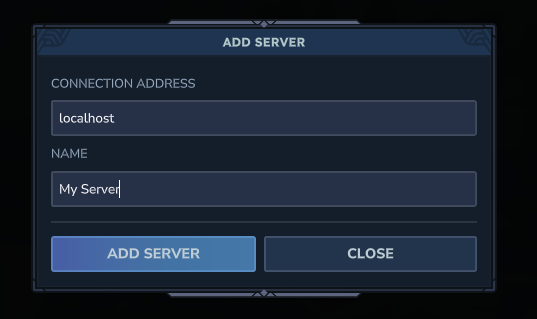
Localhost redirects your computer to any program that is locally hosted on your computer without having to send a request to your router. Using your IP address to connect will usually not work as that would instruct your computer to send a request to your router to connect to this address.
Whenever you request your router to connect to an IP located inside your home, it’s possible that the connection will be blocked for security reasons enforced by your internet service provider.
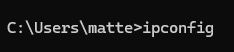
If you want to connect to your server with another device under the same roof, you will need to use the IPv4 address of the computer hosting the server. To get the IPv4 address (on Windows):
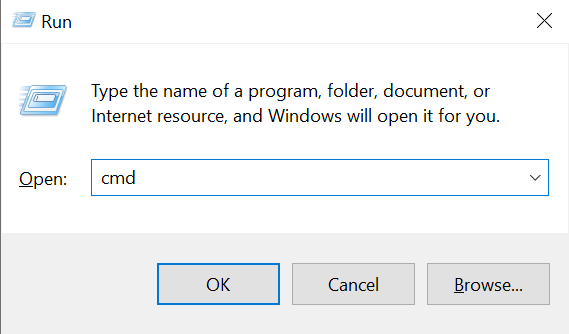
- Type "Windows + R"
- Enter the "cmd" command.
- Enter the "ipconfig" command.
Step 8 (Optional): Allow Strangers to Join Your Server
By default, the game is using the port 5520 of your network to host the server. This port is accessible locally and so your router will block strangers from accessing it. That being said, the "portforward" process to let strangers access this port can get complicated fast and will heavily depend on how your router is set up.
Here’s what you’ll need to do:
- Your router has a web page where you can manage settings – access it by entering the IPv4 address inside your browser like a regular URL.
- Once inside the settings menu, you can set the router to portforward the 5520 port (refer to Step 7 on how to get the address).
Tip: Every router is different, so this article unfortunately cannot cover each make and model. However, you’ll typically be able to find tutorials and guides available for port forwarding if you type your particular router model in your browser.
Note on security: Forwarding the 5520 port alone will not expose you to any security risk, unless your Hytale copy or the mods themselves have been compromised.
How Server-Side Modding Works
As mentioned, Hytale's modding approach is server-side first, which means the server drives the modded experience. Most mods are server plugins or asset packs packaged as ".jar" files. You place them in the "mods" folder inside the “Server” folder, then simply restart your server, and in most cases players can join without separate client mod downloads.
As with all things Hytale, the Early Access factor still applies here, so version matching, dependencies, and backups matter.
Steps to a Trouble-free Server Install Flow
Here's the practical step-by-step guide for adding mods to a dedicated Hytale server.
Step 1: Pick Mods That Match Your Server Build
Make sure mods match Early Access and your server's current build. Hytale Update 3 added explicit server-side version checks for plugins and asset packs, so mismatches are more likely to get flagged now.
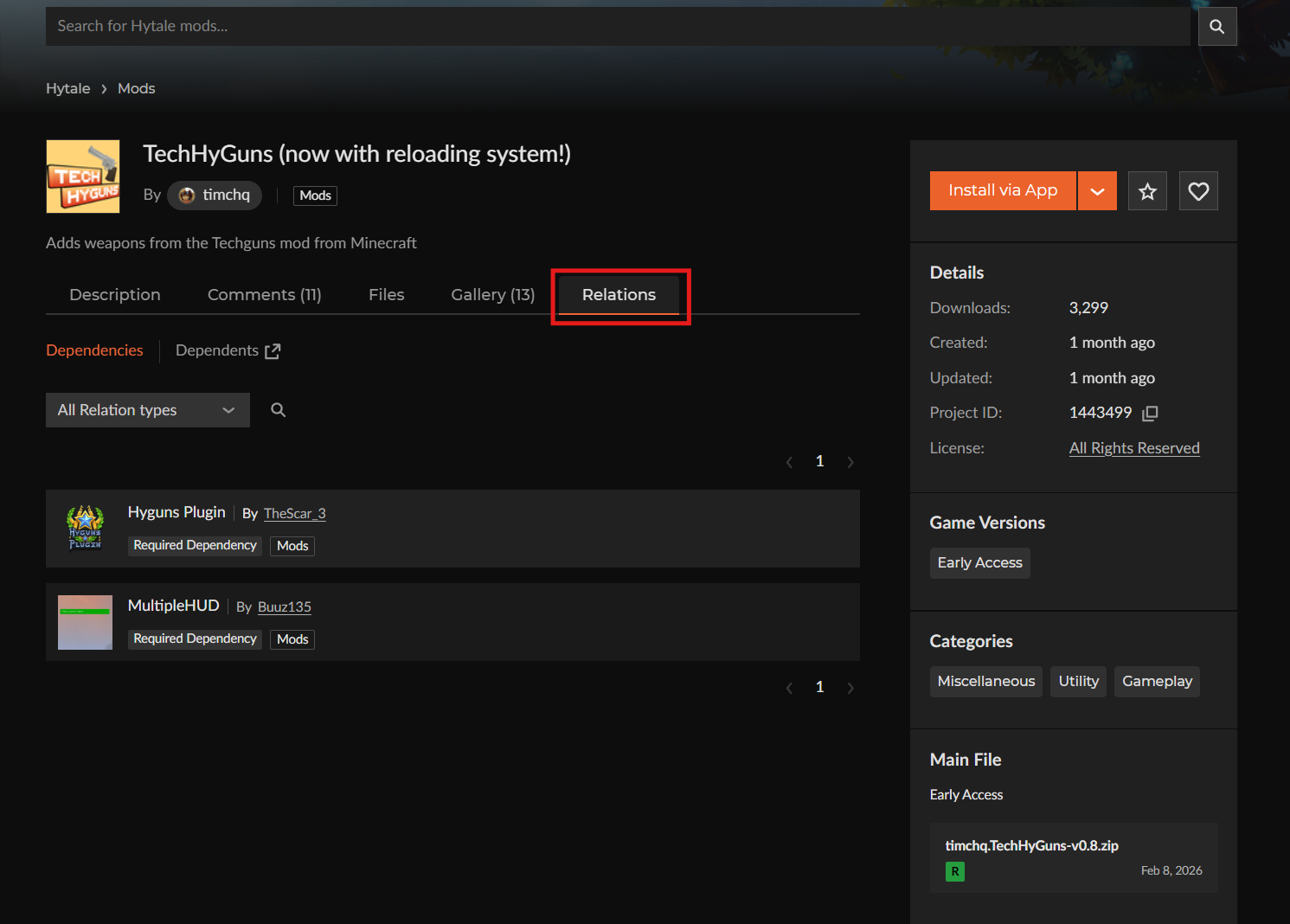
Step 2: Check Dependencies on the Mod Page
Some mods work on their own, while others need dependencies or helper mods to function properly. Check the mod's CurseForge page for required dependencies before installing as missing a required dependency can make a mod load without working properly.
Step 3: Download the Mod File
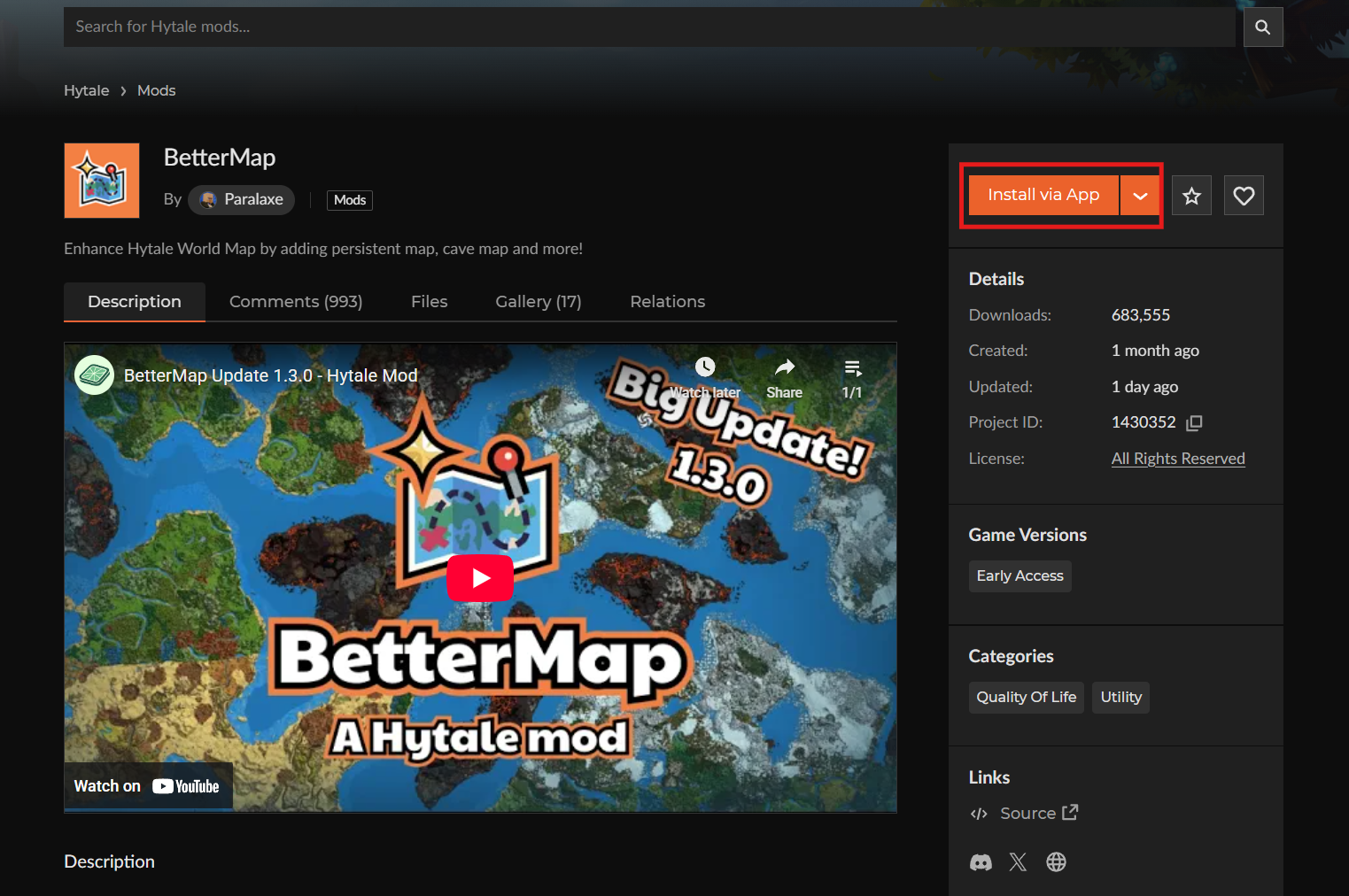
If a mod page shows "Install via App", the CurseForge app can fetch it for you. Alternatively, download the mod manually from the CurseForge website.
Step 4: Place the File in Your Server's Mods Folder
Drop the ".jar" file into your dedicated server's "mods" folder. That folder is part of the documented server file structure.
Step 5: Restart Your Server and Check Logs
Either start or restart your server and watch the logs for warnings about duplicates and validation. Update 3 added duplicate plugin detection warnings and tightened mod validation behavior.
Step 6 (Optional): Review Configuration Folders
Some mods generate per-world config folders inside your world or server folders. Check the mod's page for details on where configs are stored and whether they update after saves.
What to Check Before Adding Mods
Understanding these key touchpoints helps keep your server stable now and saves you troubleshooting time later.
Version Alignment
Version alignment is important as server build, protocol, and mod versions all need to match to work properly. Hytale Update 3 introduced stricter checks, and mismatches can prevent the server from starting or lock players out.
Required Dependencies
If a mod says it requires another mod, that requirement matters. Some mods are frameworks that other mods build on, while others are content packs that need those frameworks to work. Without the required dependencies, mods can load but may fail to function.
Mod Validation and Skip Options
Mod validation is the process where Hytale checks that installed mods are compatible with your server version and won't cause conflicts or crashes. Update 3 changed how this works. Validation issues can now block server startup unless explicitly allowed. A skip mod validation option exists for single players, but for dedicated servers, keeping mods updated and compatible is safer than skipping checks.
Permissions and Operator Commands
Some mod commands are admin-only as the server uses a "permissions.json" file in its root structure. Check which commands require operator permissions and decide who gets access before players discover them.
World-specific Config Behavior
Some mods write configs into world or server folders. Check the mod page notes for where configs are stored and whether they update after saves. This helps with backups and troubleshooting later.
Routine Backups
The Hytale team recommends frequent backups during Early Access. To help with this, each server supports "—backup" and related options. Regular backups let you roll back if a mod causes issues or if something breaks during an update.
Common Issues and Quick Fixes
The server refuses to start after adding a mod
This often points to validation and version checks. Update 3 introduced server-side version checking for plugins and asset packs, and mod validation issues can block server startup. If a server stops booting right after adding one new mod, that mod probably doesn't match your server build yet. Check the mod page for compatibility notes and update if needed.
Players cannot connect after the server updates
Right now, the client and server need to be on the exact same protocol version, and mismatches may get players rejected. After an update, you might see a temporary split where players update fast but servers update slower. The result looks like the server is offline, but it's really a version mismatch. To fix this, update your server to match the client version.
A mod loads, but its items or features don't show up
A missing dependency is usually the first suspect. Check the mod's CurseForge page for required dependencies and make sure they're all installed.
A command exists, but players cannot use it
Some mods are built with admin-only commands. Check the mod page for permission requirements and configure your server's "permissions.json" file accordingly. Note that some features are intentionally restricted to server operators.
You see duplicate warnings or weird double behavior
Update 3 added duplicate plugin detection warnings. The common cause is having the same mod installed twice, either as two different versions or as an accidental copy. Check your server's "mods/" folder and remove any duplicates.
Mods work in singleplayer but not on the server
Make sure the mod file is in your server's "mods/" folder and not residing just in your local game folder. Server and client use different mod folders, and mods need to be installed server-side for them to work in multiplayer.
Frequently Asked Questions
Can players join without installing mods?
In most cases, joining a modded Hytale server should not require separate client mod downloads. Hytale's modding strategy is built around server-side hosting, so the server drives the experience and players can join without needing to download external mod packs. The one caveat is that the game is still in Early Access. Distribution flows and dependency management aren't fully polished yet, so occasional rough edges are still normal.
How do world-specific mods work?
For local play and local hosting, mods can be enabled or disabled per world through the world’s settings. That's also a great pattern to test different mod combinations. On dedicated servers, installed mods live in the server’s "mods" folder and are usually managed at server level. Many admins handle different mod combinations by running separate server instances or separate worlds rather than trying to hot-swap mods mid-world.
When should "skip mod validation" be used?
Update 3 explicitly mentions "skip mod validation" as a singleplayer option, best used as a testing lever for local worlds – as long as you understand the risks involved. For dedicated servers, Update 3 says validation issues can block startup unless explicitly allowed, which tends to push most server setups toward a safer default: keeping mods updated and compatible rather than skipping checks.
Do I need a test environment before adding mods?
While not a necessary requirement, it can definitely help. This is great for keeping a small test world where new mods can be tried out before they go on the main server. Hytale explicitly warns stability can be rough and data loss can happen in this phase, so having a way to test mods beforehand can help you avoid breaking your live server.
What happens if I remove a mod from my server?
Removing a mod that had previously added items, blocks, or features to your world may cause issues. For instance, those items may disappear or become unusable. If you're removing a mod, it’s best to back up your world first and test in a separate copy to see if something breaks.
I’m having trouble setting up my server, can you help?
Absolutely! Simply join the official CurseForge Discord Server to get community help with all things Hytale modding and server setup.