When you download a mod for Minecraft or other Java-based games like Hytale, you get a .jar file. Some programs treat it like a regular archive, which raises the question: should you extract it before installing, or just use it as-is?
Short answer: No – you should just place the .jar file in your mods folder without unzipping it since mod loaders typically only look for .jar files. If you extract it, mod loaders won’t recognize it as a mod.
And now, for the longer answer!
How Mod Loaders Read .jar Files
JAR is short for Java Archive – a single file containing other files that in turn contain all the required code, assets (things like textures, models and sounds), and data (things like recipes and loot tables) that the game needs to load a mod.
Minecraft mod loaders like Forge, Fabric, Quilt, and NeoForge – or in the case of Hytale, the built-in mod loader – are designed to look at these .jar files and then tell the game to load all the code, assets, and data contained within.
When you launch the game, the mod loader scans your mods folder, finds every .jar file, opens each one as a self-contained package, and loads everything inside. However, for this to work, they need to actually be .jar files.
Extracting the .jar instead would turn it into a regular collection of files that mod loaders will no longer know how to deal with (except for when working with mod development environments).
What Happens If You Unzip a Mod?
If you extract a .jar file, you end up with a folder full of .class files (this is the code that .json files use for everything from models to recipes), textures, and other loose data. You may also find additional .jar files here as some mods may come pre-packaged with their required dependencies for easier installation.
If you do decide to unzip the mod, while the game may still launch, the mod won't show up. Instead, it may get ignored because mod loaders expect .jar files – though you might be able to find the error messages if you dig through the log files.
So, if you unzip a mod and drop the folder into your mods directory, you've basically uninstalled it.
.jar vs .zip - Which Is Which?
.jar files are technically .zip archives under the hood because they share the same file structure. That's why some file managers let you open a .jar like a .zip, and why your computer might even show a .jar with a .zip icon (or the default archive manager icon associated with apps like WinRAR/7zip).
How do I edit a Mod by Unzipping It?
While you can edit mods by unzipping them, changing the files and then rezipping back into a .jar is not recommended for many reasons, including legal reasons (some mod licenses do not allow modification), sharing reasons (mod upload sites like CurseForge do not allow modified .jar mod files) and game-not-crashing reasons (mods don’t like to be modified). Instead of editing the mod directly, you have a few options, depending on your games and what you want to change:
- Datapacks can be used in Minecraft to override vanilla or modded recipes, loot tables and other data files (basically anything found inside the mod’s "data" folder) without editing the mod directly. Find out more on the Minecraft Wiki.
- Resource Packs can be used in Minecraft to override vanilla or modded sounds, textures, models, or other assets (basically anything found inside the mod’s "assets" folder) without editing the mod directly. Find out more on the Minecraft Wiki.
- Asset Packs can be used in Hytale to override vanilla or modded assets, which for Hytale includes everything from item definitions to textures and modes.
If the modification requires editing the mod’s source code (which cannot be edited easily as it is found in compiled .class files) make sure to check the mod’s config files (the "config" folder for Minecraft or the relevant subfolder within the Hytale "mods" folder) to see if the change can be made there.
You could also contact the mod’s author directly to see if the change can be made officially to the mod, or if it can be incorporated as a new configuration option.
How to Install Mods (for Minecraft)
How to Install with the CurseForge App
- Open CurseForge → Minecraft and create a profile with the mod loader and version you need (Fabric, Quilt, NeoForge, or Forge).
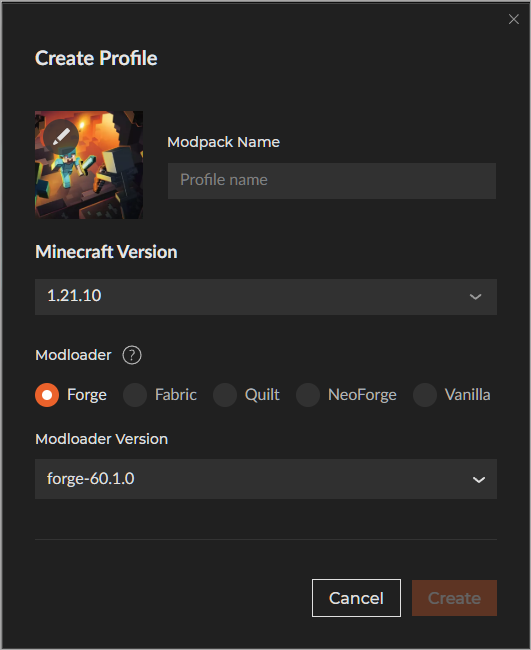
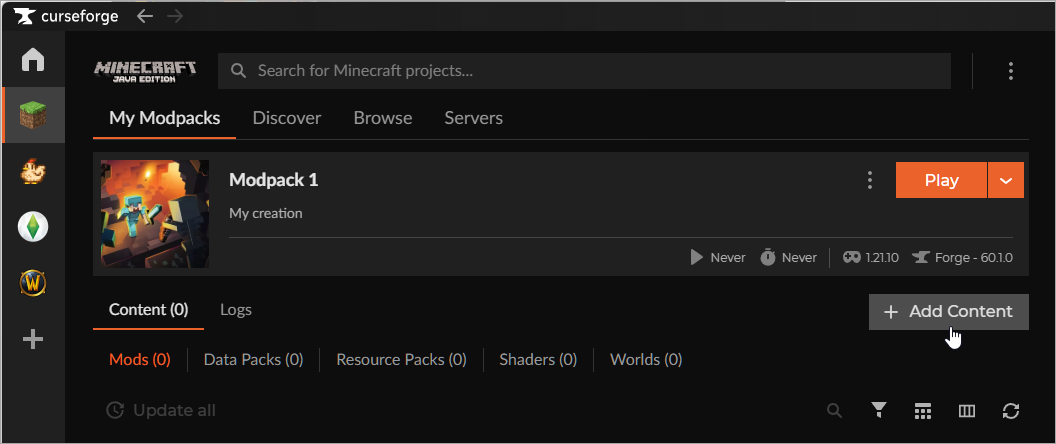
- In the profile screen, click "Add Content" (or open the three dots menu next to "Play" and choose "Add Content").
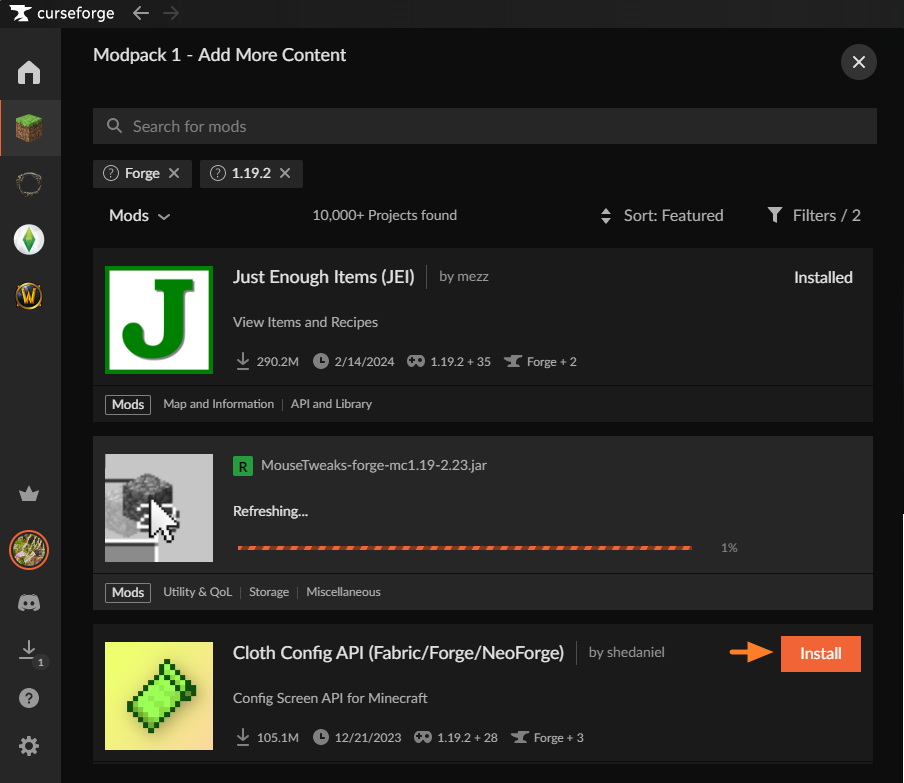
- Search for the mod you need and click "Install".
- Play from the CurseForge app.
How to Install Mods Manually
- Install a mod loader that matches your Minecraft version (Fabric, Quilt, NeoForge, or Forge).
- Run the installer to add a new profile in the Minecraft Launcher.
- Download the mod's .jar file from its project page. Make sure both the Minecraft version and loader version match.
- Drop the .jar into the "mods" folder inside your ".minecraft" directory (create the folder if it doesn't exist).
Common mods folder locations:
- Windows: %appdata%.minecraft\mods
- macOS: ~/Library/Application Support/minecraft/mods
- Linux: /home/<your-username>/.minecraft/mods
- Launch Minecraft using the new loader profile.
Common Issues and Quick Fixes
The mod is not showing up after I installed the .jar
- Check that the .jar file is in your mods folder and not in a subfolder. Mod loaders typically only scan the mods folder itself and not subdirectories.
- Verify that your mod loader version matches what the mod requires. For example, a Forge mod won't work with Fabric, a mod built for Minecraft 1.20.1 won't work in 1.19.2, etc.
- Make sure you've installed any dependencies the mod lists on its page. Many mods require libraries or other mods to function properly.
I accidentally unzipped the mod – now what?
No worries – simply delete the unzipped folder from your mods directory. Next, download a fresh copy of the .jar file from the mod's project page and place it in your mods folder without extracting it.
The game crashes when I add the mod
This is likely due to a version mismatch. Check the mod's "Files" tab on CurseForge to see which game versions and mod loaders it supports, then make sure everything matches your setup.
Some mods may also conflict with one another. If the crash started after adding a specific mod, try removing it to see if the game now launches. You could also check the mod's page for known conflicts.
My browser downloaded the file as .zip instead of .jar
The file itself is fine – it just needs the right extension so your mod loader can recognize it.
If this happens, simply rename the file extension from .zip to .jar. To make this possible, ensure that file extensions are visible in your file explorer settings, then right-click the correct file to rename it.
The .jar file won't go into my mods folder
Start by checking your folder permissions. On Windows, your user account may need full control over the mods folder. On macOS, make sure the game has permission to access the folder.
If you're using CurseForge, you would need to place the file in the mods folder for the profile you are currently using as each profile has its own separate mods directory.