The multiplayer functionality of Minecraft is, in part, a major reason it became one of the biggest video games of all time. Sharing the ever-expansive adventure with as many friends as possible is the perfect way to create countless memories.
But how, exactly? Minecraft Java Edition has multiple ways to play multiplayer, each with their own conveniences and complications. But before you can decide which method is right for you, you need to know how they work. Below, we've broken down all the different ways you can play Minecraft Java with your friends so you can make the best choice.
How To Play LAN
Playing together in a LAN game is the easiest free way to play multiplayer in Minecraft Java. The catch? Everyone has to be connected to the same router for this method to work. Local Area Network for short, LAN allows all devices to connect to the same physical router.
Here is how this work in practice:
- Choose one player to be the host.
- Start up a singleplayer world.
- Once loaded, select the "Start LAN" button in the pause menu.
- Choose a game mode, whether to allow commands, and a port forwarding address. Be sure to keep track of that port forwarding number. You might need that later if you have connection trouble.
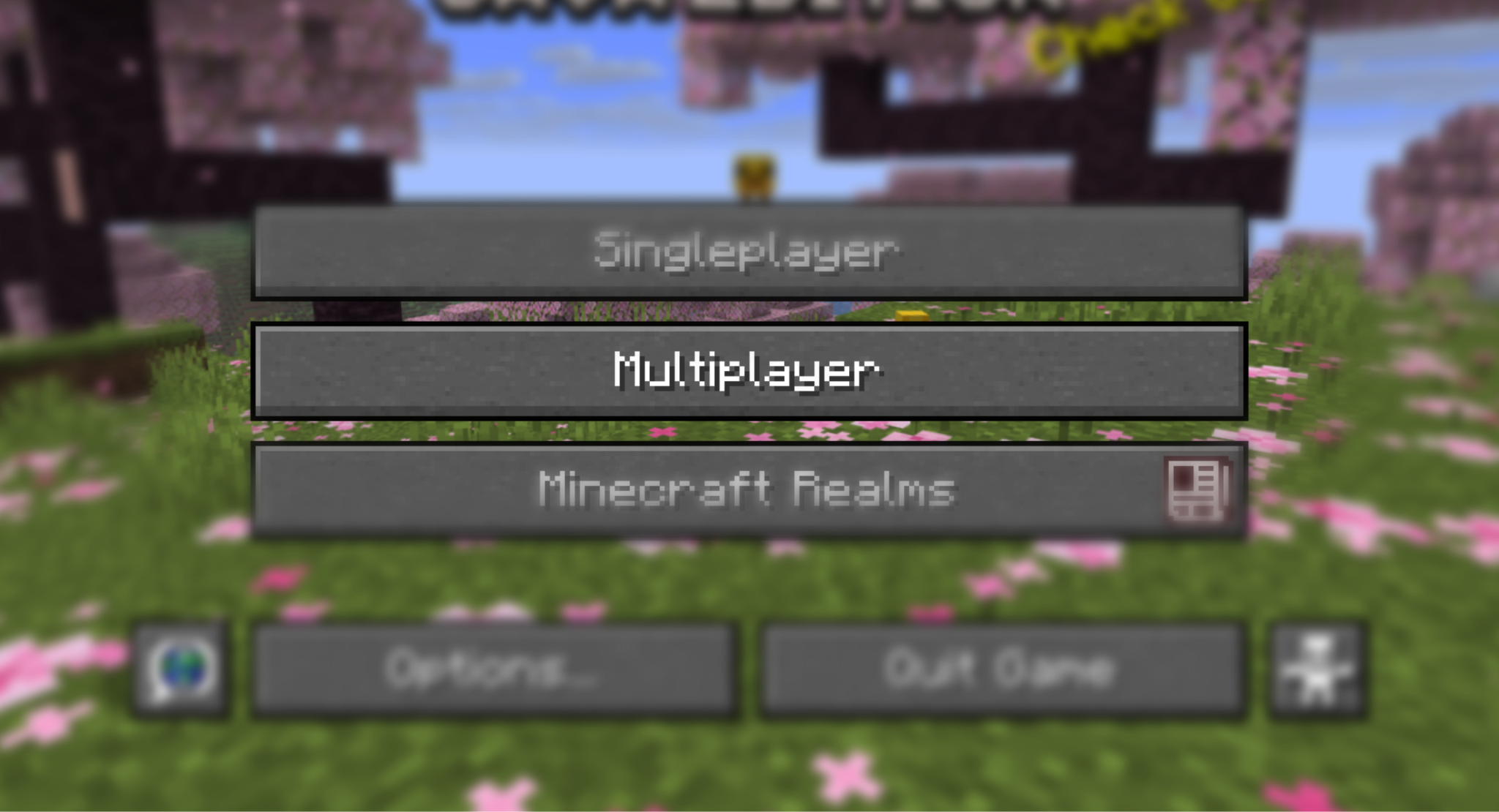
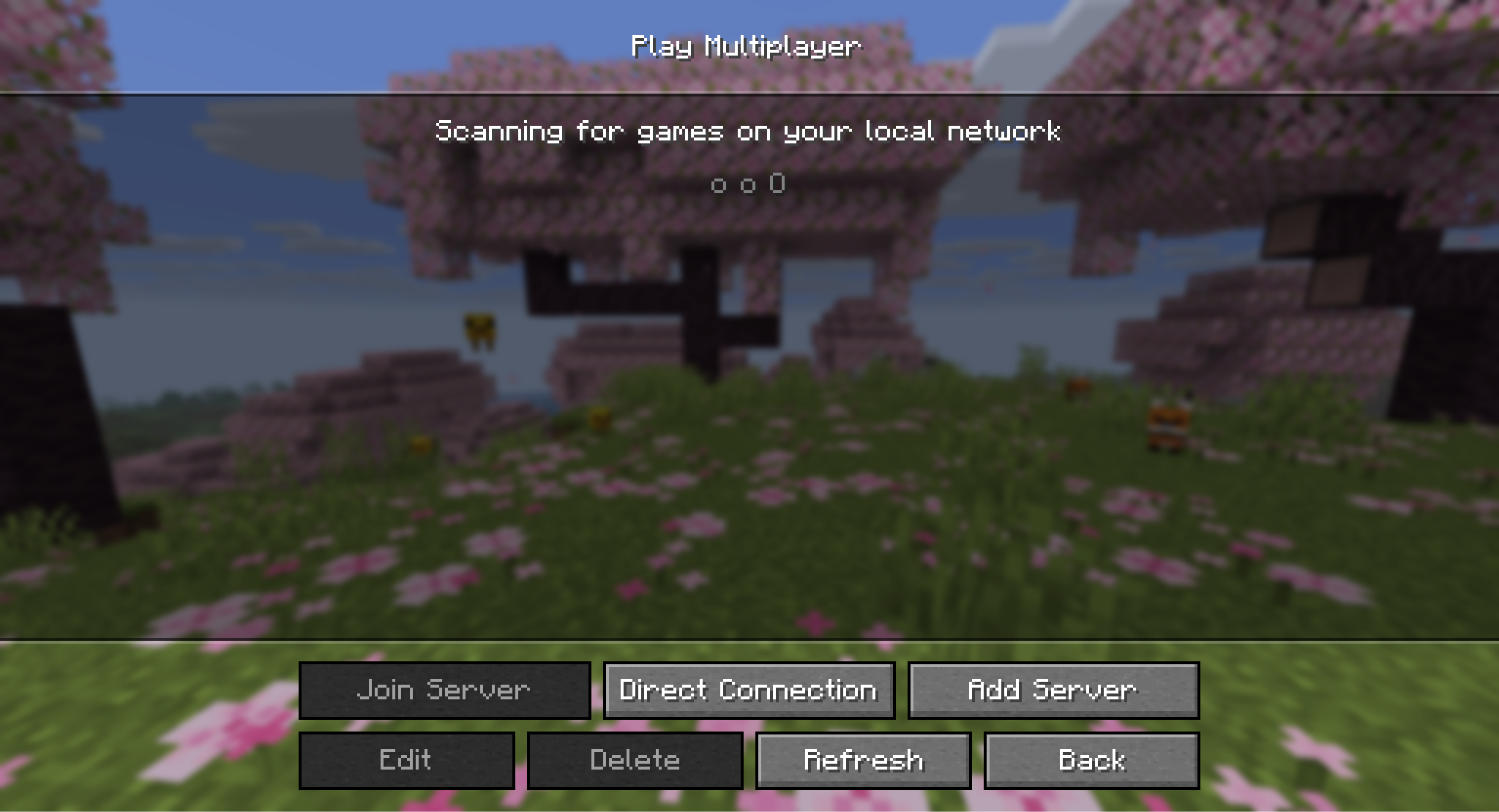
- Once activated, everyone else can join by going to the multiplayer menu. The host's game should automatically appear as an option.
- Click to join and you're good to go!
Tip: You can use a shared VPN service to play with friends over the internet by "tricking" the game into thinking you are all on the same LAN connection. This requires some strong technical skills, however, and should only be done by someone familiar with network security and after extensive research as it is both hard and unsafe for security reasons. Note that this approach is also notorious for leading to lots of bugs, so thread with caution here.
How to Play on a Traditional Server
The classic way to play Minecraft with friends, a server is an online-hosted Minecraft world that can be accessed by anyone with an internet connection.
- Find the URL of the server you want to join.
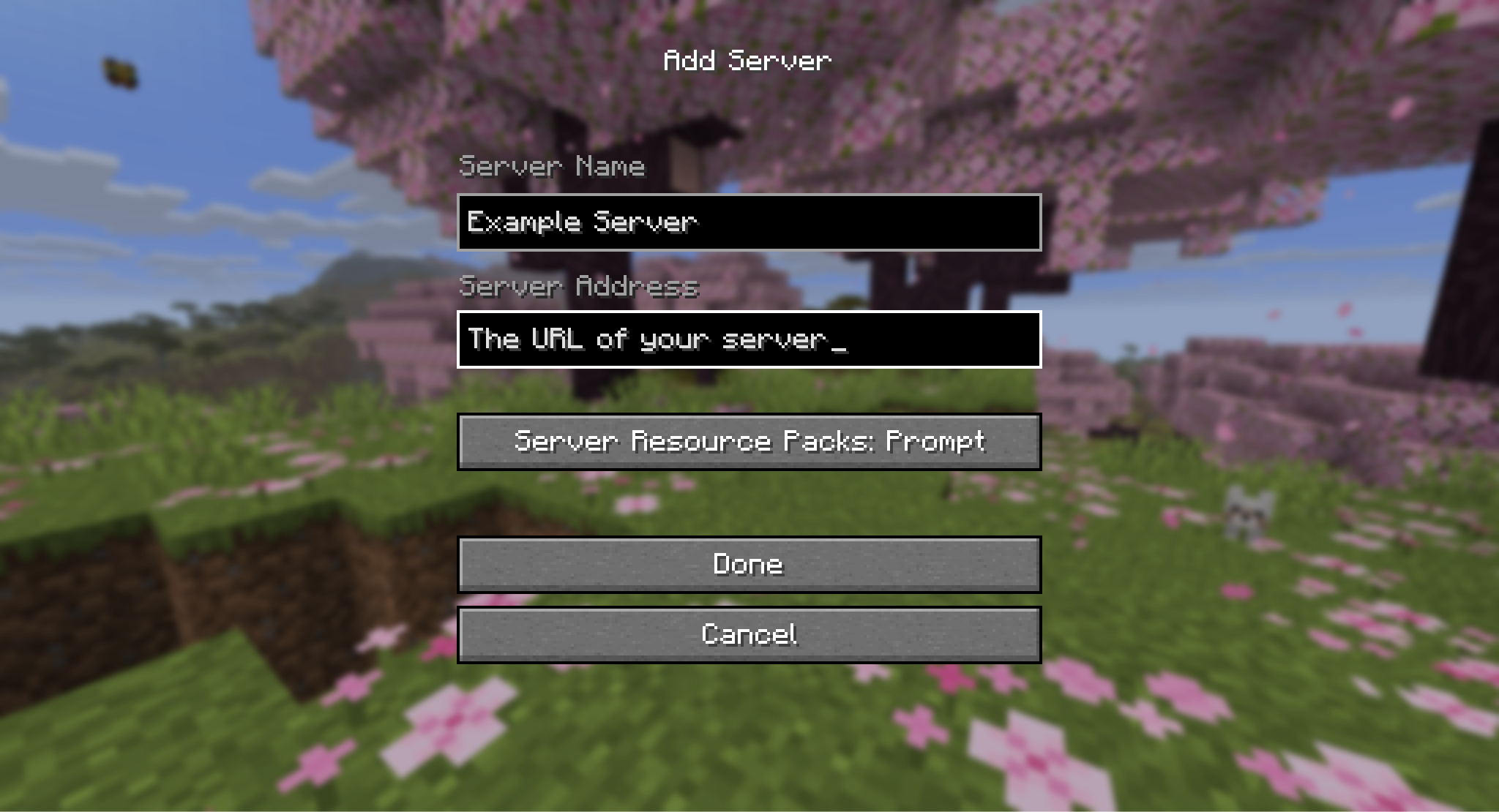
- Go to the multiplayer menu and select the "Add Server" button.
- Add a name and address. The URL goes in the address section. The name can be whatever you choose. Once done, Minecraft will save this server information.
- Select the saved server from the multiplayer menu to join immediately.
There exist plenty of free-to-join Minecraft servers online, each with their own rules, modifications, and communities. You or a friend could also set up your own server, but that requires either hosting it yourselves for free or paying a hosting service to run the server for you.
How to Play on a Realms Server
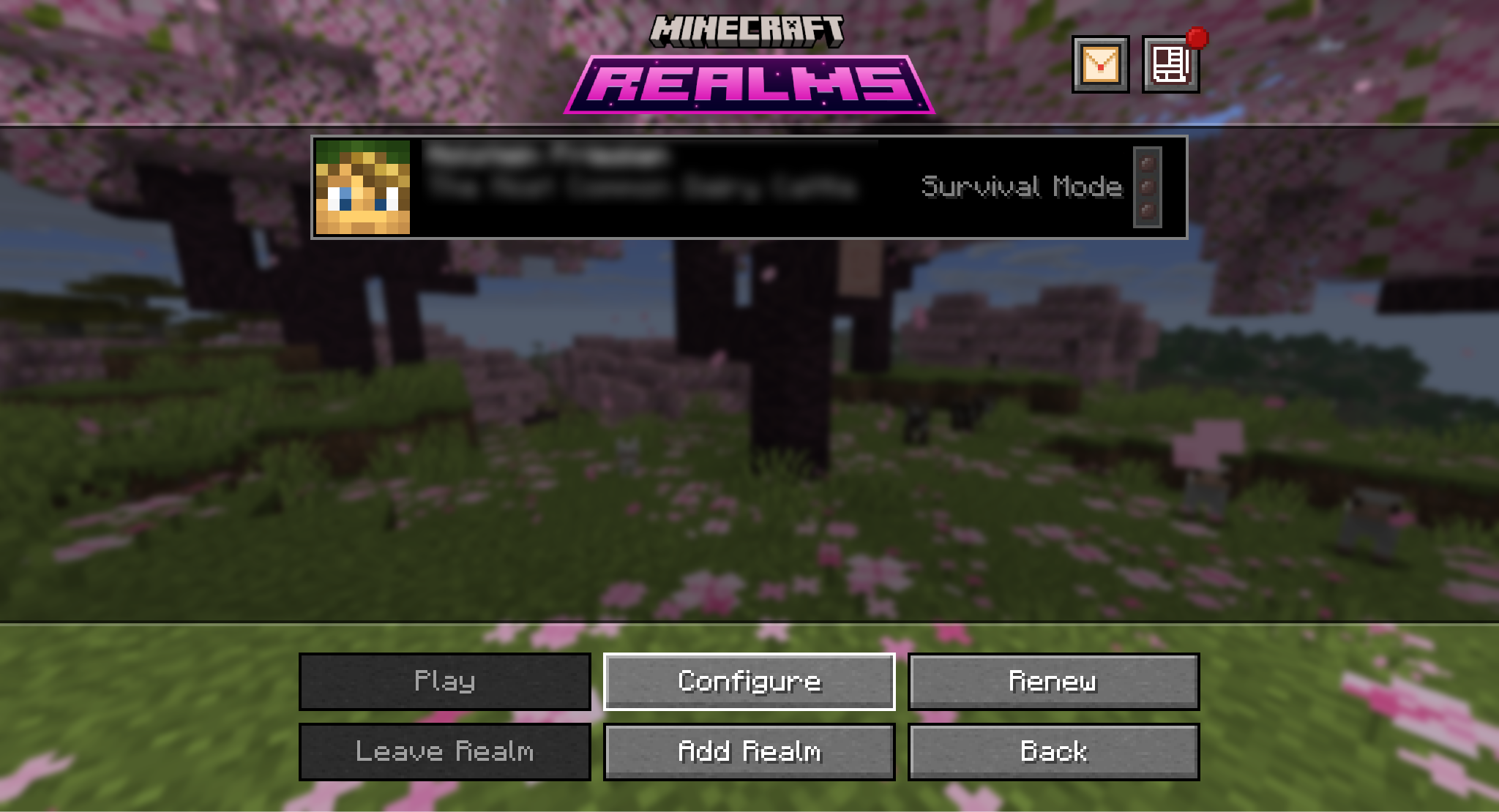
Realms is Minecraft's own in-house hosting service. Unlike a traditional server, everything is handled through Minecraft's in-game menus, making it one of the most convenient ways to have your own private multiplayer server.
Joining is a bit less straightforward, though. Whoever owns the Realm needs to invite everyone else manually.
- Press the "Configure" button while their Realm is selected in the Realm menu.
- Go to the "Player" tab.
- Press "Invite Player" button.
- Type in the name of the player's Minecraft username.
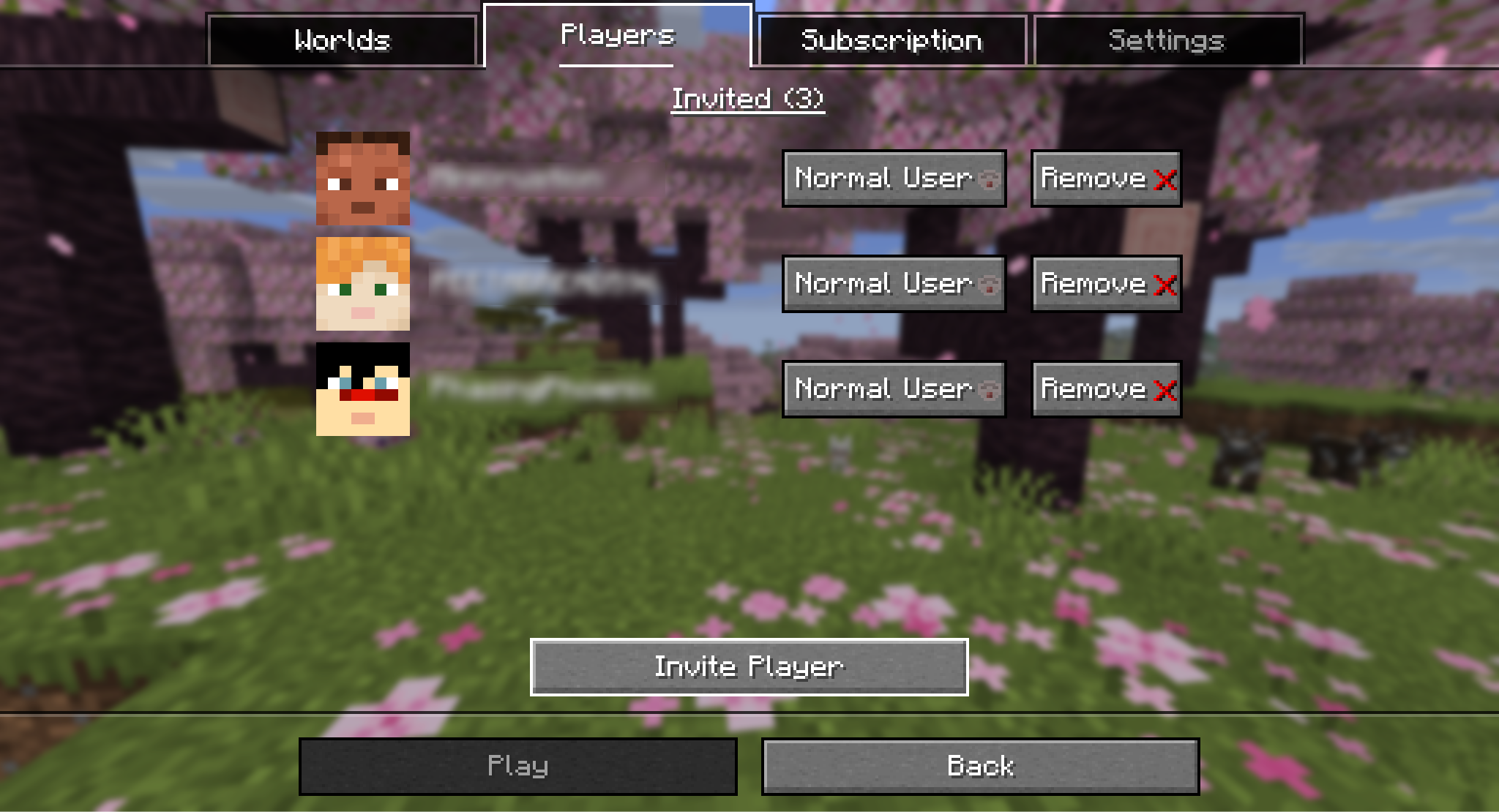
You'll know you invited them successfully when the face icon shows that player's character skin. Players can be managed from this menu as well, for instance if you want to grant them more user privileges or kick them out.
Like a traditional hosted server, Realms also costs a monthly fee, making it the least approachable option for players without a budget.
Minecraft Mods that Make Multiplayer Better
Ender Storage 1.8.+
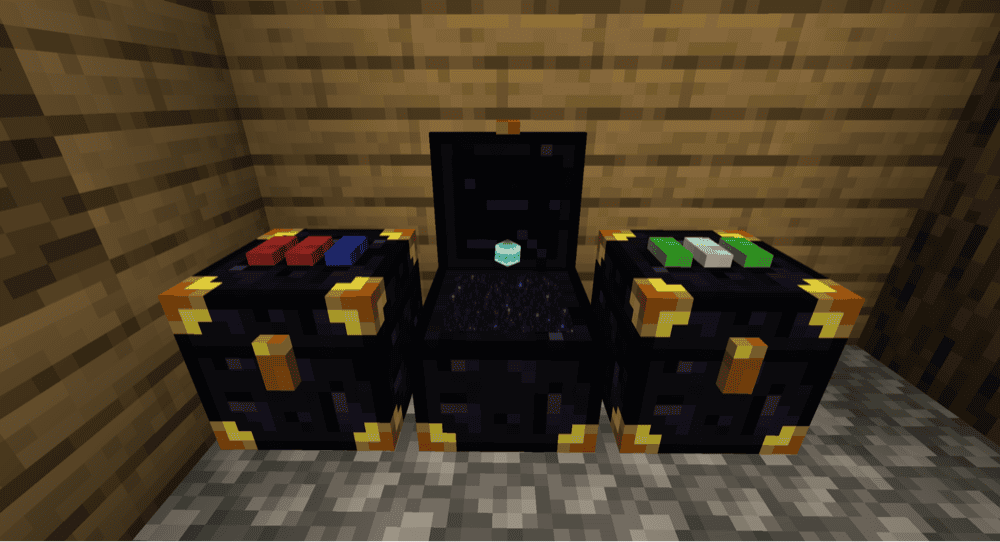
Security is one of the biggest challenges of playing Minecraft in multiplayer. Your chests full of gear and loot could be rummaged through by any other player at any time. The only exception is an Ender Chest, which only you can access.
Ender Storage expands on that idea, creating a system for multiple separate Ender Chests using a color-coded ID system, granting you over 4,000 chests that you and only you can access. Now THAT'S security.
Corpse
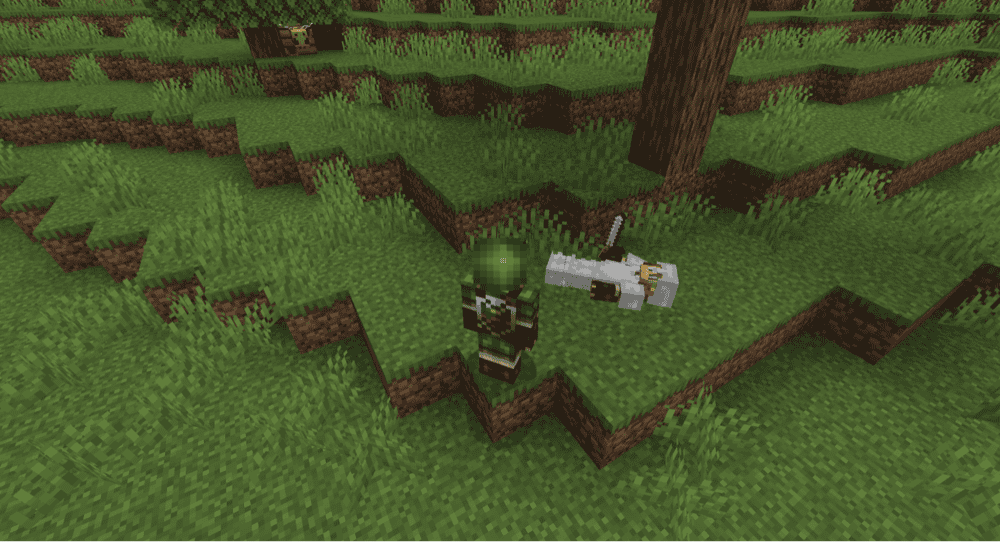
Dying and dropping all of your items is an incredibly frustrating event. Playing in multiplayer makes it even worse – your items might despawn faster or get picked up by another player.
Corpse solves both problems by creating a copy of your corpse that holds onto all of your items for as long as you need. Acting as a storage container, it keeps your stuff safe from mobs, lava, despawning, and if configured right, other players.
Simple Voice Chat
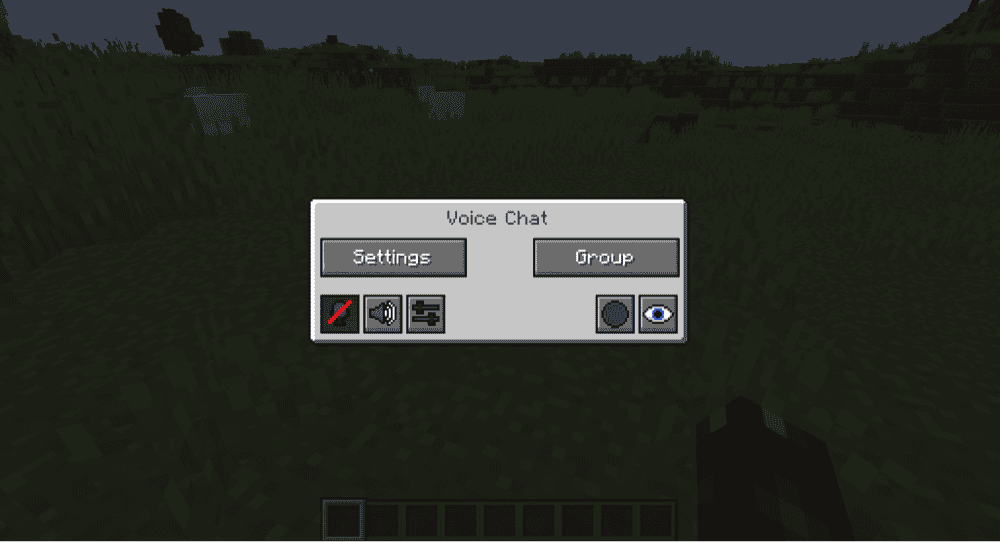
Simple Voice Chat is probably the most popular mod for servers as it implements an easy-to-use proximity voice chat feature right into Minecraft.
It features all of the staples of voice chatting, like voice detection, proximity sound, private channels, and more. This makes it a perfect pick for both large group servers and private ones where you’ve invited just a few friends.
How to Install Minecraft Mods
You can install the above mods automatically using the CurseForge app or manually by placing the mod files within your game’s mods folder. Both methods allow you to easily add custom features and enhancements into your vanilla Minecraft experience.If you want to learn more, you can read our detailed guide on how to install Minecraft mods.
Common Issues and Quick Fixes
A LAN world is open, but not appearing in the "Multiplayer" menu
Sometimes, depending on security, a LAN-open game won't naturally appear in the menu. To fix this, have the host find out their "internal IP," then select "Direct Connection" in the Multiplayer menu, type in that IP followed by a colon sign, and enter the port number they set when starting the LAN game.
It should look something like this: "192.168.00.25:65535"
The host can find out their internal IP by opening the "Command Prompt" (press the Windows key and type "cmd"), and typing in "ipconfig." Pressing enter will cause a bunch of text to appear – find the line that says "IPv4 Address." The number right next to it, on the same line, is their internal IP.
I invited a friend to my Realms server, but they still can't join
Double-check that the username is spelled exactly how their Minecraft account spells it, including capitalization.
It needs to be their exact Minecraft username as well and not their Microsoft/Xbox username, which can be different, especially if the player has had an account for a long time. If they are unsure what their Minecraft username actually is, they can find out by booting up a singleplayer game and typing anything in the chat.
My version of Minecraft is different from that of my friends
Multiplayer requires that everyone be playing on the same version of Minecraft to play together. If you can’t join a server, either you (or them) have updated to a newer version of the game. Alternatively, either you (or them), have a modded version of Minecraft that’s causing compatibility issues.
If you're playing Vanilla Minecraft, you can check and change what version of the game you're playing from the Minecraft Launcher. To play an older version, select the "Installations" tab near the top of the launcher and click "New Installation". From these, select the version you want to play, give it a name, and proceed as usual.
Can I play with mods on a vanilla Minecraft server?
Yes! But only to a certain degree. Some mods are "client-side only," meaning they can still work on vanilla servers.
These are usually UI mods like minimaps or inventory changes, though. Mods that change how the game works, like new mobs, powers, or items, won't work and you'll likely encounter an error when trying to join the server.