Maps in Minecraft are one of those items that seem simple until you actually try to use them. You craft one, it's blank, you hold it and nothing seems to happen, and then suddenly it starts filling in as you move. They work well once you understand the rules, but there are a few things worth knowing before you start – especially when it comes to Java vs. Bedrock Edition differences.
This guide will cover how to craft and activate a map, how to use the cartography table to zoom and copy them, and which mods are worth looking at if you want something more flexible than the standard vanilla system.
What You Will Need
For a standard map on Java Edition:
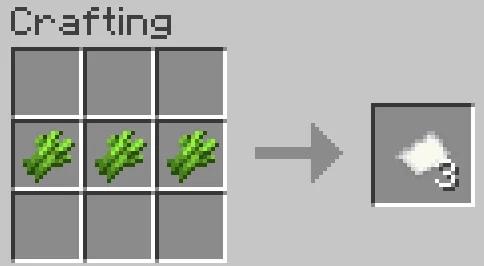
- 8 pieces of paper: crafted from sugar cane, with 3 sugar cane making 3 paper.
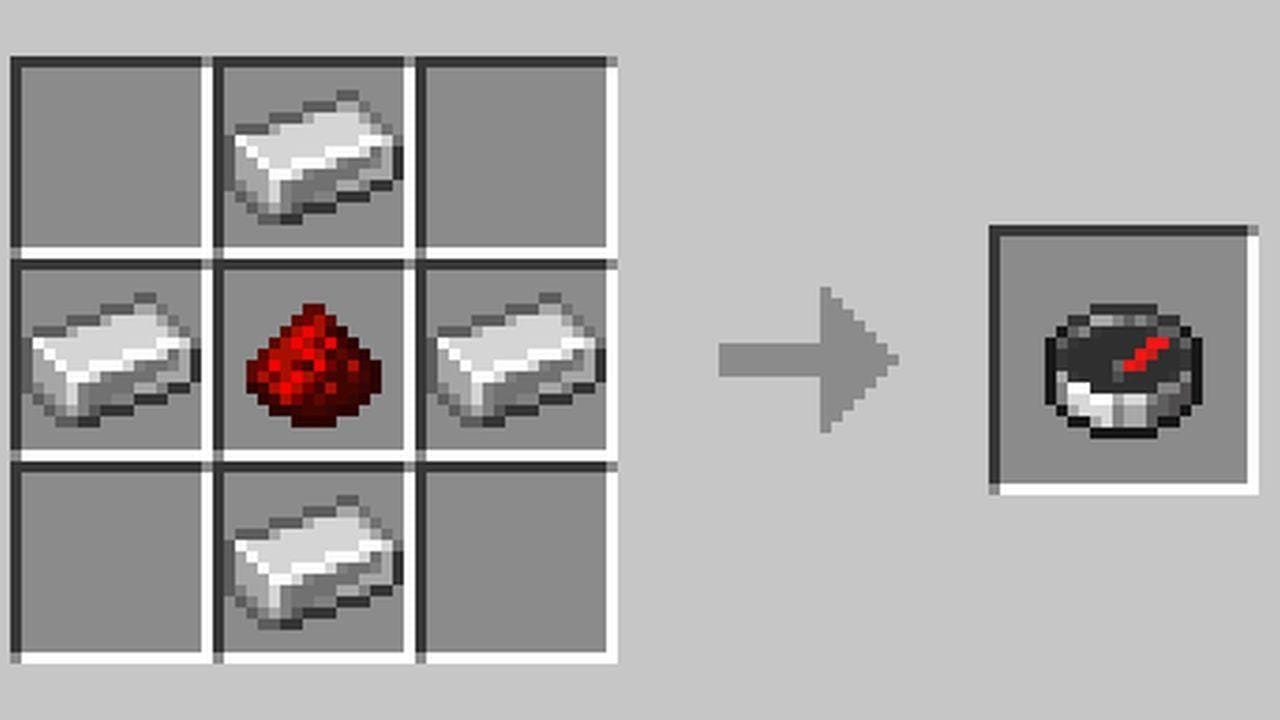
- 1 compass: crafted with 4 iron ingots and 1 redstone dust.
For Bedrock Edition, the recipe works differently. You can make a plain empty map with just 9 paper and no compass – it records terrain but won't show your position. To get a locator map that tracks where you are, you can either craft paper with a compass the same way as Java, or use the cartography table to add locator behavior afterward.
For upgrading maps, you'll also want a cartography table – crafted from 2 paper and 4 planks of any wood type – as it’s more material-efficient than regular crafting for most map operations.
How to Make a Map Step by Step
Step 1: Gather Sugar Cane and Smelt Iron
Sugar cane grows near water in most biomes. Three sugar canes in a row gives you three paper pieces. For the compass, mine iron ore with a stone pickaxe or better, smelt the raw iron into 4 iron ingots, then combine those ingots with 1 redstone dust at a crafting table.
Step 2: Craft the Map
On Java Edition: place 8 paper pieces in every slot of the crafting grid except the center, then put the compass in the middle. This gives you an empty map.
On Bedrock Edition: the same recipe gives you an empty locator map. If you want a plain map without the position marker, use 9 paper pieces with no compass.
Step 3: Activate It
This is the step most players miss. A freshly crafted map is blank and does nothing while sitting in your inventory. To activate it, place it in your hotbar and right-click (Java) or use it (Bedrock) while holding it. The map initializes around your current position and immediately starts recording the terrain you're standing in.
Step 4: Explore to Fill It In!
Walk around while holding the map and the terrain will fill in around you. A base-scale map covers a 128x128 block area. The map only updates while that map is being carried in your hand, so keep it out while exploring the area you want to record. If you build or dig in an area after mapping it, return there with the same unlocked map – or a copy of it – to update what appears on the map.
How to Use the Cartography Table
The cartography table handles four operations more efficiently than the crafting grid:
- Zoom out – put your map on the table with a piece of paper to scale it up one level. A map can be zoomed out four times, going from 128x128 blocks at base scale up to 2048x2048 at maximum zoom. Each zoom level doubles the coverage but reduces the detail.
- Clone – put your map in the table with an empty map to duplicate it. Both the original and the copy show the same area and update together. This is useful for wall displays or sharing with other players.
- Lock – put your map on the table with a glass pane to freeze it. A locked map stops updating, making the terrain image permanent. This is good for finished wall maps you don't want accidentally changed.
- Extend – on Bedrock Edition, the cartography table also lets you create empty maps and add locator behavior by combining a map with a compass.
Making a Map Wall Display
If you want to cover a large area with maps mounted on a wall, the process is straightforward. Craft or zoom multiple maps so their coverage areas tile together without gaps, then mount them on item frames on a flat wall. Item frames can be placed on solid blocks, and maps display fully inside them.
A map wall does not update just because you are nearby. To keep it current, carry a cloned copy of the same map while exploring, then return to the wall. Locked maps never update, which makes them useful for finished displays.
Mods That Expand Mapping in Minecraft
Vanilla maps are functional but limited. These mods cover a few different approaches – from real-time minimaps with full world mapping features to more immersive atlas-style maps that still feel close to vanilla Minecraft.
JourneyMap
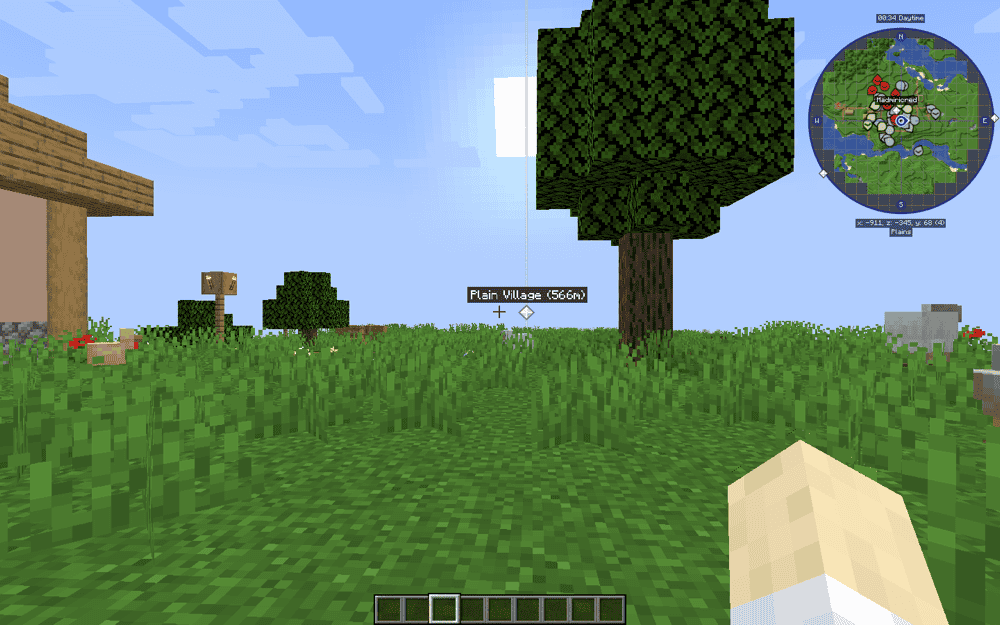
JourneyMap is a client-side and server-side mapping mod that records your Minecraft world in real time as you explore. It adds an in-game minimap, a full-screen map, and a browser-based map view, so the same explored world data can be viewed in different ways.
On the client side, JourneyMap handles the map display players actually see while playing. The server-side part is mainly for multiplayer settings and feature control, so server owners can manage how the mod behaves on their server. Mapping and visualization still need the mod on the player’s client for both to work, though.
Xaero's Minimap
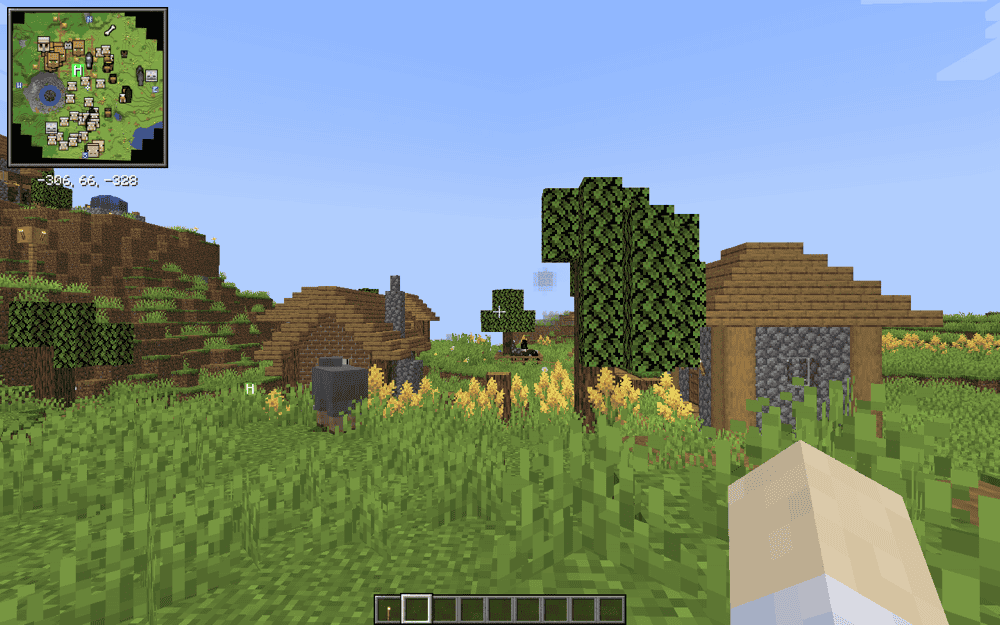
This mod adds a clean corner minimap that aims to match the visual style of vanilla Minecraft rather than looking like a third-party overlay. It shows explored terrain, entity dots or icons, waypoints, and your coordinates, with adjustable shape and zoom settings. You can also press "Z" to temporarily enlarge the minimap for a better look at your surroundings.
“Xaero’s Mininimap” naturally pairs with Xaero's World Map, which adds a full-screen self-writing world map that you can open by pressing "M". When both are installed together, the minimap reuses textures generated by the world map instead of rendering them separately, which in turn improves in-game performance compared to running either mod in isolation.
Note: While some players prefer this map mod over “JourneyMap”, it is worth remembering that “Xaero’s Minimap” occasionally causes FPS lag, so use it with caution.
Map Atlases
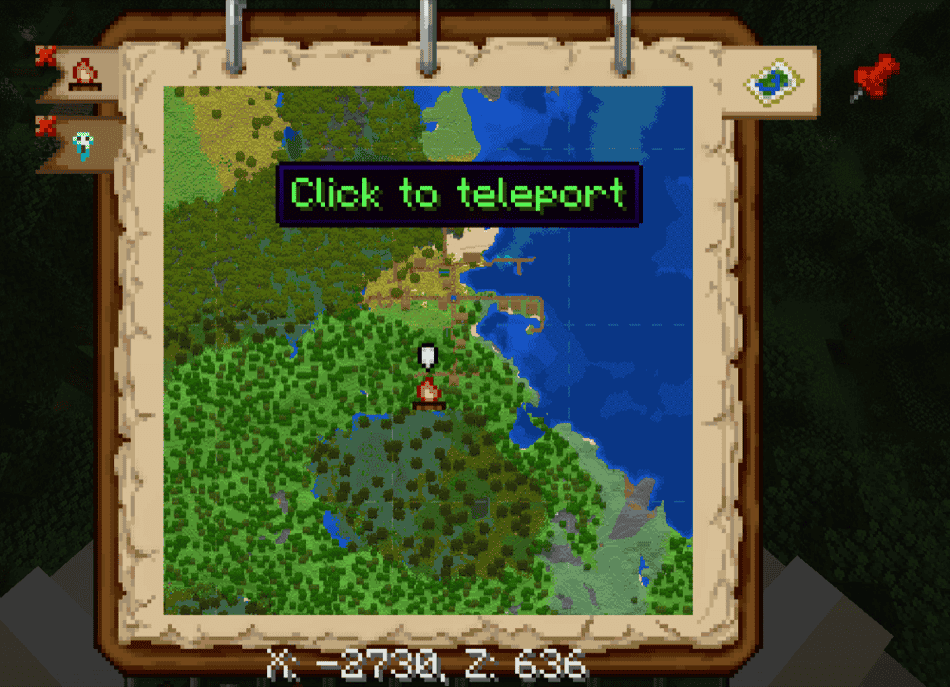
Map Atlases adds a craftable atlas item built around vanilla Minecraft maps. The atlas is made with a filled map, a book, and a sticky item like a slimeball or honey bottle, then expanded by adding filled or empty maps through crafting or a cartography table.
The atlas can show a minimap while it is active in your hotbar or off-hand, and it can consume empty maps when you enter unmapped regions. It also adds a world-map view that can be opened from the atlas, with support for panning, zooming, dimension bookmarks, and map decorations.
How to Install Minecraft Mods
You can install the above mods automatically using the CurseForge app or manually by placing the mod files within your game's mods folder. Both methods allow you to easily add custom features and enhancements into your vanilla Minecraft experience.
If you want to learn more, you can read our detailed guide on how to install Minecraft mods.
Common Issues and Quick Fixes
The map is blank and nothing is appearing
You've crafted the map but haven't activated it yet. Hold it in your hand and either right-click it (Java) or use it (Bedrock). The map starts blank by design and only begins recording terrain after that first activation. Once active, you'll see it start filling in as you walk around.
The map doesn't show where I am on Bedrock Edition
You made a plain empty map instead of a locator map. On Bedrock, a map without compass behavior records terrain but doesn't track your position. Either craft a new map using paper and a compass, or use a cartography table to add a compass to your existing map.
Zooming the map doesn't seem to work
A blank or freshly activated map can't be zoomed in or out until it has some terrain data recorded in it. Explore a bit first, then try the cartography table. Also make sure you're combining it with paper and not another map – paper allows you to zoom in, while an empty map simply duplicates it.
The map shows old terrain that I've since built on
Vanilla maps update only when the relevant map is being carried and the area is loaded around you. If you build or dig after mapping an area, return there while holding the same unlocked map – or a cloned copy of it – so the map can refresh. Locked maps never update at all by design.
JourneyMap isn't loading or the minimap isn't showing
First check that your JourneyMap version matches your exact Minecraft version – the mod has many version-specific releases and the wrong one won't load. In-game, press "J" to check if the full-screen map opens at all. If the minimap is missing but the full-screen map works, it may be toggled off – if so, press "Ctrl" + "J" to toggle the minimap overlay on and off.
Map Atlases isn't adding new regions as I explore
Check whether the atlas is locked – a locked atlas won't consume new maps or expand further. Also make sure you have empty maps in your inventory, since the mod consumes one each time you enter an unrecorded region. In creative mode this isn't required, but in survival it is. If the atlas is active but still not expanding, check that the mod's Moonlight Lib dependency is properly installed alongside it.
Game crashes at startup after adding a mod
A crash right after launch usually means something in the mod setup does not match. Check that the mod supports your exact Minecraft version and the loader you are using. Next, check the mod page for required dependencies and make sure those files are installed too, with versions that match your Minecraft version and loader.