Paintings are one of the best ways to transform your base into a true home base. These decorations are affordable, accessible, and provide an unrivaled splash of color to whatever wall you place them on.
But if you want the right painting for the job, there are a few things you need to know first. In this guide, we’ll give you the low-down on how to craft the painting item in Minecraft, how to get the specific painting you're after, and look at some mods that are sure to appeal to any Minecraft art collector.
Crafting Your First Painting
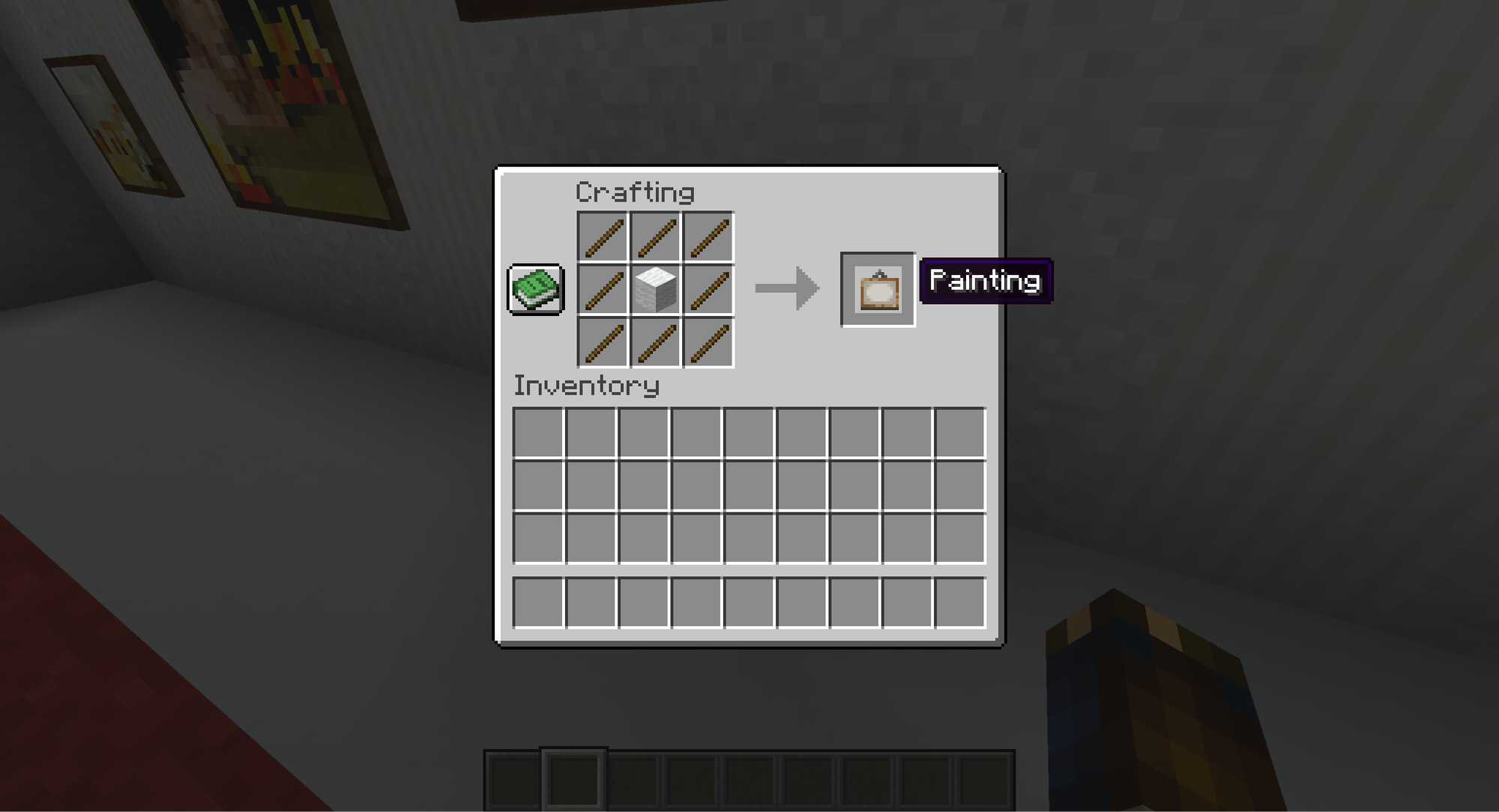
To craft a painting, surround one wool block of any color with sticks on a crafting table. Once crafted, hold the item and activate it against any wall to place it. Paintings come in nine different sizes, ranging from one block to 4x4 blocks.
You won't know what painting you'll get, though. It's randomly chosen every time you place it. If you don't like the painting or the placement, strike at it to instantly break it. It will then fall to the ground as the painting item again.
If you don't want to craft your own paintings, you could also buy them from master-level shepherd villagers. They will offer you three paintings for two emeralds. But given the ease of access to sticks and wool, the high value of emeralds, and level of effort to level a shepherd villager up to master-level, we don't recommend this route.
Getting a Specific Painting
With over 40 different paintings available, getting the one you want can be a challenge. Fortunately, depending on what's available to you, there are ways to get specific paintings and sizes without pulling your hair out.
Paintings and "Survival Mode"
For "Survival Mode" players, you can limit the size of the painting by breaking away the wall you want to place it on. A 2x2 block wall won't spawn a 4 x4-sized painting, for example. Here are the step-by-step instructions:
- Shape the wall to the exact size you want.
- Place the painting.
- Break and then replace the painting until you get the one you want.
- Rebuild the wall.
Paintings and "Creative Mode"
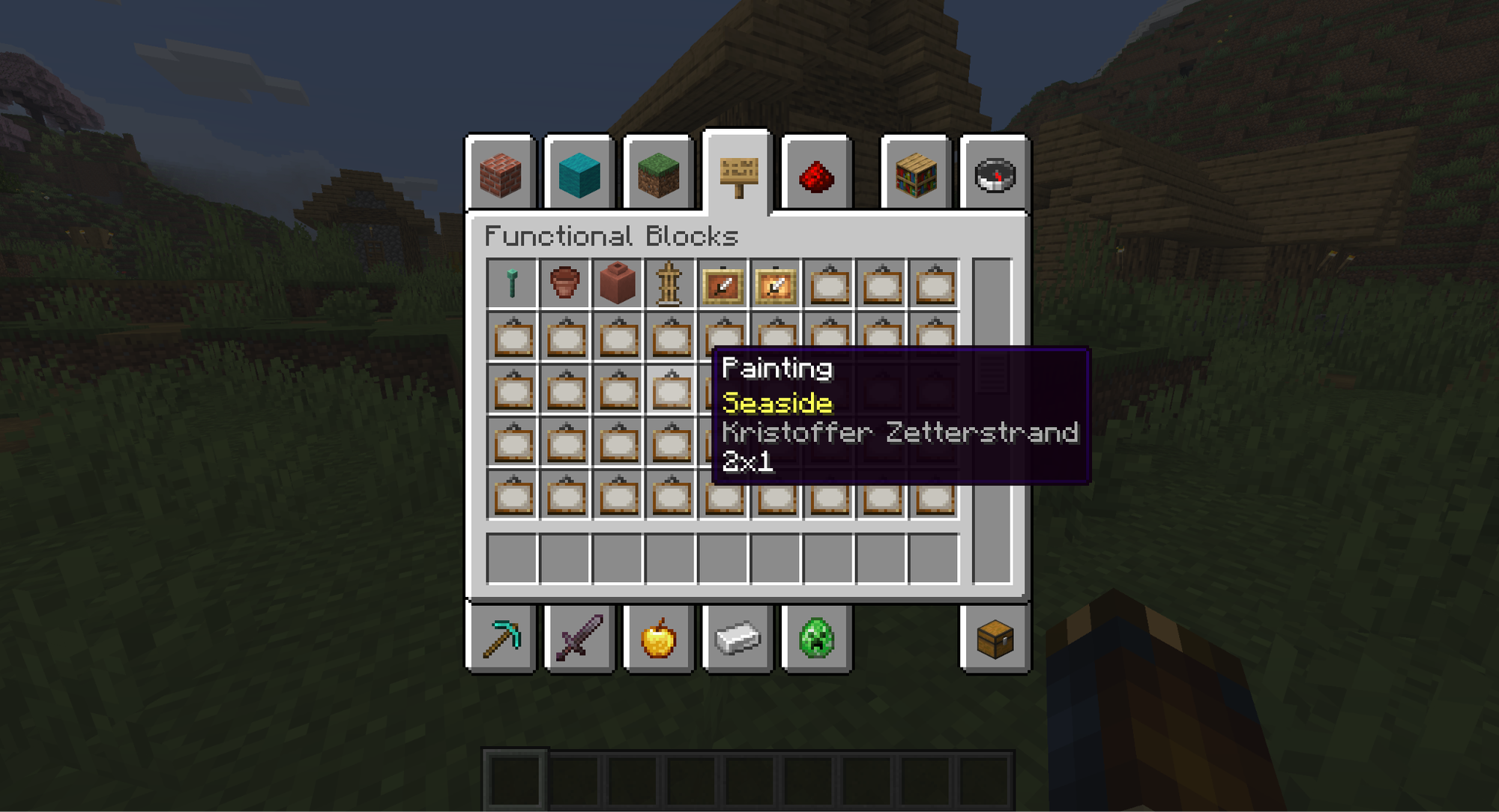
"Creative Mode" saves you from the trouble of having to place and break paintings repeatedly. Instead, every single painting variant can be found under the "Functional Blocks" tab inside the creative menu, with the title, original artist, and size of the painting all conveniently listed.
Using In-Game Console Commands
Available in both "Creative" and "Survival" modes if you have cheats enabled, console commands give you (or another player) a placeable version of a specific painting. To take advantage of this, type the following command into directly chat:
"/give USERNAME minecraft:painting[minecraft:painting/variant="PAINTING"]"
Note: Replace "USERNAME" with the username of who should receive the item and "PAINTING" with the name of the painting you want. Just make sure that commands are enabled for the world you're in and that you have the proper permissions to use them.
Mods That Expand Minecraft's Palette
Paintings are great and all. But after being stuck with the same art set for over a decade, you might have grown tired of seeing the same visuals every time. Or perhaps you just don't care for that particular art style – and that’s completely fine.
No matter the reason, one way to mix up the Minecraft art scene is through modding. Luckily, the Minecraft community has already developed all sorts of mods related to paintings. The ones below are some of our personal favorites.
Dark Paintings
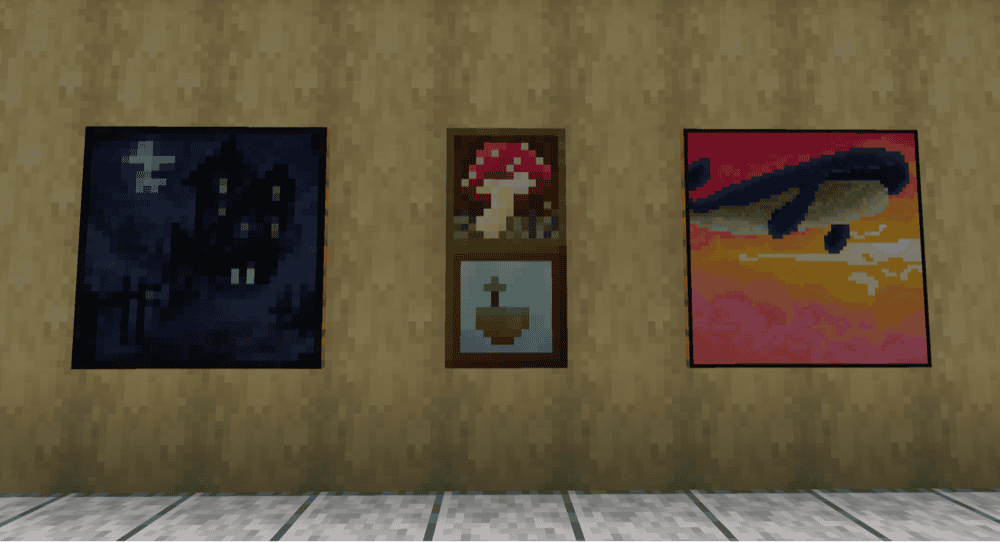
If all you want is more paintings, then this is the mod for you. Dark Paintings more than doubles the number of paintings that can appear when placing down the vanilla painting item.
Don't let the name fool you, however, for the new paintings aren't all dark. This project features art from several members of the community, each with their own style.
Joy of Painting
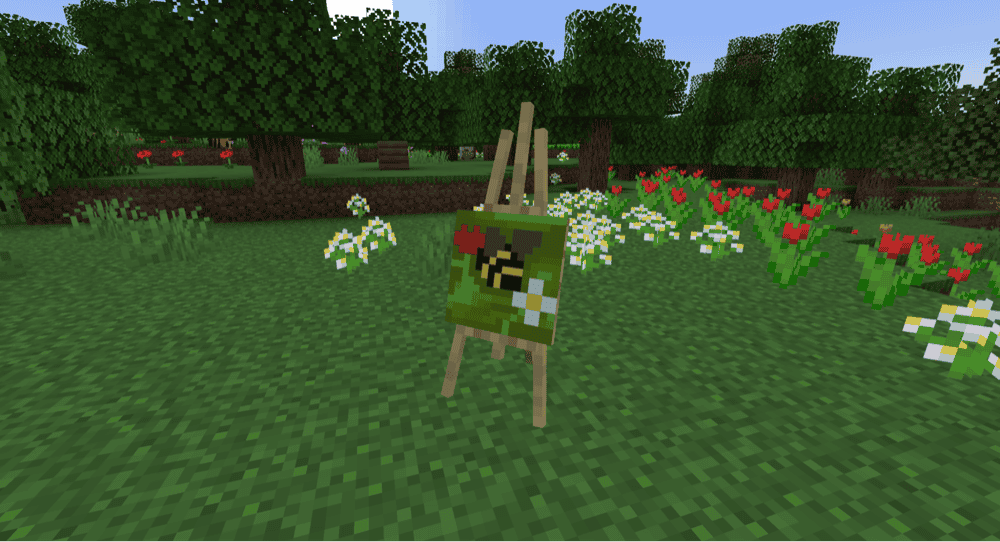
Don't be an art collector, be an artist! The Joy of Painting mod grants you the ability to paint things yourself. Place an easel, put a canvas on it, and use a palette to begin.
Depending on which canvas size you use, you'll have a limited number of pixels to draw on. We suggest starting out by using a handful of provided colors, then blending them together to get new ones. For the cherry on top, each completed painting can also have its own title and you'll naturally be credited as the artist.
Dimensional Paintings
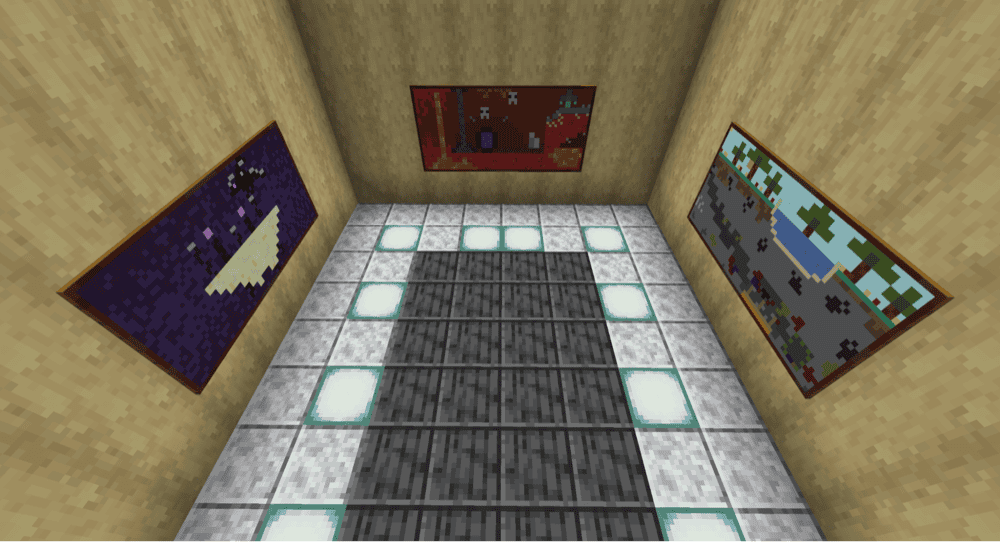
Were you a big fan of Super Mario 64, where jumping into paintings transported you into new worlds? This mod does exactly that. With a painting for the Nether, End, and Overworld, colliding with each one will teleport you to the realm that they depict.
Just make sure you have an Overworld painting with you when you go, otherwise you might find yourself trapped in that other dimension with no way of going back.
How to Install Minecraft Mods
You can install the above mods automatically using the CurseForge app or manually by placing the mod files within your game’s mods folder. Both methods allow you to easily add custom features and enhancements into your vanilla Minecraft experience.If you want to learn more, you can read our detailed guide on how to install Minecraft mods.
Common Issues and Quick Fixes
There aren't specific paintings in the "Creative Mode" menu
The ability to organize paintings by variants in the "Creative Mode" menu wasn't introduced until version 1.19.4. If you're playing on an older version of the game, that feature might not be present yet.
To solve this, try updating the game, if possible. If not, console commands will be your fall-back option.
A specific painting item changed after I broke it
While specific painting items (the kind acquired from "Creative Mode" or console commands) will guarantee the outcome of the painting when placed, breaking that painting will still result in a generic painting item drop.
Unfortunately, there's no way to "undo" this change once it's broken off the wall. Instead, you'd need to use the previously mentioned methods to get that specific painting item again.
The hidden door behind painting trick isn't working
Paintings only accept solid blocks, so any gaps will force them to behave like smaller paintings instead. Additionally, breaking the block behind a painting will cause it to break alongside it, too.
To successfully “trick” the painting into covering up a gap, we recommend placing blocks that are classified as solids but are still small enough to walk through. These include (but are not limited to):
- Trap doors;
- Redstone repeaters;
- Fences.