Villages are one of the most interesting locations in Minecraft. These large, established structures make for easy homes, providing quick loot and plenty of villagers to trade with.
Finding a village, however, can be a hassle. There's no indication as to where you should go, and the nearest one might be much further away than expected. Instead of wandering aimlessly, teleporting directly to one might be a better option.
Below, we’ll look into ways you can do just that to save yourself heaps of time.
Teleporting on Java Edition (PC Only)
There are a handful of important differences between Minecraft Java Edition and Bedrock Edition. If you're playing on Java Edition, here's everything you need to know.
Minecraft has a series of built-in console commands that make managing your world easier. This includes a teleportation command. But before you can use that, you need to have a few permissions in place.
- In a singleplayer world, the world needs to have "Allow Commands" enabled at world creation.
- If "Allow Commands" was not enabled, you can temporarily enable it by starting the singleplayer world on a LAN server, where you will have the option to enable commands.
- In multiplayer worlds, you will need to be granted OP status by either the server or another OP. This is short for "Operator" and allows the user to perform potentially game-breaking commands.
How to Use the Java Edition "Locate" command
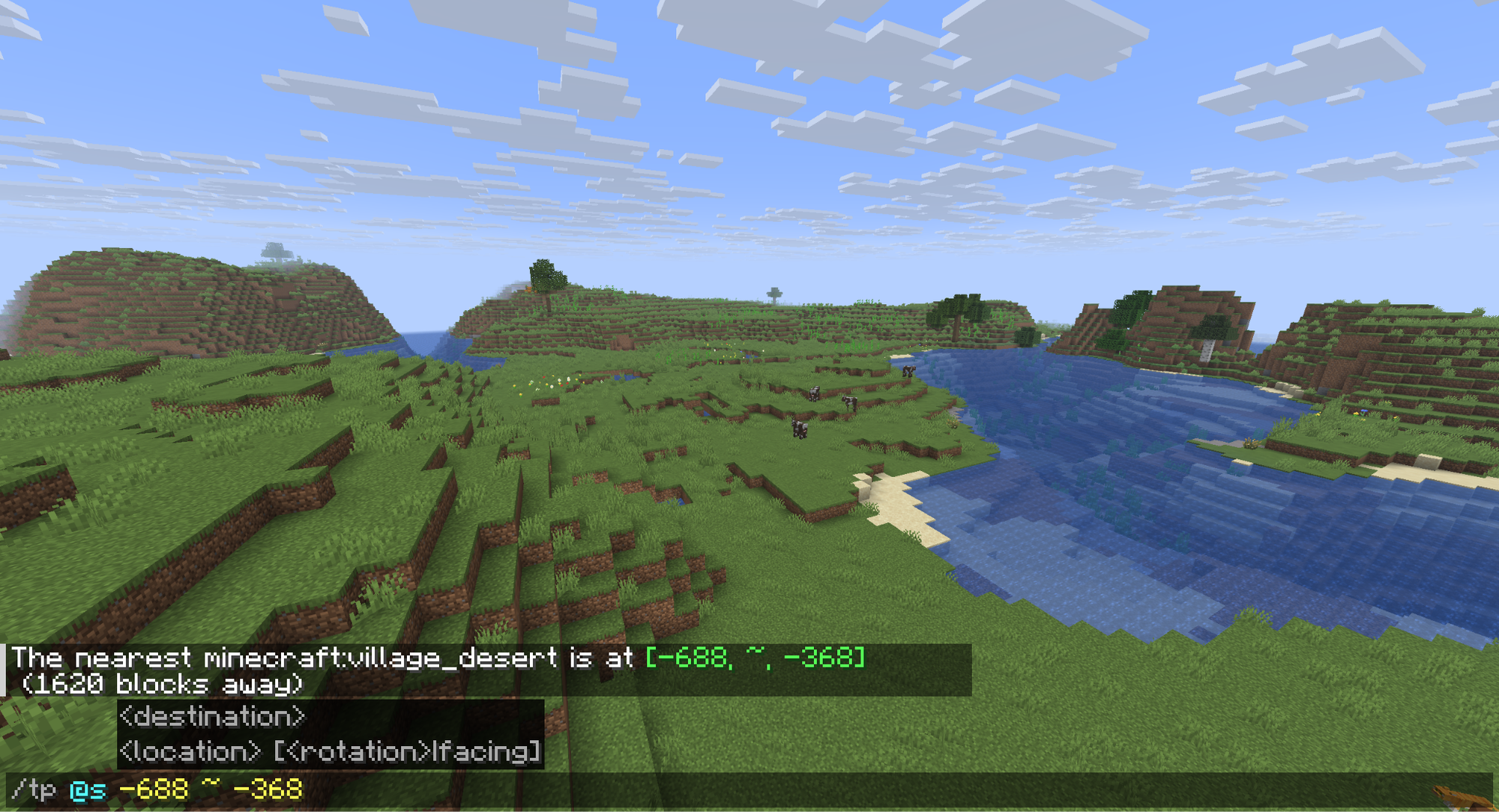
Before you can teleport to a village, you need to find one. If you don't already know where one is, you can locate one using the "Locate" command.
- Open the chat box and type in "/locate structure", followed by a space.
- From there, the autocomplete will show a long list of structures to choose from.
- Type in "village" to limit those choices to the different village types.
- Use the arrow keys to highlight the village type you want, then press "Tab" to insert it into the command.
- Press "Enter" to submit. A moment later, a chat message will respond with the location of the nearest village.
Tip: The same response will offer you the ability to automatically put in the teleportation command. Open the chat and click on the colored text to do just that.
How to Use the Java Edition "Teleport" Command
Now that you know where you want to go, you can proceed to use the teleport command. There are two ways to do it, depending on if you are teleporting yourself or someone else.
- To teleport yourself, type "/teleport" into the chat, followed by the coordinates of the location, then hit "Enter".
- To teleport someone else, type "/teleport" followed by the username of the person you want to teleport, followed by the target coordinates.
Tip: You can also use "/tp" instead of "/teleport". They function exactly the same, so it's just a quicker way to type out the command.
Teleporting on Bedrock Edition (All Platforms)
The process of teleporting to a village on Bedrock is very similar, but with a few key differences. As always, the first step is to gain the necessary permission.
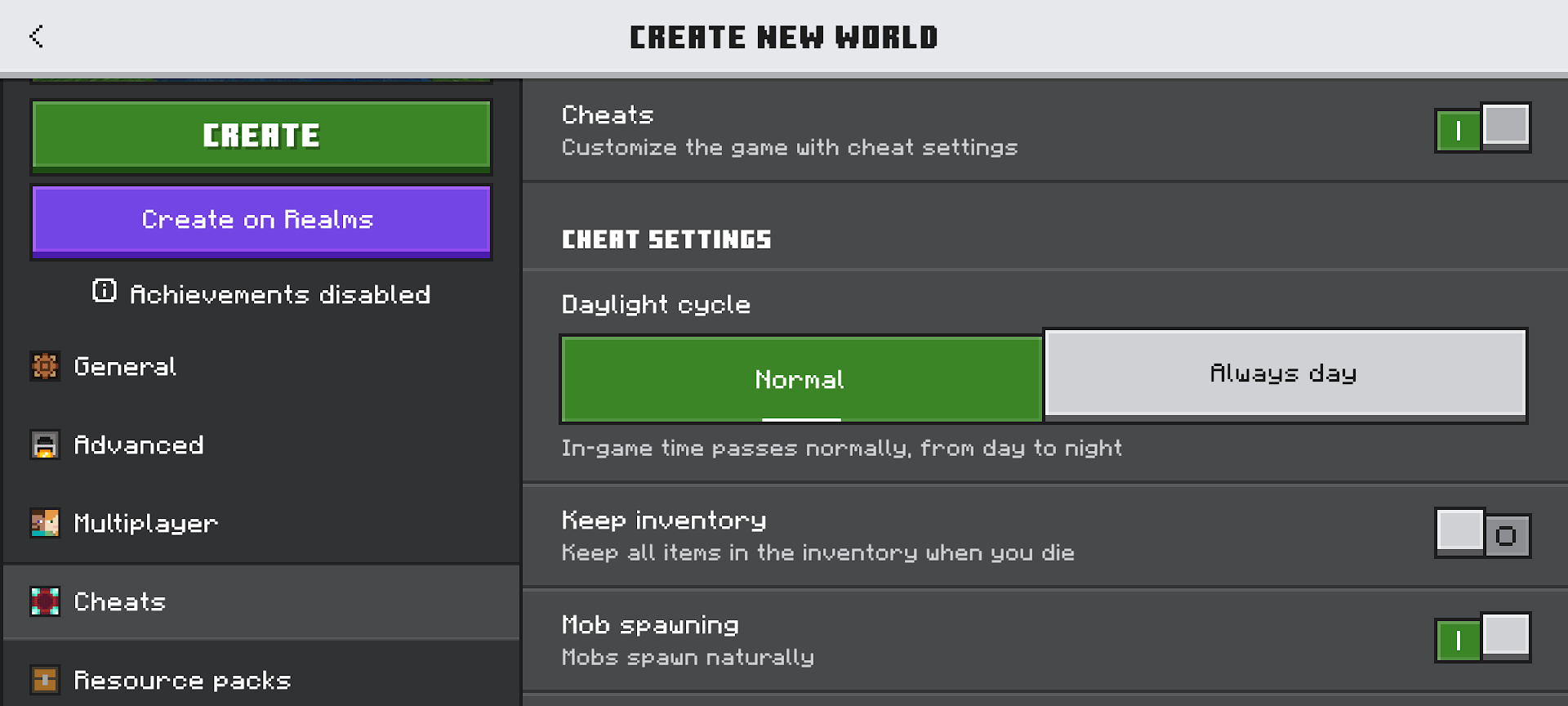
- In a singleplayer world, "Cheats" needs to be enabled. This is done by going to the "Cheats" section of the "World Creation" menu and toggling the "Cheats" option.
- In a multiplayer world, you will need to be given OP status by the server or another OP.
How to Use the Bedrock Edition "Locate" command
Using the "Locate" command to find a village is identical to how it works on Java. Depending on the platform (PC, console, or mobile), you might even have a guided interface on the left side of the text box while using the chat.
Here’s how this works:
- Open the chat box, type in "/locate structure minecraft:village", and hit "Enter".
- A moment later, you'll get a new message in chat saying where the nearest village is.
How to Use the Bedrock Edition "Teleport" Command
Again, the command itself is the same as on Java, just with a different-looking interface.
- To teleport yourself, type "/teleport" into the chat, followed by the coordinates of the location, then submit it to the chat.
- To teleport someone else type "/teleport" followed by the username of the person you want to teleport and the target coordinates.
- Submit everything into the chat to activate the command.
Minecraft Mods that Make Teleporting Easier
As amazing as Minecraft is, the need to use commands to teleport to a village is a perfect example of how it's far from a flawless game. Small aspects of game design or quality of life could definitely be improved upon.
That's where mods come in. The Minecraft community has made countless mods for the game that polish out any rough edges and introduce fun, engaging new mechanics. If getting around quickly is important to you, consider checking these mods out first.
JourneyMap
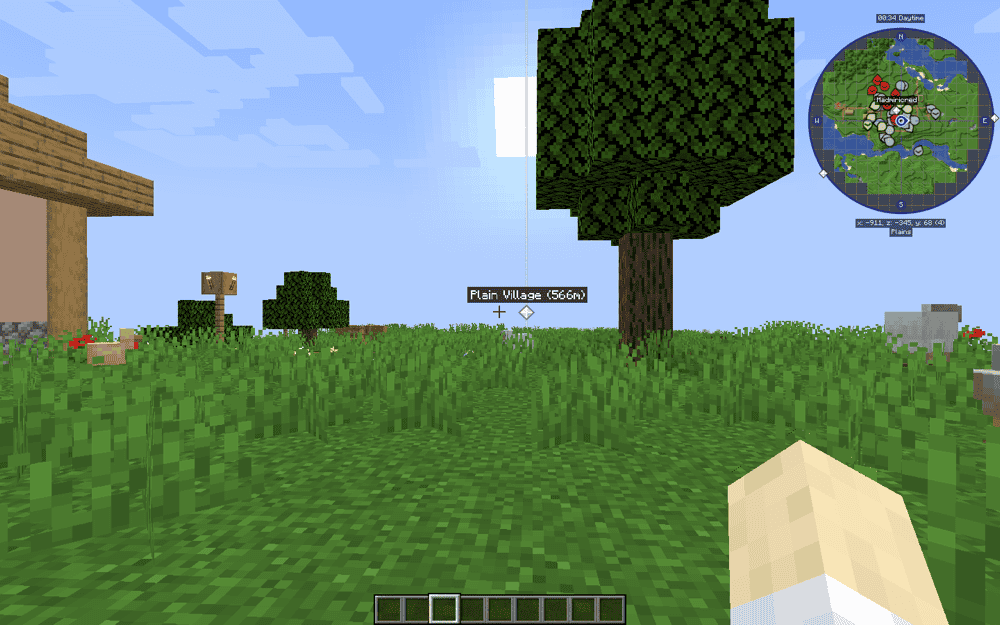
One of the best world map mods available, “JourneyMap” is a great way to keep track of all the different locations in your Minecraft world. It supports multiple dimensions, underground maps, and adds plenty of customization.
It also has a waypoint system, where you can save and track specific spots. If you have OP permissions, it'll also include a quick-access teleport button for each waypoint. This makes for one of the fastest ways to teleport somewhere.
Waystones
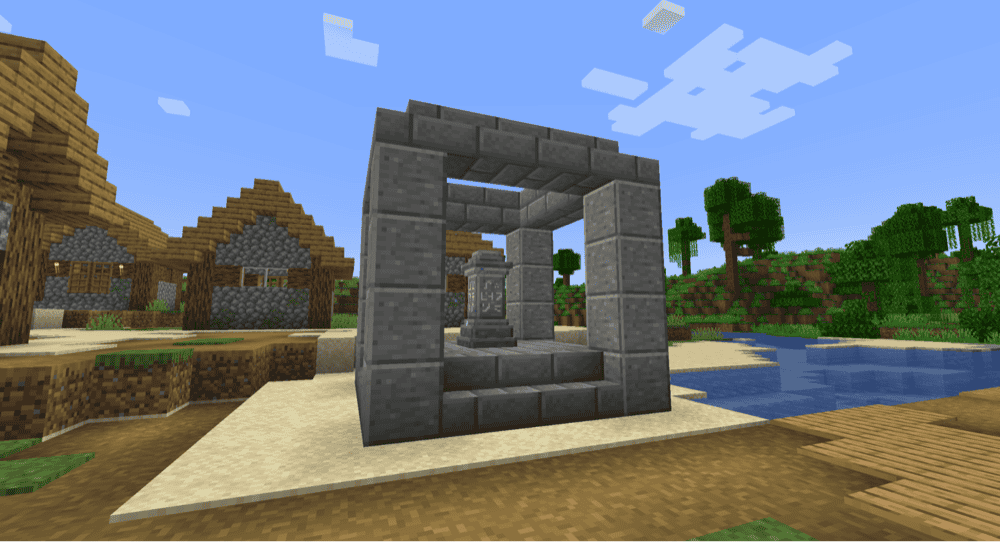
A popular mod for multiplayer servers in particular, “Waystones” introduces a new block that lets you teleport between them. Place one at your home base, another at a village, another at your friend's base, and so on.
This function is expanded a little further with items like warp plates or warp scrolls that allow for automated and portable teleportation abilities.
Explorer's Compass
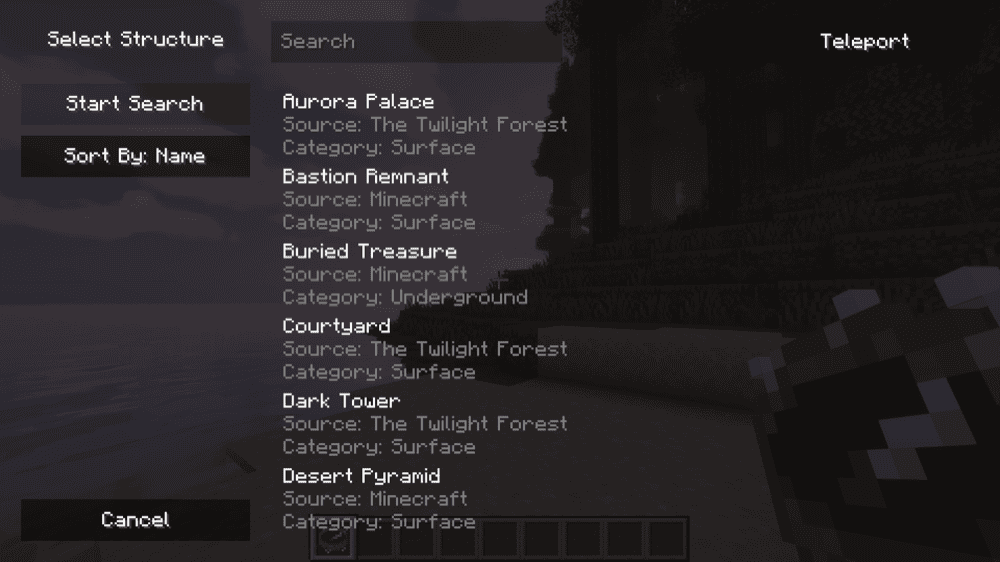
Based on the popular “Nature's Compass” mod, “Explorer's Compass” adds in an item of the same name. When crafted and equipped, it guides you to the nearest selected structures.
This is a great way to immediately locate places like villages, bastions, woodland mansions, and more, all without needing to use the command system. If you do have access to commands though, it also provides a teleport option.
How to Install Minecraft Mods
You can install the above mods automatically using the CurseForge app or manually by placing the mod files within your game’s mods folder. Both methods allow you to easily add custom features and enhancements into your vanilla Minecraft experience.If you want to learn more, you can read our detailed guide on how to install Minecraft mods.
Common Issues and Quick Fixes
I died as soon as I teleported
The vertical value ("Y") given by the "Locate" command isn't always at ground level. If the elevation is too different, you might teleport underground and start suffocating.
This can be avoided by being in "Creative" or "Spectator" mode. If you're in "Survival" mode, hold a pickaxe or shovel and start digging as soon as you realize you're suffocating. Once you're there, consider writing down the coordinates of a safe location and teleporting to those specific coordinates in the future.
The "Locate" command only lists the closest structure
By default, the "Locate" command will find the nearest structure you ask for. To find a different one, either go far away enough from that village so that another might be closer or try again.
Alternatively, when using the Locate command, add "[useNewChunksOnly: True]" to the end of the command. This will force the command to only look for a village that hasn't been visited before.
There are no villagers at the village I teleported to
Villages, when first generated, will have a few villagers throughout, fulfilling the different jobs available. Once spawned and within the simulation range, villagers are at risk of all the different dangers of Minecraft, like zombies and skeletons.
If you've been near a village for a while and never visited, it's possible that the local villagers were struck down by hostile mobs, resulting in an empty village by the time you got there.
The quickest solution is to use commands to summon new villagers into the village. We recommend summoning at least two of them and providing them with food so they can repopulate.