Minecraft Bedrock commands let you control parts of your world directly from chat. You can check syntax, message friends, organize spawn points, edit large areas, track scores, display custom text, and create systems that react to in-game events.
In this guide, we’ll help you read Minecraft Bedrock commands instead of simply copying them and hoping they work. We’ll start with arguments, target selectors, and coordinates before putting that knowledge to use in "Survival" and "Creative" modes. Command blocks come next, followed by a few CurseForge addons that keep your go-to commands close at hand.
What Are Minecraft Bedrock Commands?
A command is a specific instruction that Minecraft: Bedrock Edition carries out. A short command can send a message or list everyone in a world, while a longer one can test a location, select several entities, change blocks, and trigger another action.
Commands and cheats are related, but they are not the same. Commands are the instructions you enter, while the "Activate cheats" in-game toggle controls access to protected commands. Help and communication commands can work with cheats off, while building, world control, and automation commands usually require "Activate cheats" enabled and the correct permission.
How to Enable Minecraft Bedrock Commands
When Creating a New World
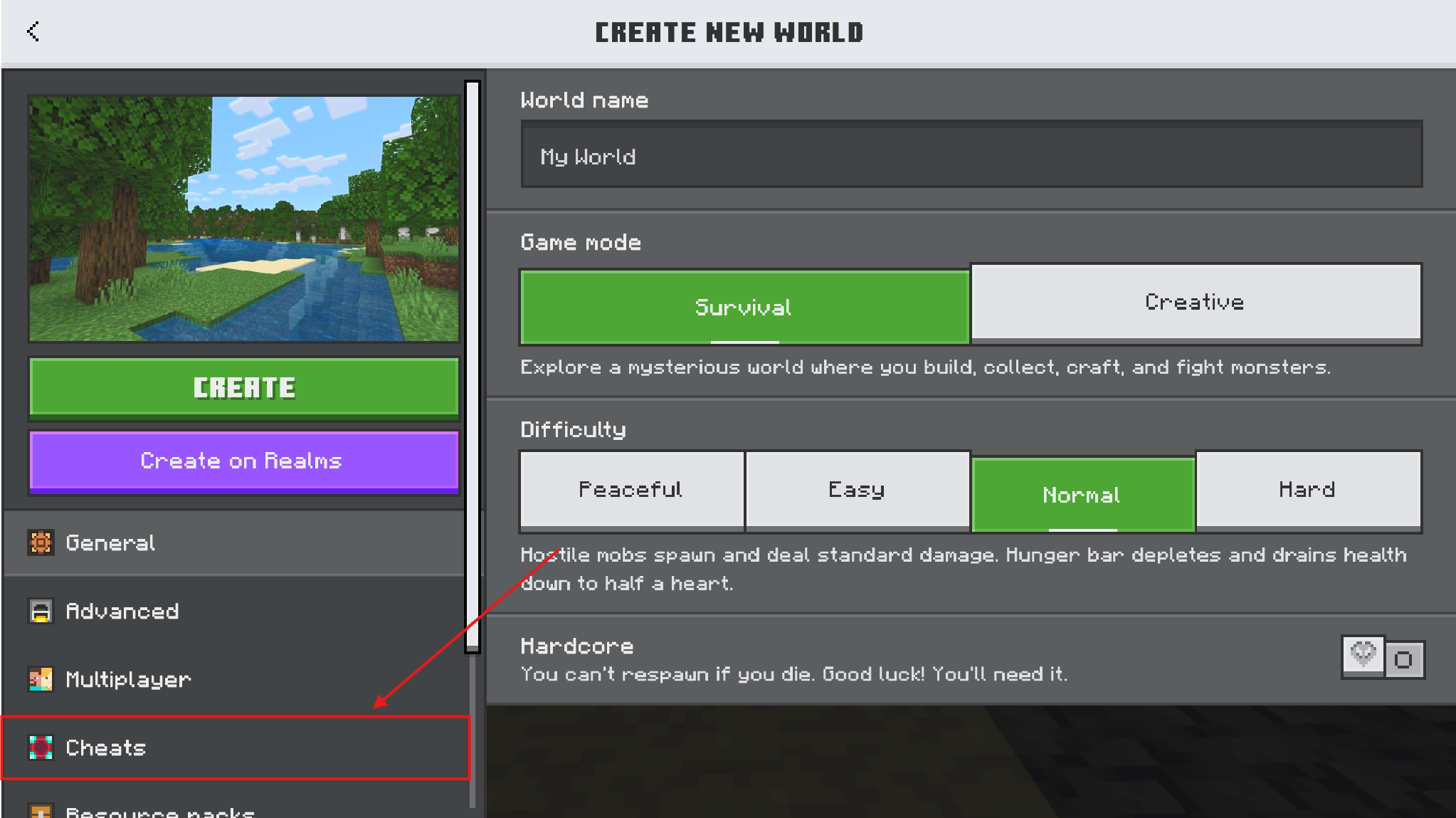
- Select "Cheats" from the left side of the "Create New World" screen.
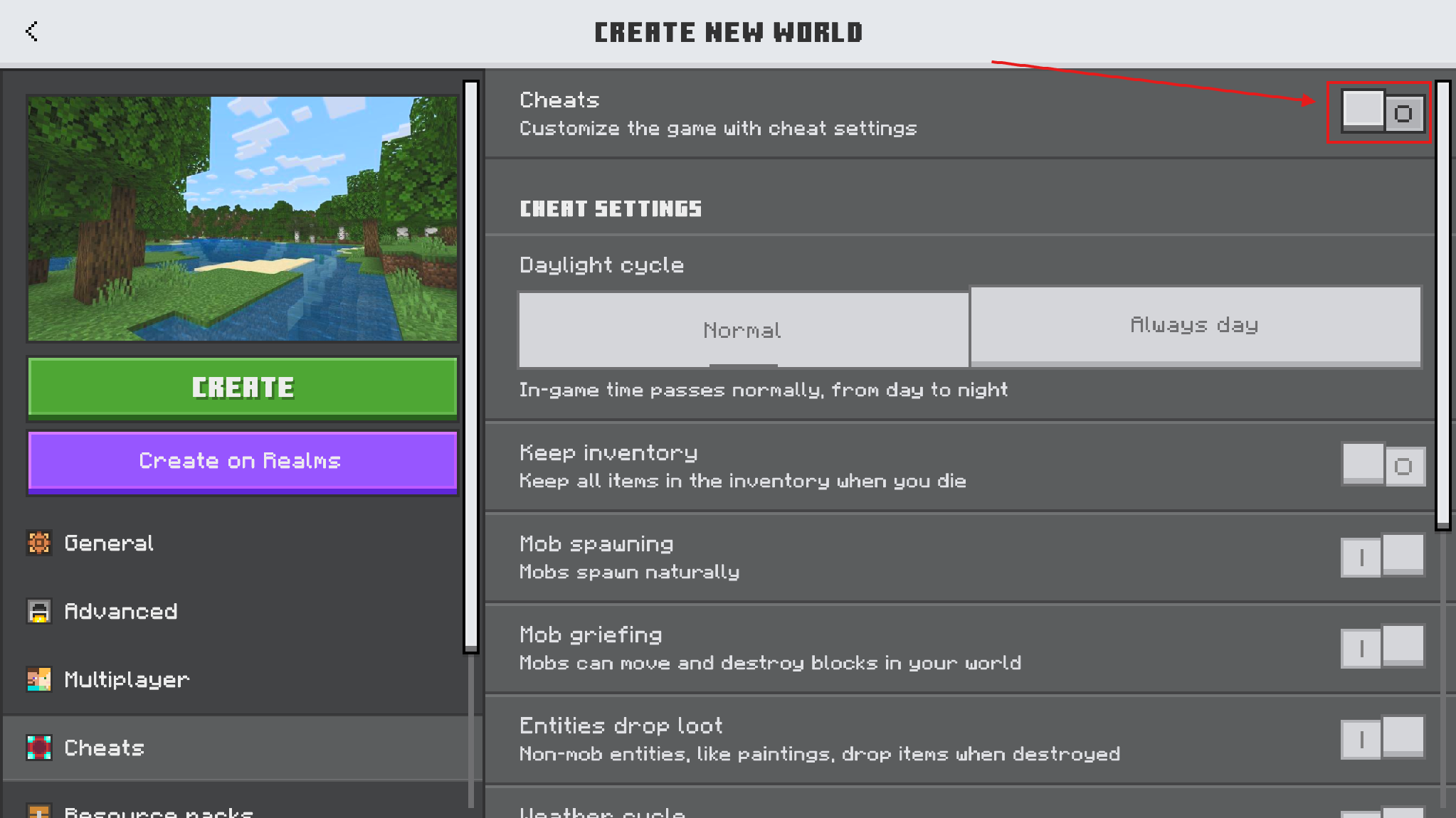
- Turn on "Cheats".
- Finish configuring the world and select "Create".
- Select "Create anyway" when the "You can't earn achievements" warning appears.
After Already Entering a World
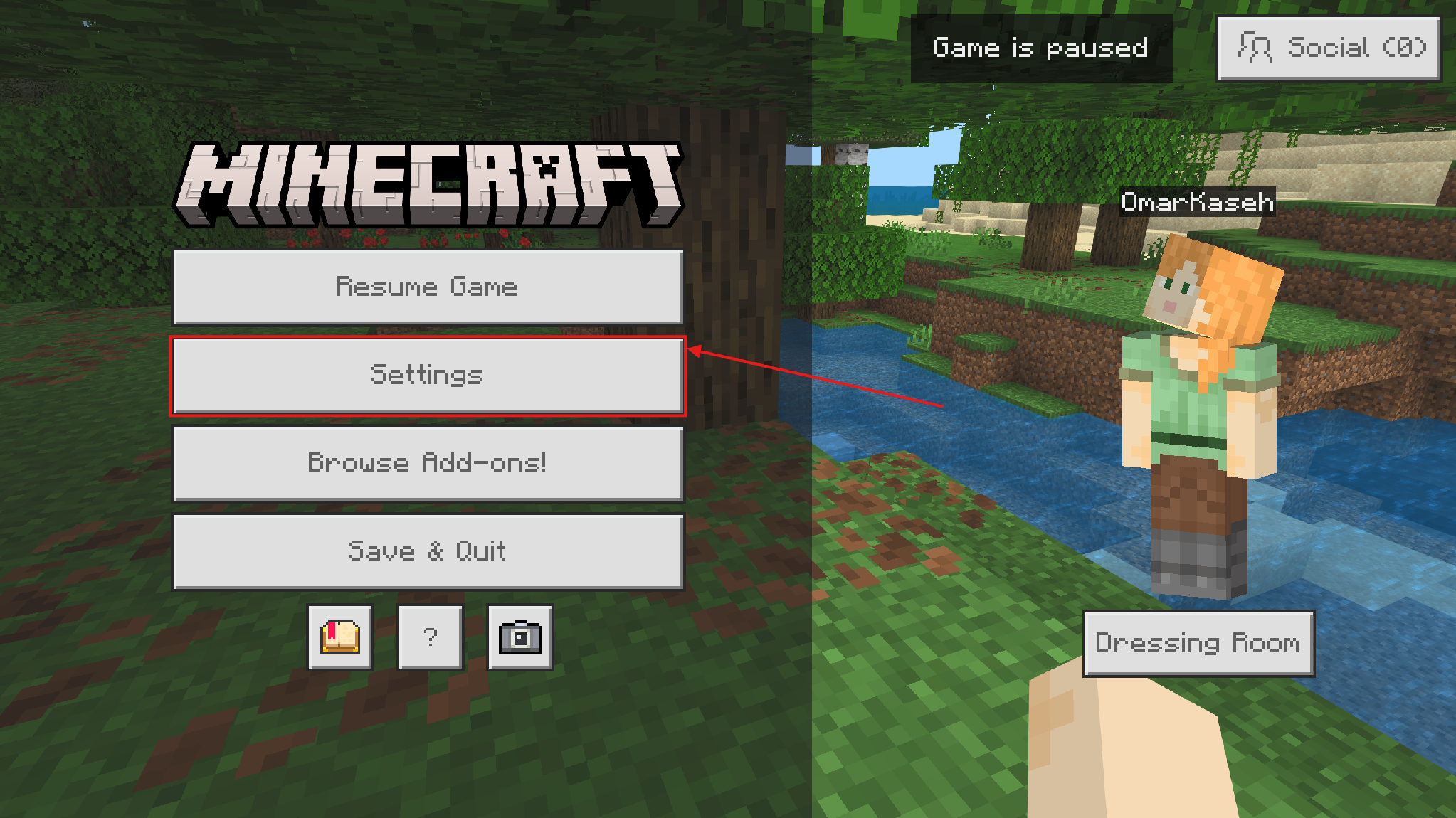
- Pause the game and select "Settings".
- Select "Game" from the left menu.
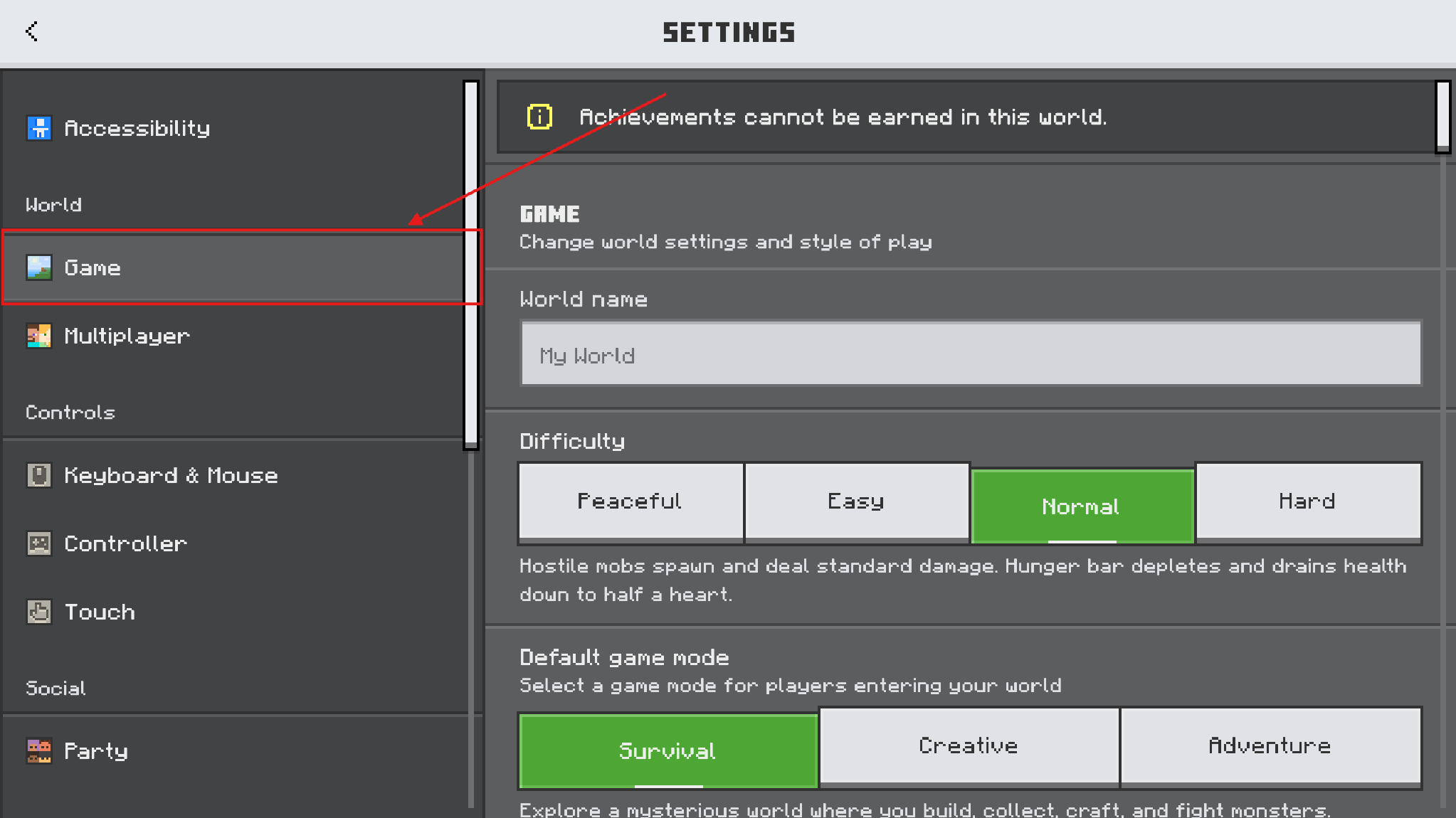
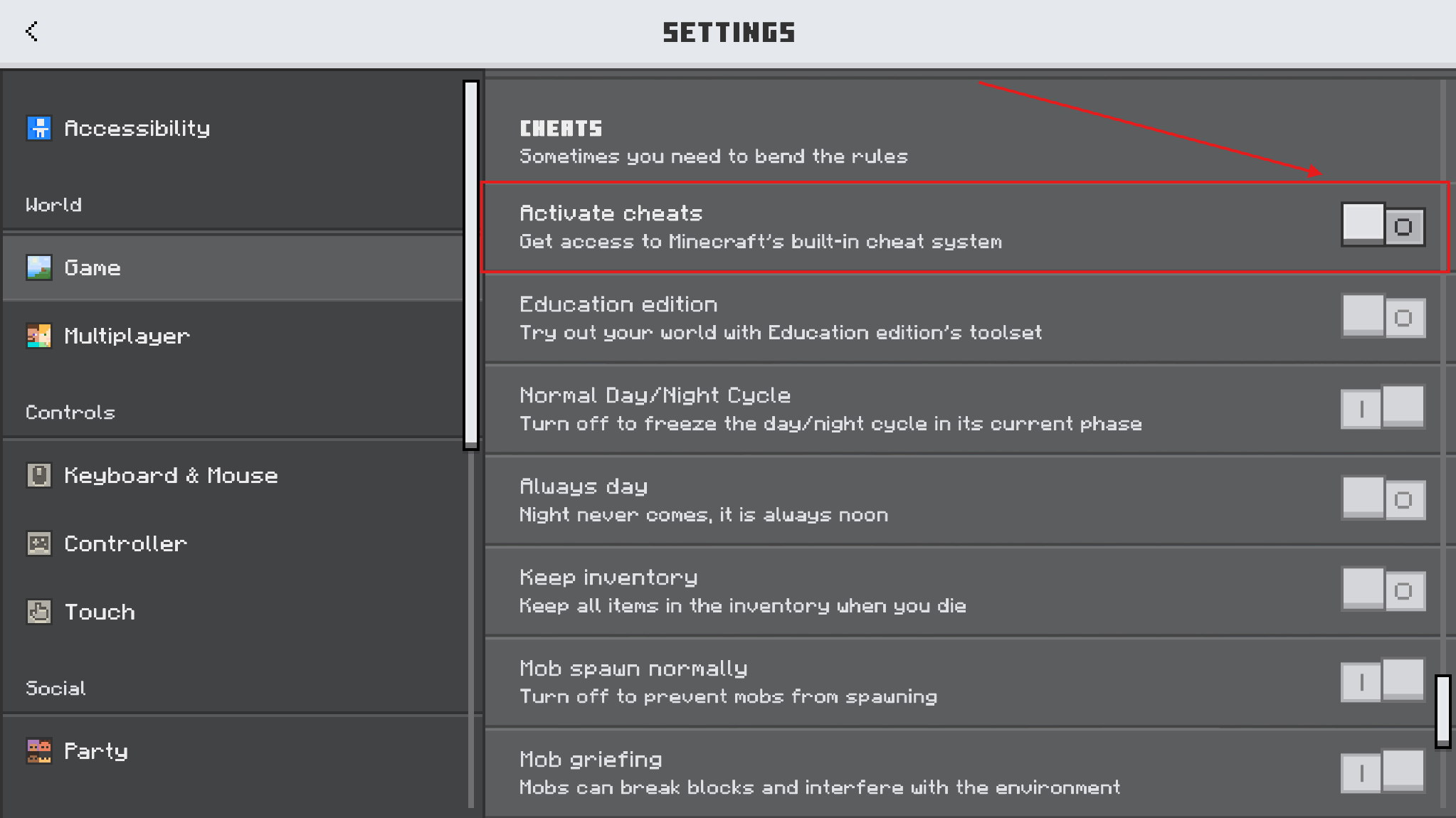
- Scroll to the "Cheats" section and turn on "Activate cheats".
- Select "Continue" when the "Turn off achievements?" warning appears.
Giving Other Players Command Access
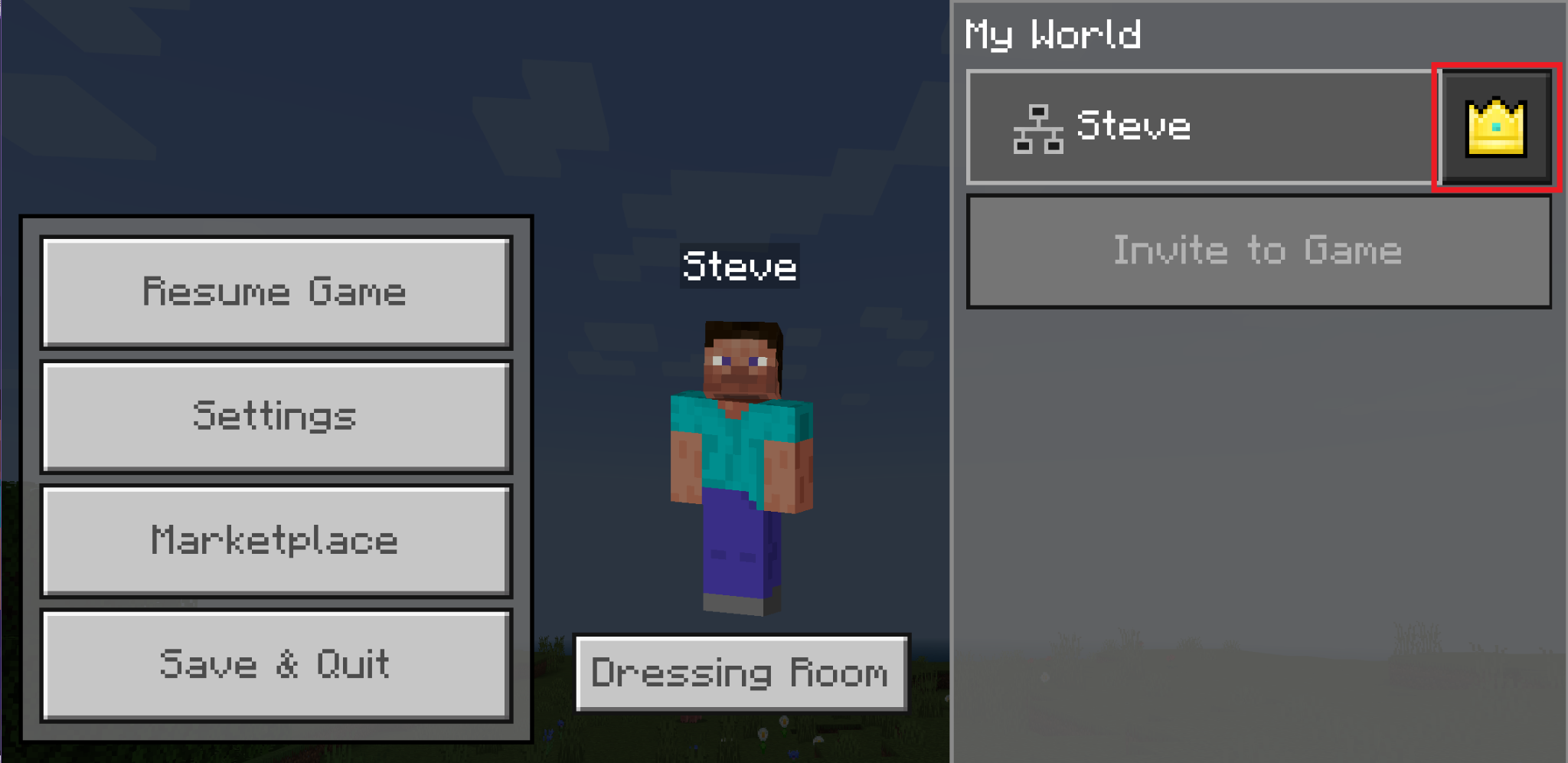
- Pause the game and select the permissions icon beside the player who needs command access.
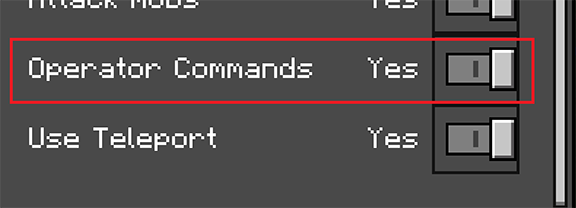
- Turn on "Operator Commands" for that player.
Important: Minecraft’s official commands guide states that permanently turning on cheats will disable achievements for that world. We therefore recommend making this change in a world where achievements are not a concern.
"Creative" mode activates cheats automatically, while "Survival" mode leaves them off by default. Commands such as "/help", "/list", and "/msg" work without cheats, although Minecraft may still restrict other commands according to your permission level.
How to Enter a Command
- Press "/" to open the chat with the command prefix already entered, or press "T" to open the chat and then type "/".
- Enter the command name. Minecraft displays matching commands and available syntax as you type.
- Add any required arguments after the command name, separating each one with a space. Press "Tab" to cycle through available suggestions.
- Press "Enter" to run the command.
- If the command fails, read the error message in chat, check the command name, arguments, and spacing, then try again.
Enter "/help" to view a list of commands available to you, or add a command name, such as "/help fill", to see its supported syntax. On Windows, press "Tab" to cycle through autocomplete suggestions and the "Up Arrow" key to recall commands you entered earlier.
How Minecraft Bedrock Command Syntax Works
Every chat command begins with a slash, followed by a command name. Arguments tell Minecraft who, what, or where the command should affect. Spaces separate the command name and each argument.
| Syntax Part | Example | How to Read It |
|---|---|---|
| Command name | "/tag" | The instruction Minecraft will run. |
| Required argument | <entity: target> | You must supply a main value. Do not type the angle brackets. |
| Optional argument | [name: string] | You may supply an additional value. Do not type the square brackets. |
| Literal keyword | add | Type this word exactly as shown in the syntax. |
| Argument value | builder | The target, coordinate, block ID, number, or text the command needs. |
For example, "/tag @s add builder" uses "/tag" as the command, "@s" as the target, "add" as the required action, and "builder" as the tag name. We recommend following Minecraft’s auto-suggestions, while also making sure not to type the brackets shown in the syntax guide above.
How Minecraft Bedrock Target Selectors Work
Target selectors let a command find a player or entity without relying on a fixed name. They begin with "@" and can include filters inside square brackets.
| Selector | Target | Common Use |
|---|---|---|
| "@s" | The entity running the command | Target yourself in chat or the current executor in an execution chain. |
| "@p" | The closest living player | Target the player nearest to the command's execution point. |
| "@a" | All online players | Send a message, title, tag, or score change to everyone in the world. |
| "@r" | One random living player | Choose a random participant for a minigame or event. |
| "@e" | All entities | Find mobs, armor stands, dropped items, and players. |
| "@initiator" | The player who opened NPC dialogue | Target the player currently interacting with an NPC. |
Tip: Filters narrow a selector. For example, "@e[type=zombie,r=10]" selects zombies within 10 blocks, while "@a[tag=builder]" selects everyone with the builder tag. When you combine filters, note that a target must match all of them.
How Coordinates Work in Commands
Bedrock positions use "X", "Y", and "Z" in that exact order. "X" measures east and west, "Y" measures height, and "Z" measures north and south. The official position reference supports absolute, relative, and local coordinates.
| Coordinate Type | Example | What It Means |
|---|---|---|
| Absolute | 100 64 -30 | A fixed position in the world. |
| Relative | ~ ~1 ~ | One block above the command's execution point. |
| Local | ^ ^ ^5 | Five blocks forward in the direction the executor faces. |
| Mixed | 100 ~ -30 | Fixed "X" and "Z" values with the current execution height. |
Turn on "Show Coordinates" when you need fixed positions. Use relative coordinates for systems that should work wherever you place them, and use local coordinates when direction matters.
Main Types of Minecraft Bedrock Commands
You can group Bedrock commands by what they help you do, from communication and navigation to building and automation.
| Type | Examples | What You Can Do |
|---|---|---|
| Help and communication | "/help", "/list", "/msg", "/say" | Check syntax, see who is online, and send public or private messages. |
| Spawn and navigation | "/setworldspawn", "/spawnpoint", "/locate" | Organize starting locations and find supported biomes or structures. |
| Building and editing | "/setblock", "/fill", "/clone" | Place one block, change a region, or copy a completed build. |
| Entities and targeting | "/summon","/tag", "/execute" | Create entities, label targets, and run actions from a chosen position or entity. |
| Scores and interface | "/scoreboard", "/tellraw", "/titleraw" | Track numbers and display custom messages or titles. |
| World rules | "/gamerule", "/time", "/weather" | Control how the world behaves and how command output appears. |
| Automation | "/execute", "/function", command blocks | Combine checks and actions into repeatable systems. |
Useful Minecraft Bedrock Commands for “Survival” Mode
The following commands focus on communication and world organization rather than granting items or removing normal "Survival" risks. If you need more information, make sure to check the "Access" column to see which commands require higher permissions.
| Command | Practical Use | Access |
|---|---|---|
| "/help" | Lists the commands you can currently run. | No cheats required. |
| "/help fill" | Shows the supported syntax for /fill. | No cheats required. |
| "/list" | Lists everyone currently connected to the world. | No cheats required. |
| "/msg Alex Meet at the base" | Sends Alex a private message. /tell and /w are aliases. | No cheats required. |
| "/me returns to the village" | Posts an action-style message about you. | No cheats required. |
| "/say The event starts now" | Broadcasts a system-style message to everyone. | "Operator Commands" permission; cheats not required. |
| "/setworldspawn ~ ~ ~" | Moves the world's general spawn to your current position. | "Activate cheats" and "Operator Commands" required. |
| "/spawnpoint @s ~ ~ ~" | Sets your personal respawn point at your current position. | "Activate cheats" and "Operator Commands" required. |
Important: The shared world spawn does not replace a valid bed-based spawn. Before changing either location in multiplayer, confirm whether you want to update the world spawn or a player’s respawn point.
Useful Minecraft Bedrock Commands for “Creative” Mode
The following examples use the current Bedrock syntax in Microsoft’s command documentation. Make sure to test them in a copied world first, especially when a command changes a large area or targets every entity.
| Goal | Command | What It Does |
|---|---|---|
| Place one block | "/setblock ~ ~-1 ~ stone" | Places stone directly below the execution point. |
| Build a flat platform | "/fill ~-5 ~-1 ~-5 ~5 ~-1 ~5 stone" | Fills an 11-by-1-by-11 area below you with stone. |
| Copy a build | "/clone 0 64 0 10 70 10 30 64 0" | Copies the first cuboid to a new starting position. |
| Create an armor stand | "/summon armor_stand ~ ~ ~" | Summons an armor stand at the execution point. |
| Label the nearest armor stand | "/tag @e[type=armor_stand,c=1] add marker" | Adds the marker tag to the closest matching armor stand. |
| Create a score objective | "/scoreboard objectives add points dummy "Points"" | Creates a manual objective named points with the display name "Points". |
| Show the objective | "/scoreboard objectives setdisplay sidebar points" | Displays the points objective in the sidebar. |
| Add one point | "/scoreboard players add @p points 1" | Adds one point to the nearest player's score. |
| Display custom text | "/tellraw @a {"rawtext":[{"text":"The gate is open."}]}" | Shows a clean JSON-formatted message to everyone. |
Note: A mistyped "/fill" or "/clone" command can overwrite work. We therefore recommend using coordinates from a copied world, keeping the first test area small, and expanding the selection only after the result looks correct.
How to Combine Checks and Actions With the “/execute” Command
The "/execute" command can force someone else to run a command, specify where it runs, or whether it runs at all. This makes it useful for map systems and command-block chains.
Example: "/execute as @a at @s if block ~ ~-1 ~ gold_block run tag @s add checkpoint"
| Part | Meaning | Result |
|---|---|---|
| as @a | Run once as each player. | Each player becomes the executor in turn. |
| at @s | Use that player's position. | Relative coordinates start at their location. |
| if block ~ ~-1 ~ gold_block | Check the block below them. | Continue only when it is a gold block. |
| run tag @s add checkpoint | Run the final action. | Add the checkpoint tag to that player. |
How to Use Command Blocks in Minecraft Bedrock
Command blocks run commands automatically. Depending on their settings, they can run when they receive redstone power, follow another command block in a chain, or keep running in "Repeat" mode while active. You can place or edit one when "Activate cheats" is enabled, you have "Operator Commands" permission, and you are in "Creative" mode.
Here are the steps:
- Open the world’s "Game" settings, turn on "Activate cheats", and confirm that "Command blocks enabled" is on (Minecraft enables command blocks by default).
- Switch to "Creative" mode and confirm that you have "Operator Commands" permission.
- Open chat and enter "/give @s command_block".
- Place the command block, then right-click it.
- Enter a command in "Command Input", then choose the block type, condition, and redstone setting.
- Close the interface and activate the block. If it does not run, open it again and check "Previous Output" for the error.
After you configure the command block, it can continue working if you switch back to "Survival" mode, provided command blocks remain enabled.
| Block Type | When It Runs | Good For |
|---|---|---|
| Impulse | Once when it receives a redstone signal. | Buttons, one-time actions, and the first block in a chain. |
| Chain | After a command block pointing into it activates. | Ordered sequences in which several commands should run together. |
| Repeat | Every game tick while active or powered. | Continuous checks, timers, and systems that must update repeatedly. |
Repeating command blocks can work surprisingly fast. Minecraft processes 20 game ticks per second, so an "Always Active" block with no delay will execute every 50 milliseconds. However, a shorter delay may help if you do not want the command to be executed 20 times per second.
For example, you can enter the number 20 under “Delay in Ticks” so the command is executed only once per second, or 200 for once every ten seconds. "/gamerule commandblockoutput false" keeps routine feedback out of chat, while "/gamerule commandblockoutput true" restores it when you need to troubleshoot.
Target selectors also work a little differently inside command blocks. Since a command block is not an entity, "@s" has no executing entity to select on its own. "@p" works when the nearest player is the intended target, while the "/execute as" subcommand lets you choose which entity "@s" represents.
Minecraft Bedrock Command Addons to Try Next
Long commands leave plenty of room for typos, especially when you need to enter the same one several times. Some of the CurseForge addons below place commands in a menu or keep a history of what you have used. Others save reusable chains or let one custom block handle several commands.
Command & Achievements
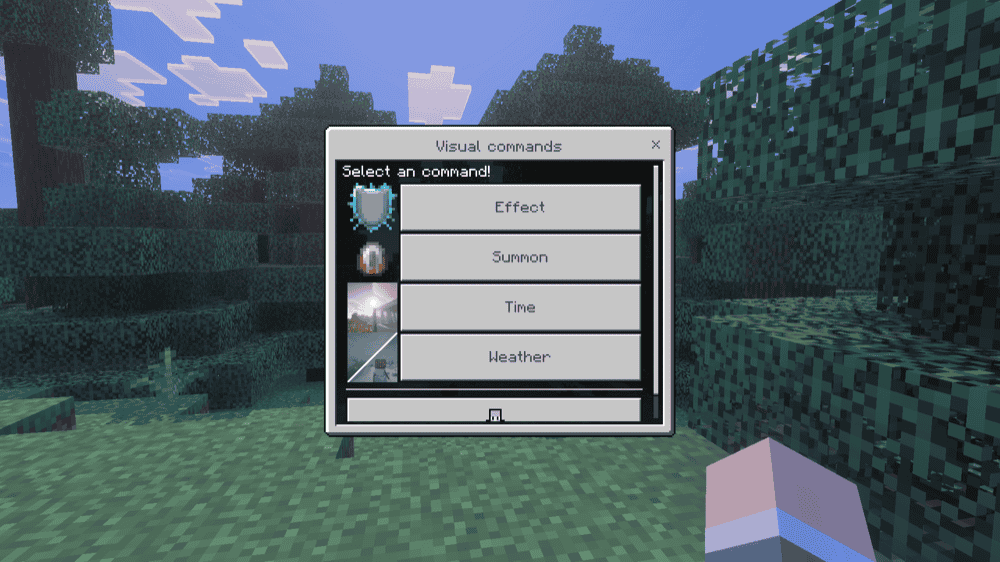
“Command & Achievements” is useful when you want to quickly and easily execute a command, while also keeping achievements on. Its visual menu lets you fill in the details instead of typing the full command, and the addon automatically saves every command you run to its history.
If a task takes several commands, you can turn them into a chain and run the whole sequence with one click. When a command needs coordinates, Location Insertion can add the position you are looking at to the command syntax. This is particularly useful for commands, such as "/fill" and "/tp".
"/com2hard:menu" opens the main dashboard, where you can revisit earlier commands, build or run chains, and adjust the addon’s settings. It also works in "Hardcore" mode without turning off achievements.
Commands++
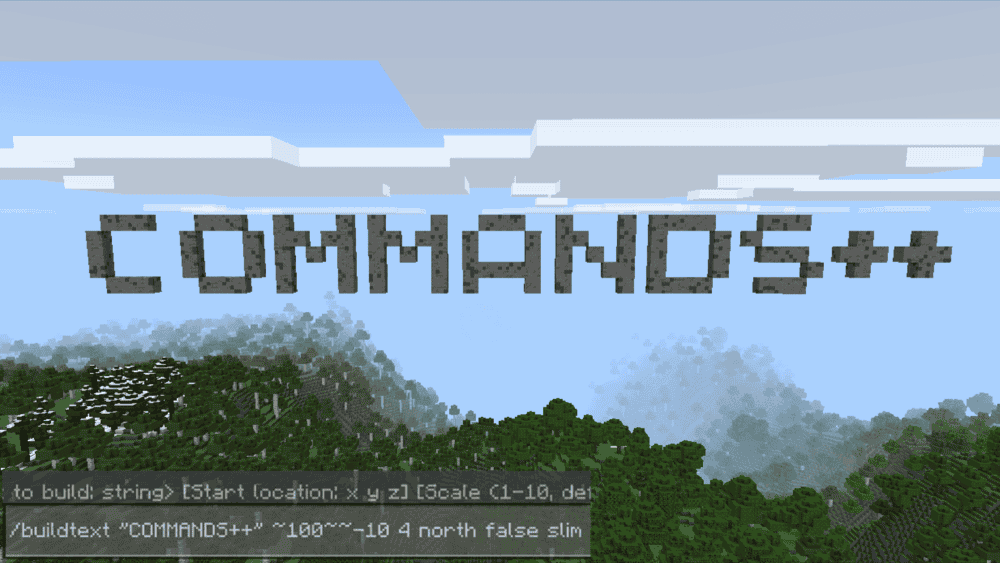
“Commands++” adds creator-focused commands for customizing held items, attaching commands or functions to items, spawning configured entities, managing effects, and constructing large structures.
For example, "/setitemname" changes an item’s displayed name, "/addlore" adds description text, and "/bindCommand" makes the held item run a chosen command when you use it.
The addon also includes specialized building tools. Enter "/getpathtool" to receive a waypoint tool, followed by "/buildpath" to build a path between the marked points. You can generate block lettering with "/buildtext", fill areas with randomized MultiBlocks, inspect inventory slots, adjust item durability, or create customizable explosions.
Advance Command block Addon
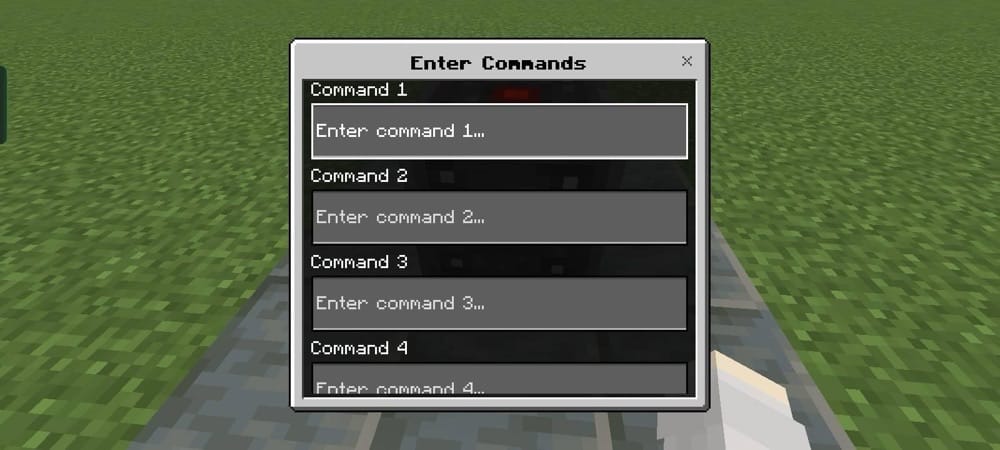
“Advance Command block Addon” provides an interactive command block that stores up to 10 commands, reducing the need for large vanilla command-block chains. You can let other players activate its preset actions while restricting access to its configuration. Enable "Allow @s Target" to run commands as the person who pressed the block. For example, "give @s diamond 1" gives a diamond directly to that player.
Choose "Normal" mode to run commands once, "Repeat" mode to execute them at a customizable tick speed, or "Chain" mode to run commands in sequence with adjustable delays. You can also control the execution count, stop a chain when an error occurs, save configurations as presets, hide command output, and protect blocks with passwords, player tags, and editor locks.
Commands Menu
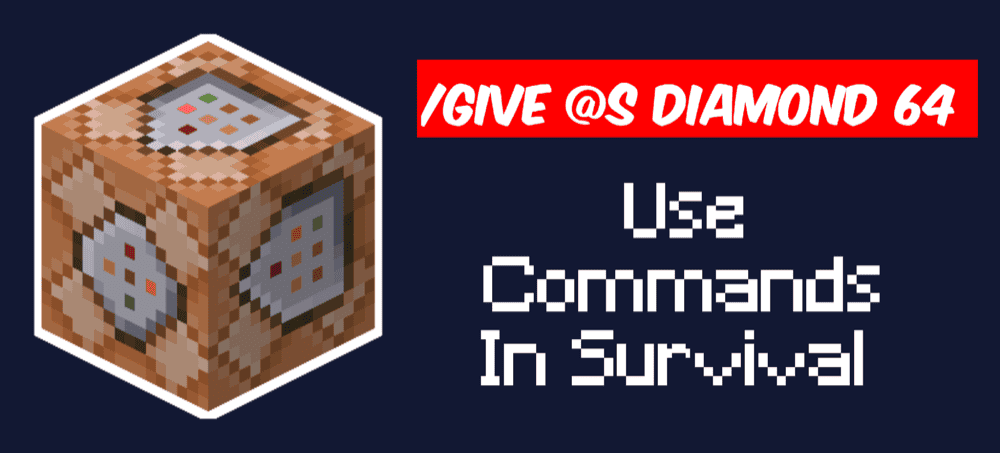
“Commands Menu” lets you enter and run commands through an in-game menu without turning on "Activate cheats" or repeatedly typing commands into chat. Enter "/voxen:cm" to open the menu, select "[+] New Command", and type any valid command with or without the opening slash.
After a command runs successfully, the addon saves it to a history containing your 20 most recent commands. Select any saved entry to run it again instantly, or use "Clear History" to remove the entire list. This makes frequently used commands much easier to repeat, especially when playing with touch or controller input.
How to Install Minecraft Addons
You can install Bedrock addons automatically from the official Minecraft Marketplace or manually by downloading them from a trusted source like the CurseForge website. For each of the addons above, open the linked project page and download its associated “.mcaddon” file. Opening the downloaded file should launch Minecraft and begin the import.
After the import finishes, edit the world and check both "Behavior Packs" → "Available" and "Resource Packs" → "Available". If all went well, activating the packs included with the addon should add its features to that world. If the project lists an experiment under "Requirements", you should enable it as well before loading the world.
For a complete walkthrough, check out our guide on how to install Minecraft Bedrock addons.
Common Issues and Quick Fixes
My command appears red or returns a syntax error
A red command often looks worse than it is. Minecraft usually starts highlighting around the point where it stopped understanding the line, so the problem may be a missing space, an unsupported argument, or a bracket copied from a syntax example. "/help" followed by the command name shows the format available in your version.
Minecraft says I do not have the necessary permissions
Sometimes the command is fine and the world settings are the real roadblock. "Activate cheats" needs to be on, and the player may also need "Operator Commands" permission. In a multiplayer world, the owner will need to change that access.
My command affects the wrong target or location
A command can run perfectly and still hit the wrong target. "@e" includes every entity, even dropped items, so a type, name, tag, or radius filter can rein it in.
With coordinates, the usual culprits are a mixed-up "X", "Y", "Z" order or forgetting that "~" measures from the execution point. A small trial in a copied world can catch both mistakes before a larger command causes trouble.
My command works in chat, but not in a command block
Chat and command blocks do not always run a command from the same point of view. A command such as "/tp @s ..." works in chat because "@s" refers to you, but a command block has no player identity of its own. "@p" can suit a nearest-player action, while "/execute as" lets you choose who runs the command.
If the target looks right, the block’s type, condition, redstone setting, and arrow direction are the next places to look.
My repeating command block floods chat or slows the world
Repeat blocks are handy, but they can run 20 times per second, so broad selectors and large-area changes can fill chat or put extra strain on the world surprisingly quickly.
A short delay or tighter target usually helps, while "/gamerule commandblockoutput false" hides the routine messages. If a loop makes the world difficult to enter, temporarily turning off "Command blocks enabled" in the world settings gives you room to fix it.
My imported command addon does not appear
If Minecraft imports the file but nothing changes in the world, the pack may simply be waiting to be activated. The CurseForge project page should list any resource pack, dependency, or experiment that needs to go with it.
Matching the file to your Bedrock version and trying it by itself in a copied world can quickly separate a compatibility problem from a conflict with another pack.