Minecraft Bedrock boasts an impressive engine. It can render and simulate almost 200 blocks in any direction, including all the complex cave networks under the surface. But that doesn’t mean it's flawless. There’s plenty of room for improvement in how the game acts, from lighting quality and visual effects, to UI improvements and world generation.
A lot of these rough edges can be buffed out, though, thanks to the community. There are a handful of helpful addons that, when installed, can help Minecraft run faster, look better, and feel smoother. Give these particular addons a try if you want to see those improvements for yourself.
Which ones are we talking about? Simply check out our list below!
1. System Dynamic Light
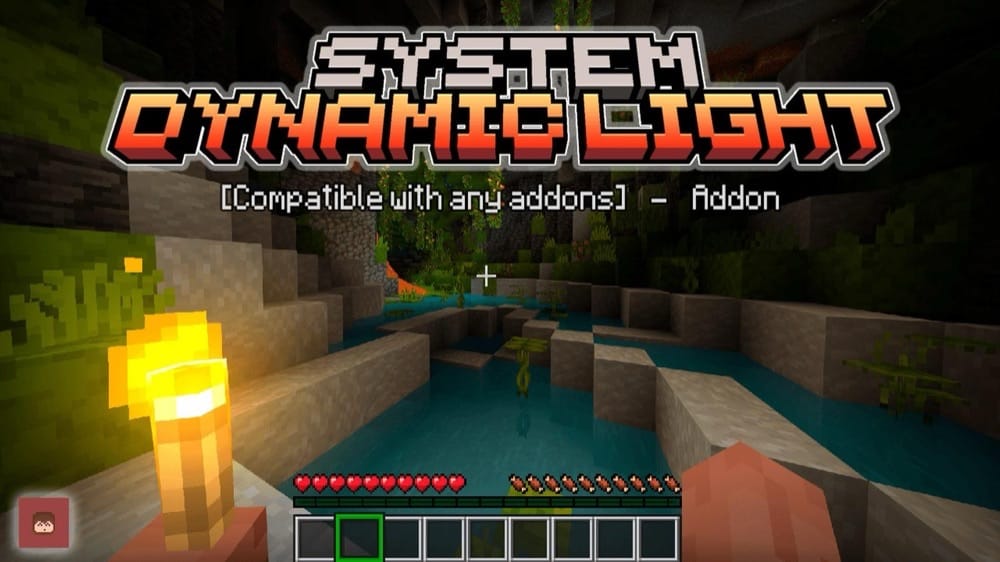
One of the most common problems with Minecraft is that, despite how dark it is at night or in caves, there’s no portable method of keeping things illuminated. Placing down torches every so often can quickly become a tedious drain on resources. We can’t tell you how many times we’ve been deep in a new cave, only to run out of wood or sticks!
With the “System Dynamic Light” addon, carrying a torch in your hand creates light around you, following you as you walk. It’s a simple but extremely effective way to optimize your mining experience. Best of all, you can swap it to your off-hand so that you can still hold tools like swords and pickaxes.
2. Better Foliage
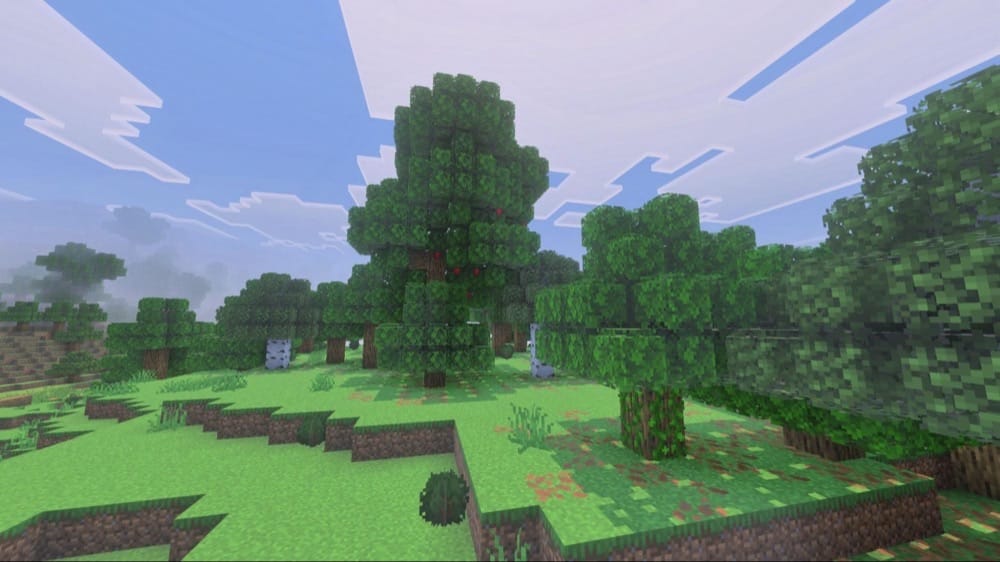
Trees and grass are one of the most common sights in Minecraft. Almost every biome has them and many of them are just smothered in trees. The “Better Foliage” pack focuses on how little attention has been given to making all of this foliage look natural.
Leaf blocks are given depth, lighting shines through branches better, and textures are given more variety to avoid repetition. Forests are no longer a widespread mess of green blocks, but a full, lush forestscape. You won't be able to look at the vanilla trees the same way again.
3. Translations
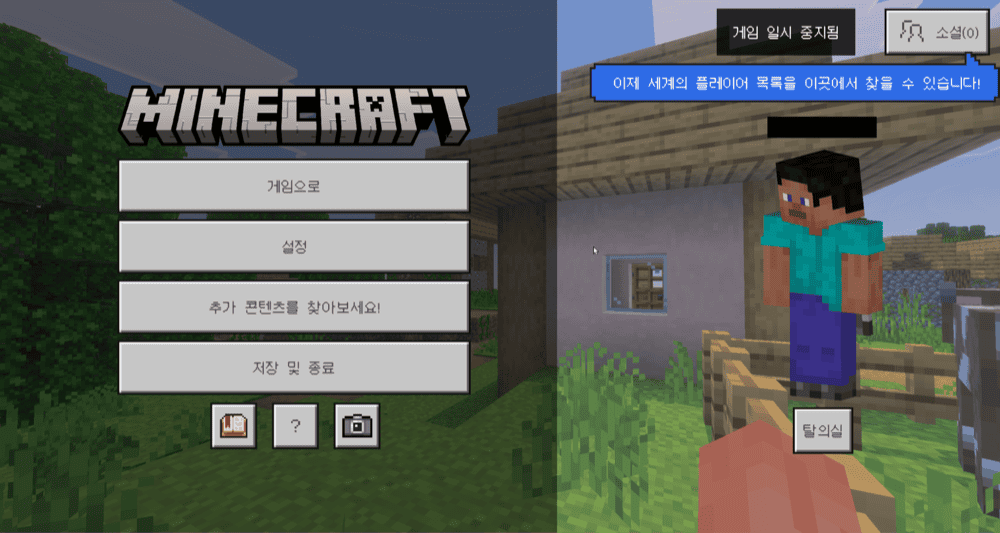
Okay, so this may not be the most exciting addon on this list, but “Translations” is a vital one nonetheless for countless players around the world. It can be the literal difference between “favorite game” and “completely unplayable” for some people.
Minecraft Bedrock supports 29 different languages, while Java Edition supports over 140 languages. This pack essentially imports all of those extra languages over. This benefits English-speakers, too.
A handful of humorous languages are included, like Pirate, LOLCAT, and Shakespearian. Just make sure you activate the pack in the "Global Resources" section of your settings to ensure it applies translations to the entire game.
4. Fast Craft & Fast Loot
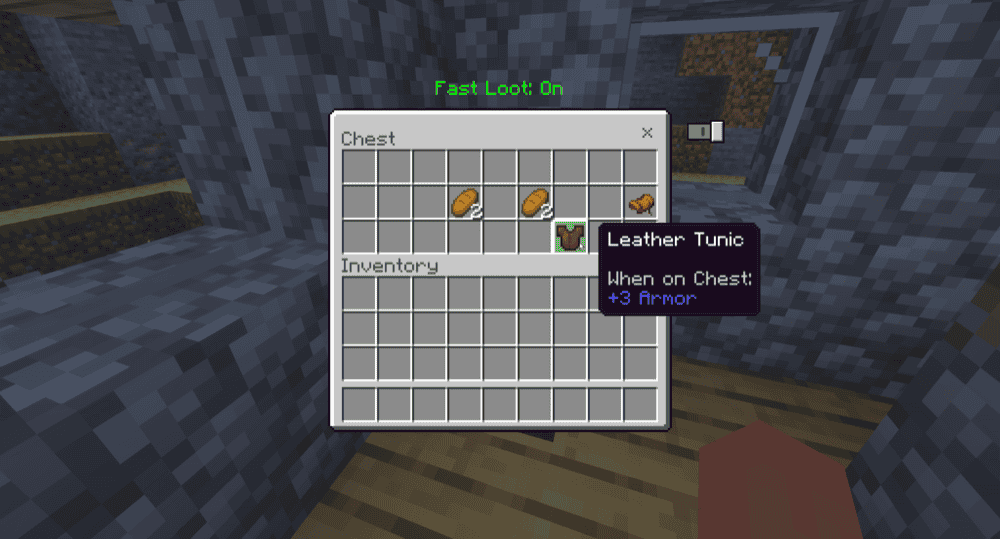
An optimization mod that benefits Pocket Edition, consoles, and controller players the most, “Fast Craft & Fast Loot” adds in a new toggle to any inventory UI. When enabled, simply selecting the item will instantly move it to your inventory or back.
It also incorporates a quick crafting system. When enabled, you will craft the maximum number of items you can on the crafting grid. That means no more rapidly tapping to craft a full stack of torches, just once and done! These two features combine to become a huge time saver over the course of your playthrough.
5. Lunac Shaders 3.0
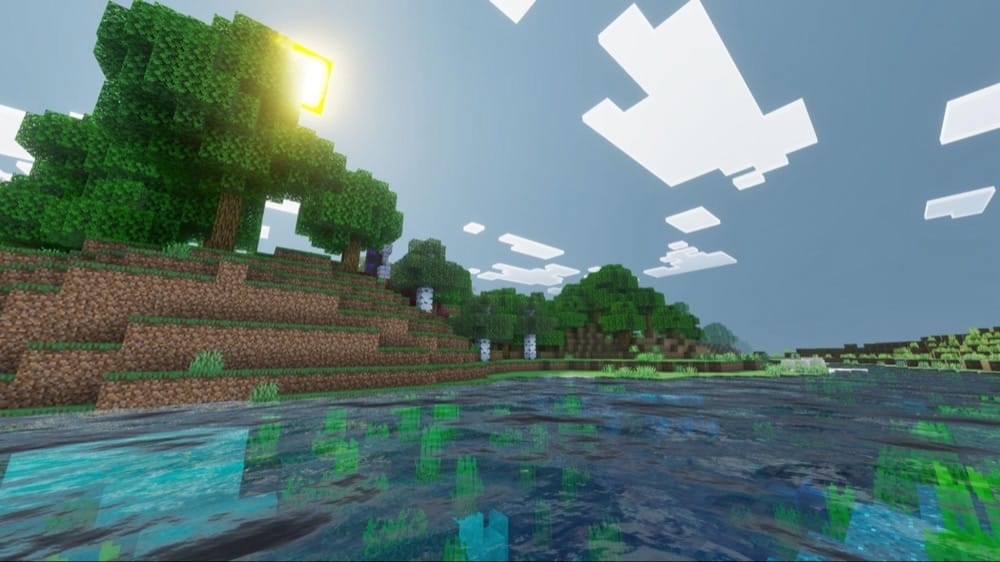
Want that RTX look without the hefty RTX hardware requirements? “Lunac Shaders” aims to get that high quality shader experience without needing the latest tech. Once installed, you’ll see improvements to things like shadows, light emissions, water reflections, and filtering.
You’ll also notice more powerful and dynamic color with a lot of lights, giving the entire game a more alive feeling at night or in caves. Get everything set correctly, and you’ll have graphics that even surpass the built-in "Vibrant Visuals" system!
6. Better Trees
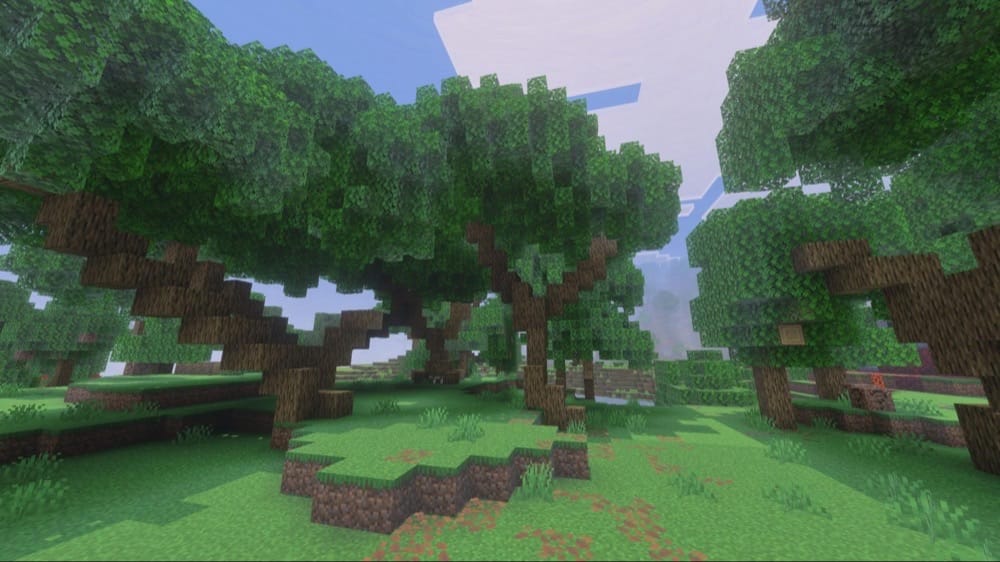
World generation is an often overlooked corner when talking about how to optimize Minecraft. Most addons focus on adding new things, like biomes and structures. The “Better Trees” addon takes a different approach, providing a revitalizing punch for making the world look better without hurting performance.
It starts with how trees are generated. This pack replaces all the trees with something more shapely and unique. Oaks bend, large branches splay out, and trees fall off-center. Each type of tree is re-designed to look more true to the real world, from acacia to mangroves.
It even works on pre-existing worlds! Loading the pack up on an already generated world will cause it to replace all the trees with their improved versions. Just watch out for any oddities that might result from that.
7. Clear Water Texture Pack
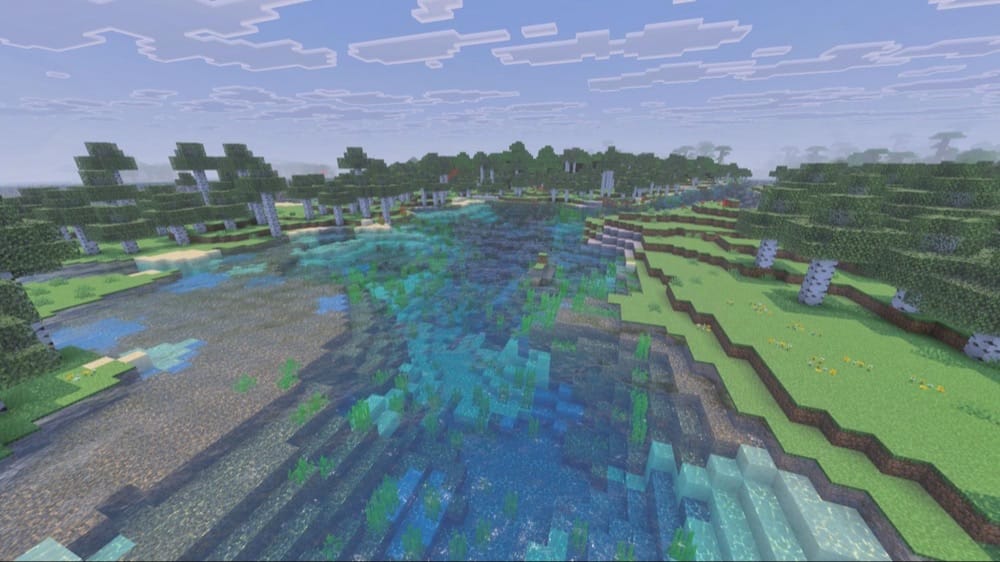
Water is murky, annoyingly so. Just seeing the clay at the bottom of a river requires multiple dives underwater. And don’t even get us started on trying to find underwater ruins for archeology. The “Clear Water Texture Pack” addon not only clears out that fog, but it comes with a handful of nice enhancements to water overall.
With this pack, you can easily see through water both above and below the surface. As a nice touch, the sun shining through to the bottom of rivers and oceans also creates dazzling and dynamic patterns of light on the sandy bottom. All in all, we find this addon to be a great example of how even a minor change can result in an amazing visual improvement without any noticeable dip in performance.
8. WorldEdit
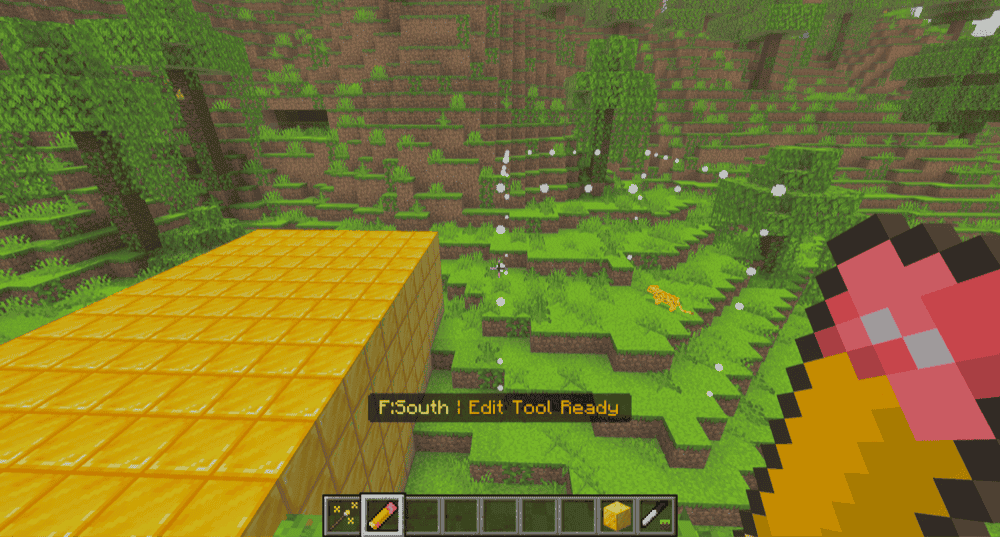
Anyone who has spent more than an hour in “Creative Mode” will understand how tiresome building something one block at a time can be. It’s one of the least-optimized ways to play the game, in a sense.
The “WorldEdit” addon implements a simple, powerful, and effective system for building. Fill large areas to exact specifications, copy and paste existing structures, and even generate new areas. The pack comes with a handful of handy bonus functions, too, like removing foliage in an area.
9. Feather FPS Boost Mod
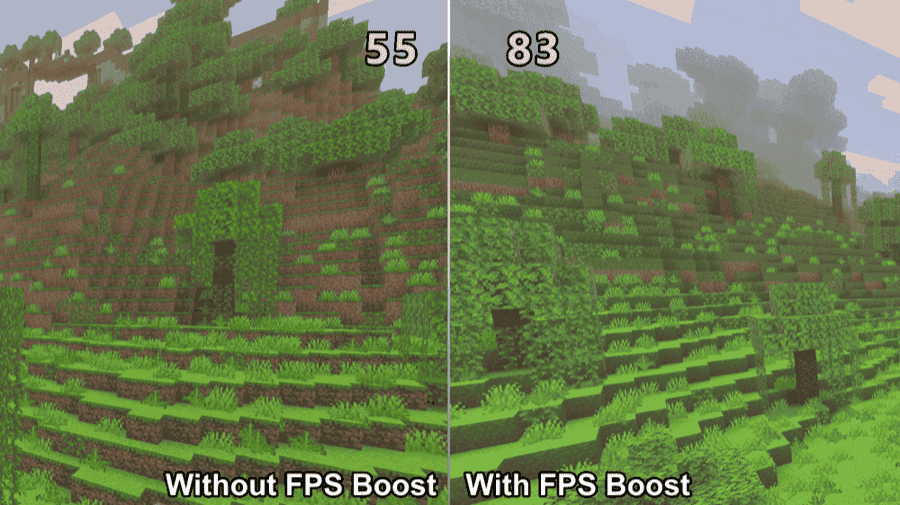
An optimization addon in its purest form, “Feather FPS Boost Mod” makes a handful of changes to the graphics rendering to help improve frame rates and provide more stability.
The pack does this by trimming herd sizes, reducing mob spawns and density, adjusting particle effects, limiting animation textures, downscaling non-essential textures, and softening the colormap. These are all small changes, but they make a big difference, especially in mob-heavy areas.
10. Custom Skies | Dynamic Day/Night
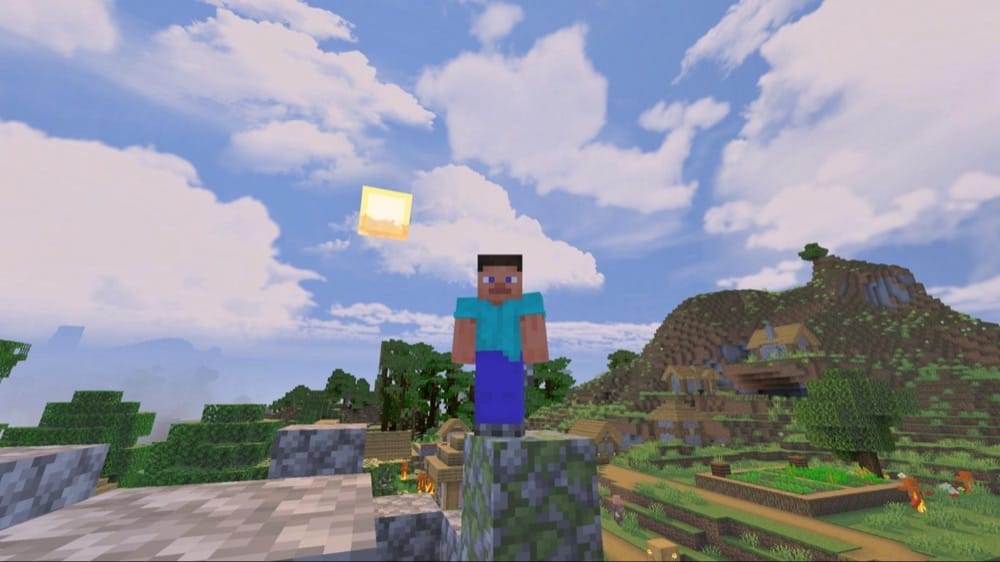
Another example of how a simple change can lead to incredible visual improvements, the “Custom Skies” addon replaces Minecraft’s default sky with one of 10 custom cubemaps, ranging from vibrant galaxies to dynamic daylight.
For anyone not familiar, cubemaps are used to create photo-realistic skies and backgrounds. Games do this by placing a gigantic cube around the player and mapping the image to each side of the cube. The main drawback is that the sky won’t change over time, like how dynamic clouds might, but it provides an undeniable boost to visual quality.
How to Install Minecraft Addons
You can install Bedrock addons automatically from the official Minecraft Marketplace or manually by downloading them from a trusted source like the CurseForge website. For each of the addons above, open the linked project page and download its associated “.mcaddon” file. Opening the downloaded file should launch Minecraft and begin the import.
After the import finishes, edit the world and check both "Behavior Packs" → "Available" and "Resource Packs" → "Available". If all went well, activating the packs included with the addon should add its features to that world. If the project lists an experiment under "Requirements", you should enable it as well before loading the world.
For a complete walkthrough, check out our guide on how to install Minecraft Bedrock addons.
Common Issues and Quick Fixes
I installed and activated the addon, but it’s still not appearing
Sometimes, you may need to install two files – one for the resource pack and one for the behavior pack. We therefore recommend checking if you have both installed and active. If not, make sure to visit the addon’s official download page for the missing file and download it.
This graphics addon isn’t active, even though its installed correctly
The most common reason a graphics-based addon won’t work, even when installed correctly, is because of the "Vibrant Visuals" setting exclusive to Minecraft Bedrock. This setting essentially uses a different rendering engine than the “Fast” or “Fancy” options.
To avoid conflicts, check the description of your addon to see if it specifies being for "Fast/Fancy" or for "Vibrant", then change your game settings accordingly.
I can’t find the settings for this addon I want to change
Some addons have additional settings you can change, but not all are in the same place.
First, check in the "Resource" or "Behavior Packs" section of the world settings before booting up your world. The addon might have a settings button. Then, do the same, but only after you boot up the world you want to play. Some settings are only available in that interface.
Lastly, check whether the addon came with an item after installing it. These items will sometimes allow for additional configuration options.
My FPS isn’t any better with an FPS boosting addon
That likely means you either have a really good computer, or you already changed your settings for optimal performance. Due to technical addon limitations, FPS boosting addons can only do so much to improve performance.
In fact, it’s not uncommon for most of these to touch on changes that, if you really wanted, you could do from the vanilla settings menu yourself. In other words, it’s entirely possible that you’ve already optimized your game in a way where an FPS booster won’t help.
If your FPS seems to sit at a specific number, like 60, 50, or 45, check your graphics settings for the "FPS Limit" slider. If enabled, you might just be reaching the set FPS cap and aren’t seeing the changes provided by an addon. If this is the case, we recommend setting it to "Unlimited" for maximum effectiveness.