
Looking for where Hytale keeps your mods nested in? The folder you need is "UserData/Mods", but the exact path depends on your operating system. Once you know where to look, you can drop mods in and start playing.
This guide shows you the default folder location for Windows, macOS, and Linux. We'll also cover how to add or remove mods safely, what to do if the folder is missing, and how world-specific mods work.
Typical Hytale Mods Folder Location Per Platform
You will typically find this elusive folder in the following locations:
- Windows: "%APPDATA%\Hytale\UserData\Mods"
- macOS: "~/Library/Application Support/Hytale/UserData/Mods"
- Linux: "$XDG_DATA_HOME/Hytale/UserData/Mods"
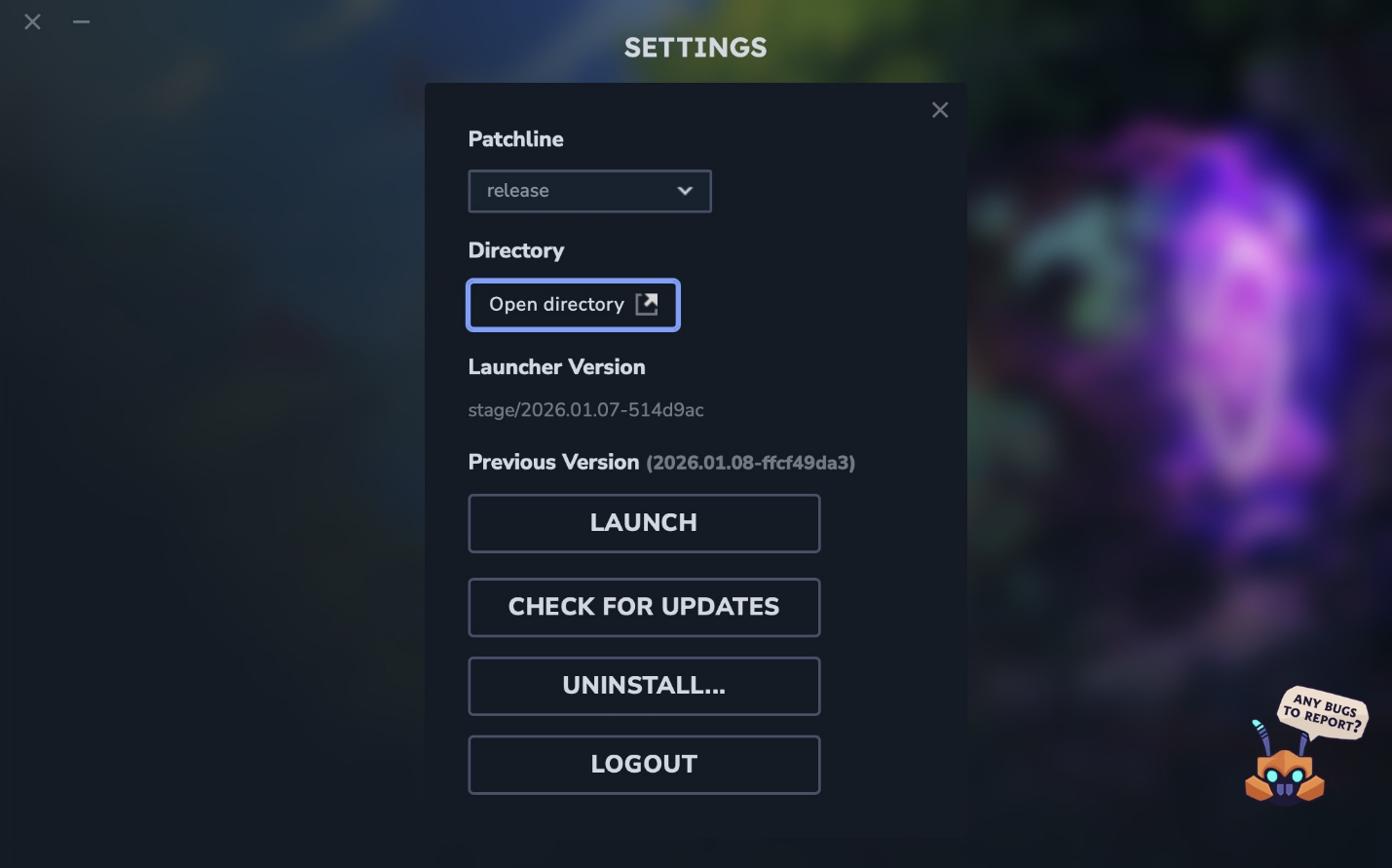
If you want the fastest route, open the Hytale Launcher, click the settings cog, then use "Open directory". From there, open "UserData" → "Mods".
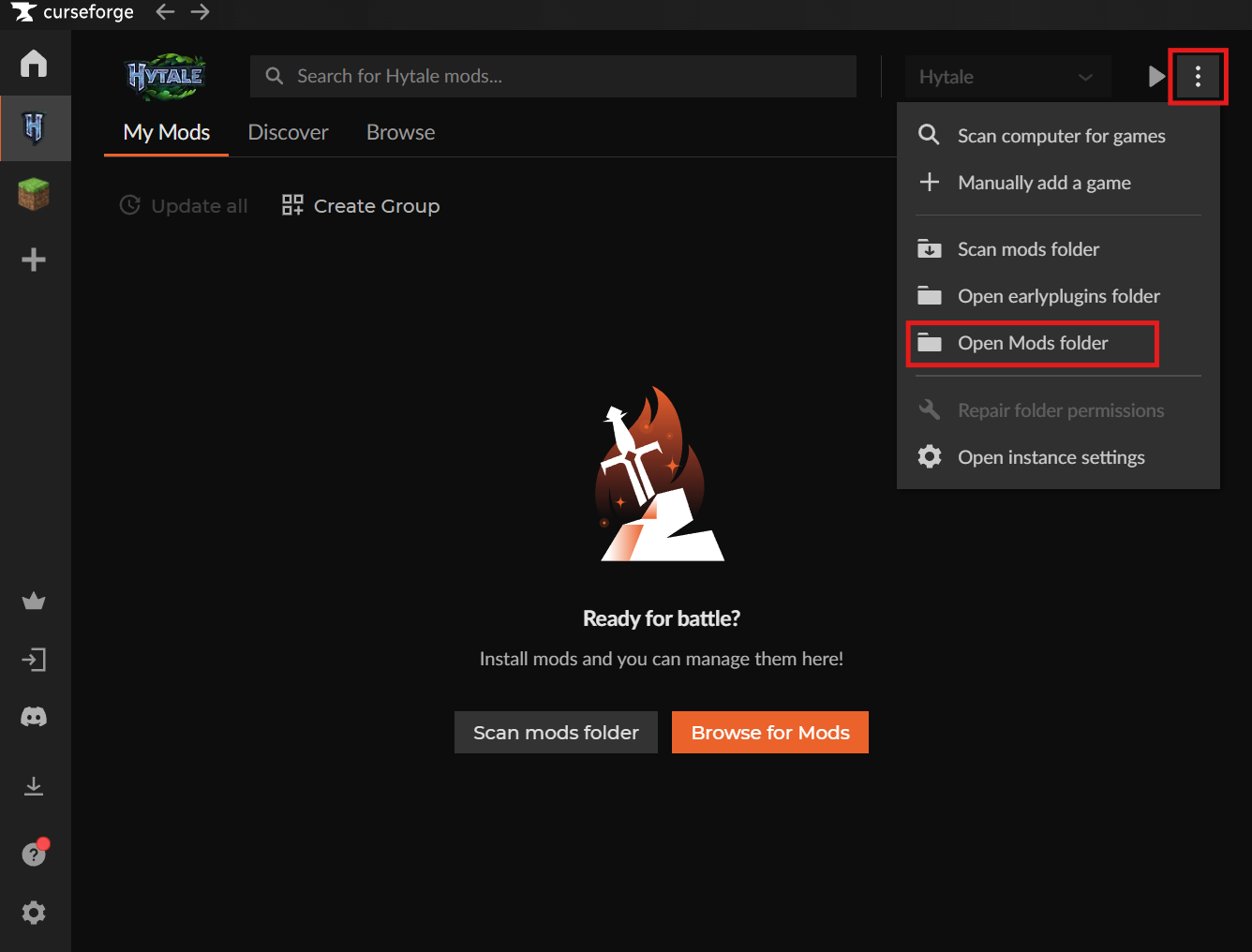
If you’re using the CurseForge app, open the Hytale tab, click the menu, then choose "Open Mods Folder".
Global vs World-Specific Mods
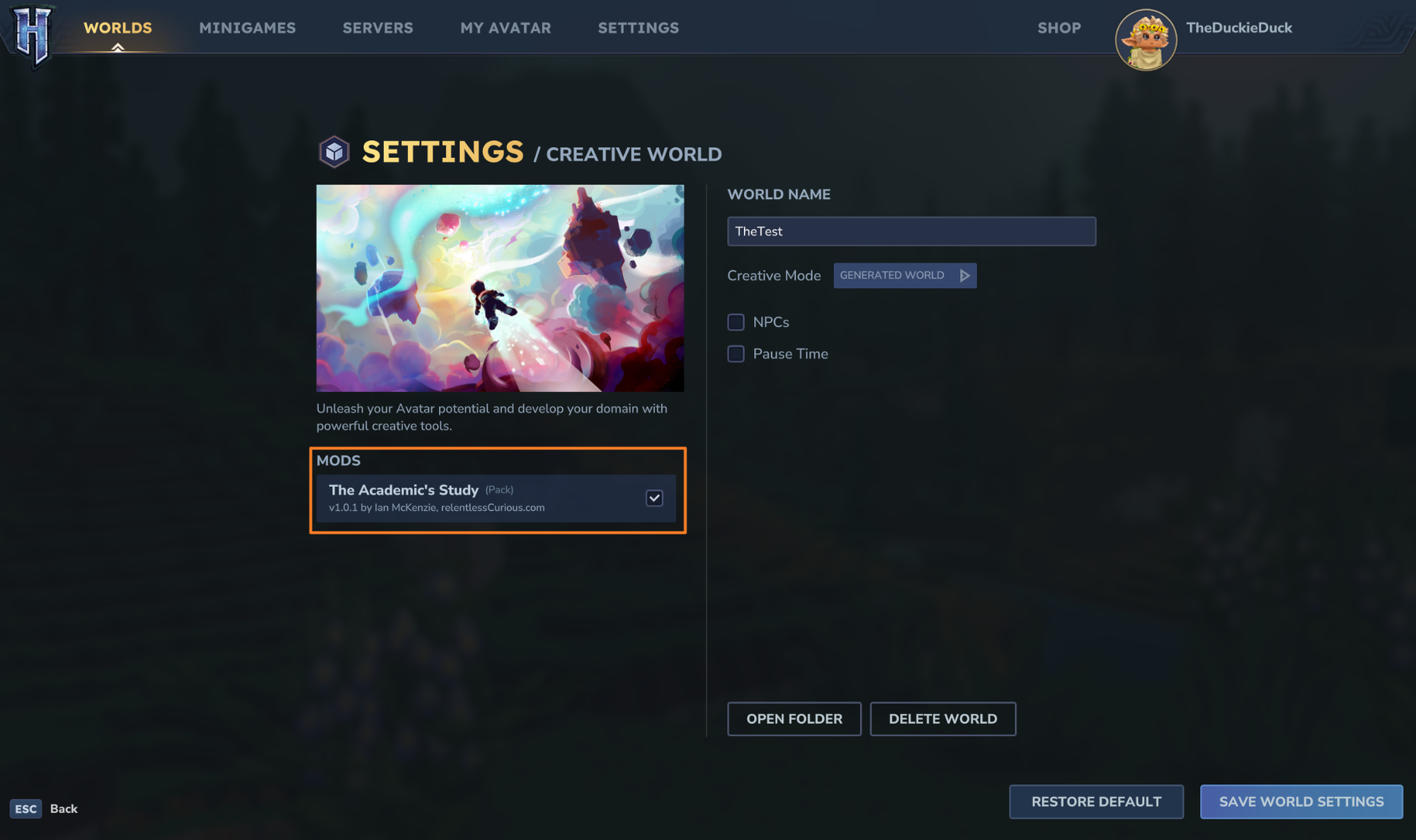
Mods placed in "UserData/Mods" are available to all worlds. If you only want to use a mod for a specific world, use that world’s own mods folder under "UserData/Saves/<worldname>/mods instead".
How to Install Hytale Mods
Installing with the CurseForge App
- Open the CurseForge app and select Hytale.
- Go to "Discover" or "Browse". In "Browse", you can filter by Mod type and Game version.
- Find the mod you want and click "Install". If the mod is not supported directly in the app, CurseForge may show "Download" instead.
- Launch Hytale from CurseForge or from the official launcher.
- Right-click your Hytale world and enable the mod.
- For an existing world, right-click the world → select mods → "Save world settings".
- If creating a new world, go to "Create World" → settings cog → select mods → "Apply Settings" → "Create World".
Installing Mods Manually
If you do not want to use the CurseForge application, that’s okay! Here are the steps to setting up all your mods manually.
- Download the mod file from its CurseForge project page.
- Open the Hytale tab in the CurseForge app and use the menu there to open the Hytale mod folder on your computer. If you prefer, you can also open that folder manually using the common locations listed above.
- Drop the downloaded mod file into the "Mods" folder.
- Launch Hytale and enable the mod for the world where you want to use it. For an existing world, right-click the world → select mods → "Save world settings".
TIP: Before you test new mods, it’s a good idea to copy your "UserData/Saves" folder somewhere safe. That gives you a quick way back if a mod causes problems in your world.
How to Remove Hytale Mods
Need to uninstall a mod completely? You can easily remove it through the CurseForge app or delete it manually from the Hytale mods folder. If you only want to stop using it in one world, disable it from that world’s settings menu instead.
Uninstalling Through the CurseForge App
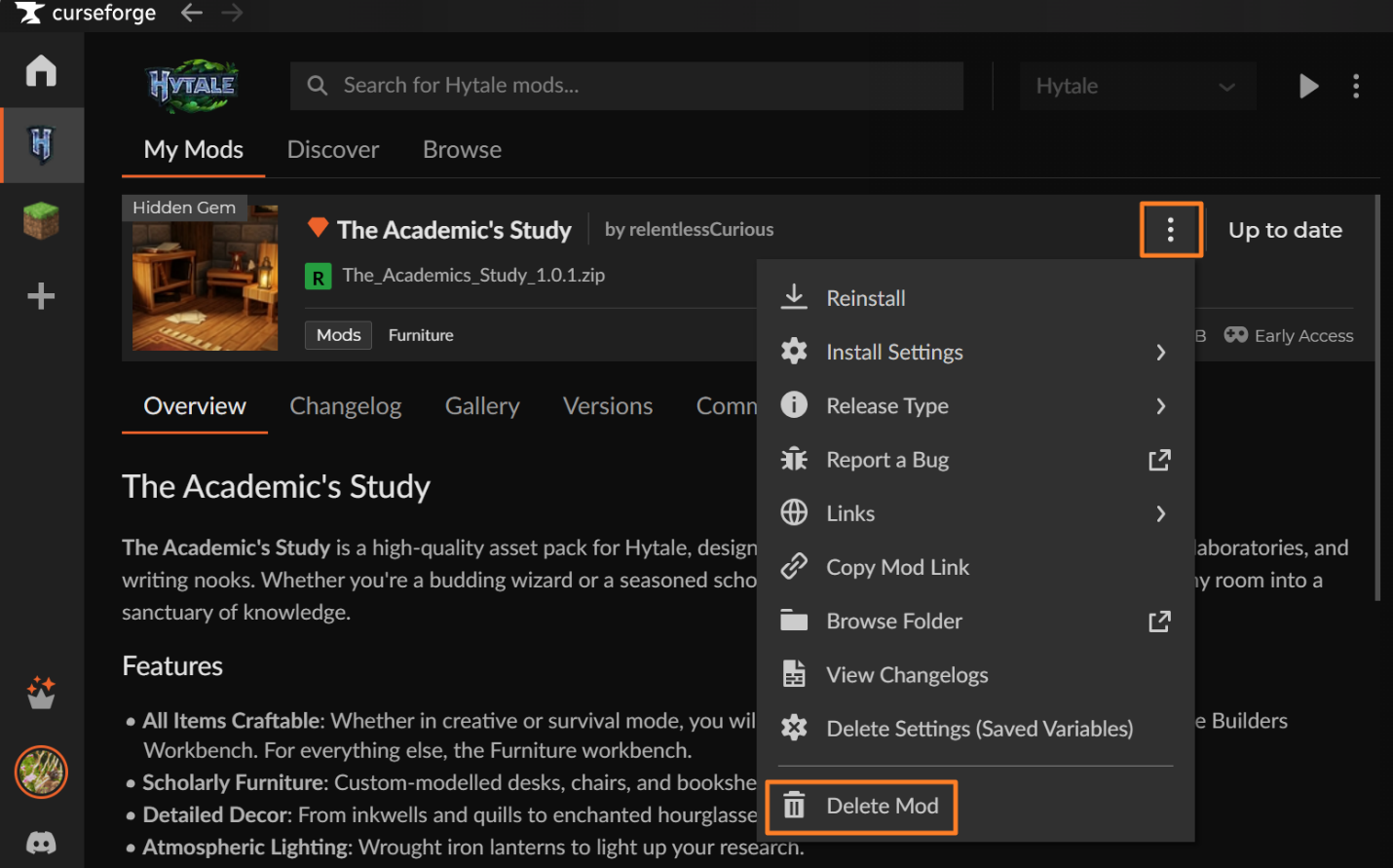
- Open the mod’s page in the CurseForge app.
- Open the menu.
- Click "Delete Mod".
Removing a Manually Installed Mod
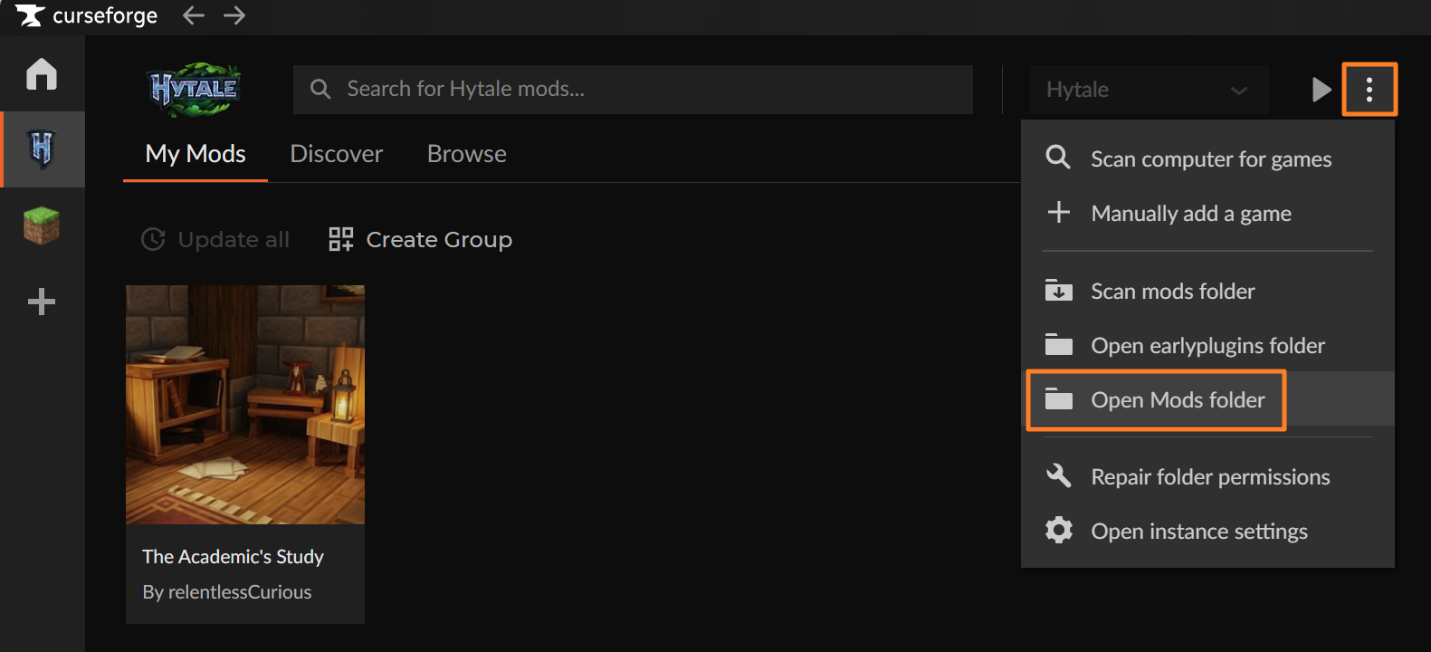
- Open the Hytale mods folder from the menu in the Hytale tab of the CurseForge app by clicking "Open Mods folder".
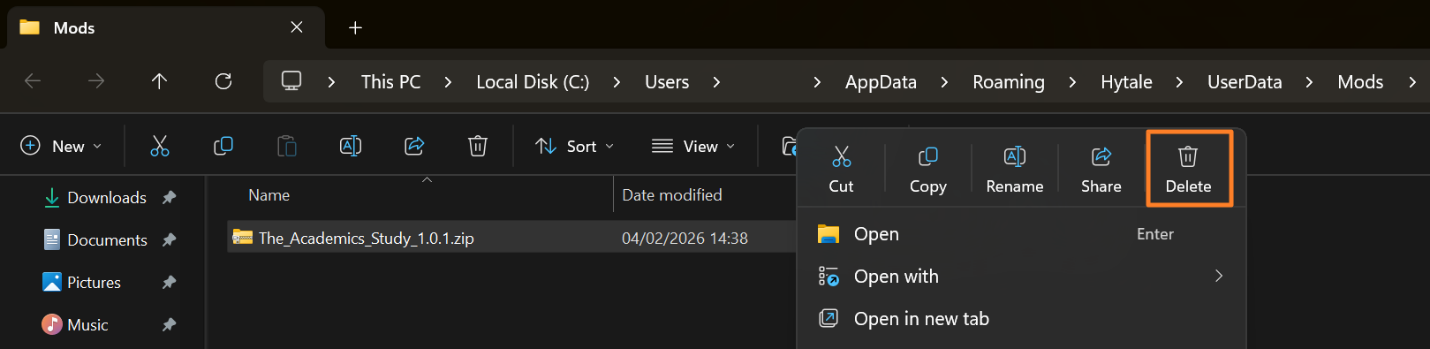
- Delete the mod file.
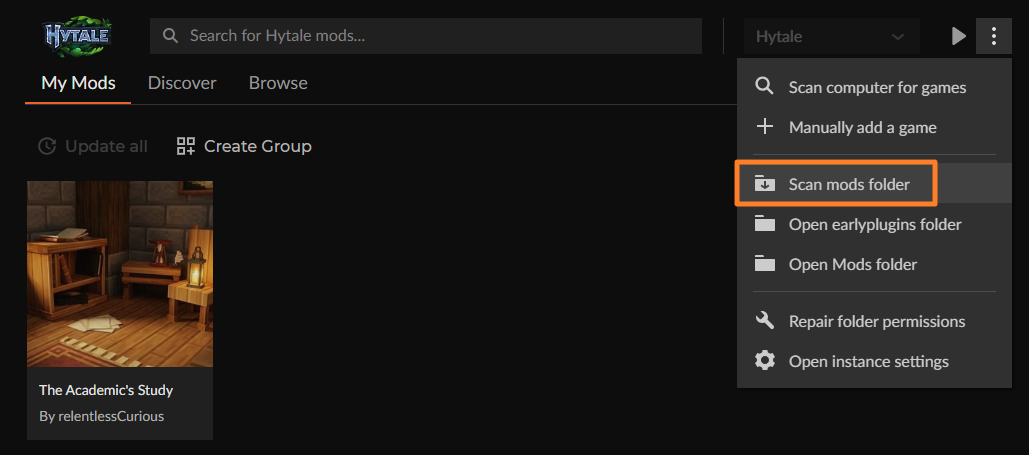
- If the app still shows the mod afterward, run "Scan mods folder".
What File Types Go in The Mods Folder?
- .jar files: Java plugins. Drop them straight into "mods/".
- .zip files or folders: Asset packs and other mod content. Some mods come as .zip files, while others use folders and include a manifest.json.
- Loose .json files: These usually belong inside a mod or asset pack and not loosely placed within the "Mods" folder.
TIP: Your safest move is to follow the mod author’s instructions. Some files stay zipped while others still are meant to be extracted first – it all depends on the mod you’re working with.
Common Issues and Quick Fixes
My folder doesn't exist
Run Hytale once to create it. If it's still missing, create the "Mods" folder manually inside "Hytale/UserData".
I can't copy files into the folder
Make sure you’re using the correct Hytale folder first. Open the Hytale Launcher, click the settings cog, then use "Open directory" to jump to the game folder. If you still can’t move files, check your folder permissions and make sure Hytale is closed before trying again.
I have multiple Hytale Installs
If the path looks different on your system, open the Hytale Launcher, click the settings cog, then use "Open directory" to jump to the right Hytale folder.
Mods don't show up in-game
Check that files are in "UserData/Mods" and not buried in a subfolder, then restart Hytale after adding your mods. Don’t forget to also enable them for your world through the world settings.
A .zip-packaged mod won't load
Check the mod's CurseForge page. Some .zip files stay zipped, while others need to be extracted. Make sure the "manifest.json" is in the right place for Hytale to read it.
Game crashes after adding a mod
Simply remove the problematic mod and reboot Hytale. If the game works without it, the mod is incompatible or corrupted. You could then re-download the mod or find an updated version.
I experience server mod issues
Hytale is server-first, so it’s best that you put mods in the server's "mods/" folder and then restart the server. Clients get the content automatically when they join, so they won’t have to install mods separately.
Frequently Asked Questions
Can I create the mods folder manually?
Yes. If Hytale didn't create it, just make a "Mods" folder inside "Hytale/UserData" using the path shown above.
Do mods work on servers?
Yes. To make this happen, ensure that you are installing your mods in the server's "mods/" folder and then restart the game. Players joining the server will then download the extra content automatically.
What's the difference between global and world-specific mods?
Global mods in "UserData/Mods" work for all worlds. Conversely, world-specific mods in "UserData/Saves/<worldname>/mods" only work for that one world. Regardless of how you go about it, you would still need to enable the mods through the dedicated world settings menu in order for them to appear in the game.
How can I back up my worlds?
Simply copy the entire "UserData/Saves" folder, which includes all worlds and their mods, to another location of your choosing.
How do I know which mods are installed?
Check the "Mods" folder to see files. In Hytale, right-click your world and look at the mods list to see which are enabled.
The folder path is different on my system. Why?
If you use a custom setup or a Linux Flatpak install, the path may vary. Use the launcher's "Open directory" button in settings, then navigate to "UserData\Mods" from there.
Should I extract .zip files or leave them as-is?
It depends on the mod. Check the description on the mod’s CurseForge page first. Some asset packs should stay as .zip files, while others need to be extracted before you can add them to the Mods folder.