Custom mobs, useful tools, new blocks, and visual overhauls can make any Bedrock world feel completely different. Getting that content into the game is fairly simple as well, but the exact process depends on whether you play on Windows, mobile, or console.
This guide covers Minecraft: Bedrock Edition only. We will explain what Bedrock calls mods, where to find them, how to activate them, and what to check if they do not work. If you play Java Edition, make sure to follow our guide to installing Java Edition mods instead.
What Are Minecraft Bedrock Addons?
Bedrock uses addons instead of Java Edition ".jar" mods. An add-on can contain a behavior pack, a resource pack, or both. Behavior packs change gameplay rules, entities, recipes, items, and other mechanics. Resource packs change textures, models, sounds, and other assets. More advanced addons can also use Bedrock's supported Script API.
The good news is that the whole process is much more streamlined than on Java – you do not need Forge, Fabric, NeoForge, Quilt, or another Java mod loader to use a Bedrock addon.
What to Check Before Downloading an Addon
Before installing anything, open the add-on's project page and check the following:
- Confirm that it is a Minecraft Bedrock addon and not a Java Edition mod.
- Match the file's supported game version with the version shown on your Minecraft title screen.
- Check the project's latest update and choose a recently maintained file when possible.
- Read the description and changelog so you know exactly what the addon changes.
- Check for required dependencies, known incompatibilities, and experimental features.
- Look for a note saying that the add-on needs a new world or only affects newly generated areas.
- Copy or export any important world before changing it.
Most reusable Bedrock addons use ".mcpack" or ".mcaddon" files. A ".mcworld" file imports an entire world instead. Java ".jar" files will not work in Bedrock, and a normal Bedrock add-on should not require you to run an ".exe" or ".bat" file.
Important: If the download arrives as a ".zip" file, make sure to follow the author's installation instructions. Do not rename or extract an unfamiliar archive unless the project page tells you to do so as this could break the addon.
Where to Find Minecraft Bedrock Addons
Going on CurseForge
CurseForge hosts free Bedrock addons created by the Minecraft community. To find these:
- Open the Minecraft Bedrock section on CurseForge.
- Select "Addons" from the available options.
- Choose a project you want to download.
Note: For Minecraft, the CurseForge app manages Java Edition rather than Bedrock Edition. Because of this, make sure to download Bedrock files directly from the CurseForge website instead.
Using the Marketplace
Minecraft Marketplace is the other main option. It offers both free and paid addons that you download from inside Minecraft. Marketplace handles the download without giving you an external ".mcpack" or ".mcaddon" file, so its installation process is different from the CurseForge method.
Installing Bedrock Addons on Windows With CurseForge
- Open the add-on's CurseForge page and download the file that matches your Minecraft version.
- Open your "Downloads" folder and find the ".mcpack" or ".mcaddon" file.
- Double-click the file. If Windows asks which application to use, select "Minecraft".
- Wait for Minecraft to open. You should first see "Import Started" and then "Successfully Imported".
Note: If Minecraft does not open, right-click the file, select "Open with", and choose "Minecraft". If that still fails, download the file again and confirm that it is a Bedrock file rather than a Java-specific ".jar" mod.
Installing Bedrock Addons on Windows Manually
- Download the addon you want to play.
- Rename the addon and replace the ".mcaddon" or ".mcpack" at the end with ".zip".
- Right-click the addon and select "Extract".
- Press "Windows" + "R" and click "OK" after pasting this exact location: "%appdata%\Minecraft Bedrock\users".
- Open the “shared” folder (or the folder with your account name), then navigate to “games” → “com.mojang”.
- From another file explorer window, enter the folder of the addon you extracted, right-click and copy every folder with “BP” or “Behavior pack” in its name, then right-click again and paste them inside the “behavior_packs” folder.
- Repeat the same process with every folder “RP” or “Resource pack” in its name, and paste them inside the “resource_packs” folder instead.
- Restart Minecraft Bedrock and activate the pack from your world settings.
Note: The folder containing "manifest.json" should sit directly inside the correct pack folder. An unnecessary extra folder layer can stop Minecraft from finding it.
Installing Addons from Minecraft Marketplace
- Open Minecraft and select "Marketplace".
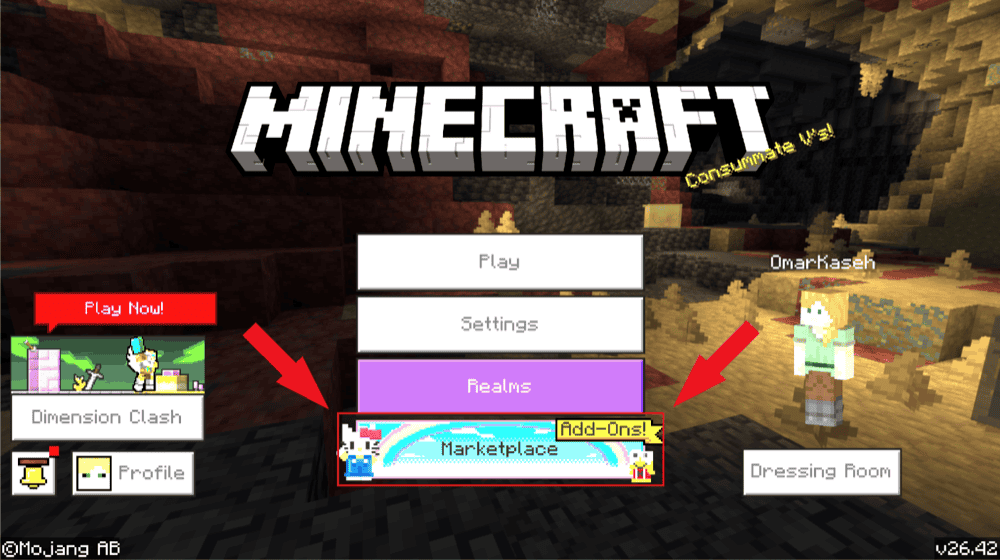
- Select "Add-Ons" or use the search bar to find the add-on you want.
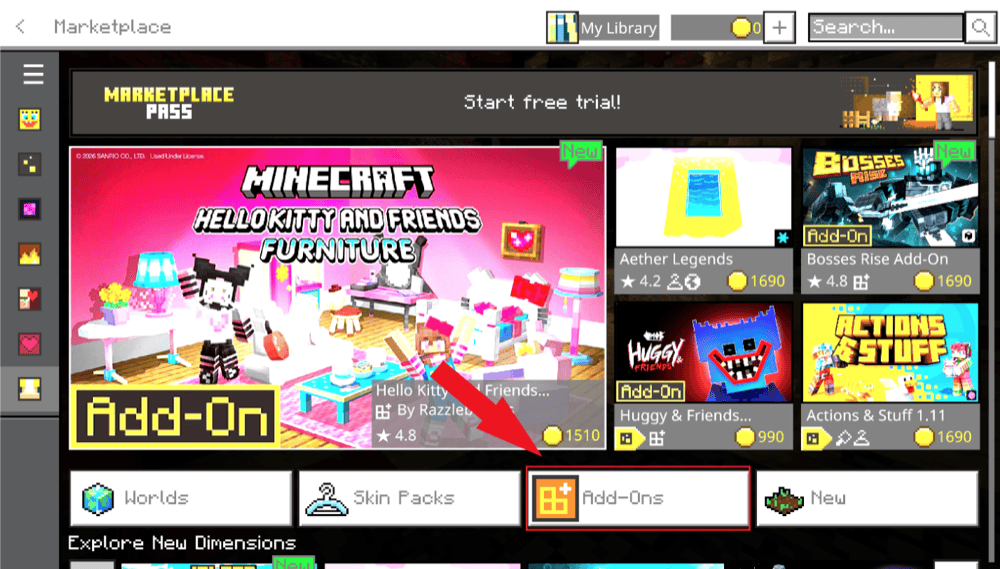
- Open its page and select "Free", or select the displayed price and complete the purchase if it is a paid addon.
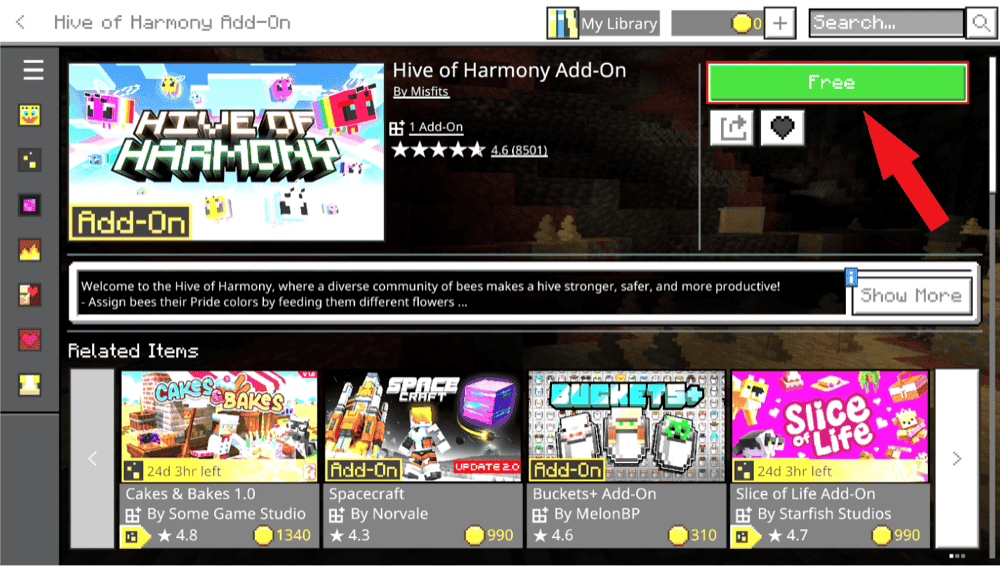
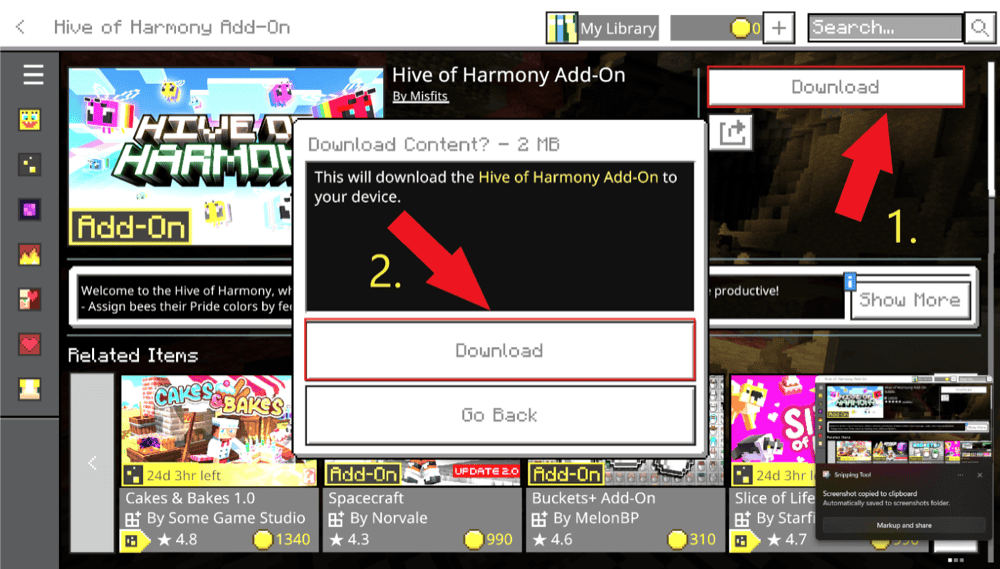
- Select "Download". When the confirmation window appears, select "Download" again.
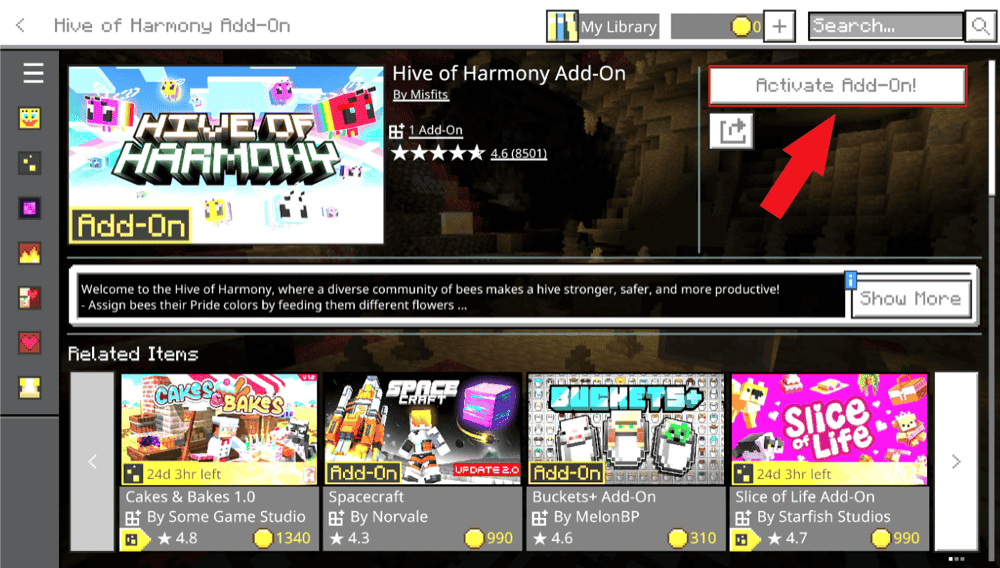
- Wait for the download to finish, then select "Activate Add-On!".
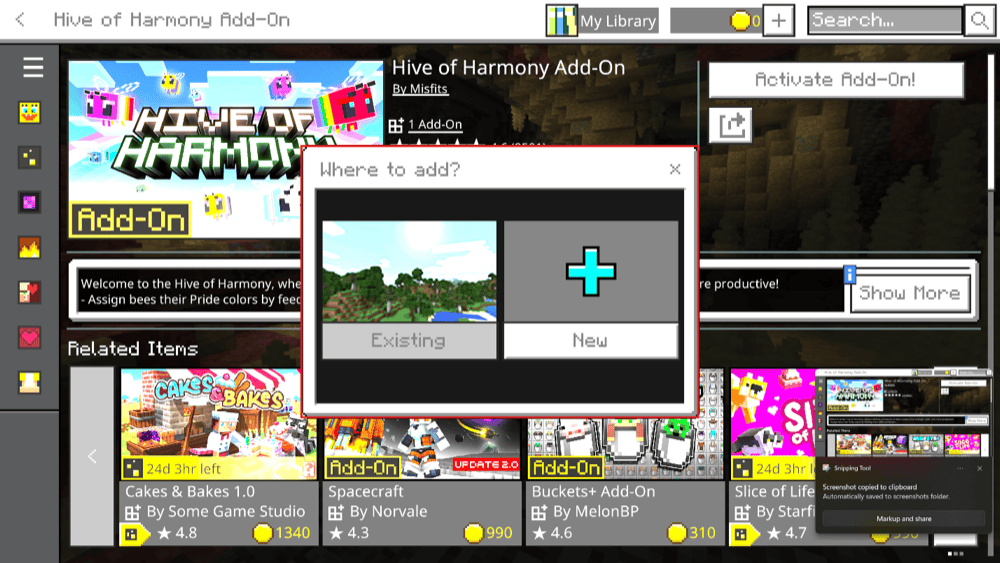
- At the "Where to add?" prompt, select "Existing" to add it to a saved world or "New" to create a new world with it.
- Choose the existing world or finish configuring the new one, then select "Play" or "Create".
How to Activate Addons in a World
Importing an addon installs it, but it does not always activate it automatically.
- Open Minecraft and select "Play".
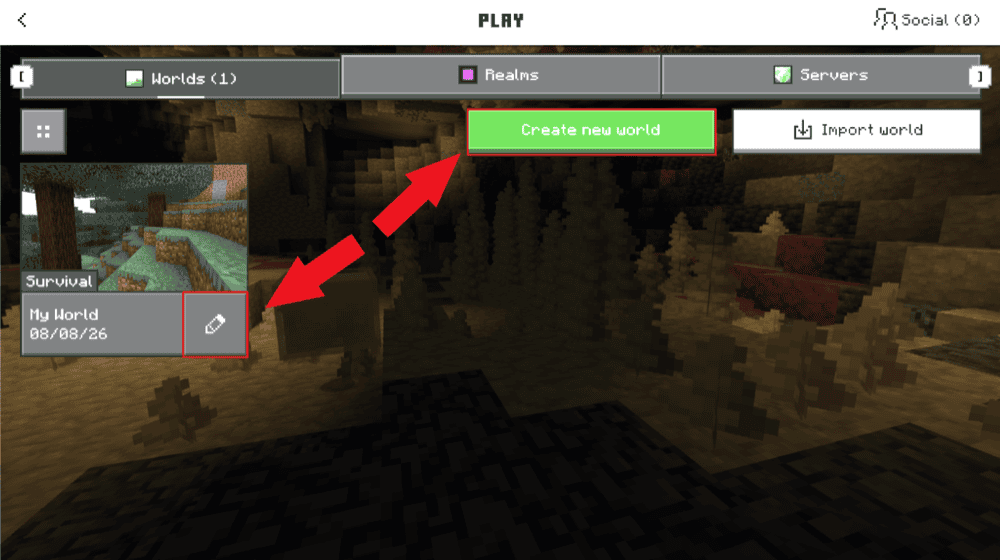
- Select "Create new world" to start a new world, or select the pencil icon beside an existing world.
- Open "Resource Packs" or "Behavior Packs".
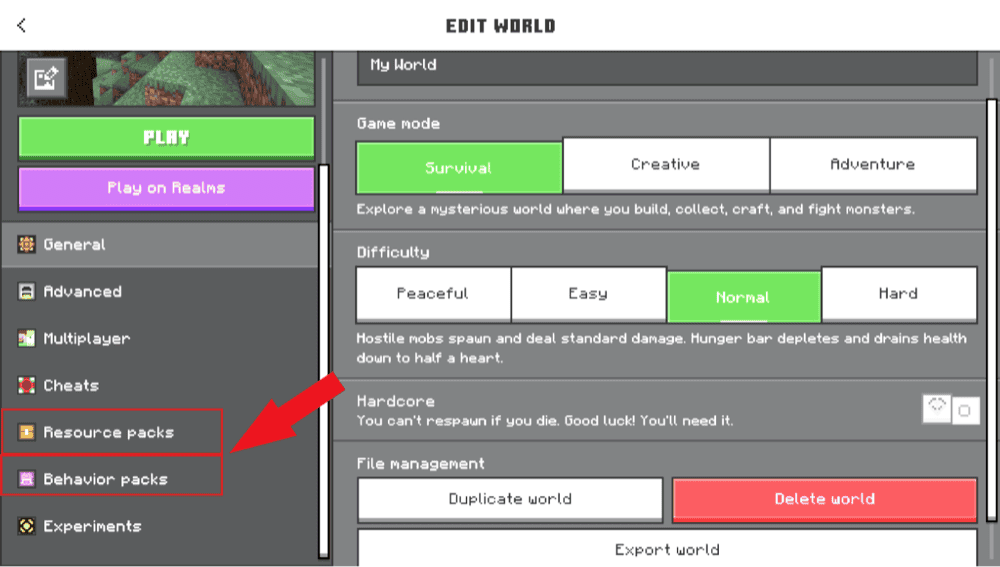
- In the "Available" tab, select the imported pack and choose "Activate".
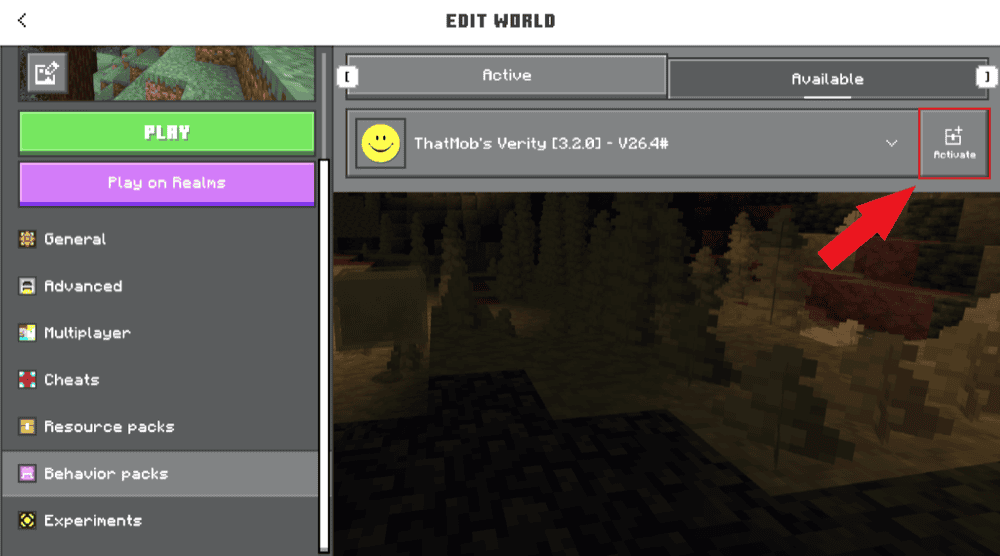
- Check both sections because many addons include a behavior pack and a matching resource pack.
- Create or open the world.
Some linked packs activate together, but checking both sections helps prevent missing textures, invisible items, or incomplete features.
Experiments, Achievements, and World Backups
Some addons require experimental features. Check the author's CurseForge description and make sure to enable only the exact experiment that it specifically names. We recommend against turning on several experiments just because an addon is not working as this could lead to issues or outright game crashes.
Tip: To stay on the safe side, make a copy or export of your world before enabling experiments. Experimental features can cause crashes, break content after an update, or leave the world unable to return to a normal non-experimental state.
Retaining Your Achievement Progression
Marketplace addons can preserve achievement eligibility. Note that any addons downloaded outside of Marketplace, including CurseForge addons, do not qualify for Mojang's achievement support. Cheats, “Creative” mode, experiments, and certain world settings can also prevent a world from earning new achievements. However, achievements you have already earned do not disappear.
What Minecraft Bedrock Addons Offer to Players
Bedrock addons can introduce custom blocks, items, mobs, recipes, sounds, models, interfaces, and gameplay mechanics. Advanced addons can also use Bedrock's Script API, while experimental creator tools now support features such as custom dimensions.
With that said, an addon's exact capabilities will typically depend on the Minecraft version being installed, the APIs it uses, and the features its author has implemented.
Using Bedrock Addons on Realms and Consoles
Xbox, PlayStation, and Nintendo Switch do not provide an officially supported way to import downloaded files directly. For these, the official Marketplace remains the simplest option for installing addons locally on a console.
A Realm offers another route for compatible third-party addons. To make use of it:
- Install the add-on on a supported Windows or mobile device.
- Activate it in a copy of the world you want to use.
- Test the world locally to confirm that the addon works.
- Upload that world to your Bedrock Realm.
- Join the Realm from the console.
Note: Minecraft automatically downloads and applies the addons activated on the Realm as players join it. The Realm owner must manage the world and its packs, and the addon should support multiplayer or Realms as well.
Updating, Reordering, or Removing Addons
Before You Start
We strongly recommend backing up your world before updating or removing an addon. Custom blocks, mobs, items, or other content may disappear if the pack that created them is removed.
Updating an Addon
To update an addon, download a compatible newer file from its CurseForge project page and import it. Make sure to also check the author's changelog because some updates require a new world or additional steps that may not always be obvious.
Reordering Addons
If two addons change the same texture, entity, recipe, or mechanic, their packs may conflict. If this happens, open the world's "Resource Packs" or "Behavior Packs" settings and change their priority, or simply disable one of the conflicting packs.
For best results, we recommend adding and testing one new pack at a time so you can identify problems more easily.
Removing an Addon
To remove an add-on, edit the world, open its active "Resource Packs" or "Behavior Packs", select the pack, and remove or deactivate it. Next, test the world copy before making the same change to your main save to ensure that nothing will break.
Common Issues and Quick Fixes
Nothing happens when I open the addon file
Confirm that the file ends in ".mcpack" or ".mcaddon". A Java ".jar" file will not work in Bedrock, and vice-versa. On Windows, right-click the file, select "Open with", and choose "Minecraft".
If Minecraft still does not import it, download the file again from its CurseForge project page and make sure it supports your game version.
The addon is not showing under Resource Packs or Behavior Packs
First, confirm that Minecraft displayed the "Successfully Imported" message. Next, edit the world and check both "Resource Packs" and "Behavior Packs".
A resource-only pack should not appear under "Behavior Packs", while a behavior-only pack should not appear under "Resource Packs". If the pack shows a warning or missing-dependency message, make sure to return to its CurseForge page and install every required file listed by the author.
If you did a manual installation, verify that you moved the files at the right place first.
The addon is active, but nothing seems different
Read the author's description to learn how its features appear in-game. Some addons require you to craft a new item, find a newly spawned mob, use a command, or explore newly generated areas. Others need a matching resource pack, a dependency, a specific experimental feature, or a new world. Check both pack sections and confirm that every required part is active.
The game or world crashes after I activate an addon
A version mismatch, missing dependency, or conflict with another pack is the most likely cause. To fix this, edit the world without opening it and disable the newest add-on.
If the world loads, check that addon's supported versions and requirements before trying it again. When several addons are active, disable them one at a time until the crash stops. Test unfamiliar packs in a copied world and avoid deleting the entire "com.mojang" folder.
Can Java Edition mods work on Minecraft Bedrock?
No. Java Edition mods normally use ".jar" files and loaders such as Forge, Fabric, NeoForge, or Quilt. Bedrock uses ".mcpack", ".mcaddon", resource packs, behavior packs, and its supported Script APIs instead.
Can I use several Bedrock addons together?
Yes, but the Minecraft Bedrock team recommends using no more than three addons at a time because additional addons can reduce performance or cause other issues. Packs that change the same content may also conflict with one another.
If you do want to go beyond this recommended amount, make sure to add them one at a time and test the world after each addition for any potential issues.