Imagine a block so powerful that you need to enable multiple settings just to be allowed to use it. That is the mighty potential of the command block.
As the name implies, this simple block will execute Minecraft Bedrock console commands whenever triggered. In the right hands, this can be an extremely powerful tool, allowing players to create game-changing machines and automations.
Imagine being able to fully kit yourself out in diamond gear at the press of a button, or summoning a horde of zombies for combat practice, or even just making teleporters between bases. In the wrong hands, though, it becomes a game-breaking risk. That’s why getting one isn’t as easy.
Below, we’ve outlined every method for getting a command block so that you know exactly what you need to do to unlock this power for yourself. And if you want to explore the potential for console commands further, we also included some of our favorite addons that make commands and command blocks a lot easier to use.
Looking to enable these in Java Edition instead? Follow our guide on how to get a command block in Minecraft.
How to Enable Command Blocks in the Settings
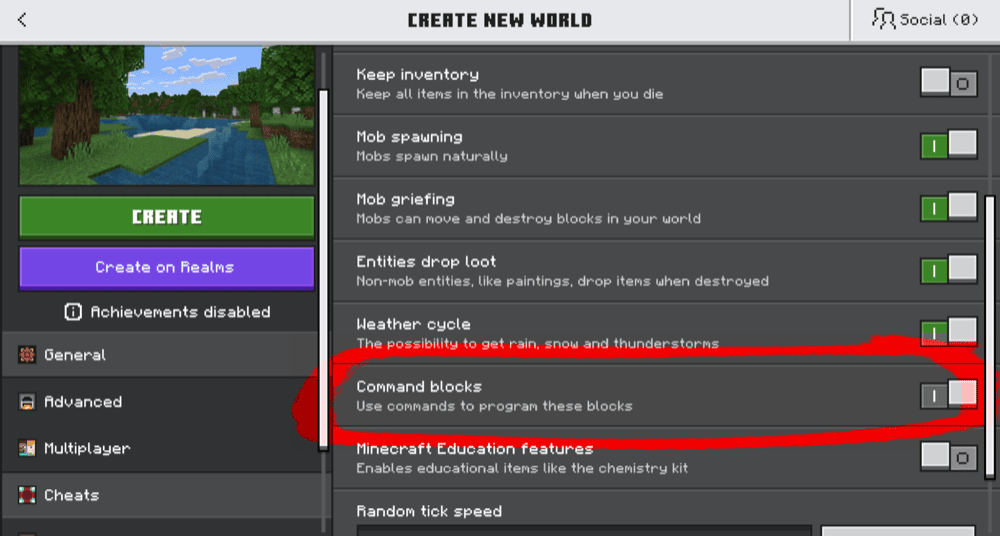
Before you can access command blocks, you need to enable them from the settings menu. To do this, either create a new world, or go to the settings menu of the world you want to change, then do the following:
- Go to the "Cheats" section on the left.
- Tick "Enable Cheats", the first option.
- Scroll down and find the "Command blocks" option. Enable it as well.
- Select the "Create" or “"Save" button on the top left.
If done correctly, this will allow command blocks to exist in this world.
Getting a Command Block from Console Commands

The only way to get a command block is, ironically, to use a command. Simply type the following command into chat and submit:
"/give @s command_block"
This will give you one command block. You can change "@s" to a different target, like another player, or "@a" to give one to everyone. You can also add a number after the block name to give multiple command blocks at once.
Tip: why not make the command block work for you? Give that command to the command block, replacing "@s" with your username, and attach a button. Now every time you press that button, it will give you another command block!
Getting a Command Block from the Block Picker
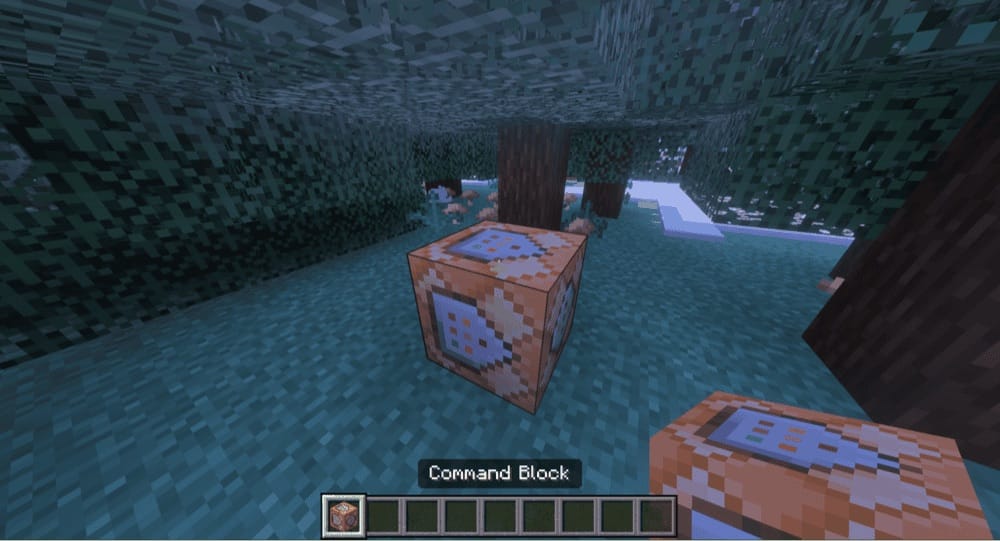
If you’re in creative mode, one method to quickly get a command block is to use the block picker key. When targeting the block and activating it, it will add the block to your hotbar.
Once there, you can place as many as you want.
Note: The block picker button is typically assigned to the middle mouse button.
Minecraft Addons that Further Expand on Commands
Commands are great, and command blocks are even better. But both of them are still a bit inconvenient to use. Addons, like the ones listed here, can help make commands more convenient to use by adding UIs, items, or other functions.
So, make sure to give these a try the next time you’re tired of typing out a command for the 50th time.
1. Turbo Commands
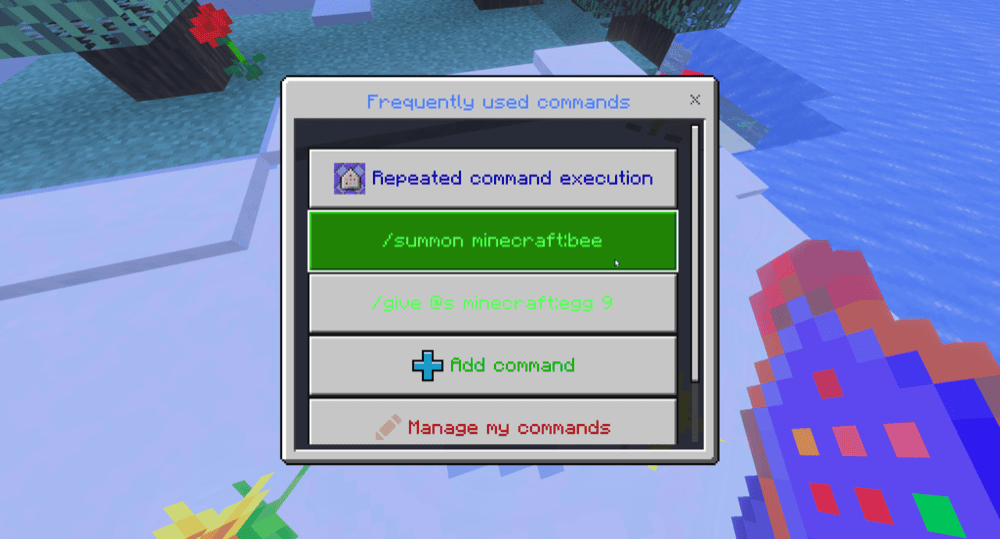
With the “Turbo Commands” addon enabled, you gain a handy new item that acts as a quick reference bookmark of sorts to your favorite commands. Use the item to open up a UI, where all of your set favorite commands can be executed with the press of a button.
It has a repeated mode as well, allowing multiple commands to be executed in a row, and plenty of customization settings you can pick from. Overall, we find it’s a very handy tool for common command users.
2. Ultimate Command Book
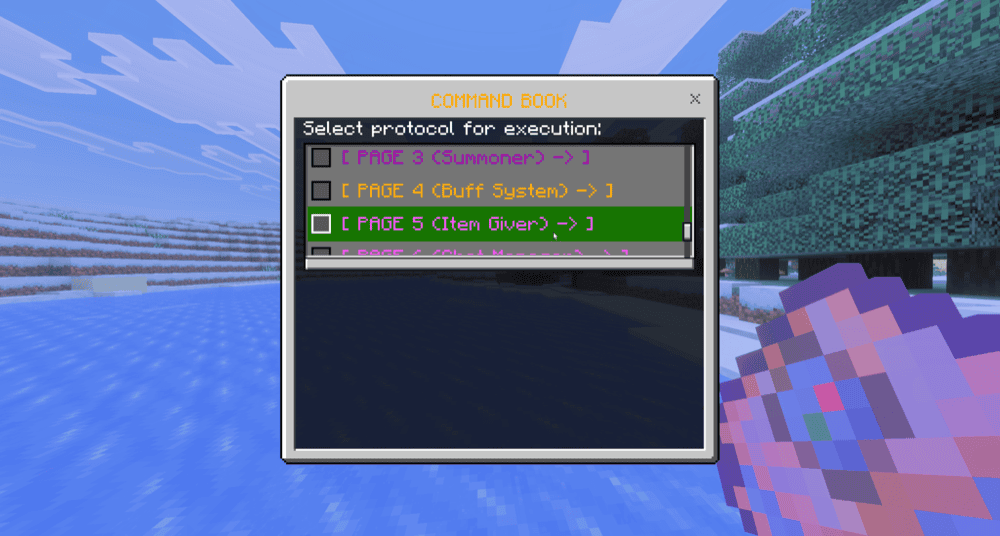
The command list in the Minecraft Bedrock chat is no doubt limited. It only shows a handful of commands at a time and doesn’t make it easy to adjust things. The “Ultimate Command Book” addon offers itself as a powerful alternative.
Activate the book to open up a UI menu, then navigate through it to see every single command option available. It even comes with a ton of pre-written commands for things like giving items, summoning mobs, and more. You’ll be amazed by all the examples of what commands are capable of, had you only known the right words!
3. Advance Command Block Addon
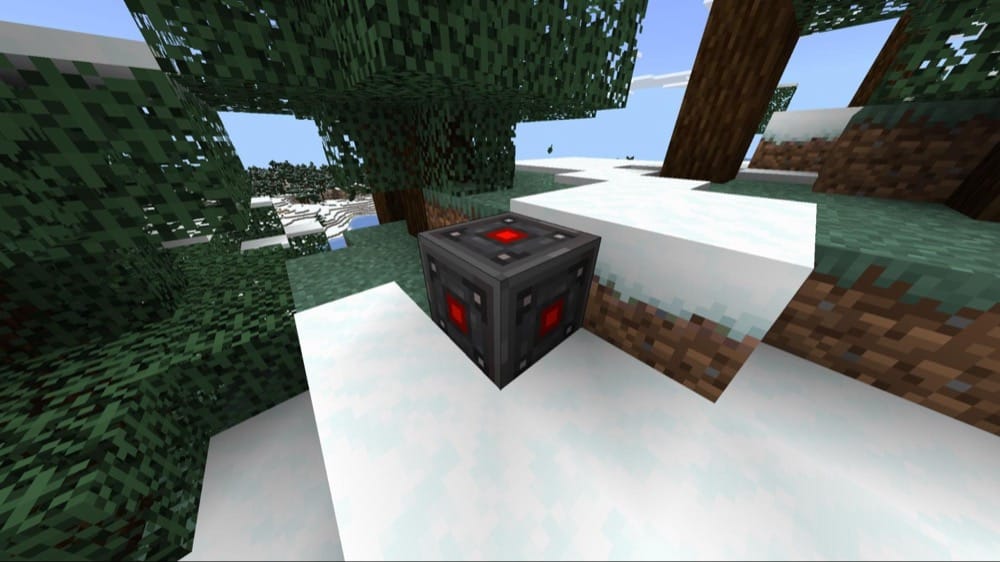
Command blocks are very handy, but are prone to abuse. The “Advance Command Block” addon looks to solve that, offering a more advanced version of the command block, which is also suitable for multiplayer use.
Each block works just like a command block, but they come with extra functions and security features. Automatically detect who activated them, have command block use limited to a per-player basis, and even multiple command lines.
How to Install Minecraft Addons
You can add Bedrock addons automatically from the official Minecraft Marketplace or download and install them manually from CurseForge’s Bedrock addons browser.
If you pick the second option, make sure to open the linked project page of each of the addons above and download its associated “.mcaddon” file. Running the downloaded file should then launch Minecraft and begin the import.
After the import finishes, don’t forget to edit the world and check both "Behavior Packs" → "Available" and "Resource Packs" → "Available". If all went well, activating the packs included with the addon should add its features to that world. If the project lists an experiment under "Requirements", you should enable it as well before loading the world.
For a complete walkthrough, check out our guide on how to install Minecraft Bedrock addons.
Common Issues and Quick Fixes
The command block isn’t activating for the correct target
Target identifiers like "@s" don’t normally work for a command block, because the command block is considered its own activator and not the player.
If you’re playing solo, you can just replace "@s" with your username.
If you want to target the player that activates it instead, you can use tricks like targeting “every player within 1 block of here” to effectively target the nearest player.
Cheats and command blocks appear enabled, but I still can’t get one
This most commonly happens in multiplayer servers, where each player has their own permission level. Only players with Operator status can use commands, including to give a command block.
To solve this, use "/op" and your username from the server log (or have another admin do it for you) to grant yourself Operator permission.
The command I want to use isn’t working
How commands are written out is different between Java Edition and Bedrock Edition. Be sure that whatever command and various settings you type in, are meant for Bedrock specifically, and not for Java.