Command blocks are one of Minecraft’s most powerful tools, but these are not your typical blocks. They are mainly used for custom maps, minigames, server tools, testing setups, and automated command systems, so Minecraft keeps them behind permissions instead of dropping them into normal “Survival” mode progression.
This guide will walk you through how command blocks work, what you need before you can use one, and the exact Java and Bedrock Edition steps to try them out once you are ready. We also explain the three command block types, common issues faced by players, and a few mods that can make command-block-style building or automation way easier.
Getting a Command Block on Java Edition
Singleplayer
Open the chat and run: "/give @s minecraft:command_block"
For this to work, cheats need to be enabled in the world. If you created the world without cheats, you can temporarily enable them through "Open to LAN":
- Press "Escape".
- Click "Open to LAN".
- Toggle "Allow Commands" on.
- Click "Start LAN World".
This will enable cheats/commands for your current session only – they turn off as soon as you close the world.
Once you have the block in your inventory, switch to “Creative” mode with "/gamemode creative" before placing it (command block GUIs only open in “Creative” mode).
On Java Edition with cheats/commands enabled, command blocks also appear in the “Creative” inventory under the "Operator Utilities" tab – but only if the "Operator Items Tab" option is turned on from your in-game settings.
Multiplayer
If you’re playing on a multiplayer server, you need operator status, and the server needs to have command blocks enabled. Check "server.properties" for this line:
"enable-command-block=false"
Change it to true and restart the server. You also need "op-permission-level" set to "2" or higher – the default is "4", which is fine, but if it's been changed, it might be too low. Once those settings are in place, use "/give @s minecraft:command_block" as an operator and you're all set.
Getting a Command Block on Bedrock Edition
Open the chat and run: "/give @s command_block"
Cheats need to be active in the world settings before this works. On Bedrock:
- Go to "Settings" → "Game".
- Scroll down and turn on "Activate Cheats".
Note: enabling cheats disables achievements for that world permanently.
Like with Java Edition, you'll want to be in “Creative” mode ("/gamemode creative") to place and edit the block properly.
If command blocks exist in the world but nothing happens when you use them, check for two things:
- The "Command Blocks Enabled" toggle in world settings
- The "commandblocksenabled gamerule".
Important: Either one can stop command blocks from executing regardless of whether or not you have the item!
The Three Command Block Types Explained
All three types share the same core function but behave differently with redstone and timing.
- Impulse (orange) runs once each time it's powered by a redstone signal. This is the default type and what you get from "/give". It's the right choice when you want something to happen once per trigger – a button press, a lever flip, a pressure plate, and so on.
- Chain (green) runs when a command block pointing into it is triggered. You use chain blocks to sequence multiple commands together. The arrow on each block shows the direction of execution flow – the block behind the arrow triggers the next chain block in front of it.
- Repeating (purple) runs every game tick (20 times per second) while powered. Use this for things that need to happen continuously. Be careful with repeating blocks – an "/effect" command or a "/tp" command in a repeating block fires 20 times per second and can cause issues fast.
If a repeating block gets out of control on Bedrock, use "/gamerule commandblocksenabled false" to shut command blocks off immediately. On a Java Edition server, disable command blocks from "server.properties", restart the server, then remove or fix the block as needed.
To get chain and repeating variants as items instead of converting an existing block, use these commands instead:
- Java: "/give @s minecraft:chain_command_block" and "/give @s minecraft:repeating_command_block"
- Bedrock: "/give @s chain_command_block" and "/give @s repeating_command_block"
How to Use a Command Block
Right-click a placed command block in "Creative" mode to open its interface. Type your command in the text field – you don't need to lead with a slash ("/") inside a command block, though using one still works.
- The "Condition" setting controls whether the block checks the previous command's success before running. Conditional means it only fires if the upstream block succeeded. "Unconditional" means it fires regardless.
- The Redstone setting determines whether the block needs a redstone signal or runs constantly. "Needs Redstone" means you must provide power (from a button, lever, or other source).
- "Always Active" means it runs without any redstone input. Chain blocks use "Always Active" by default, while impulse and repeating blocks default to "Needs Redstone".
Important Bedrock note: The "@s" selector doesn't work inside Bedrock command blocks because the block itself has no identity as a player. Use "@p" (nearest player), "@a" (all players), or a named player selector instead.
What Command Blocks Are Actually Good For
Command blocks excel at map logic, minigame mechanics, scoreboard-driven events, reward systems, and build utilities using the "/setblock", "/fill", and "/clone" commands. They're also useful for multiplayer admin tasks that need to happen automatically without someone running commands manually.
Some admin commands do not work inside command blocks. Commands like "/op", "/ban", "/stop", and "/whitelist" are blocked by design – command blocks have elevated permissions, but they are not unlimited.
Mods That Improve the Command Block Experience
If you like what command blocks can do but want a different way to work with them, mods can help. Some improve the command block interface, some add a modded “Survival” route to command blocks, and others replace common command-block jobs with easier building or automation tools.
The mods below cover a few different angles: “Better Command Block UI” makes long commands easier to edit, “Command Block Ascension” adds command blocks to modded “Survival” progression, “WorldEdit” handles large building edits, and “Create” turns automation into visible machines and contraptions.
Create
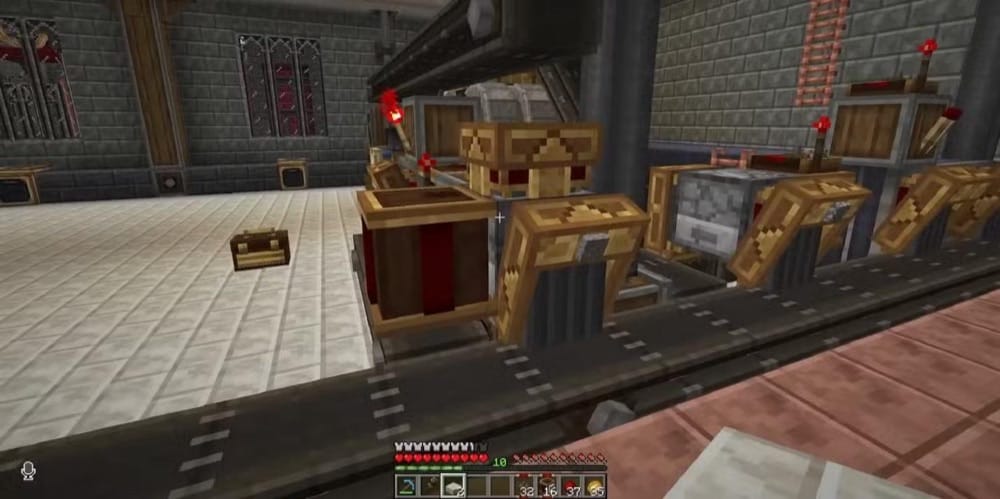
“Create” gives players a more hands-on way to build automations without relying on command block contraptions. Instead of hiding everything inside command strings or menus, it adds animated machines, moving parts, rotational power, and automation tools that you can build, connect, and adjust directly in the world.
The mod works especially well for players who want machines to handle jobs like farming, mining, item movement, ore processing, sorting, elevators, trains, and larger logistics systems. Create also includes the Ponder system – an in-game visual guide that explains its mechanics and gadgets. “JEI” is worth adding here as well because the vanilla recipe book will not show everything needed to fully follow Create’s progression path.
WorldEdit
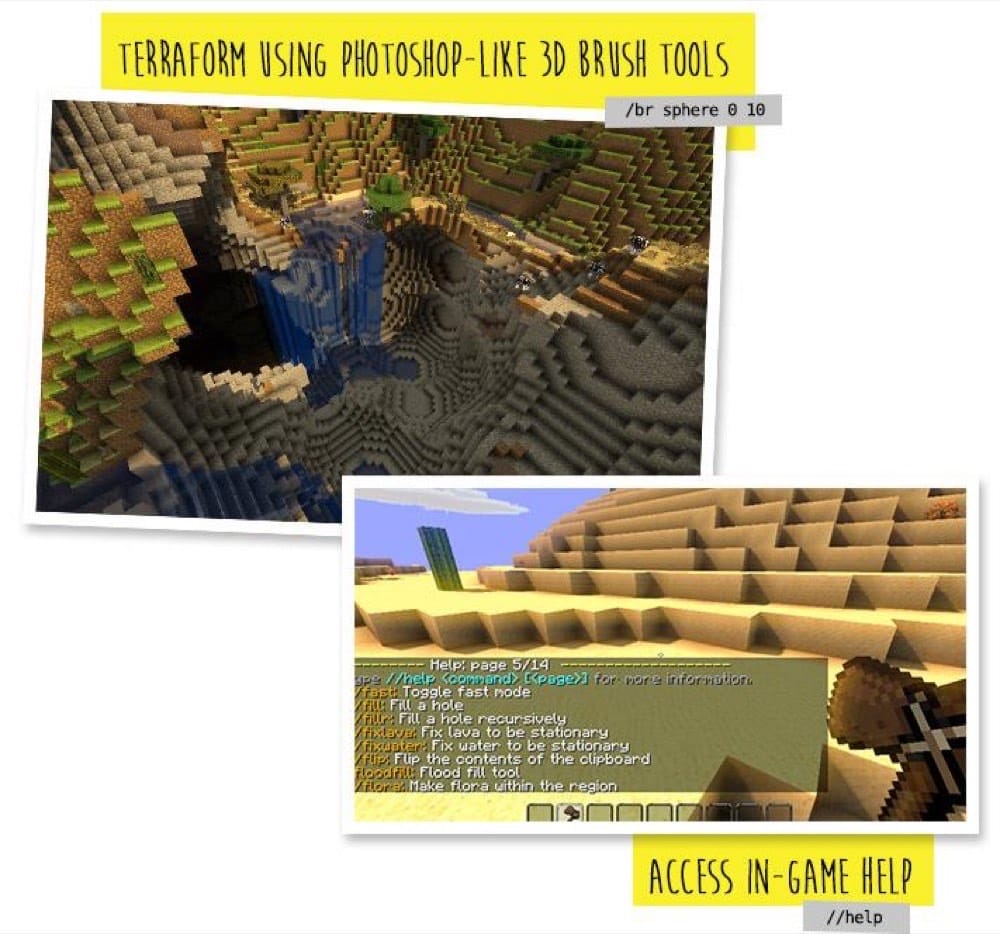
“WorldEdit” gives players a faster way to handle big building tasks that would otherwise be awkward to manage with command blocks. Instead of setting up command blocks for large fills, structure copying, terrain cleanup, or repeated block edits, you can use “WorldEdit’s” in-game editing commands and brush tools to work across large areas much more quickly.
The mod lets you select areas, replace or delete large amounts of blocks, copy and paste builds, save and load schematics, and use brush tools for terraforming. It runs in-game, works in “Creative” mode, and can also be used temporarily in “Survival”.
In singleplayer, cheats/commands need to be enabled unless you change the configuration, and on servers, “WorldEdit” is normally limited to players with operator permissions unless the server permissions are changed.
Better Command Block UI
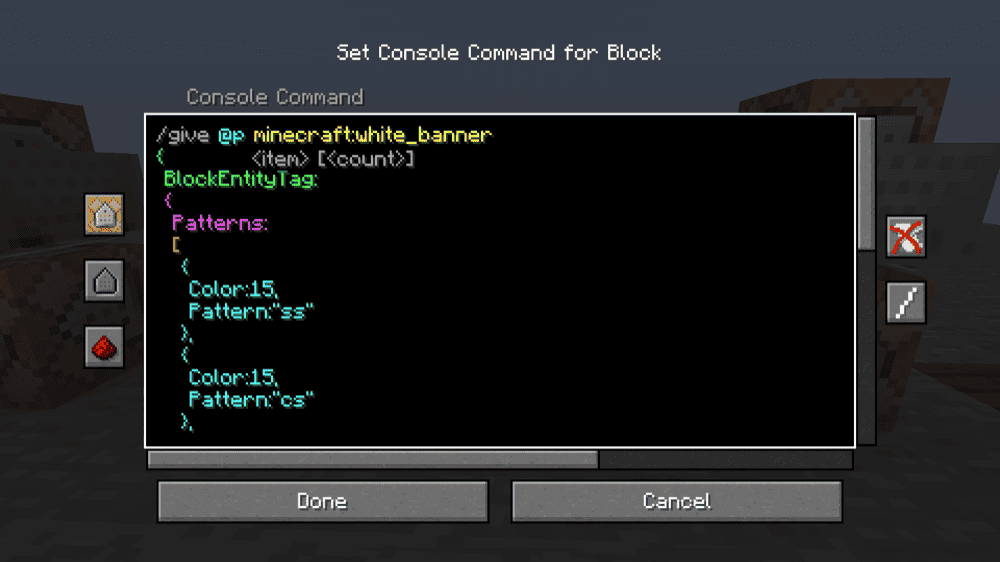
“Better Command Block UI” makes command blocks easier to write, edit, and manage. The mod replaces the normal command block screen with a cleaner interface that supports multi-line commands, scrolling, better text selection, indentation, and color coding for nested NBT data.
It is a good pick for players who already use command blocks and want less frustration when working with long commands. The mod is client-side, so it improves how commands look and feel in the UI without changing how command blocks actually run.
Command Block Ascension
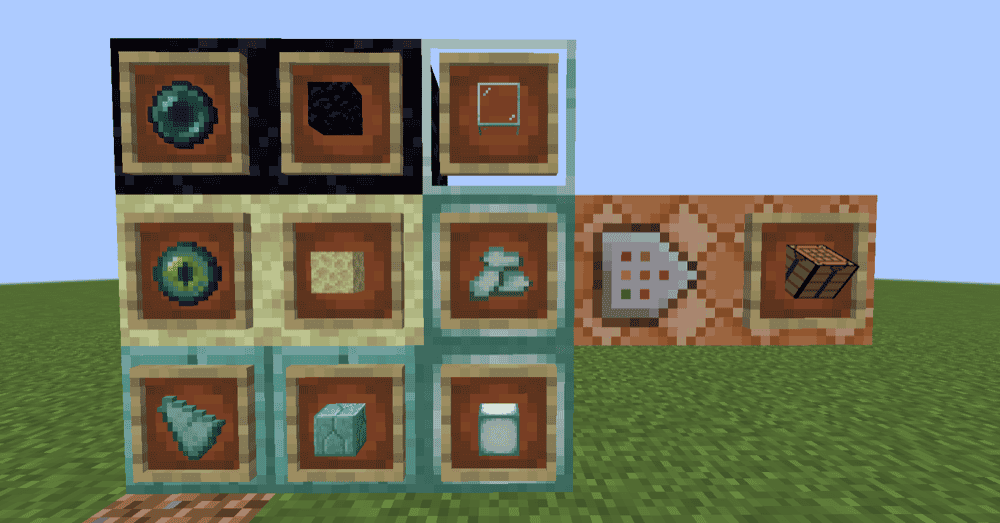
“Command Block Ascension” is for players who want to bring modded command blocks into “Survival” gameplay. It changes the normal vanilla rule by making command blocks usable through modded progression, while also adding related features like a usable Structure Block, command presets, crafting recipes, a custom crafting machine, and various advancements.
Because the mod adds extra gameplay content and powerful tools, “Command Block Ascension” works best as a Survival-focused expansion rather than a small command block utility. It fits players who want command blocks to become part of a modded playthrough instead of something only accessed through commands or “Creative” mode permissions.
How to Install Minecraft Mods
You can install the above mods automatically using the CurseForge app or manually by placing the mod files within your game's mods folder. Both methods allow you to easily add custom features and enhancements into your Minecraft experience.
If you want to learn more, you can read our detailed guide on how to install Minecraft mods.
Common Issues and Quick Fixes
The command gave me the block but I can't open it
You're probably in “Survival” mode whereas the command block GUI only opens in “Creative” mode. Run "/gamemode creative" and try right-clicking it again. On a server, you also need operator status – regular players can't open command block interfaces even in “Creative” mode.
The command block exists on my server but won't run commands
Check "server.properties" for "enable-command-block=false" and change it to "true". Next, restart the server after saving the file. This setting ships as false by default on Java servers, so the block exists but silently does nothing until it's enabled.
Nothing runs on Bedrock even though command blocks are enabled
Check the "commandblocksenabled" game rule. Run "/gamerule commandblocksenabled true" from chat to confirm it's active. Also verify the world setting "Command Blocks Enabled" is turned on from the world settings menu – both the gamerule and the world setting need to allow execution.
A repeating command block is spamming chat or causing problems
On Java, run "/gamerule commandBlockOutput false" to stop a command block output from taking over your chat. On Bedrock, use "/gamerule commandblockoutput false".
If the block itself is looping in a harmful way on Bedrock, run "/gamerule commandblocksenabled false" to shut command blocks off immediately. Then locate the offending block, open it, and either delete the command or switch it to "Needs Redstone" mode so it stops firing continuously.
On Java servers, you can also set "enable-command-block=false" in "server.properties", restart, and then remove the problem block safely.
Using "@s" inside a Bedrock command block does nothing
"@s" doesn't work in Bedrock command blocks because the block has no player identity to target. Switch to "@p" to target the nearest player, "@a" for all players, or use a specific player name if you want to target someone directly.
“WorldEdit” commands aren't working in singleplayer
“WorldEdit” requires cheats to be enabled in the world.
Open the world to LAN ("Escape" → "Open to LAN" → "Allow Commands" → "Start LAN World") to enable them for your current session if you didn't enable them at world creation.
Additionally, confirm you're running Java Edition – “WorldEdit” doesn't support Bedrock Edition.
Game crashes at startup after adding a mod
A startup crash after adding a mod usually means something in the setup does not match. Check that the mod supports your exact Minecraft version and mod loader, and make sure any required dependencies are installed too.
If the game still crashes, try removing the newest mod you added, launching the game again, and then checking the mod page or crash report for a missing dependency or a version mismatch.