The "/teleport" command – or "/tp" for short – lets you move instantly to any coordinates in Minecraft. If you know the "X", "Y", and "Z" values you want, you can use one command to jump straight there instead of traveling manually. This guide explains how coordinates work, how to enter the command correctly, and the most common mistakes that stop teleporting from working.
Before You Start: Enabling Cheats
The teleport command requires command access. In Java singleplayer, you can enable cheats when creating the world or temporarily by opening the world to LAN and turning cheats on for that session. In multiplayer, you would need operator permissions from the server owner or admin.
One note on Java vs Bedrock: "/tp" requires permission level 2 in Java Edition and permission level 1 in Bedrock Edition. On Bedrock singleplayer worlds, that usually means cheats are enabled in the world settings.
How Coordinates Work in Minecraft
Before using the teleport command, it helps to know what "X", "Y", and "Z" actually mean in Minecraft:
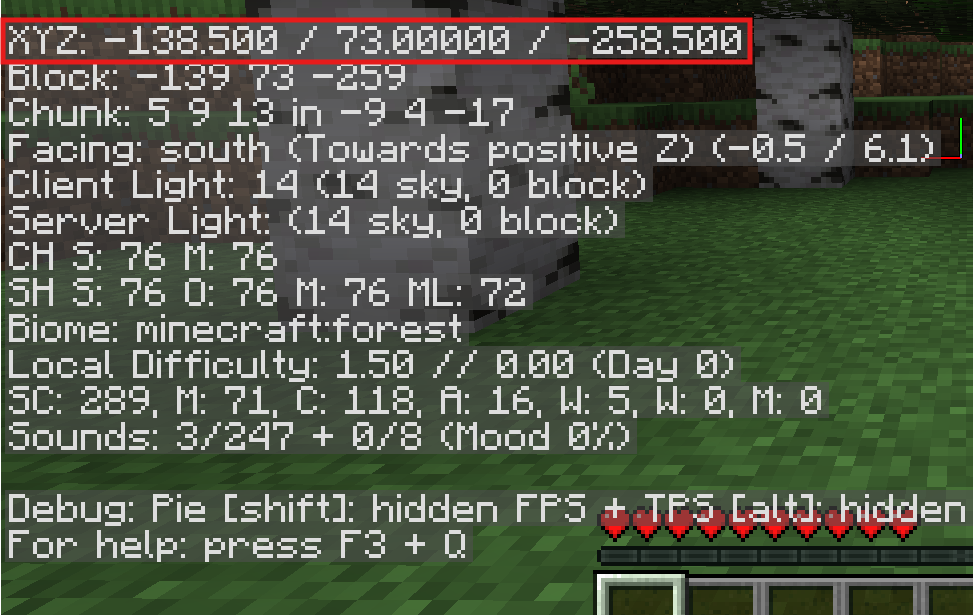
- "X" is your east-west position. Positive "X" is east, negative "X" is west.
- "Y" is your height. In modern Java and Bedrock worlds, the Overworld runs from Y=-64 at the bottom up to Y=320 at the build limit. Sea level sits at Y=63.
- "Z" is your north-south position. Positive "Z" is south, negative "Z" is north.
You can see your current coordinates at any time by pressing "F3" on Java Edition. On Bedrock, enable "Show Coordinates" in your world settings and they'll display in the top-left corner.
The Three Coordinate Types in Minecraft
Minecraft lets you write coordinates three different ways using commands:
- Absolute coordinates are plain numbers that point to a fixed location in the world. "/tp 100 64 -50" always takes you to the same spot regardless of where you currently are.
- Relative coordinates use a tilde (~) and offset from your current position. "/tp ~10 ~ ~-5" moves you 10 blocks to the east and 5 blocks to the north without changing your "Y" level. A tilde on its own means no change on this axis.
- Local coordinates use a caret (^) and move you relative to the direction you're facing. "/tp ^ ^ ^10" moves you 10 blocks forward from wherever you're looking. Note that this one applies to Java Edition only – Bedrock doesn't support it.
How to Teleport to Coordinates Step by Step
Step 1: Find Your Target Coordinates
If you have a location you want to return to, write down its coordinates from the "F3" screen or the Bedrock coordinates display before you leave. If you're trying to reach somewhere new, look it up or calculate it beforehand. You need all three values – "X", "Y", and "Z".
Step 2: Open the Chat
Press "T" on Java Edition or tap the chat icon on Bedrock. This is where you'll enter the command.
Step 3: Type the Teleport Command
For teleporting to absolute coordinates, use:
- "/tp PlayerName 100 64 -50". If you are looking to teleport yourself, you do not need to include the player name.
- "/tp PlayerName YourUsername". If you are looking to teleport another player to yourself, you can swap the name order to teleport you to the other player.
Replace the numbers with your target "X", "Y", and "Z". Make sure "Y" is high enough that you won't land inside a block – if the ground at your destination is at Y=64, use Y=65 or higher to be safe.
Step 4: Check Your "Y" Level
The most common mistake is arriving inside the ground or falling into the void. On Java Edition, if you don't know the exact terrain height at your target, add a few extra blocks to your "Y" value. Y=100 is almost always above ground in the Overworld. Bedrock Edition has a "checkForBlocks" option at the end of the command – setting it to "true" cancels the teleport if your destination is blocked, which prevents you from getting stuck inside a wall. Here’s an example:
"/tp 100 64 -50 true".
Java and Bedrock Command Differences
The core command is the same on both editions, but a few things work differently:
- On Java Edition, local coordinates (^ ^ ^) let you move relative to the direction you're facing. You can also add a facing direction after your coordinates to control which way the player is looking after the teleport. For example, "/tp 100 64 -50 facing 200 64 -50" puts you at the first set of coordinates and turns you to face the second.
- On Bedrock Edition, local coordinates don't exist, but you get the "checkForBlocks" true/false option that Java doesn't have. Otherwise, the syntax is essentially the same.
Using "/tp" in a Command Block
If you want a button or pressure plate that teleports players to a fixed location, command blocks are the way to do it. Place one with "/give @p command_block", enter your teleport command inside it, and leave out the leading slash as command blocks don't use it.
Example for a command block: "tp @p 100 64 200".
Hook up a button or pressure plate with redstone and any player who activates it will be teleported to those coordinates. You can then set the command block to Impulse mode with "Needs Redstone" so it only fires when triggered.
Mods That Work Well with Teleportation
If you use the "/tp" command a lot, these two mods make navigating your world significantly smoother.
Xaero’s Minimap
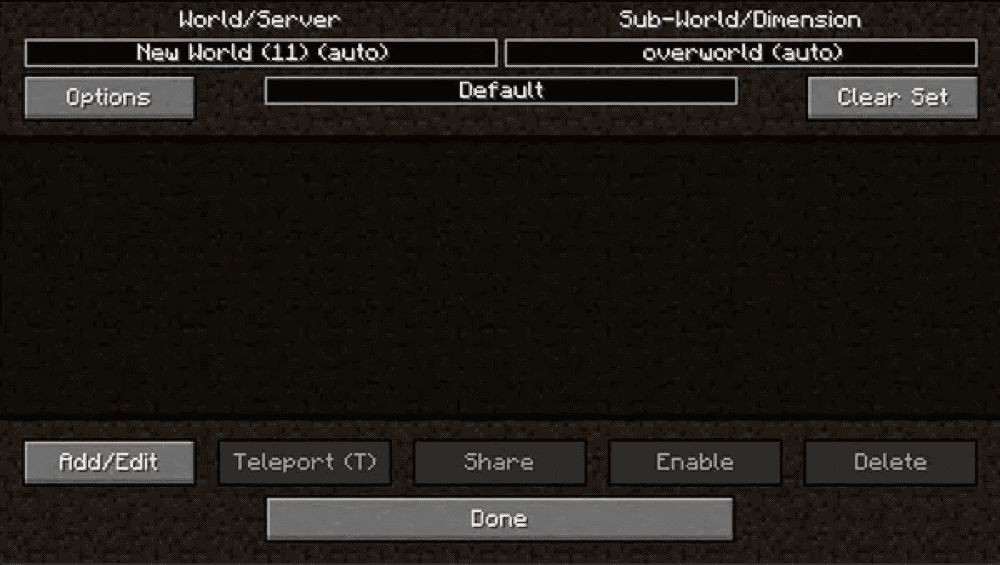
Xaero’s Minimap displays nearby terrain in a small on-screen minimap and can also show players, mobs, items, and other entities around you. It keeps a more vanilla-style look than many minimap mods and includes waypoint markers that appear both on the minimap and in the game world.
You can create waypoints for important locations and use them to return to those spots more easily instead of manually typing coordinates every time. The mod also supports waypoint teleportation, which uses a teleport chat command, so it works only when your world or server allows teleport commands and your permissions are set up for them.
Waystones
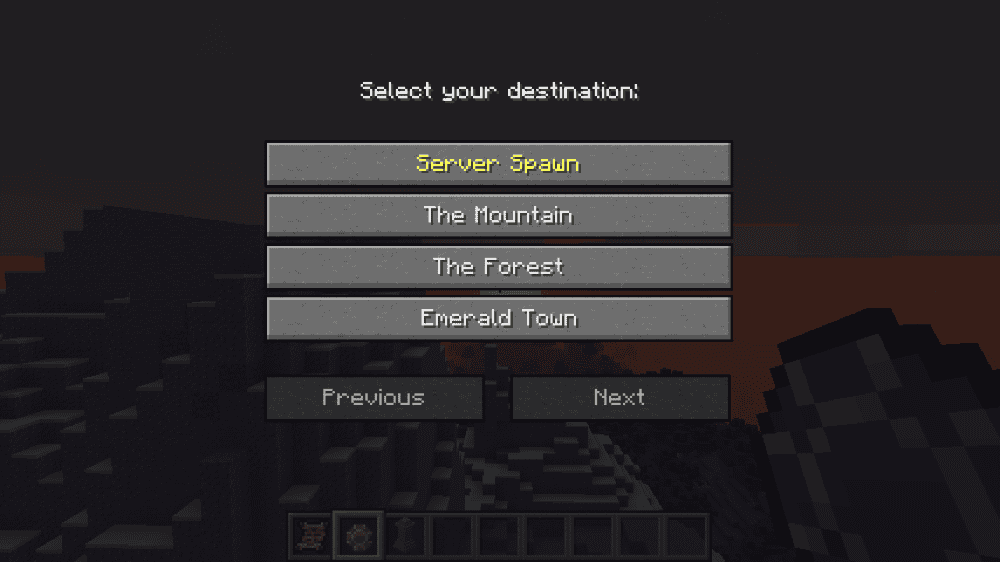
Waystones adds waystones you can activate and warp back to later, either by traveling from one waystone to another, using a single-use Warp Scroll, or using a rechargeable Warp Stone for portable teleporting. The mod also includes Warp Plates, which link two fixed points together and teleport anything standing on them, plus Sharestones, which let players teleport between stones of the same color without activating them first.
By default, Waystones is balanced for survival with teleport costs and cooldown settings that can be configured, and the base configuration includes distance-based XP costs. You can also make Waystones global for shared hubs, enable an optional inventory button for faster access, and ensure that waystone structures can generate naturally in villages.
How to Install Minecraft Mods
You can install the above mods automatically using the CurseForge app or manually by placing the mod files within your game's mods folder. Both methods allow you to easily add custom features and enhancements into your vanilla Minecraft experience.
If you want to learn more, you can read our detailed guide on how to install Minecraft mods.
Common Issues and Quick Fixes
Getting "Unknown command" when typing "/tp" or "/teleport"
If you see this, cheats likely aren't enabled or you don't have OP (operator) status. In singleplayer, open the world to LAN with cheats turned on. In multiplayer, ask the server admin to give you operator access.
I arrived inside a block and took suffocation damage
Your "Y" coordinate was likely too low for the terrain at that location. Add a few blocks to your Y value – if you're unsure of the ground level, Y=100 puts you safely above most Overworld terrain. On Bedrock, you can add "true" at the end of the command to cancel the teleport if the destination is blocked.
The command turned red before I could even run it
This could be due to a syntax error. Make sure you have exactly three numbers separated by spaces with no extra characters. Double-check you're also not using "^" on Bedrock Edition – local coordinates only work on Java.
I teleported to relative coordinates but nothing seems to happen
A tilde alone (~) means no change on that axis. If you typed "/tp ~ ~ ~" nothing will happen because you're teleporting to your current position. Make sure at least one axis has a number after the tilde.
I teleported to the right coordinates but it's the wrong dimension
The teleport command puts you at those coordinates in whatever dimension you're currently in. If you wanted to go somewhere in the Nether but you're standing in the Overworld, you'll end up in the Overworld at those coordinates. You have to be in the right dimension first, or use an "/execute in" command to specify the dimension, though that's an advanced use case beyond a basic "/tp".
My Waystones mod is not working after install
Waystones requires Balm to be installed alongside it. If the mod crashes on launch or doesn't show up in-game, make sure to check that you've added the Balm .jar file to your mods folder. If you are playing using the Fabric modloader, you would also need to add the “Fabric API” mod into the mix. Finally, ensure that the Balm and Fabric versions are matching your Minecraft version.