
If you’ve ever wanted to expand The Sims 4 experience with custom content (CC) or mods, CurseForge is a great place to do that! For some, it can feel a little overwhelming when they're first getting started because, well, anything new can feel that way! Don’t worry, though! With just a little guidance, you’ll soon be managing your mods like a pro and enjoying all the amazing mods that can add new life to your game and make it even more fun!
Let’s walk through the easiest way to get started, manage your mods, and keep everything running smoothly.
First, What is CurseForge?
CurseForge is a modding platform for popular games such as The Sims 4 and is the go-to hub for easy, safe, and rewarding modding. Discover thousands of mods, from custom furniture to gameplay tweaks, & easily install and manage them with the dedicated CurseForge app, & if you like to download manually on the website, that's available too!
Download the CurseForge Desktop app here.
Is CurseForge Safe?
One of the first questions people ask when getting into modding is: “Is this safe?” With so many mods and custom content options out there, it’s understandable to want reassurance. The good news is that CurseForge is one of the most trusted platforms for downloading mods, including for The Sims 4. Here’s why:
- Moderation: All mods uploaded to CurseForge are moderated to ensure they don’t contain malicious code or viruses. More information about our approval process can be read in the "Our Mod Approval Process" article.
- Automated Official Updates (via the App): One of the biggest risks with The Sims 4 mods is when a new official game patch drops, which frequently breaks older mods and causes game glitches. When you use the CurseForge Desktop App, it automatically detects outdated mods and lets you update them with a single click. This keeps your game stable and saves you from accidentally running broken, corrupted code that you downloaded months ago.
- No Ad-Fly or Shady Redirects: Unlike downloading mods from random blogs or third-party sites - which often force you through confusing, ad-heavy shorteners that can trick you into downloading malware - CurseForge provides direct, clean downloads. You click "Download," and the actual file downloads immediately. There are no risky countdown timers, pop-up windows, or deceptive "Download Here" buttons to worry about.
- Community Reviews: Mods on CurseForge often have ratings and comments from other users, which help you gauge their quality and reliability before downloading. Always check these reviews for any potential issues reported by others.
You might also be interested in our recent article, which explains how to identify impersonation attempts and fake "early access" lures to protect yourself from malicious files: "Stay Safe: How To Spot Suspicious Modpacks And Files".
Just like with anything you download from the internet, it’s always good practice to exercise caution, so stay updated with CurseForge news, and back up your game!
How to Get Started: Download the CurseForge App
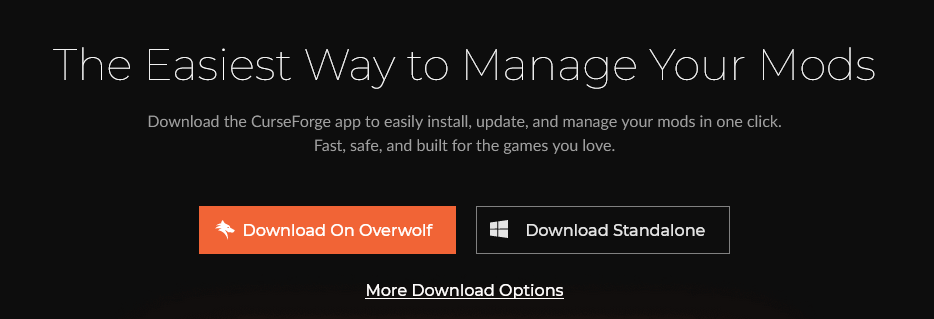
Before diving into mods, you’ll want to download the CurseForge app. It’s the easiest way to manage your mods and keep everything organized.
How to Install CurseForge:
- Step 1: Go to the CurseForge website and download the app.
- Step 2: Install it just like any other program on your PC.
- Step 3: Once installed, open the app and link it to your EA account (or sign in if you already have one).
With the app installed, you’re ready to start browsing for mods and CC for The Sims 4.
Alternatively, you can also browse on the CurseForge website. Here you can browse and download the mods manually with a simple click.
Another helpful tool is a support page for getting started with the CurseForge App. On this page, you will find things like a list of supported games, supported OS, how-tos, & other helpful links.
There's also a support page dedicated to The Sims 4.
Browsing and Installing Mods
CurseForge is packed with both small and large mods to enhance your gameplay. Here’s how you can install them:
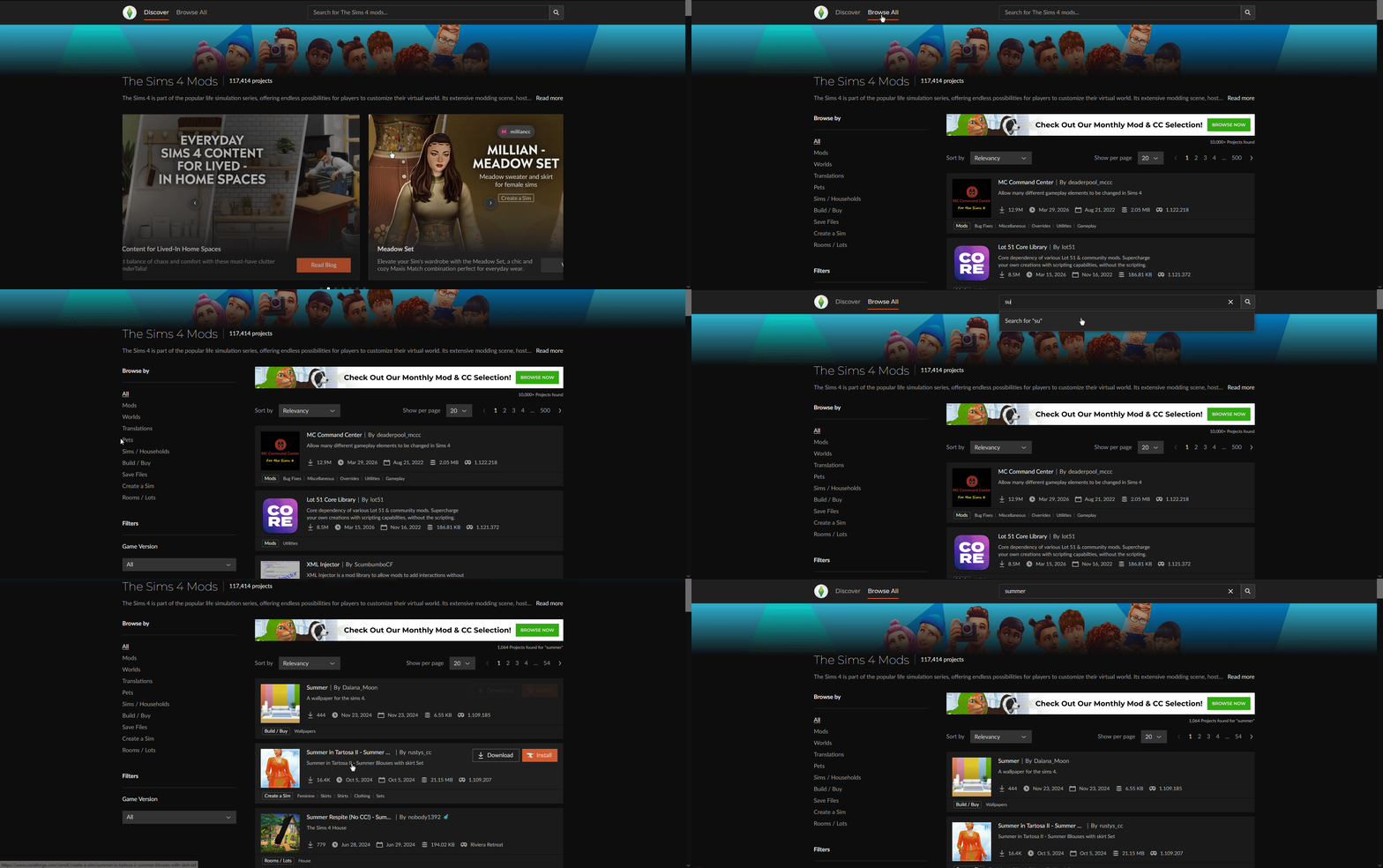
- Step 1: Open the CurseForge app and navigate to The Sims 4 section. Alternatively, browse Sims 4 CurseForge mods on the website and download them manually.
- Step 2: Browse the massive library or search for a specific mod using the search features. You can browse by category, or type your own search words into the search query.
- Step 3: Once you find a mod you like, click on it to view the description, ratings, installation instructions, and other details.
- Step 4: Click on Install. The app will automatically download and install the mod directly into your mods folder. For manual downloaders, just click on the box for manual download on the mod's page. Unzip the mod, and put the unzipped files into your Sims 4 mods folder (Electronic Arts → Sims 4 → Mods. For pre-built lots, the files are called "tray" files, and they go in the "Tray" folder instead of the "Mods" folder.)
Pro Tip: Many mods come with installation instructions, so it’s always good to double-check them. Sometimes mods need extra steps, like custom script files or specific folders!
Managing Your Mods Folder: Keep It Neat!
With the Sims 4 mods, organization is key. Managing a large collection of mods can get a bit tricky, but CurseForge helps by keeping everything neatly organized. Here are a few tips to keep your mods folder clean and your game running smoothly:
- Create Subfolders: Within the Mods folder (which is located in: Documents > Electronic Arts > The Sims 4) , you can create subfolders to organize different types of content (e.g., Furniture, Clothing, Gameplay Mods). This will make it easier to manage and disable specific mods if needed.
- Use the "Remove" Feature: CurseForge allows you to disable a mod without actually deleting it. This is great if you want to test your game without certain mods, or you’re troubleshooting an issue.
- Don’t Overload the Folder: While it’s tempting to add as many mods as possible, too many can slow down your game. Try to limit the number of mods you use at one time. If you ever encounter a performance issue, you can remove some and see if it helps!
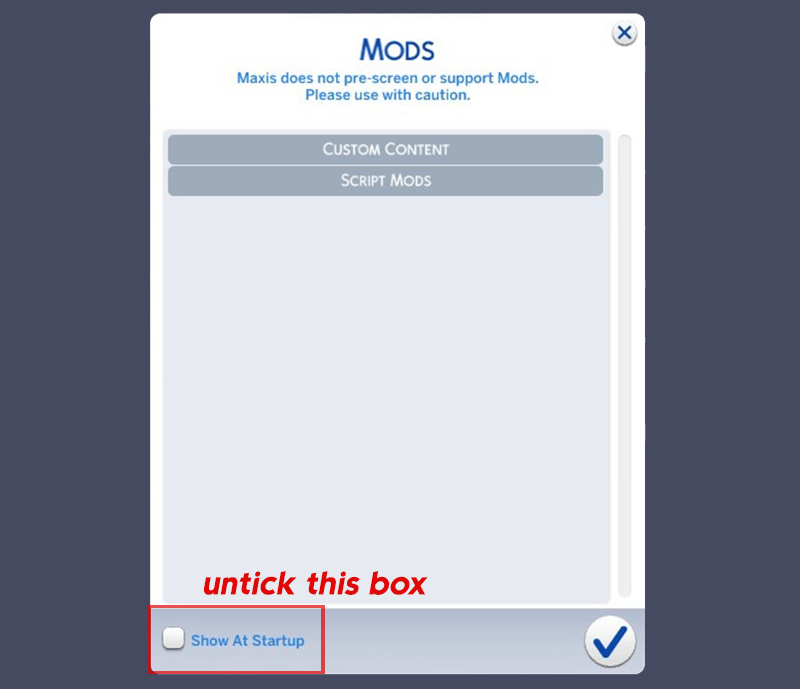
- Disable the In-Game Mods List for Faster Loading. If you’ve ever noticed a long delay when loading your game, especially with a large mods folder, you might want to consider disabling the mods list that pops up every time the game starts. This list shows all the mods you’ve installed, but it can slow down the loading time significantly, particularly if you have lots of mods. By turning it off, you can enjoy faster game startup times and less waiting.
How to Disable the In-Game Mods List:
- Step 1: Open the Options menu in The Sims 4.
- Step 2: Go to the Other tab.
- Step 3: Uncheck the box for Enable Mod/CC Loading List.
Once disabled, the game will skip displaying the mod list, letting you jump straight into the action! It’s a small change that can make a big difference in loading time on startup, especially if you have a lot of mods.
Keeping Your Mods Updated
One of the easiest ways to ruin your modding experience is by using outdated mods. The Sims 4 regularly gets updates, and mods need to be updated to stay compatible. Thankfully, CurseForge makes it super easy to keep everything up to date.
How to Keep Mods Updated:
- Automatic Updates: CurseForge will notify you when mods need to be updated, and in many cases, it will handle the updates for you!
- Manual Updates: If you prefer to update manually, you can always check the mod page for the latest version and install it yourself.
Tip: Always back up your mods folder before updating. Sometimes a new update might break compatibility with older mods, and having a backup saves you from losing everything!
Troubleshooting Mods: What If It’s Not Working?
Mods don’t always play nice with each other, or they can be affected by The Sims 4’s own updates. Here’s what to do if something’s not working right:
How to Troubleshoot:
- Step 1: First, check if there was a game update. Mods often need to be updated after a patch. You can visit the mod page on CurseForge to see if there’s a new version available.
- Step 2: Try removing mods one by one. If your game works fine without a particular mod, that’s likely the problem mod.
- Step 3: Keep track of which mods you’ve removed and reinstall them later. CurseForge lets you easily manage and reinstall any mod you’ve downloaded.
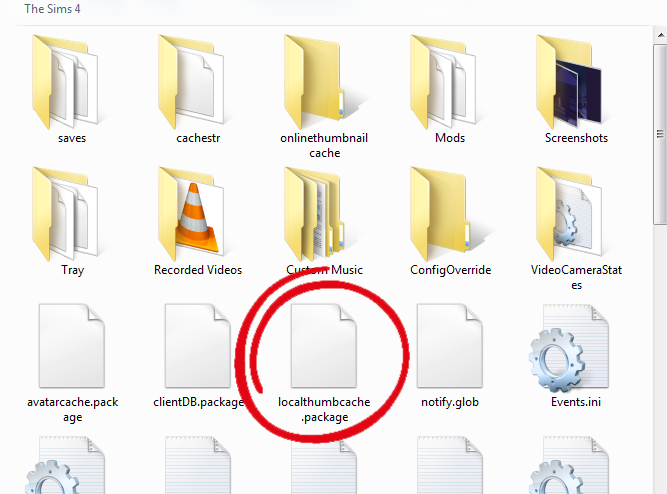
Tip: If you're still having issues, a simple thing to try is deleting the localthumbcache.package file from your Sims 4 folder. It's located in Electronic Arts → Sims 4, and it should be right at the top. The game will create a new version of this file on your next startup.
The reason for this is the cache file can sometimes become corrupted, thumbnails can become outdated, or simply new mods have been added. If any of these issues are present, or there are any remnants of old or unused mods lingering in the cache, renewing the file can improve the game's overall performance, especially after an update or mod removal.
Final Tips: Keep Things Fun and Safe!
- Backup Regularly: Always back up your mods folder, especially if you’re trying new mods or updating to a new version of The Sims 4. It’s better to be safe than sorry!
- Check Compatibility: Not all mods are created equal. Make sure they’re up to date and compatible with the current version of The Sims 4.
- Experiment: Don’t be afraid to try new mods! They’re a great way to add new features and fun elements to your game. You’ll be surprised by how much creativity and flair mods can bring!
Enjoy Your Modded Sims 4 Experience!
And that’s all there is to it! With CurseForge, managing mods has never been easier. You’ll have everything organized, updated, and ready to go in no time. Plus, with so many mods to choose from, the fun is endless. So dive in, experiment, and make The Sims 4 the game of your dreams one mod at a time!